
4K vs 1440p for Work: Everything You Need to Know for 2026
Disclosure: We may earn a commission when you buy through links on this page, at no extra cost to you. As an Amazon Associate I earn from qualifying purchases. Learn more

4k vs 1440p for work: how text clarity, screen space and scaling differ, what your laptop can drive, and who should pay for 4K.
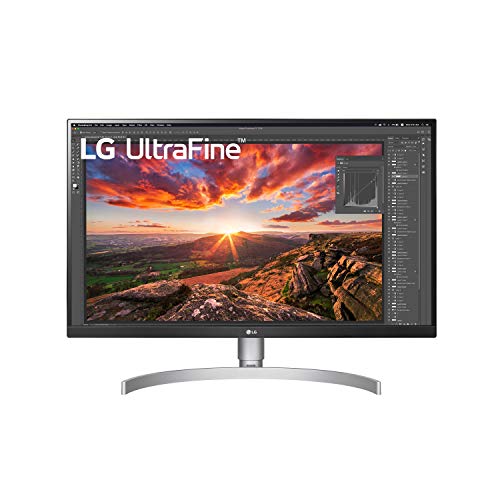
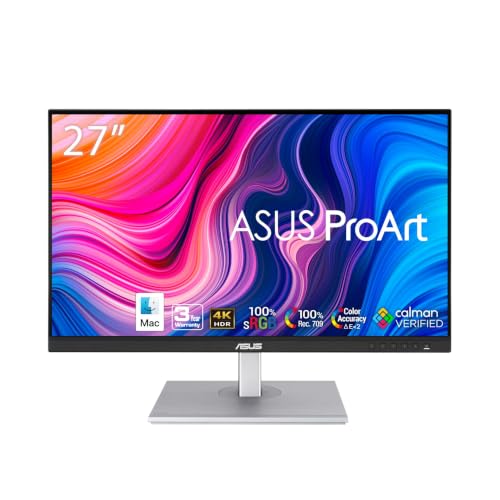
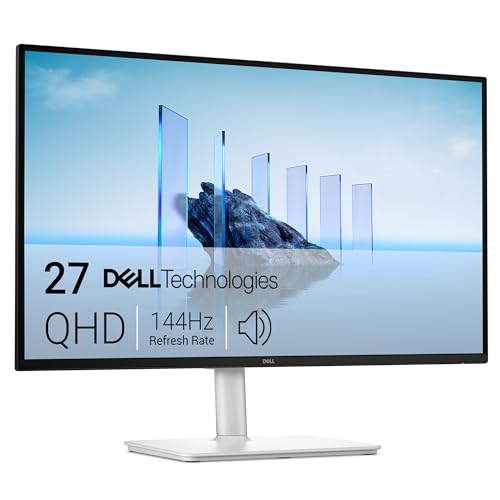
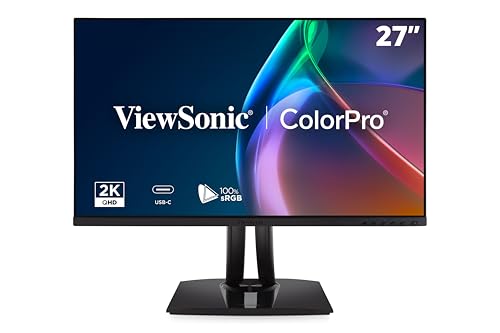
For office use, 4k vs 1440p for work is less about games and more about text, workspace and how your laptop or desktop connects. 4K gives razor-sharp text and a lot of room if you scale it sensibly, while 1440p is cheaper, easy to drive and comfortable at a larger size without any scaling fuss. The product table right after this introduction lists monitors for work in both resolutions.
Use the sections below to decide based on your tasks, your eyes, your computer and your budget.




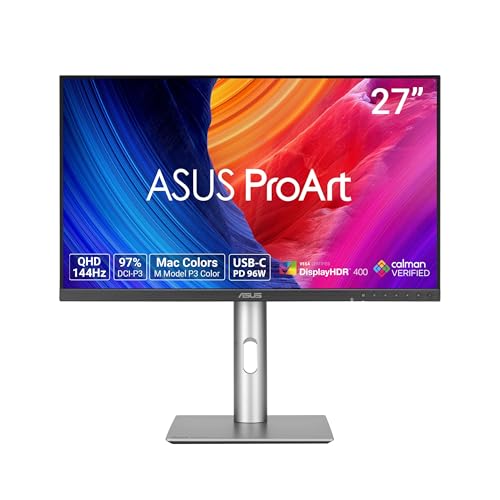
Text Clarity and Eye Comfort
Most work is reading and typing, so text quality matters most. At 27 inches, 4K reaches about 163 pixels per inch against roughly 109 for 1440p. Letters look smoother and printed-page sharp on 4K, especially small fonts in spreadsheets and code. Some people notice reduced eye strain after long hours.
1440p at 27 inches is already clear and comfortable, and many users never feel the need for more. If you work with fine detail, such as legal documents, tiny data tables or design drawings, the extra sharpness is a real benefit. If your tasks are email, browsing and documents, 1440p serves very well.
Workspace and Scaling
Resolution determines how much you can fit on screen, but scaling changes the usable space. A 27-inch 4K monitor is typically run at 150 percent scaling, which gives roughly the same layout as a native 1440p screen, only sharper. A 32-inch 4K monitor at 125 percent gives more space than 1440p at 27 inches.
If you want more windows side by side without extra monitors, a larger 4K screen is the best answer. If you prefer to keep text at its normal size without scaling, a 27-inch 1440p screen is straightforward and reliable. Scaling works well on modern systems, though a few older programs look blurry at fractional settings.
- 27 inch 4K at 150 percent: sharp text, workspace similar to 1440p.
- 32 inch 4K at 125 to 150 percent: sharp text and extra space.
- 27 inch 1440p at 100 percent: simple, comfortable, cheaper.
Laptop and Desktop Compatibility
Check what your computer can drive. Many laptops handle 4K at 60Hz over a single USB-C or HDMI cable without trouble, but some budget machines and older models struggle or only support 30Hz at 4K, which makes the cursor feel laggy. Look at the video outputs in your computer's documentation before buying.
USB-C monitors that deliver power and data over one cable are a big convenience for laptop users, who can plug in once and charge, connect a keyboard and display. Our guides on connecting two monitors to a laptop and connecting a monitor to a MacBook explain the cables and settings.
Performance and Battery Impact
Driving more pixels uses more graphics power. For office work the load is trivial on any modern computer, but on a thin laptop running on battery, a 4K external display can shorten battery life slightly and make the fans spin more under heavy tasks. Integrated graphics handle 4K for ordinary work without problems.
If you do light video editing or work with many high-resolution images, a 4K monitor lets you see them at a more natural size. If your computer is older or underpowered, a 1440p monitor avoids slowdowns.
Color, Ergonomics and Features
For work, features other than resolution often matter just as much. Look for a flicker-free backlight, adjustable height, tilt and rotation, and built-in USB hubs. A matte finish cuts glare in bright offices. If color accuracy matters for design, check the panel's sRGB or wider coverage and whether it ships calibrated.
Brightness and an anti-glare coating help in sunlit rooms. Keep the screen clean, since fingerprints reduce clarity, and see our short guide on how to clean a monitor screen for safe methods.
Price and Value
1440p monitors cost less, and good office models are very affordable. 4K prices have fallen, and capable 27-inch 4K monitors are now within reach, though models with USB-C power delivery and good color cost more. Weigh the extra spent against the hours you will stare at text each day.
For office use, a mid-priced 27-inch monitor with a sharp panel and a good stand is a better buy than a more expensive screen with features you do not need. Read our best computer monitor list for models across budgets.
Multiple Monitors and Mixed Setups
Many people pair two screens at the desk. Two 27-inch 1440p monitors give a large, affordable workspace, and a single 32-inch 4K gives similar room on one panel with no bezel in the middle. Mixing resolutions works, though windows can change size when dragged between screens, and scaling needs to be set separately for each.
If you already own a 4K screen, add a second of the same size for consistency. If you buy two new ones, matching the model makes colors and brightness line up, which is easy on the eyes during long days.
Video Calls, Screen Sharing and Presentations
High resolution helps you see shared documents clearly, but it also makes it easy to share a screen that looks tiny to others. Share a single window, not the whole display, and use a zoom feature if the audience sees low-resolution video. A 1440p display produces a share that is easier to read for remote viewers than a 4K display shown at native size.
A webcam mounted on top should sit near eye level. Large monitors raise the camera, so a stand with height adjustment keeps you framed well.
4k vs 1440p for work: Which Should You Choose?
Choose 4K if you
- Read small text or detailed documents for long periods.
- Edit photos or video and want more detail.
- Have a computer that handles 4K at 60Hz easily.
Choose 1440p if you
- Want a comfortable 27-inch screen at a lower price.
- Use an older or modest computer.
- Prefer simple setup without display scaling.
FAQ
Is 4K worth it for office work?
It is worth it for sharper text and detailed work, though 1440p is already good for most office tasks.
Will 4K make text too small?
Not if you use scaling, which makes text comfortable while keeping it sharp.
Can my laptop run a 4K monitor?
Most recent laptops can, but check the video output and the supported refresh rate.
Which is better for coding?
4K offers crisper text and more lines on screen, which many developers prefer, though 1440p works well.
When deciding 4k vs 1440p for work, choose 4K for the sharpest text and workspace if your computer supports it, and 1440p for a lower-cost, easy-to-run office screen.


