
PC Accessories
Keyboards, mice, mounts, and other desk and PC accessories.

Best Printers for Photo Printing of 2026: Complete Buying Guide

Best Compact Photo Printers: Which One Fits the Way You Use It?

Best Computer Keyboards: Budget, Midrange, and Premium Picks

Best Computer Printers for Home by Budget: Smart Picks for 2026

Best 3D Printers for Beginners: Which One Fits the Way You Use It?
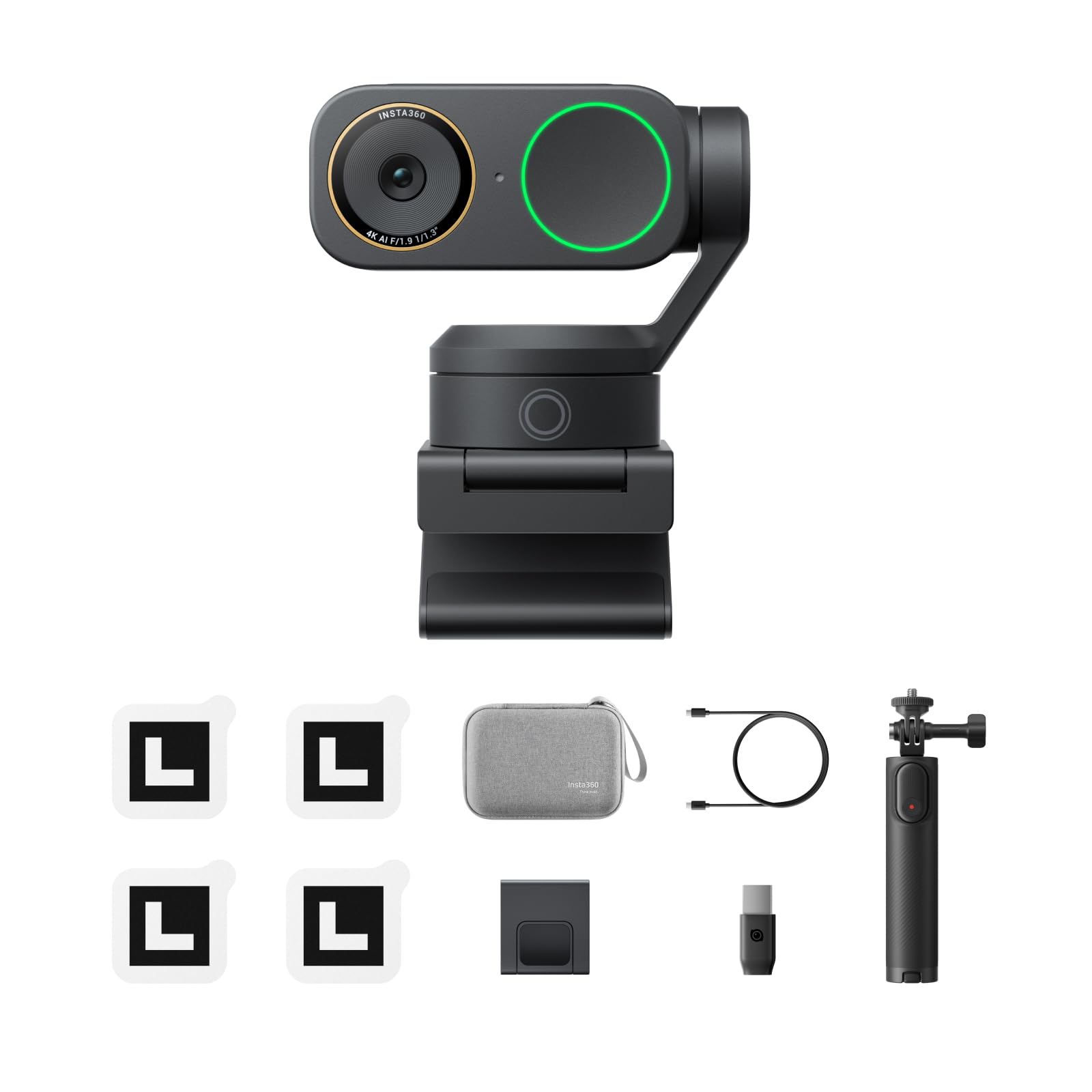
Best Webcams for Streaming: What Actually Matters in 2026

Best Motherboards for Gaming in 2026: What to Check Before You Buy
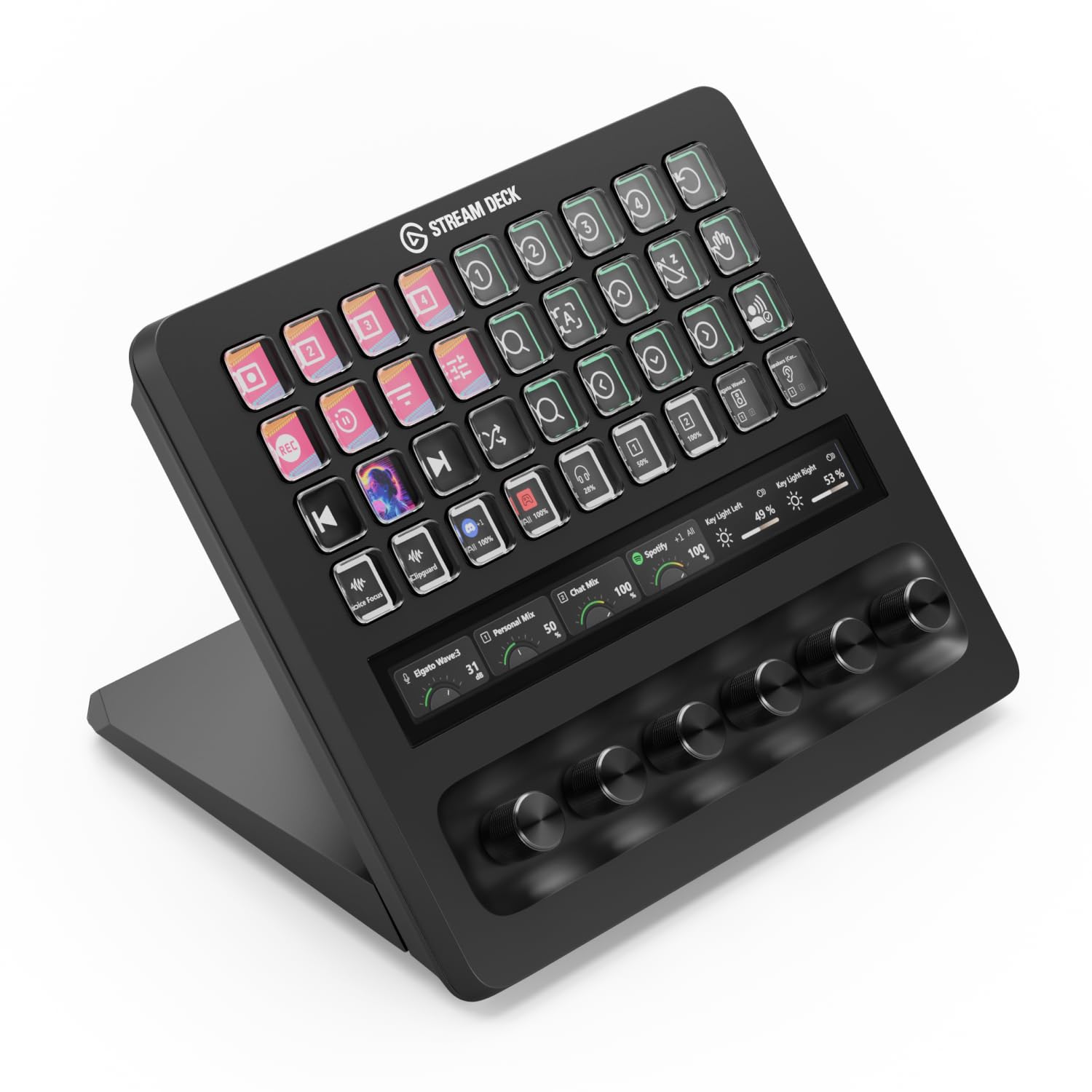
Best Stream Deck for Streaming: A Complete 2026 Buying Guide
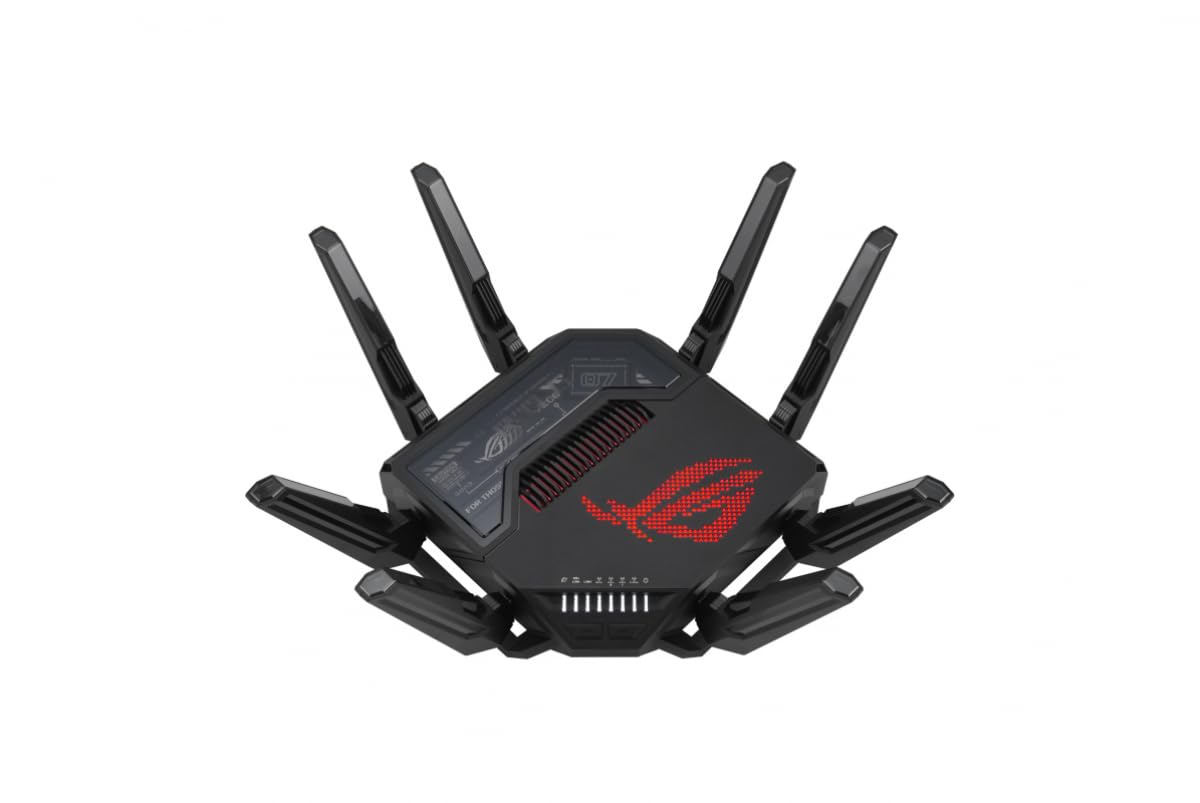
Best Gaming Routers: What Actually Matters in 2026
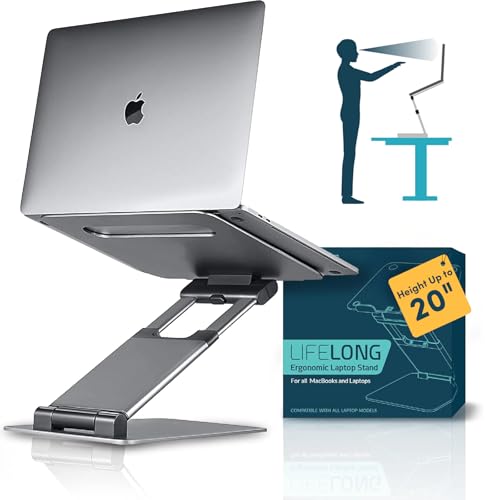
Best Laptop Stand for Gaming Laptops: A Buying Guide
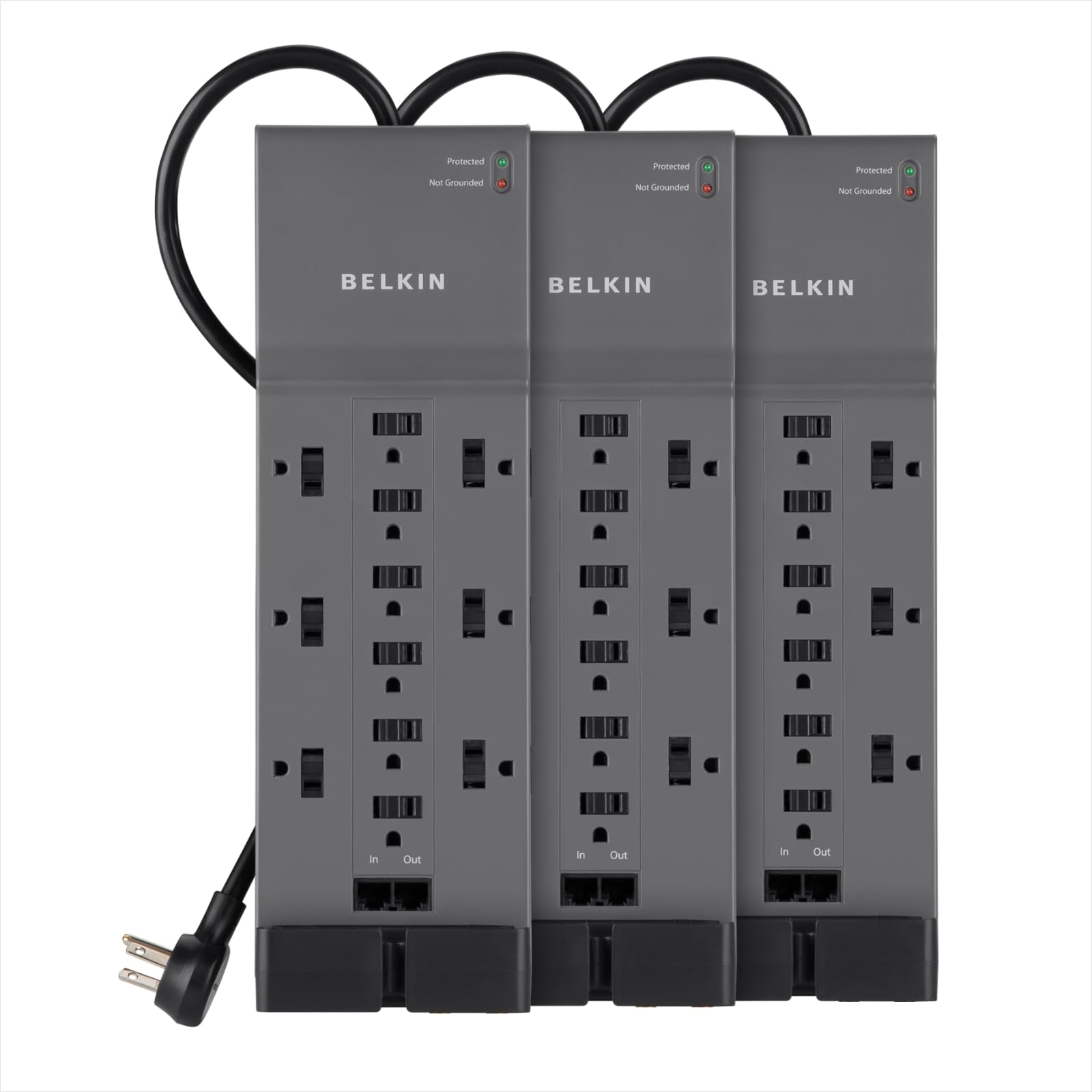
Best Surge Protector for a Gaming PC: A Buying Guide
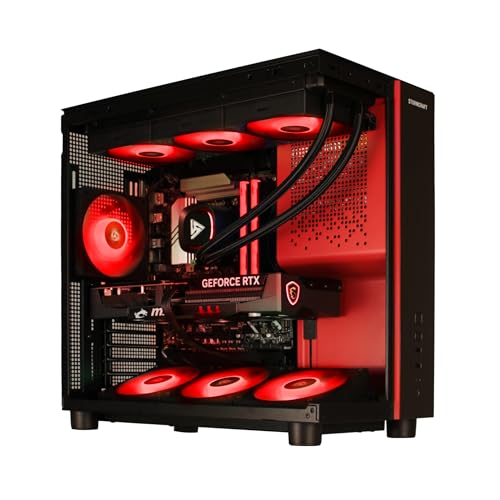
Best SSDs for Gaming in 2026: NVMe, Capacity, and Endurance Guide
Upgrades That Improve Daily Use
The accessories around your computer affect comfort and productivity every day. A responsive keyboard, a mouse that fits your hand, and good cable management can make an older PC feel new. When choosing what to upgrade first, focus on the items you touch most and any parts that cause discomfort or slowdowns.
Popular Accessory Types
- Keyboards: mechanical keyboards offer durability and satisfying feedback. Switch types range from quiet linear to tactile and clicky. Compact layouts free desk space for mouse movement.
- Mice: shape, weight, and sensor quality matter more than extra buttons. Our gaming mouse section covers wired and wireless choices.
- Monitor arms and mounts: free up desk space and let you set your screen at eye level.
- Cooling upgrades: a better CPU cooler lowers temperatures and noise.
- Docks and hubs: add ports for laptops and small desktops with one cable.
- Webcams and lighting: help remote workers and streamers look clear on calls.
Cooling: A Practical Upgrade
Stock coolers often run loud under load. A quality air cooler can reduce temperatures and keep boost clocks steady. Before buying, check socket compatibility, cooler height against your case limit, and RAM clearance. Our guide to CPU air coolers explains how to size a cooler for your build.
Desk ergonomics tie these upgrades together. Keep the top of the monitor near eye level, your elbows close to a 90 degree angle, and your wrists straight while typing. A large desk mat gives the mouse a consistent surface, and a wrist rest can reduce pressure for people who type for hours.
Cable management is an inexpensive upgrade that is easy to overlook. Under-desk trays, velcro ties, and a single power strip keep wires tidy, make cleaning easier, and help airflow around your PC.
Common Mistakes
- Buying a tall cooler without measuring case clearance.
- Choosing a keyboard layout that lacks keys you use often, such as a number pad for spreadsheets.
- Ignoring wrist position, which leads to strain over long sessions.
- Buying a monitor arm that cannot support your screen's weight or size.
Your seat is part of the setup too. Pairing good accessories with a supportive chair from our gaming chairs category helps you stay comfortable through long work or gaming sessions.
PC Accessories FAQ
Are mechanical keyboards worth it?
Many people prefer mechanical keyboards for their feel, durability, and replaceable keycaps. Quiet linear switches suit shared spaces, while tactile switches give clear feedback for typing.
How do I know if a CPU cooler fits my case?
Compare the cooler height with your case maximum cooler clearance, confirm socket support, and check that it will not block tall RAM modules.
What size monitor arm do I need?
Check the arm's supported screen size and weight range, and confirm your monitor has VESA mounting holes. Desk thickness also matters for clamp mounts.
Do I need a USB hub or dock?
A dock helps if your laptop has few ports or you connect several devices at your desk. Look for USB-C docks with power delivery to charge your laptop.
Which PC accessory should I upgrade first?
Start with what you use most and what causes discomfort, usually the mouse, keyboard, or chair. These upgrades improve every session.