
Anker Nano 13-in-1 Docking Station Review for 2026: Ports, Monitors and Charging
Disclosure: We may earn a commission when you buy through links on this page, at no extra cost to you. As an Amazon Associate I earn from qualifying purchases. Learn more

Anker Nano 13-in-1 docking station review covering the detachable hub, triple displays, 100W charging, ports and laptop compatibility.
This Anker Nano 13-in-1 docking station review is for anyone who wants to run a laptop, two or three monitors and a pile of accessories from one USB-C cable. It is the current 13-in-1 dock from Anker that you can buy new, so it replaces the older Anker 575 for shoppers who liked that dock's idea of many ports in one box.
The product table above shows it beside other docks at lower and higher prices, which makes it easier to see what you pay for extra ports and display outputs.
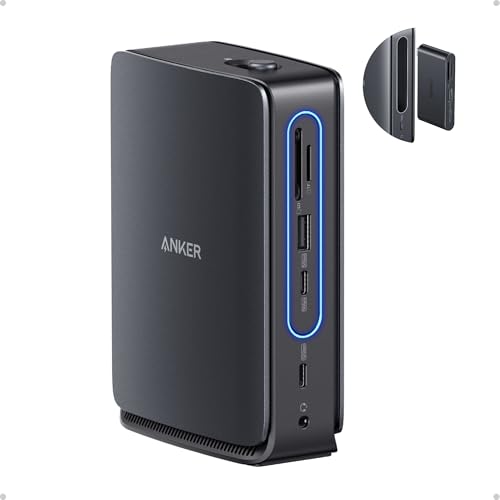


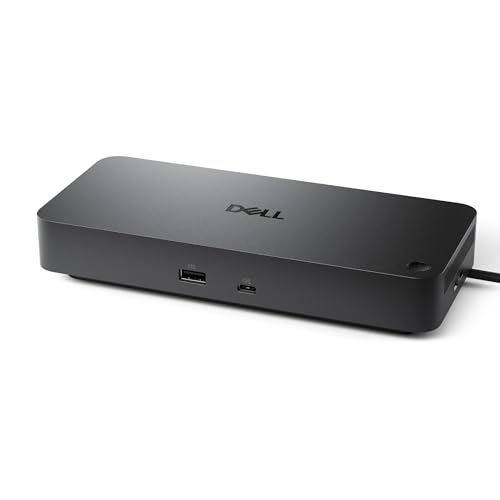
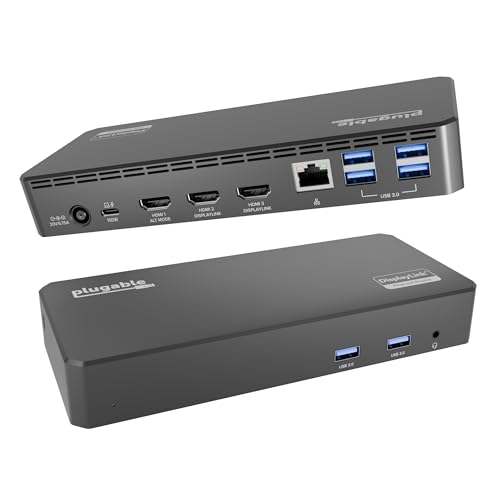
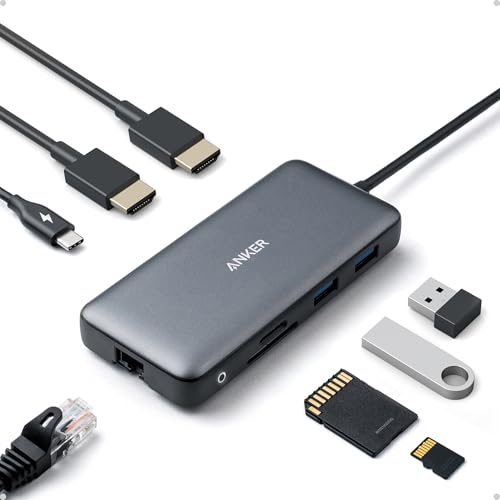

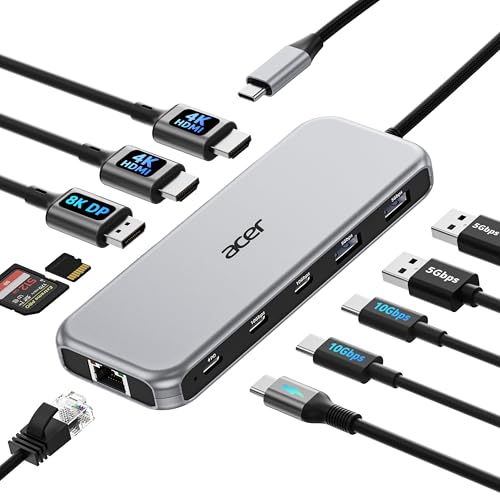
What the Dock Offers
The main idea is a detachable design. The listing describes a 13-in-1 desktop dock with a 6-in-1 portable hub that snaps off for travel. You leave the main dock on your desk and carry the small hub in your bag, so one purchase covers both places you work.
Port count from the listing: one USB-C upstream connection to your laptop, two USB-C data ports at 5Gbps and 10Gbps, three USB-A ports, two HDMI ports, one DisplayPort, Gigabit Ethernet, a 3.5mm audio jack, SD and TF card slots, and a DC power input.
Monitor Support and Limits
The dock can drive up to three monitors through the two HDMI ports and the DisplayPort. The listing gives the limits clearly: 4K at 60Hz for a single display, dual 2K at 60Hz for two displays, or triple 1080p at 60Hz for three displays. That matters because the resolution drops as you add screens.
- One 4K monitor works well for most home offices.
- Two QHD monitors are a good fit for spreadsheets and coding.
- Three monitors work, but only at Full HD each.
Laptop support also matters, and the answer depends on the laptop. Mac laptops handle external displays differently from Windows machines, and some base Apple chips limit the number of outside screens. Check your laptop's display limits before you plan a triple setup.
Power and Charging
The dock delivers up to 100W of Power Delivery to the laptop, and it ships with a 140W power adapter, which gives it headroom for the dock's own ports. That is enough for most thin and light laptops and many mid-range models, but a large gaming laptop or a workstation may need more than the dock can send.
The listing includes one note worth reading: the dock needs a laptop connection to work. The light strip and the ports only come on when a laptop is connected through the upstream port.
Data Speeds and Everyday Use
A 10Gbps USB-C data port handles fast external drives well, and the USB-A ports suit a keyboard, a mouse, a webcam or a headset. Gigabit Ethernet gives a stable wired network, which matters for video calls and large file transfers. The card slots help photographers and anyone who moves camera files to a laptop.
If you run many accessories at the same time, keep the heaviest users, such as external drives and capture cards, on the fastest ports. Spreading devices across ports helps keep everything stable.
Windows and Mac Notes
Anker advertises compatibility with Dell XPS, Lenovo ThinkPad, HP Spectre and most Windows laptops with USB-C. On a Mac, the dock charges and connects accessories, but external display behavior depends on the chip, so confirm the display rules for your exact laptop. Always make sure the USB-C port on your laptop supports video output and charging.
Who Should Buy It
It suits someone with a home office laptop who also works away from the desk, since the detachable hub is the clear selling point. It also suits a small business that wants a clean three-monitor desk with a single cable. It is not a fit for a laptop with an unusual port or for someone who needs dual 4K displays at 60Hz, where a Thunderbolt dock like the Anker Prime in the table is a better match.
Our best docking station guide compares more options by display support and price.
Anker Nano 13-in-1 Docking Station Review: How It Compares
Compared with the older 13-in-1 Anker dock in the table, this model adds the detachable hub. Compared with cheaper 8-in-1 and 11-in-1 docks, it gives more ports and triple display output. Compared with premium Thunderbolt docks, it gives up bandwidth and the highest display modes but costs much less.
What to Check Before You Order
- Your laptop's USB-C port: video output and charging must both be supported.
- The number and resolution of monitors you want.
- The wattage your laptop needs when it is working hard.
- Whether you will use the detachable hub on trips.
Setting Up a Clean Desk With the Dock
Start by placing the dock where its cables reach the monitors and the wall without strain. Plug the power adapter in first, connect the monitors, then attach the single USB-C cable to the laptop. If a screen stays dark, unplug the cable and plug it back in, and try the other HDMI port before suspecting the monitor.
Update your laptop's firmware and graphics drivers, because docks depend on them. On Windows, open the display settings to arrange the screens and choose which one is the main display. On a Mac, use the display arrangement panel and check the resolution for each screen.
Use short, good-quality cables for the monitors, since long or cheap cables are a common cause of flicker. The detachable hub is easy to forget at the desk, so keep a spare cable in your bag if you travel often.
FAQs
Does the Anker Nano dock charge a laptop?
Yes, up to 100W with the included 140W power adapter.
How many monitors can it run?
Up to three, but resolution falls as you add screens: 4K60 for one, dual 2K60 for two, triple 1080p60 for three.
Can I use the small hub on its own?
Yes. The 6-in-1 hub is detachable for travel.
Is it compatible with a MacBook?
It charges and connects accessories, but the number of external displays depends on the chip.
Final Verdict
Read this Anker Nano 13-in-1 docking station review as a guide to a flexible, well-equipped dock. Check your laptop's video and charging support, decide how many monitors you need, and compare the table docks by price before you buy.
Because listings and bundles change, confirm what is in the box on the product page.


