
Best Solid State Hard Drives: Which One Fits the Way You Use It?
Disclosure: We may earn a commission when you buy through links on this page, at no extra cost to you. As an Amazon Associate I earn from qualifying purchases. Learn more

Internal NVMe, SATA and portable SSDs matched to gamers, students, Mac users and laptop upgraders, with features and mistakes to avoid.
Swapping a spinning hard drive for a solid state drive is the single biggest speed upgrade most computers can get. Boot times drop to seconds, apps open instantly and games load far faster. But SSDs come in several shapes, interfaces and speed classes, and the best choice for a gaming desktop is very different from the best choice for an old laptop or a MacBook that needs extra storage. This guide to the best solid state hard drives starts with how you will use the drive, then explains which type fits.
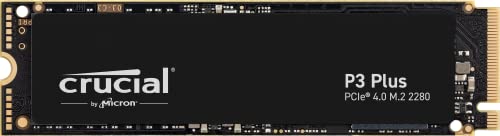
The short answer: most desktop and laptop users should choose a PCIe 4.0 NVMe M.2 SSD of 1TB to 2TB, such as the Crucial P3 Plus for value or the Samsung 990 Pro for top performance; older computers without M.2 slots need a 2.5 inch SATA SSD like the Crucial MX500; and Mac users or anyone needing extra space on the go should choose a portable USB C SSD like the SanDisk Extreme Portable or Samsung T7 Shield.


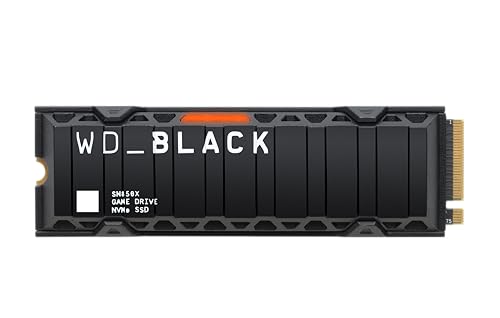

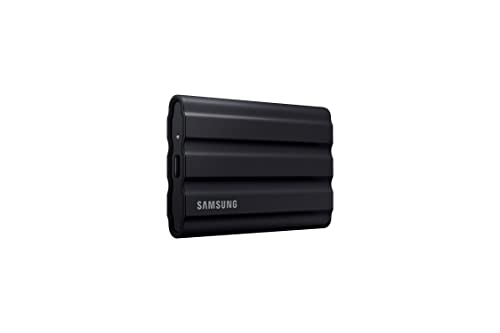
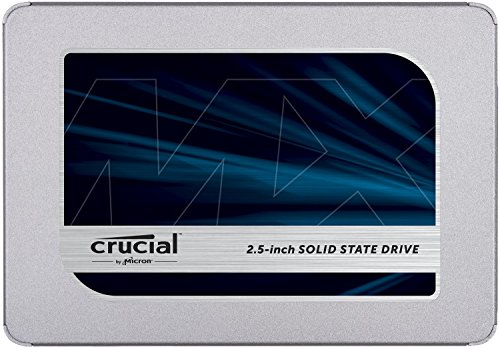

Top 3 Picks at a Glance
These three drives from the product table above represent the best performance internal SSD, the best value NVMe drive and the best portable option.


Who Should Buy Which Solid State Hard Drives?
SSDs fall into three main types. NVMe M.2 drives plug directly into a motherboard slot and offer the highest speeds. SATA SSDs use the older 2.5 inch format and connect like traditional hard drives, ideal for older PCs. Portable SSDs connect over USB or Thunderbolt for external storage. Your computer and needs decide which fits.
For First Time Buyers
First time buyers upgrading an older laptop or desktop should first check which slots their computer has. If it has an M.2 slot that supports NVMe, a mainstream PCIe 3.0 or 4.0 NVMe drive is the best choice. If not, a 2.5 inch SATA SSD delivers a huge speed boost over a hard drive and fits almost any older system. A 1TB drive is the sweet spot for most users, leaving room for apps, photos and updates.
For People Who Want the Best Performance
Gamers, video editors and power users benefit from high end PCIe 4.0 or PCIe 5.0 NVMe drives with fast sequential speeds, strong random performance and DRAM cache that keeps speeds consistent during large transfers. Drives with heatsinks maintain performance under sustained loads, and PS5 owners need drives that meet Sony's speed and size requirements. Capacities of 2TB or more suit large game libraries and video projects.
For Value Seekers
Value seekers get excellent everyday performance from budget PCIe 4.0 drives without DRAM, which are fast enough for gaming, office work and school. The real world difference between budget and premium NVMe drives is small for most tasks; capacity often matters more than peak speed. Shop during sales, since SSD prices fluctuate significantly.
For Mac Users and Travelers
Most modern Macs have soldered storage, so external SSDs are the main way to expand. Portable USB C SSDs offer fast transfers, compact designs and rugged builds for travel. Thunderbolt SSDs reach even higher speeds for video editors.
Best Solid State Hard Drives for Specific Needs
Best Solid State Hard Drive for Laptops: What to Prioritize
The best solid state hard drive for laptops depends on the slot: most modern laptops use M.2 2280 NVMe slots, while older models use 2.5 inch SATA bays. Prioritize low power consumption for battery life, single sided designs for thin laptops and capacities of 1TB or more. The Crucial P3 Plus and WD Blue SN5000 are efficient choices.
Best Solid State Hard Drives for Gaming
The best solid state hard drives for gaming combine fast PCIe 4.0 speeds, strong random read performance and 2TB or more of capacity for large game installs. Drives with heatsinks like the WD Black SN850X suit PS5 expansion and gaming desktops. Games load faster, and DirectStorage titles benefit from fast NVMe drives.
Best Solid State Hard Drives for Mac: What to Prioritize
The best solid state hard drives for mac are external, since most Macs have non upgradeable internal storage. Prioritize USB C or Thunderbolt connectivity, macOS compatible formatting such as APFS and reliable sustained speeds. Portable drives like the Samsung T7 Shield and SanDisk Extreme Portable work well for Time Machine backups and photo libraries.
Best Solid State Hard Drives for Macs: What to Prioritize
When choosing the best solid state hard drives for macs used in video editing, look for Thunderbolt or USB 3.2 Gen 2x2 drives with high sustained write speeds, plus rugged designs for location work. For older Intel Macs with removable storage, check compatibility carefully, since some models use proprietary connectors.
Best Laptop Solid State Hard Drives: What to Prioritize
The best laptop solid state hard drives balance speed, efficiency and heat. Thin laptops lack airflow, so efficient drives prevent throttling. Choose NVMe drives rated for low power, and confirm the length, usually 2280, and whether your laptop supports PCIe 4.0 or only PCIe 3.0.
Best Solid State Hard Drives for Laptop Gaming: What to Prioritize
The best solid state hard drives for laptop gaming need high capacity, since modern games often exceed 100GB, plus good thermal behavior in tight spaces. A 2TB PCIe 4.0 drive like the Samsung 990 EVO Plus offers a strong balance. Many gaming laptops have a second M.2 slot for easy expansion.
Best Solid State Hard Drives for Students
The best solid state hard drives for students are affordable, reliable drives with 1TB of space for coursework, apps and media. Budget NVMe drives speed up older laptops, while portable SSDs carry projects between home, campus and labs. For the best solid state hard drives for students external use, choose rugged USB C drives with password protection.
Best Solid State Hard Drives for Computers: What to Prioritize
The best solid state hard drives for computers depend on your motherboard. Desktop builders should choose PCIe 4.0 NVMe for boot drives and consider SATA SSDs for extra storage in older systems. The best desktop solid state hard drives, including the best desktop pc solid state hard drives for gamers, pair fast NVMe boot drives with large secondary drives for media.
Key Features to Compare
Form Factor and Interface
M.2 NVMe drives are the fastest and most common in modern computers. The best internal solid state hard drives use PCIe 4.0 for up to around 7,000 MB per second, while PCIe 3.0 drives reach around 3,500 MB per second. SATA SSDs top out around 550 MB per second but still feel much faster than hard drives. The best portable internal solid state hard drives approach is using an NVMe drive in a USB C enclosure for flexible external storage.
Key Performance Specs
Sequential read and write speeds matter for large file transfers, while random performance affects boot times and app loading. DRAM cache and SLC caching help maintain speed during big transfers. Endurance ratings, measured in terabytes written, indicate how much data a drive can handle over its life.
Build Quality and Materials
Internal drives benefit from heatsinks in desktops and PS5 consoles, but thin laptops need bare drives. Portable SSDs should have rugged, water and dust resistant shells for travel; IP65 rated drives withstand rain and dust.
Intended Use and Capacity
Choose capacity based on your files. 500GB suits basic laptops, 1TB is the sweet spot for most users and 2TB or more suits gamers, creators and large photo libraries. Leaving 10 to 20 percent free space keeps SSDs performing well.
Maintenance and Long Term Costs
SSDs need little maintenance. Keep firmware updated using the manufacturer's tool, enable TRIM, which is automatic in modern operating systems, and avoid filling drives completely. Warranty length, often three to five years, indicates expected durability.
Choosing the Right Capacity
Capacity planning saves you from running out of space too soon. A 500GB drive covers the operating system, office apps and light files, but fills quickly with games or photos. One terabyte suits most laptops and everyday desktops, holding the system, apps, documents and a modest game or photo library. Two terabytes is ideal for gamers, since many modern games need 100GB or more each, and for creators with growing media libraries. Four terabytes or more suits video editors and anyone consolidating large archives.
Price per terabyte usually drops at 2TB, so stepping up from 1TB often costs less than expected. If your laptop has only one M.2 slot, buying the larger capacity upfront avoids a second upgrade later.
Common Mistakes to Avoid When Buying Solid State Hard Drives
- Buying the wrong form factor. Check whether your computer uses M.2 NVMe, M.2 SATA or 2.5 inch SATA.
- Ignoring PCIe generation. PCIe 4.0 drives work in PCIe 3.0 slots but at lower speeds.
- Choosing too little capacity. Games and photos fill drives quickly; 1TB is the practical minimum.
- Skipping heatsinks in consoles. PS5 expansion requires a heatsink or the console's cover.
- Forgetting to clone or back up. Back up data before replacing a drive.
How to Make Your Solid State Hard Drive Last Longer
Keep at least 10 to 20 percent of the drive free to maintain speed and endurance. Update firmware periodically, ensure TRIM is enabled and avoid unnecessary defragmentation, which is not needed for SSDs. Provide airflow or heatsinks for high performance drives. Back up important data regularly, since all storage can fail.
Installing or Cloning to a New SSD
To upgrade a computer's main drive, you can clone the old drive to the new SSD or perform a fresh operating system install. Cloning tools from Samsung, Crucial and others copy everything, including the operating system, to the new drive using a USB adapter or second slot. A fresh install gives a clean start but requires reinstalling apps.
Before installing, back up your files, ground yourself to avoid static and check whether your laptop requires removing the battery. M.2 drives slide into the slot at an angle and secure with a small screw. SATA drives connect with a data and power cable or slide into a laptop bay. After installation, initialize the drive in Disk Management or Disk Utility if it is a secondary drive.
SSD vs Traditional Hard Drive
Traditional hard drives store data on spinning magnetic platters read by moving heads, while SSDs use flash memory with no moving parts. That difference makes SSDs dramatically faster, quieter, cooler and more resistant to drops. Even an inexpensive SATA SSD boots a computer several times faster than a hard drive, and NVMe drives are faster still.
Hard drives still offer the lowest cost per terabyte for bulk storage, which is why many people pair an SSD for the operating system, apps and games with a large hard drive or NAS for backups and media archives. For laptops, an SSD is essential for responsiveness and battery life.
Is PCIe 5.0 Worth It?
PCIe 5.0 SSDs reach sequential speeds above 10,000 MB per second, but they cost more, run hotter and need compatible motherboards. For gaming, boot times and everyday apps, the real world difference between PCIe 4.0 and 5.0 drives is small. PCIe 5.0 makes sense mainly for professionals moving huge files, such as 8K video editors. For most users, a quality PCIe 4.0 drive offers the best balance of speed, heat and price.
Upgrading PS5 Storage
The PS5 supports M.2 NVMe SSD expansion, letting you install more games without deleting others. Sony recommends a PCIe 4.0 drive with sequential read speeds of 5,500 MB per second or faster and a heatsink or the cover plate for cooling. Drives like the WD Black SN850X with heatsink and Samsung 990 Pro are popular choices.
Installation takes about 15 minutes: power down, remove the console's cover, unscrew the expansion slot cover, insert the drive and secure it. The PS5 formats the drive on startup, and you can move or install games directly to it.
Formatting External SSDs for Mac and PC
Portable SSDs often ship formatted as exFAT, which works on both Mac and Windows. Mac only users should reformat to APFS for better performance and Time Machine support, while Windows only users can choose NTFS. If you share the drive between systems, keep exFAT. Use Disk Utility on Mac or Disk Management on Windows to format, and remember that formatting erases all data.
How Much to Spend on an SSD
SSD prices fluctuate with memory supply, so compare price per terabyte. Budget NVMe and SATA drives cost the least per gigabyte and suit most users. Premium PCIe 4.0 and 5.0 drives cost more for top speeds and endurance. Portable SSDs carry a premium for enclosures and rugged builds. Buying during sales often saves 20 to 30 percent, and 2TB drives frequently offer the best value per terabyte.
Solid State Hard Drives: Your Questions Answered
How do I maintain a solid state hard drive?
SSDs need minimal maintenance: keep firmware updated, leave free space and let TRIM run automatically. Avoid defragmenting SSDs, which adds unnecessary wear. Use the manufacturer's software to monitor drive health and back up important data.
Are expensive solid state hard drives worth it?
Expensive SSDs are worth it for heavy workloads, but most users will not notice a big difference. Premium drives maintain speed during large transfers and offer higher endurance. For everyday computing and gaming, mainstream NVMe drives feel nearly as fast.
What features matter most when buying solid state hard drives?
Compatibility, capacity and interface matter most. Confirm your computer's slot type and PCIe generation, choose at least 1TB and pick NVMe for speed or SATA for older systems. Warranty and endurance ratings add peace of mind.
How long does a solid state hard drive last?
Most SSDs last many years, often five to ten or more for typical users. Endurance ratings of hundreds of terabytes written far exceed normal use. Warranties of three to five years reflect expected reliability.
How much should I spend on a solid state hard drive?
Spend based on capacity first, then performance. A mainstream 1TB or 2TB NVMe drive covers most users. Spend more for high end speeds only if you edit video, work with huge files or want maximum gaming performance.
Do SSDs slow down when full?
Yes, SSDs can slow down when nearly full because they have less space for caching and wear leveling. Keeping 10 to 20 percent free maintains performance. Larger drives also tend to be faster than smaller ones of the same model.
Is an external SSD faster than an internal one?
No, internal NVMe SSDs are usually faster than external drives. USB connections limit external SSDs to around 1,000 to 2,000 MB per second, while internal PCIe 4.0 drives reach about 7,000. Thunderbolt external drives close the gap for professionals.
Our Verdict
The right SSD depends on your computer and how you use it. Gamers and creators should choose fast PCIe 4.0 NVMe drives with plenty of capacity, value seekers can rely on budget NVMe drives, older systems benefit from SATA SSDs and Mac users and travelers should choose portable USB C SSDs. Confirm compatibility, prioritize capacity and keep backups.
Compare the best solid state hard drives in the product table above to find the right drive for your setup and budget.


