
Best Keyboards for MacBook Air: Which One Fits the Way You Work?
Disclosure: We may earn a commission when you buy through links on this page, at no extra cost to you. As an Amazon Associate I earn from qualifying purchases. Learn more

Mac keyboards matched to remote workers, travelers and students, with Mac layouts, Touch ID, backlighting and pairing explained.
The MacBook Air has a comfortable built in keyboard, but when you connect it to an external monitor, use a laptop stand or work long hours at a desk, an external keyboard improves posture and comfort. The challenge is finding one that speaks macOS fluently, with Command and Option keys in the right places, working media keys and smooth Bluetooth pairing. This guide to the best keyboards for macbook air starts with how you work, then explains which type fits.
The short answer: most MacBook Air owners should choose the Apple Magic Keyboard with Touch ID, which offers seamless pairing, Mac specific keys and secure fingerprint login, around $140; travelers and creators who switch devices will love the Logitech MX Keys Mini for Mac around $100 with backlighting and three device pairing, and budget buyers can pick the Logitech Pebble Keys 2 around $38.



Top 3 Picks at a Glance
These three keyboards from the product table above cover the best overall choice, the best travel friendly option and the best value.


Who Should Buy Which Keyboards?
Mac keyboards fall into a few groups: Apple's own Magic Keyboards, premium multi device keyboards like Logitech MX Keys, slim budget Bluetooth keyboards and mechanical keyboards with Mac layouts. Your routine decides which one fits.
For Remote Workers and Creators
Remote workers who type all day want comfort, backlighting and reliability. The Logitech MX Keys S for Mac offers full size layout, spherically dished keys and smart backlighting, while the Apple Magic Keyboard with Touch ID adds secure fingerprint login for passwords and Apple Pay. Creators who switch between a MacBook Air, iPad and iPhone benefit from multi device switching to move between devices with a keypress.
For Travelers and Commuters
Travelers need compact, light keyboards that fit in a bag and last weeks between charges. The MX Keys Mini for Mac and Logitech Pebble Keys 2 are slim and portable, with multi device pairing for laptop, tablet and phone. Choose a compact layout without a number pad, and look for USB C charging so you can share cables with your MacBook.
For Students and Everyday Users
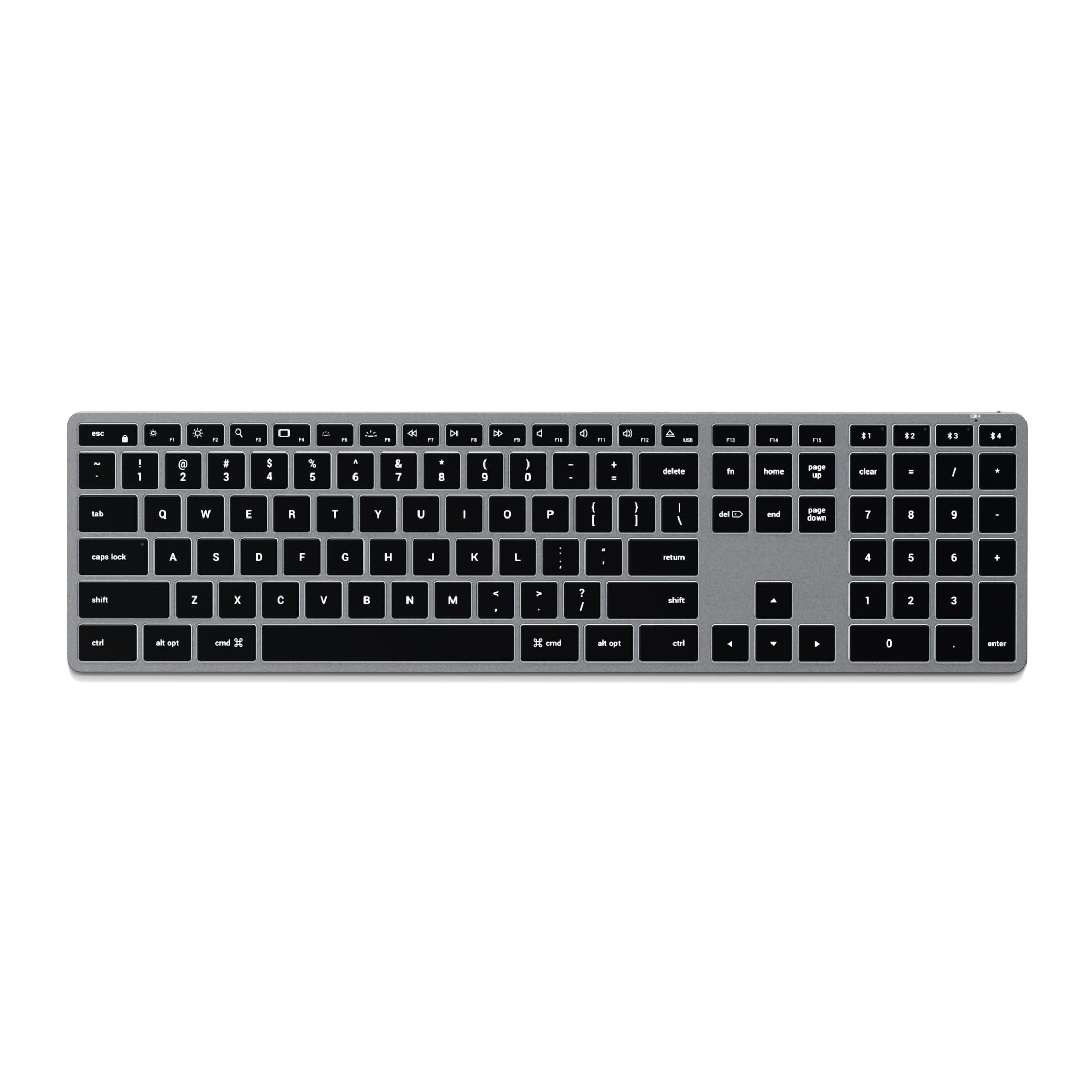
Students and everyday users want affordable, reliable keyboards that are easy to pair. The Pebble Keys 2 offers quiet keys and long battery life at a low price, while the Satechi Slim X3 adds backlighting and a number pad for spreadsheets. Mac specific layouts help avoid confusion with Windows keys.
For Typing Enthusiasts
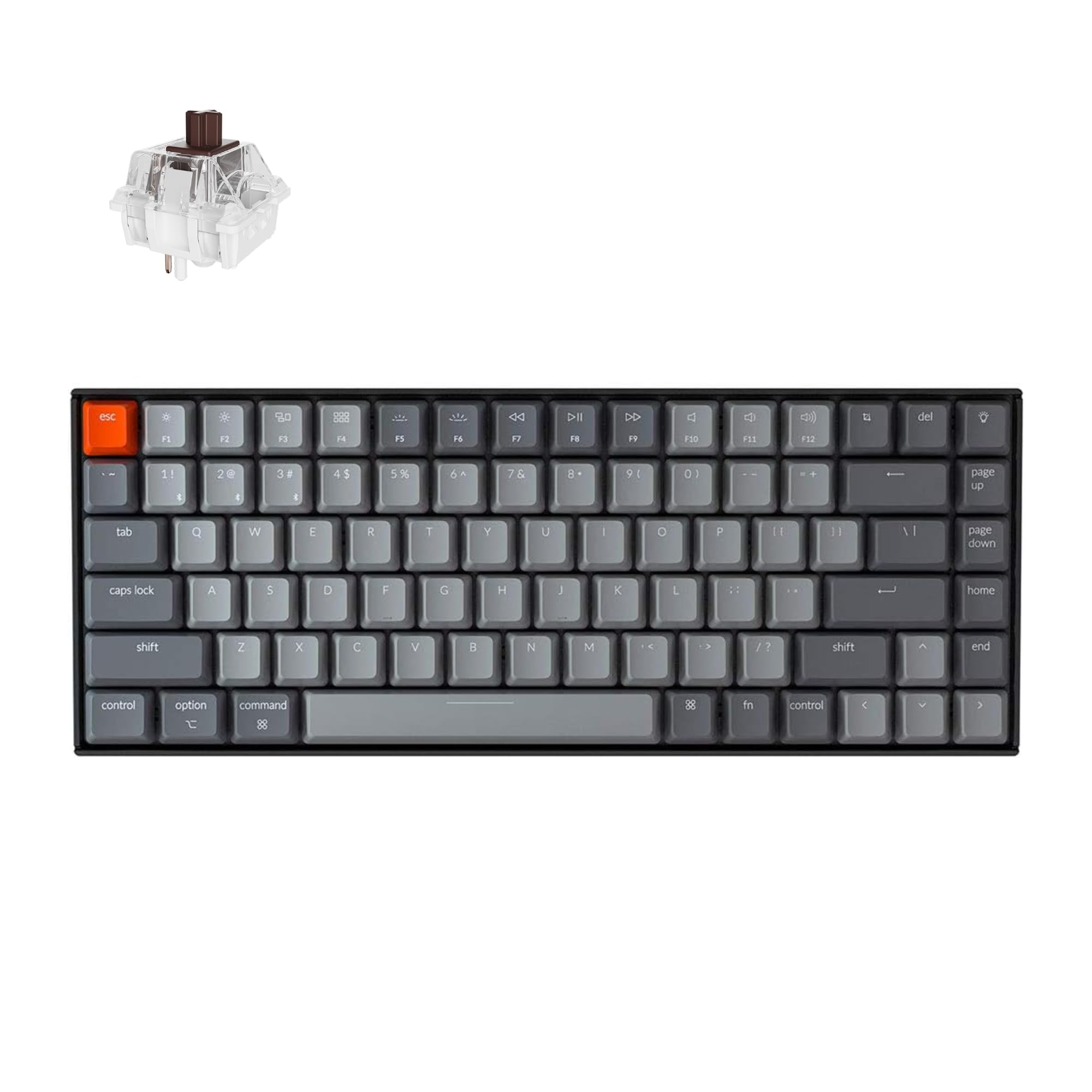
Writers and programmers who love tactile feedback may prefer mechanical keyboards with Mac layouts, like the Keychron K2, which includes Mac keycaps and Bluetooth multi device pairing.
Key Features to Compare
Mac Layout and Key Mapping
A Mac friendly keyboard places Command and Option keys correctly and supports media, brightness, Mission Control and Spotlight functions. Keyboards designed for Mac, or those with OS switching, ensure shortcuts work as expected. Windows layout keyboards can be remapped in macOS settings, but labeled Mac keys are easier.
Features That Matter for MacBook Air
Touch ID on the Apple Magic Keyboard lets you unlock your Mac, approve purchases and fill passwords with a fingerprint, a feature only Apple's keyboard offers. Multi device switching helps if you also use an iPad or iPhone. Backlighting helps in dim rooms, and USB C charging matches modern MacBooks.
Weight and Portability
Compact keyboards around 0.4 to 0.6 pounds slip into laptop sleeves easily. Full size keyboards with number pads are heavier and best for desks. Slim designs pair well with MacBook Air's portable spirit.
Key Feel and Layout Size
Low profile scissor keys feel similar to the MacBook Air's built in keyboard, making the transition easy. Mechanical keyboards offer deeper travel and tactile feedback. Compact layouts save desk space, while full size layouts add a number pad for spreadsheets and data entry.
Battery Life in Real World Use
Rechargeable keyboards like the Magic Keyboard last about a month or more per charge, while the MX Keys line lasts up to about 10 days with backlighting or months without. AAA powered keyboards like the Pebble Keys 2 can last years on a set of batteries. Backlighting significantly reduces battery life.
Connectivity and Pairing
Bluetooth is the standard for MacBook Air keyboards, since modern MacBooks have only USB C ports. Look for Bluetooth Low Energy for efficient, stable connections. Some keyboards include USB receivers that need adapters on Macs. Apple keyboards pair instantly when connected with a USB C cable.
Apple Magic Keyboard vs Logitech MX Keys for Mac
These two keyboards are the most popular premium choices for Mac users, and each has clear strengths. The Apple Magic Keyboard with Touch ID integrates perfectly with macOS, pairs instantly and adds fingerprint authentication for logins, passwords and Apple Pay. Its low profile keys feel familiar to MacBook Air owners, and its battery lasts about a month or more between charges. However, it lacks backlighting and connects to only one Mac at a time.
The Logitech MX Keys for Mac line offers backlit keys that light up as your hands approach, spherically dished keycaps that guide your fingers and multi device pairing for up to three devices. Options+ software adds custom shortcuts and app specific settings. It does not support Touch ID, but it is better for people who switch between a MacBook, iPad and iPhone or type in dim rooms. Choose Apple for seamless security and simplicity, and Logitech for flexibility and backlighting.
Compact vs Full Size Keyboards
Compact keyboards without a number pad keep your mouse closer to your body, which improves shoulder posture and saves desk space. They are ideal for travel and small desks, and their layout matches the MacBook Air's built in keyboard. Full size keyboards add a numeric keypad, useful for accountants, data analysts and anyone entering numbers often. They take more space and weigh more, so they suit dedicated desk setups.
Some users choose a compact keyboard and add a separate numeric keypad only when needed, combining portability with flexibility.
Mechanical Keyboards for Mac Users
Mechanical keyboards have become popular with Mac users who type a lot. They offer deeper key travel, distinct tactile or linear switch feel and long durability. Brands like Keychron design boards with Mac layouts, macOS function keys and Bluetooth multi device pairing, making them easy to use with a MacBook Air. Low profile mechanical options keep a slim feel closer to Apple keyboards.
The trade offs are added height, which may require a wrist rest, more noise and heavier designs. If you enjoy the feel of typing, a mechanical keyboard can make writing and coding more satisfying.
Using an External Keyboard in Clamshell Mode
Clamshell mode lets you close your MacBook Air and use it with an external monitor, keyboard and mouse. Connect the MacBook to power and a display, pair your keyboard and pointing device, then close the lid. With a Magic Keyboard with Touch ID, you can still unlock your Mac and approve payments with a fingerprint, which is otherwise unavailable with the lid closed. This setup turns your MacBook Air into a compact desktop.
Common Mistakes to Avoid When Buying Keyboards
- Buying a Windows only layout. Missing Command keys and media shortcuts can frustrate Mac users.
- Expecting Touch ID on third party keyboards. Only Apple's Magic Keyboard supports it.
- Ignoring backlighting needs. If you type in dim rooms, choose a backlit model.
- Choosing receivers without adapters. USB A receivers need adapters on MacBook Air.
- Overlooking size. Full size keyboards may be too large for small desks and travel.
Care and Maintenance Tips
Clean keys with a soft, slightly damp microfiber cloth and avoid spraying liquids directly onto the keyboard. Use compressed air to remove crumbs from under keys. Keep firmware updated through Logitech Options+ or Keychron tools, and charge rechargeable keyboards before they run empty. Store travel keyboards in a sleeve to protect keys.
Setting Up a Keyboard With Your MacBook Air
To pair a Bluetooth keyboard, turn it on and hold its pairing button until the light blinks, then open System Settings, choose Bluetooth and select the keyboard. Apple Magic Keyboards pair automatically when connected by cable once. If your keyboard has OS modes, switch it to Mac mode so keys map correctly. Use System Settings, Keyboard, Modifier Keys to remap keys if needed, and install Logitech Options+ to customize shortcuts on Logitech models.
Building an Ergonomic MacBook Air Desk Setup
A MacBook Air on a stand with an external keyboard and mouse improves posture by raising the screen to eye level. Pair the keyboard with a Magic Mouse, Magic Trackpad or ergonomic mouse, and connect an external monitor for a desktop experience. Keep the keyboard at elbow height with wrists straight, and consider a slim wrist rest for long typing sessions.
How Much to Spend on Keyboards for MacBook Air
Around $30 to $60 buys reliable slim Bluetooth keyboards like the Pebble Keys 2 and mechanical options like the Keychron K2. Around $90 to $130 brings backlit premium keyboards like the MX Keys Mini and Satechi Slim X3. Around $140 to $180 covers Apple Magic Keyboards with Touch ID. For most users, the best keyboards for macbook air cost between $40 and $140.
FAQs
What features matter most in keyboards for MacBook Air?
A Mac layout, reliable Bluetooth and comfortable keys matter most. Touch ID adds convenience on Apple keyboards, backlighting helps in dim rooms and multi device switching suits users with iPads and iPhones.
Do Logitech keyboards work well with Mac?
Yes, Logitech Mac versions work very well with MacBook Air. They include Mac key labels, media keys and Options+ software for customization. Standard Logitech keyboards also work and switch layouts automatically on many models.
Can I use a mechanical keyboard with a MacBook Air?
Yes, mechanical keyboards with Mac layouts or OS switches work great. Keychron and other brands include Mac keycaps and Bluetooth pairing for multiple devices.
Is Touch ID worth paying extra for?
Touch ID is worth it if you use your MacBook Air in clamshell mode or log in often. It unlocks the Mac, fills passwords and approves payments without reaching for the laptop.
Should I buy a laptop stand with my keyboard?
Yes, pairing an external keyboard with a laptop stand improves posture. Raising the MacBook Air screen to eye level reduces neck strain during long workdays.
Do I need a keyboard with a USB receiver?
No, Bluetooth keyboards are best for MacBook Air because they do not use a port. If your keyboard has a USB A receiver, you will need a USB C adapter. Some Logitech keyboards include Bolt receivers, but Bluetooth works well on Macs.
Can I use one keyboard with my Mac and iPad?
Yes, multi device keyboards pair with up to three devices and switch with a keypress. Logitech MX Keys, Pebble Keys 2 and Keychron models support this. Apple Magic Keyboards pair with one device at a time and require re pairing to switch.
Will a Windows keyboard work with a MacBook Air?
Yes, most Windows keyboards work, but keys may be mislabeled. The Windows key acts as Command and Alt acts as Option. Remap modifier keys in System Settings for a more natural layout, or choose a keyboard with a Mac mode.
How long do Mac keyboards last?
Quality Mac keyboards often last five years or more with normal use. Rechargeable batteries gradually lose capacity, but scissor and mechanical switches hold up well. Keeping keyboards clean and charged extends their life.
The Bottom Line
The right keyboard makes your MacBook Air more comfortable and productive at a desk. Choose the Apple Magic Keyboard with Touch ID for seamless integration, the MX Keys Mini for portable multi device flexibility and the Pebble Keys 2 for affordable reliability. Prioritize Mac layouts, comfortable keys and the features that match how you work.
Compare the best keyboards for macbook air in the product table above to find the right fit for your setup and budget.


