
Best Cooling Mats for Laptops: The Buyer Checklist We Use
Disclosure: We may earn a commission when you buy through links on this page, at no extra cost to you. As an Amazon Associate I earn from qualifying purchases. Learn more

How we judge laptop cooling pads on airflow, fit, noise and ergonomics, with three picks, a checklist and red flags.
Laptops pack powerful processors and graphics chips into thin bodies with limited airflow, so they often run hot during gaming, video editing or long video calls. When a laptop overheats, it slows itself down to protect components, causing stutter, lower frame rates and loud fans. A cooling mat, also called a cooling pad, lifts the laptop and pushes extra air into its intake vents. This guide to the best cooling mats for laptops explains the checklist we use to separate effective pads from gimmicks, then highlights three picks.
The short answer: the best cooling pads match your laptop's size and vent layout, use large or multiple fans that blow air toward the laptop's bottom intakes, offer several height angles for better typing posture and run quietly from a single USB port; most people should spend around $25 to $35 on a proven pad like the KLIM Wind or havit HV-F2056, while gaming laptop owners can step up to a high power turbo fan cooler like the llano V12 around $90.




How We Evaluate Cooling Mats
We score cooling mats on seven criteria. Each includes thresholds for good and poor performance, so you can judge any listing.
Features That Matter for Laptops
The most important feature is airflow aimed at your laptop's intake vents. Most laptops draw air through vents on the bottom and push it out the back or sides, so a pad with fans positioned under those intakes helps most. Mesh or perforated metal surfaces let air pass freely, and raised edges or stoppers keep the laptop from sliding. Good: fans aligned with common intake positions and a breathable surface. Poor: solid plastic tops with tiny fans that barely move air.
Fan Design and Airflow
Cooling pads use either several small fans, one or two large fans or a single high speed turbo fan with a sealed gasket. Multiple fans spread airflow across the laptop, large fans move air quietly and turbo fans with foam seals force air directly into intakes for maximum cooling. Adjustable fan speeds let you balance noise and temperature. Good: adjustable speed and real airflow toward intakes. Poor: fixed speed fans that only blow at the surface.
Size Compatibility and Build
A pad should match your laptop's screen size, typically 12 to 17 inches. Too small, and the laptop overhangs and covers fans; too large, and it wastes desk space. Sturdy frames with metal mesh tops support heavier gaming laptops without bending. Good: listed size range that includes your laptop and a stable frame. Poor: flimsy plastic that flexes under a 5 pound gaming laptop.
Ergonomics and Height Adjustment
Many cooling pads double as stands with adjustable height or tilt angles. Raising the back of the laptop improves typing angle and moves the screen closer to eye level, reducing neck strain. Good: four or more height settings and front lip stoppers. Poor: a single fixed angle that is too steep or too flat.
Noise Levels
Fans make noise, and some pads are louder than the laptop itself. Larger fans spinning slower are quieter, while turbo fans at full speed can be loud. Look for speed controls so you can run quietly during calls and boost cooling during games. Good: quiet low speed modes. Poor: loud fixed speed fans.
Power and Ports
Most cooling pads draw power from a USB port. A pass through USB port replaces the one used, keeping peripherals connected. Some high power models use USB C or a separate adapter. Good: USB powered with pass through ports. Poor: pads that occupy a USB port with no replacement.
Weight and Portability
If you travel with your laptop, choose a thin, light pad that fits in a backpack. Heavier pads with large fans stay on the desk. Good: under about 2 pounds for portable use. Poor: bulky pads marketed as travel friendly.
3 Picks That Pass Our Checklist
These three cooling mats come from the product table above and meet every criterion on our checklist.


Best Overall
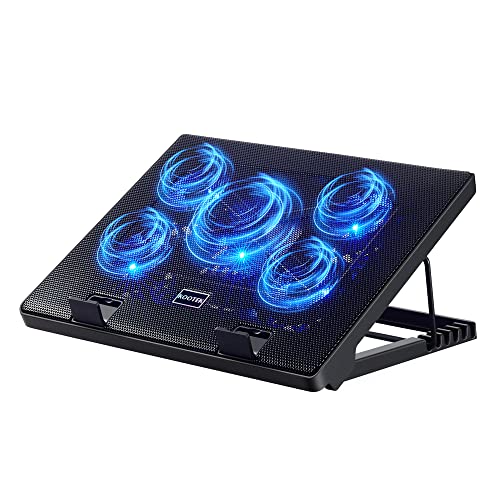
The KLIM Wind, around $28, is our pick for most laptop owners. Its first strength is four fans spread across a mesh surface, delivering broad airflow under laptops from 11 to 17 inches while staying light and quiet. Its second strength is versatility: it also works with game consoles, and its simple USB power and lighting controls make it easy to use. Thousands of buyers rely on it as an affordable everyday cooling solution.
The limitation is a single fixed angle, so you may want a separate stand for maximum height adjustment.
Best Value
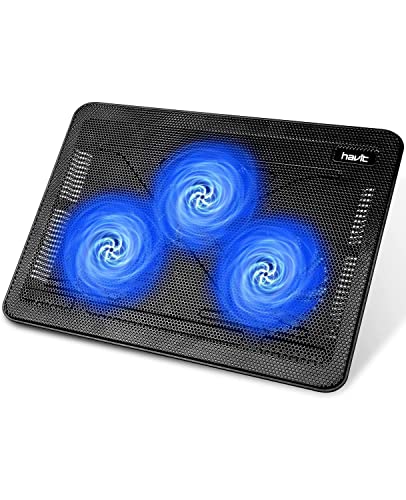
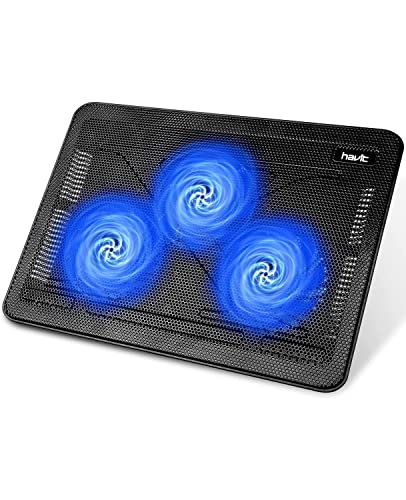
The havit HV-F2056, around $28, is a long running favorite for budget buyers with 15.6 to 17 inch laptops. Its first strength is three quiet fans under a metal mesh surface that dissipates heat efficiently. Its second strength is two adjustable height settings and a pass through USB port, so you do not lose a port by powering the pad.
The limitation is that its fans focus on the center of the pad, so smaller laptops may not sit directly over all fans.
Best for Heavy Use
The llano V12, around $90, is for gamers and creators who push their laptops hard. Its first strength is a powerful 5.5 inch turbofan with a sealing sponge that channels air directly into the laptop's bottom vents, delivering much stronger cooling than open fan pads. Its second strength is a sturdy stand design with adjustable height and RGB lighting.
The limitation is noise at maximum speed and a higher price, so it suits users who truly need extra cooling.
Quick Buyer Checklist
- Does the pad support your laptop's screen size?
- Are the fans positioned under your laptop's intake vents?
- Can you adjust fan speed for quiet operation?
- Does it offer height settings for comfortable typing?
- Does it include a pass through USB port?
- Is the frame sturdy enough for your laptop's weight?
- Is it light enough if you plan to travel with it?
- Does the seller list noise levels or fan sizes clearly?
Red Flags to Watch For
- Exaggerated cooling claims. Promises of extreme temperature drops without specifics are often unrealistic.
- No size information. Without supported laptop sizes, fit is a gamble.
- Suspicious reviews. Floods of short, similar five star reviews suggest manipulation.
- Loud fixed speed fans. Without speed control, the pad may be noisier than your laptop.
- Flimsy construction. Thin plastic frames can crack or wobble under heavier laptops.
Choosing Cooling Mats for Your Situation
Best Cooling Mats for Laptops for Laps
The best cooling mats for laptops for laps are lightweight pads with cushioned or flat bottoms that sit comfortably on your legs, plus fans that keep heat away from your skin. Look for slim, fanless lap desks with ventilation or light USB pads like the KLIM Wind. Avoid heavy turbo coolers designed for desks.
Best for Gaming Laptops
Gaming laptops benefit from high airflow turbo fan coolers or multi fan pads with strong speeds. Sealed designs like the llano V12 push air directly into intakes, helping reduce throttling during long sessions.
Best for Office and Travel
Office workers and travelers should choose slim, quiet pads with height adjustment for ergonomics. Portable designs fit easily in laptop bags.
Do Cooling Mats for Laptops Really Work?
Cooling pads work best for laptops with bottom intake vents, especially gaming laptops and thin performance models. By lifting the laptop and adding airflow, they can lower temperatures by several degrees and reduce throttling, which helps sustain performance during long gaming or rendering sessions. Results vary by laptop design; models that intake air from the keyboard or sides benefit less.
Even when temperature gains are modest, raising the laptop improves airflow and ergonomics. For laptops that run very hot, combining a cooling pad with cleaning dust from vents and updating fan profiles delivers the best results.
Other Ways to Keep a Laptop Cool
A cooling pad is one tool among several. Clean dust from vents and fans every few months with compressed air, since clogged fans are a common cause of overheating. Use your laptop on hard, flat surfaces rather than beds or couches, which block intakes. Update BIOS and drivers, and use your laptop maker's performance software to choose balanced or quiet fan profiles.
Limiting frame rates in games reduces heat and noise. In warm rooms, a fan or air conditioning helps. For older laptops, replacing thermal paste can restore cooling performance, though this is best done by experienced users or technicians.
Checking Your Laptop Temperatures
Before and after adding a cooling pad, it helps to measure temperatures. Free tools like HWMonitor, HWiNFO or your laptop maker's control software show CPU and GPU temperatures under load. Run a demanding game or rendering task for 15 to 20 minutes, note peak temperatures and clock speeds, then repeat with the cooling pad running. A drop of a few degrees or more stable clock speeds indicates the pad is helping.
Most laptop CPUs and GPUs throttle around 90 to 100 degrees Celsius. If your laptop regularly hits those numbers, a cooling pad, vent cleaning and adjusted fan profiles can make a noticeable difference. If temperatures stay well below throttling limits, a pad mainly improves comfort and ergonomics.
Cooling Pad vs Laptop Stand
Laptop stands raise the screen for better posture and leave space under the laptop for natural airflow, but they lack active fans. Cooling pads add fans to push air into intakes, offering more cooling for hot running laptops. Many cooling pads double as stands with adjustable height. If your laptop runs cool and you mainly want ergonomics, a stand is enough; if it runs hot, choose a cooling pad.
Using a Cooling Pad with an External Setup
When you raise a laptop on a cooling pad, typing directly on its keyboard can feel awkward at higher angles. Many users pair a cooling pad with an external keyboard and mouse, positioning the laptop screen near eye level like a monitor. This setup improves posture, cooling and comfort during long gaming or work sessions, especially combined with a good chair and desk height.
Care and Maintenance Tips
Unplug the pad and wipe the mesh surface with a dry cloth regularly. Blow dust out of fans with compressed air, holding the blades still. Avoid placing drinks on the pad. Check that the USB cable is not frayed, and store the pad flat to prevent warping.
How Much to Spend on a Cooling Pad
Around $20 to $35 buys effective multi fan cooling pads suitable for most laptops. Around $35 to $80 adds RGB lighting, more height settings and stronger fans. Around $90 to $130 brings turbo fan coolers with sealed airflow and smart controls for gaming laptops. For most people, the best cooling mats for laptops cost under $35.
FAQs
What features matter most in cooling mats for laptops?
Fan placement, size compatibility and adjustable speed matter most. Fans should sit under your laptop's intake vents, the pad should fit your laptop size and speed control lets you balance noise and cooling. Height adjustment adds ergonomic benefits.
Can a cooling pad damage my laptop?
No, a cooling pad will not damage your laptop when used properly. It simply adds airflow. Avoid pads that block exhaust vents, and make sure the laptop sits securely so it does not slide off.
Do MacBooks need a cooling pad?
Most Apple silicon MacBooks run cool and rarely need a cooling pad. MacBook Air models are fanless and efficient. Heavy users of MacBook Pros may benefit from a stand for ergonomics and slight airflow improvements.
Is a dedicated GPU laptop more likely to overheat?
Yes, laptops with dedicated GPUs generate more heat and benefit most from cooling pads. Gaming laptops often throttle during long sessions, and extra airflow helps maintain performance.
Are cooling pads loud?
Most cooling pads are quiet at low speeds but can be noticeable at maximum. Larger fans are quieter than small fans moving the same air. Turbo fans are loudest but offer the most cooling.
Our Verdict
A good cooling mat helps laptops stay cooler, quieter and more comfortable to use. Most people should choose an affordable multi fan pad that fits their laptop, gamers should consider turbo fan coolers for maximum airflow and lap users should pick lightweight designs. Combine your pad with regular vent cleaning for the best results.
Compare the best cooling mats for laptops in the product table above to find the right pad for your laptop and budget.


