Best Wireless Keyboards and Mice: A First Time Buyer's Guide
Disclosure: We may earn a commission when you buy through links on this page, at no extra cost to you. As an Amazon Associate I earn from qualifying purchases. Learn more

A beginner friendly guide to wireless keyboard and mouse combos: the basics, key specs in plain English, rookie mistakes and first time setup.
Cutting the cables on your desk is one of the easiest upgrades you can make, but the first time you shop for a wireless keyboard and mouse, terms like 2.4GHz, Bluetooth, DPI and polling rate can feel confusing. This guide to the best wireless keyboards and mice starts with the basics, explains every important spec in plain English and helps you avoid common rookie mistakes.
The short answer: most first time buyers should get a wireless combo that connects through both a USB receiver and Bluetooth, offers comfortable full size or compact keys, a mouse that fits your hand and battery life of at least several months, such as the Logitech MX Keys S Combo around $200 for productivity; budget buyers can start with the Logitech MK270 around $20, while gamers should look at a low latency 2.4GHz combo like the Redragon S101M KS around $55.


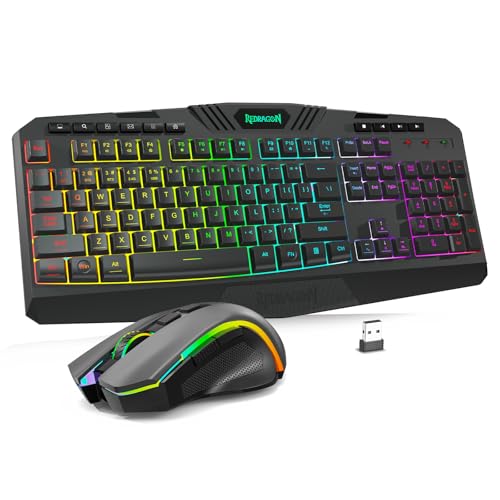

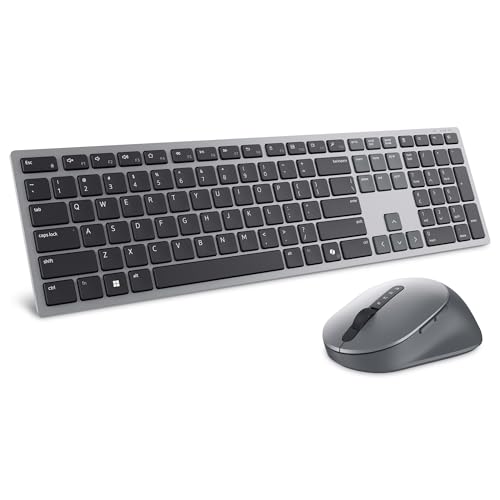
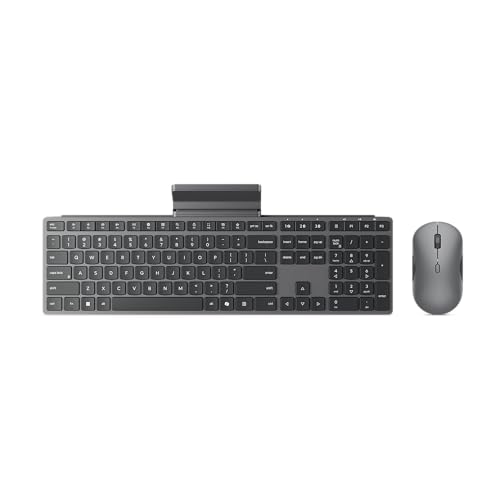


Three Combos Worth a Look
These three combos from the product table above match the most common first purchase needs. We explain why throughout the guide rather than reviewing each one.


Wireless Keyboards and Mice 101: The Basics
A wireless keyboard and mouse connect to your computer without cables, using radio signals instead. Most combos connect in one of two ways. A 2.4GHz USB receiver, sometimes called a dongle, plugs into your computer and creates a dedicated, low delay connection. Bluetooth connects directly to computers, tablets and phones that have Bluetooth built in, so no USB port is needed.
Wireless devices are powered either by replaceable AA or AAA batteries or by built in rechargeable batteries that charge through USB C. Office combos with replaceable batteries often last a year or more, while gaming and backlit models usually need charging every few weeks.
A few terms come up constantly. A combo is a keyboard and mouse sold together, usually sharing one receiver. Layout describes keyboard size: full size includes a number pad, tenkeyless or TKL drops it and 75% or 60% layouts shrink the keyboard further. DPI, or dots per inch, measures how far the cursor moves when you move the mouse. Multi device or Easy Switch keyboards pair with several computers or tablets and switch between them with one key.
Key Specs Explained in Plain English
Here is what each spec means for everyday use, and the level we recommend for first time buyers.
Wired vs Wireless (2.4GHz, Bluetooth)
Wired keyboards and mice have zero delay and never need charging, but cables clutter the desk and limit where you sit. Wireless 2.4GHz connections use a USB receiver and offer very low delay, stable connections and range up to about 33 feet, making them best for desktops and gaming.
Bluetooth is convenient for laptops, tablets and phones and saves a USB port, but it can add a little delay and occasionally takes a moment to reconnect after sleep. Many combos, like the Logitech MX Keys S, Dell KM720 and Lenovo 700, support both, letting you use the receiver for your desktop and Bluetooth for your tablet. Our recommendation: choose a combo with a 2.4GHz receiver, ideally with Bluetooth as a bonus.
Ergonomics, Size, and Grip Style
Comfort matters more than any other spec when you type and click all day. Keyboards come in full size with a number pad, ideal for spreadsheets and data entry; TKL and 75% layouts that save space and bring the mouse closer to your body; and compact 60% layouts for small desks and gaming. Ergonomic wave or split keyboards, like the Logitech Wave Keys MK670 and SABLUTE ergonomic combo, place hands and wrists in a more natural position, and a palm rest reduces strain.
For mice, consider your grip style. Palm grip users rest their whole hand on the mouse and prefer larger, sculpted shapes. Claw grip users arch their fingers and prefer medium mice with a high back. Fingertip grip users control the mouse with their fingertips and prefer small, light mice. Our recommendation: choose a mouse that matches your hand size and grip, and a keyboard layout that fits your desk.
Durability and Warranty
Keyboards are rated by keystroke lifespan, with typical membrane keyboards rated for about 5 to 10 million keystrokes per key and mechanical switches often rated for 50 million or more. Mouse switches are rated in click lifespan, often 10 to 20 million clicks or higher. Spill resistant designs, like the one on the Logitech MK270, help survive coffee accidents. Hot swap mechanical keyboards let you replace individual switches without soldering, extending the keyboard's life.
Warranties range from one year on many office combos to three years on brands like Redragon. Our recommendation: choose a combo from an established brand with at least a one year warranty and spill resistance if you eat or drink at your desk.
Sensor/Switch Type and Performance
Mouse performance depends on the sensor. DPI controls cursor speed; 800 to 1600 DPI suits office work, while gaming mice reach 4800 DPI or far higher for fast flicks. Polling rate is how often the mouse reports its position to the computer, measured in Hz. Office mice often use 125Hz, while gaming mice use 1000Hz for smoother tracking, like the adjustable 125 to 1000Hz polling on the Redragon S101M KS.
Keyboards use either membrane or mechanical switches. Membrane keys are quiet, soft and affordable, great for offices. Mechanical switches come in three main types: linear switches feel smooth and suit gaming, tactile switches give a small bump you can feel, and clicky switches add an audible click. Low profile scissor keys, used on laptop style keyboards like the MX Keys S, feel fast and quiet. Our recommendation: membrane or scissor keys for offices, mechanical for gaming and enthusiasts.
Customization and Software
Companion apps let you customize your keyboard and mouse. Logitech Options+ lets you assign shortcuts and Smart Actions that perform several steps with one key. Dell Peripheral Manager adjusts DPI presets on the KM720. Gaming software lets you record macros, remap buttons and adjust RGB lighting. Onboard memory stores your settings on the device itself, so they work on any computer without installing software.
First time buyers do not need deep customization, but programmable keys and shortcuts save real time for repetitive work. Our recommendation: check that the brand's software runs on your operating system before buying.
Battery Life and Charging
Battery life varies widely. Combos using replaceable AA or AAA batteries, like the Logitech MK270, Dell KM720 and Lenovo 700, can last up to 36 months on the keyboard, so you rarely think about power. Rechargeable combos with backlit keys or RGB lighting typically need charging every few weeks, though large batteries like the 4000mAh cell in the SABLUTE keyboard stretch that further.
USB C charging is the modern standard and lets you plug in and keep working. Smart backlighting that turns on only when your hands approach, as on the MX Keys S, saves battery. Our recommendation: choose replaceable batteries if you want to forget about charging, or rechargeable USB C if you prefer backlit keys.
Office, Ergonomic and Gaming Combos Compared
- Office combos: quiet keys, full size layouts and long battery life, ideal for home offices and students. Examples include the Logitech MK270 and Lenovo 700.
- Productivity combos: premium typing feel, multi device switching and advanced scroll wheels for professionals, like the Logitech MX Keys S Combo and Dell KM720.
- Ergonomic combos: wave shaped keys, cushioned palm rests and sculpted mice to reduce wrist strain, like the Logitech Wave Keys MK670.
- Gaming combos: RGB lighting, high DPI mice, fast polling rates and programmable keys, like the Redragon S101M KS and compact 75% combos.
Picking the Best Wireless Keyboards and Mice for Your Needs
Students and home users can save money with a reliable office combo around $20 to $50. Professionals who switch between laptop, tablet and desktop benefit from a multi device productivity combo. People who type for many hours or feel wrist discomfort should choose an ergonomic combo with a palm rest. Gamers should pick a 2.4GHz combo with a high DPI mouse and adjustable polling rate, and Mac users should confirm the keyboard includes Mac key labels or works with macOS shortcuts.
Rookie Mistakes to Avoid
- Buying the wrong layout: a compact keyboard looks sleek, but if you enter numbers daily, you will miss the number pad. Pick a layout that matches your work.
- Ignoring the mouse size: combos often pair a great keyboard with a small mouse. Check mouse dimensions if you have larger hands.
- Relying on Bluetooth for gaming: Bluetooth adds delay. Use the 2.4GHz receiver for games.
- Losing the receiver: store the USB receiver in the mouse slot when traveling, and note whether the brand sells replacements.
- Placing the receiver behind a metal case: plugging the receiver into the back of a desktop can weaken the signal. Use a front port or USB extension.
Getting Started: Setup and First Use
- Unbox and power on: insert batteries or charge the keyboard and mouse fully, then flip the power switches on.
- Connect the receiver or pair Bluetooth: plug the USB receiver into your computer, or open Bluetooth settings and pair each device.
- Install the companion app: download the brand's software to customize keys, adjust mouse speed and check battery levels.
- Update firmware via the companion app: updates improve connection stability and battery life.
- Adjust comfort settings: set keyboard feet height, mouse DPI and scroll speed to suit your hands.
- Clean switches and sensors regularly: wipe keys and blow dust from between them, and clean the mouse sensor window with a dry cloth to keep tracking smooth.
How Much Should You Spend?
Under $30 buys reliable office combos with long battery life and quiet keys, perfect for students and home use. Between $40 and $80, you gain multi device switching, ergonomic designs, backlighting or gaming features. Premium productivity combos around $100 to $200 offer the best typing feel, advanced scroll wheels and smart features for professionals who use their keyboard and mouse all day. Spend more on the device you touch most, and do not overpay for RGB lighting if you work in an office.
Frequently Asked Questions
Does it work with Mac and console?
Does it work with Mac and console? Most wireless keyboards and mice work with Mac through Bluetooth or a USB receiver, though some special keys may differ from Windows layouts. Logitech MX and Wave Keys models support macOS fully. Console support is more limited; PlayStation and Xbox accept many USB keyboards and mice in supported games, but compatibility varies, so check the game and the product listing first.
Wired or wireless: which is better for gaming?
Wired or wireless: which is better for gaming? Wireless is now nearly as good as wired for gaming, as long as you use a 2.4GHz receiver rather than Bluetooth. Modern gaming combos with 1000Hz polling feel just as responsive to most players. Wired still wins for professional esports and players who never want to charge, while wireless offers a cleaner desk and more freedom.
Are mechanical keyboards worth it?
Are mechanical keyboards worth it? Mechanical keyboards are worth it if you type a lot or game often and enjoy a crisp, consistent key feel. They last longer, can be customized and offer different switch types. For quiet offices and casual use, a good membrane or low profile scissor keyboard is comfortable, quieter and more affordable.
What DPI do I need?
What DPI do I need? Most people need 800 to 1600 DPI for everyday work on a standard monitor. Higher resolution and multi monitor setups benefit from 2400 to 4000 DPI, so the cursor crosses the screen with less hand movement. Gamers often play at 400 to 1600 DPI for precision, using higher settings only when needed. Adjustable DPI lets you switch on the fly.
How long do wireless keyboard batteries last?
How long do wireless keyboard batteries last? Wireless keyboards with replaceable batteries often last 12 to 36 months, while rechargeable backlit keyboards usually last weeks to a few months per charge. Mice typically need new batteries or charging more often than keyboards. Turning off backlighting and using power switches extends battery life significantly.
Our Verdict
Choosing your first wireless keyboard and mouse comes down to three things: a connection that suits your devices, a layout and mouse shape that feel comfortable for hours and battery life that fits your habits. The Logitech MX Keys S Combo is the best all round productivity choice, the Logitech MK270 offers outstanding value and the Redragon S101M KS delivers gaming features at a budget friendly price. Ergonomic combos like the Wave Keys MK670 help if you type all day. Compare the best wireless keyboards and mice in the product table above to find the right combo for your desk.