
Best Wireless Keyboards: Our Checklist and Top 3 Picks
Disclosure: We may earn a commission when you buy through links on this page, at no extra cost to you. As an Amazon Associate I earn from qualifying purchases. Learn more

How we judge wireless keyboards for work, laptops and typing comfort, with three picks, a buyer checklist and red flags.
A wireless keyboard clears cables off your desk, lets you type from the couch to a TV or laptop stand and makes switching between computers easier. But wireless keyboards vary widely in key feel, battery life, connection reliability and comfort. This guide to the best wireless keyboards lays out the checklist we use to judge them, so you can apply the same standards to any model, then shows three picks that pass every criterion.
The short answer: most people should choose a wireless keyboard with both Bluetooth and a USB receiver, multi device pairing for at least three devices, a rechargeable battery or long life cells, a layout that fits your desk and comfortable low profile or mechanical keys; expect to pay around $30 for a dependable basic model and $100 to $220 for premium typing feel and features.



How We Evaluate Wireless Keyboards
We score wireless keyboards on seven criteria. Each includes thresholds for good and poor performance.
Wired vs Wireless (2.4GHz, Bluetooth)
Wireless keyboards connect through a 2.4GHz USB receiver, Bluetooth or both. Receivers offer the most stable, lowest latency connection and work instantly without pairing, while Bluetooth frees up USB ports and connects to tablets and phones. Keyboards that offer both give the most flexibility. Good: dual mode with a receiver and Bluetooth, stable connections at desk distance. Poor: Bluetooth only with frequent dropouts, or receivers that need constant re pairing.
Ergonomics, Size, and Layout
Layout affects comfort and desk space. Full size keyboards include a number pad for spreadsheets, while 96 percent, tenkeyless and 75 percent layouts save space and keep your mouse closer to your body. Split and curved ergonomic keyboards reduce wrist strain for heavy typists. Good: a layout that matches your work, with an adjustable typing angle and optional palm rest. Poor: cramped keys, awkward arrow placement or no tilt adjustment.
Compatibility (PC, Mac, Tablet)
Check whether the keyboard supports your operating systems. Many models switch layouts for Windows, macOS, ChromeOS, iPadOS and Android, with dedicated keys for each. Multi device keyboards let you pair with three devices and switch with a single key. Good: works across systems with OS specific keys and easy switching. Poor: Windows only layouts with missing Mac keys, or difficult pairing.
Weight and Build Quality
Build quality affects typing feel and durability. Aluminum or steel plates reduce flex and rattling, while thin plastic can bend when typing hard. On mechanical keyboards, PBT keycaps resist shine and wear better than ABS. Portable keyboards should stay light, around 1 pound or less. Good: solid frame with minimal flex and durable keycaps. Poor: creaky plastic, wobbly keys and keycaps that wear quickly.
Durability and Warranty
A good keyboard should last years of daily typing. Mechanical switches are often specified for tens of millions of keystrokes, and hot swappable sockets let you replace switches without soldering. Look for warranties of at least one year, ideally two. Good: durable switches or scissor mechanisms, replaceable parts and a solid warranty. Poor: no warranty information or keys that stick after months.
Customization and Software
Software can add shortcuts, macros and lighting control. Companion apps let you remap keys, create app specific shortcuts and update firmware. Mechanical enthusiasts value open firmware like QMK and VIA for deep customization. Good: easy remapping, firmware updates and backlight control. Poor: no software support or apps that require constant logins.
Switch Type and Typing Performance
Key switches define how typing feels. Low profile scissor switches are quiet, laptop like and great for offices. Mechanical switches come in linear, tactile and clicky types; tactile switches give a gentle bump, linear switches are smooth and clicky switches are loud. Battery life matters too: rechargeable keyboards should last at least a week with backlighting or months without. Good: consistent key feel, quiet operation for shared spaces, long battery life. Poor: mushy keys, uneven feel, battery life of a few days.
3 Picks That Pass Our Checklist
These three keyboards come from the product table above and meet every criterion on our checklist.


Best Overall
The Logitech MX Keys S, around $130, is our choice for professionals and anyone who types all day across multiple computers. Its first strength is typing comfort: spherically dished, low profile keys feel fast, precise and quiet, and backlighting turns on as your hands approach. Its second strength is flexibility, pairing with up to three devices on nearly any operating system through Bluetooth or the included Logi Bolt receiver. Logitech rates battery life at up to 10 days with backlighting or up to five months without, and it recharges over USB C.
The limitation is that low profile keys will not satisfy people who want the deeper travel of a mechanical keyboard.
Best Value
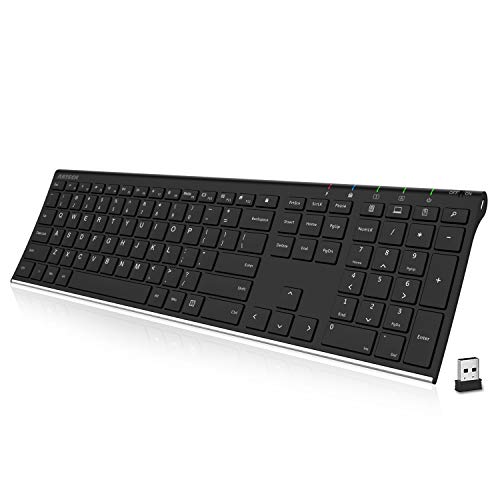
The Arteck 2.4G Wireless Keyboard, around $30, suits students, home offices and anyone who wants a reliable, full size keyboard for very little money. Its first strength is simple setup: plug in the nano USB receiver and start typing, with a full layout including a number pad and arrow keys. Its second strength is a stainless steel top with quiet low profile keys and a rechargeable battery that Arteck says lasts around six months per charge at two hours of typing a day. It includes a 24 month warranty.
The limitation is that it connects only through the USB receiver, so it will not pair with tablets or phones over Bluetooth.
Best Premium Pick
The Keychron Q6 Pro, around $220, is for typing enthusiasts who want a full size mechanical keyboard with premium construction. Its first strength is a full aluminum body that feels solid and eliminates flex, paired with double shot PBT keycaps and hot swappable switches. Its second strength is customization: it supports QMK and VIA programming, includes a rotary knob and connects over Bluetooth or a cable to Mac, Windows and Linux.
The limitation is weight and size. The aluminum full size frame is heavy and not designed for carrying in a laptop bag.
Quick Buyer Checklist
- Does it connect by both Bluetooth and a USB receiver?
- Can it pair with all the devices you use, ideally three or more?
- Does the layout fit your desk and work, with or without a number pad?
- Does it support your operating systems with the right keys?
- Is the battery rechargeable or rated for months of use?
- Does the key feel suit your environment, quiet for shared spaces?
- Is there a warranty of at least one year?
- Can you adjust the typing angle for comfort?
Red Flags to Watch For
- Vague connection specs. Listings that do not state Bluetooth version or receiver type often hide unreliable connections.
- No warranty information. Reputable brands clearly state warranty length and support options.
- Suspicious reviews. Floods of short, similar five star reviews posted in a short time deserve skepticism.
- Unclear battery claims. Battery life figures without usage conditions, such as backlight on or off, can be misleading.
- Layout surprises. Non US layouts or missing keys like Delete and Home can frustrate daily use.
Picking the Right Wireless Keyboards for Different Uses
Best Wireless Keyboard for Laptops: What to Check
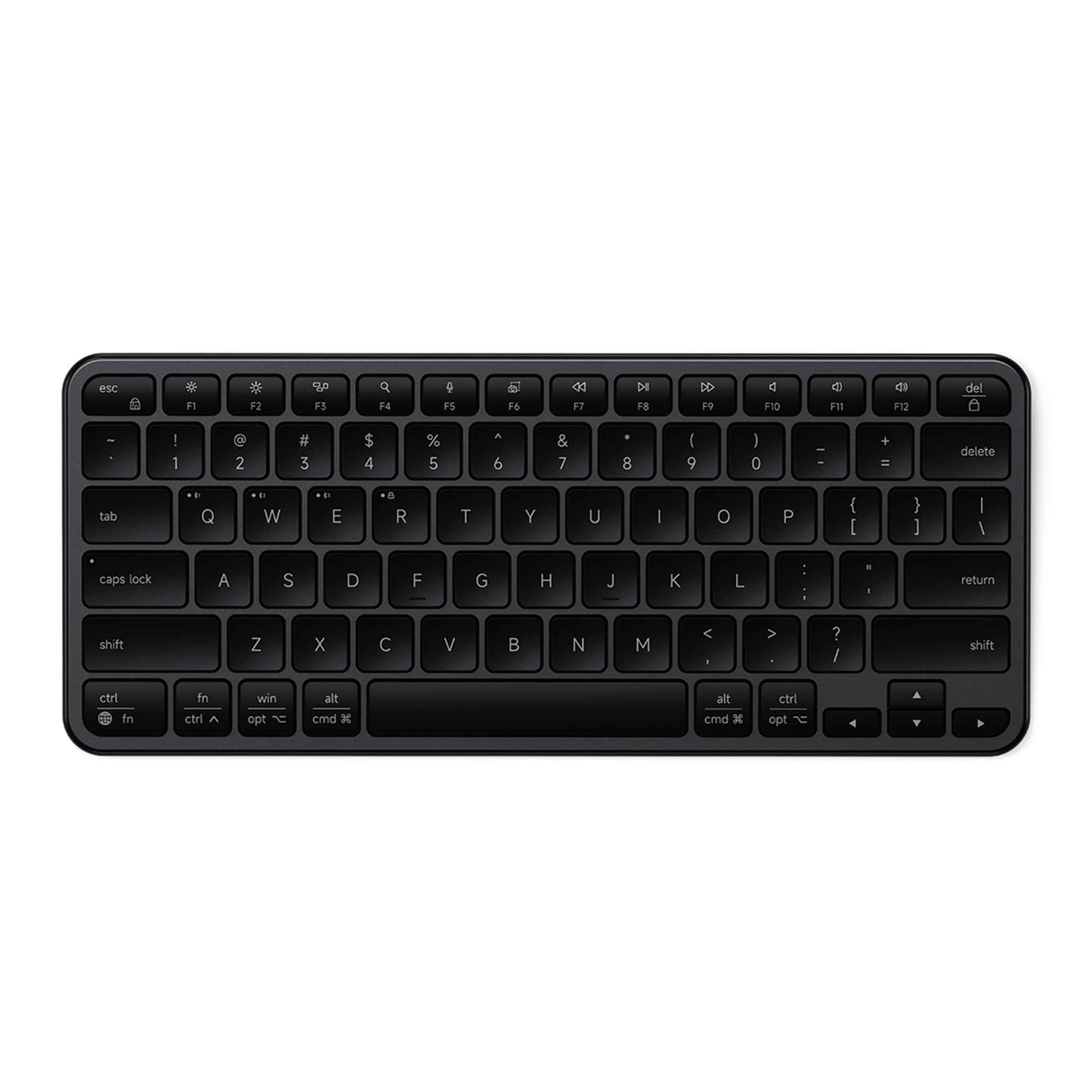
The best wireless keyboard for laptops pairs over Bluetooth to save USB ports, matches your laptop's operating system and has a compact layout that fits beside a laptop stand. Multi device switching lets you move between laptop, tablet and phone. A slim model like the Logitech K380 travels easily in a laptop bag.
Best Wireless Keyboards for Laptops: What to Check
When comparing the best wireless keyboards for laptops for a home office setup, also consider typing comfort for long sessions. Full size or 96 percent layouts suit desk setups with a laptop stand, while backlighting helps in dim rooms. Rechargeable USB C models reduce battery swaps and can charge from the laptop itself.
Best for Ergonomics
Heavy typists with wrist discomfort should consider split or curved ergonomic keyboards with palm rests, such as the Logitech Ergo K860, which promote a more natural wrist position.
Tips to Get the Most From Your Wireless Keyboard
Clean keys and switches regularly with compressed air and a slightly damp cloth to remove dust and crumbs. Update firmware through the companion app for better battery life and connection stability. Keep the USB receiver in a front port or extension adapter near the keyboard to reduce interference, especially with USB 3 devices nearby. Turn off backlighting when not needed to extend battery life.
Membrane, Scissor or Mechanical: Which Key Type Fits You?
Key mechanisms shape the entire typing experience. Membrane keyboards use rubber domes under each key and are the most affordable, but can feel soft and wear unevenly. Scissor switch keyboards, like many laptop style models, offer short travel, quiet operation and consistent feel, ideal for offices and people who switch between laptop and desktop.
Mechanical keyboards use individual switches under each key, offering more travel, better feedback and longer durability. They are popular with writers, programmers and gamers, but can be louder and heavier. Low profile mechanical keyboards combine mechanical feel with slimmer designs. If you share a workspace, choose quiet scissor or linear mechanical switches; if you type alone and enjoy feedback, tactile or clicky switches may be more satisfying.
How Much to Spend on a Wireless Keyboard
Wireless keyboards fall into clear price tiers. Around $20 to $40 buys a dependable receiver based keyboard or keyboard and mouse combo with membrane or low profile keys. These suit basic office work, students and secondary computers, though they usually lack backlighting, Bluetooth and multi device switching.
Around $40 to $100 adds Bluetooth, multi device pairing, slimmer designs and better key feel. Compact Bluetooth keyboards for laptops and tablets, budget mechanical keyboards and quieter scissor switch models live here. This is the sweet spot for most people who want flexibility without paying premium prices.
From around $100 to $220, you get premium typing experiences such as smart backlighting, aluminum frames, hot swappable mechanical switches, programmable keys and advanced software. Professionals who type for hours and keyboard enthusiasts will notice the improvement in comfort and build quality. Beyond that, custom mechanical keyboards become a hobby where price rises with materials and switches.
Setting Up Your Wireless Keyboard
Setup takes only a few minutes. For receiver based keyboards, plug the USB receiver into your computer and turn on the keyboard. For Bluetooth, hold the pairing key until the light blinks, then select the keyboard in your device's Bluetooth settings. Multi device keyboards store each pairing on a numbered channel key, so assign your main computer, laptop and tablet to separate channels.
Install the companion software if available to update firmware, remap keys and set the correct operating system layout. Adjust the feet or typing angle so your wrists stay straight, and position the keyboard so your elbows rest near 90 degrees. Charge rechargeable keyboards fully before first use for the best battery calibration.
FAQs
Are mechanical keyboards worth it?
Mechanical keyboards are worth it if you type a lot and value feel and durability. They offer consistent feedback, long lifespans and customization options like swappable switches and keycaps. However, they cost more, are often louder and heavier, and low profile scissor keyboards remain excellent for office work and travel.
How long do wireless keyboard batteries last?
Most wireless keyboards last weeks to months per charge or set of batteries. Rechargeable models with backlighting typically last one to two weeks with lights on and several months with lights off. Keyboards using AA or AAA batteries often last a year or more. Bluetooth Low Energy and auto sleep features extend battery life.
Does a wireless keyboard work with Mac and tablets?
Yes, most Bluetooth keyboards work with Mac, iPad and Android tablets. Look for keyboards with Mac specific keys or layout switching. Receiver only keyboards need a USB port, which tablets may lack without an adapter. Multi device keyboards make switching between computer and tablet easy.
Wired or wireless: which is better for gaming?
Wired keyboards have historically been better for gaming, but modern 2.4GHz wireless keyboards match them for most players. Gaming keyboards with dedicated low latency receivers offer response times virtually identical to wired models. Bluetooth adds more latency, so use the receiver for gaming.
Can wireless keyboards be hacked?
Modern wireless keyboards from reputable brands use encryption that makes interception very difficult. Logitech Bolt, Bluetooth Low Energy and most current receivers encrypt keystrokes. Very old or unbranded receivers may be less secure, so choose a current model from a known brand if you type sensitive information like passwords.
Why does my wireless keyboard lag or miss keys?
Lag usually comes from interference, low battery or distance from the receiver. Move the receiver closer using a USB extension, keep it away from USB 3 ports and WiFi routers, and charge or replace batteries. Updating firmware and drivers also fixes many connection issues.
Wrapping Up
A great wireless keyboard balances reliable connectivity, comfortable keys and practical features. Prioritize dual mode connections, multi device pairing and a layout that fits your desk, then choose key type based on how and where you type. Budget buyers can get a dependable full size keyboard for around $30, professionals will appreciate a premium low profile model and enthusiasts can invest in a full aluminum mechanical board.
Compare the best wireless keyboards in the product table above to find the right fit for your desk, devices and budget.


