Anker Powerconf C200 Review for 2026: A 2K Webcam for Home Offices
Disclosure: We may earn a commission when you buy through links on this page, at no extra cost to you. As an Amazon Associate I earn from qualifying purchases. Learn more

Anker Powerconf C200 Review: picture, microphones, field of view and privacy cover on a 2K webcam, plus lighting and framing tips for clearer calls.
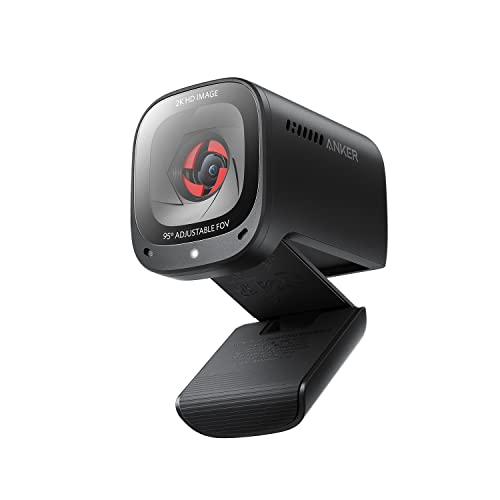
The Anker PowerConf C200 is a 2K USB webcam built for video calls, with a dual microphone array and low-light correction aimed at home offices. This anker powerconf c200 review explains what the camera does well, where a webcam of this class falls short and how to set it up for clear calls.
The camera is a single model with one main listing, so the guide focuses on what to expect and how to get the best picture from it.


What the Listing Describes
Anker lists the C200 as a 2K webcam with low-light correction, dual microphones with AI noise cancellation and a 360 degree voice coverage claim. You can choose the field of view in software from 65, 78 or 95 degrees, and a slide-over privacy cover closes the lens between calls. It works with Windows 7 or later and macOS 10.11 or later, and it costs around seventy dollars.
It is a plug and play USB camera, so there are no drivers to hunt for in normal use.
Anker Powerconf C200 Review: Picture Quality
A 2K sensor gives a sharper image than a 1080p camera, and video calls look cleaner when the meeting app supports high resolution. Many meeting platforms compress video, so the practical gain depends on the app and the connection. The low-light correction brightens dim rooms, though no webcam replaces a proper lamp.
The best way to improve any webcam image is light: a lamp behind the monitor and facing you adds more quality than a more expensive camera.
Audio and Noise Cancellation
The built-in dual microphones aim to pick up your voice and suppress background noise. For quiet rooms they are good enough for meetings, and a headset still sounds clearer in noisy homes. If audio quality matters, such as for recording a presentation, use a dedicated microphone or a headset.
- Place the camera close to eye level.
- Keep the microphone area free of cables and objects.
- Choose a quiet room and close the door.
- Use a headset in noisy homes.
Field of View and Framing
The 65 degree setting suits a single person at a desk, 78 degrees fits a person with some background, and 95 degrees shows a small group. A wider angle includes more of the room, so tidy the background first. Place the camera at eye level and slightly above the screen to avoid an unflattering angle.
Privacy and Security
The sliding cover blocks the lens when you are not on a call. It is a simple and reliable feature, and it gives peace of mind in a shared home. Also check your operating system's camera permissions, and close apps that do not need camera access.
Setup and Software
Plug the camera into a USB port, then select it in your meeting app's video settings. Anker offers software for adjusting the field of view and image settings, and it is worth installing once to pick your preferred angle. Check your framing and sound in a call with a friend or in the app preview, then save the settings.
Lighting Tips That Beat Any Hardware Upgrade
Face a window or place a lamp behind the monitor so light falls on your face. Avoid sitting with a bright window behind you, which turns you into a silhouette and confuses the exposure. A soft desk lamp with a warm tone at about arm's length is cheap and improves the picture more than a pricier camera.
Keep the background simple. A plain wall or a tidy shelf looks professional, and moving clutter out of the frame takes two minutes.
Using It With Laptops and Monitors
A clip on the top of the monitor holds the camera steady, and a small tripod suits desks without a flat top. With a laptop, raise the screen so the camera sits at eye level, and use an external keyboard if you can. A webcam on a laptop lid is better than a built-in camera but still looks up your chin if the screen is low.
Check that the cable reaches the port without strain, and use a USB port on the laptop rather than a loaded hub to avoid dropouts.
Meeting App Settings
Choose the camera in the app, pick the highest resolution the app allows and turn off the app's own background effects if you want the cleanest image. Enable noise suppression in the app only if the camera's own handling is not enough, since doubling the processing can make your voice sound thin.
Who Should Buy It
It suits remote workers, students and teachers who want a clear picture without a complex setup, and people with a laptop whose built-in camera is poor. It is less suited to streamers who need advanced controls, to anyone who wants 4K or to people who want a webcam with autofocus tracking features.
Alternatives
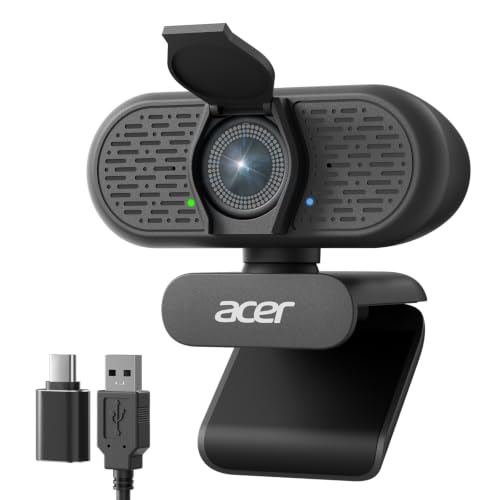
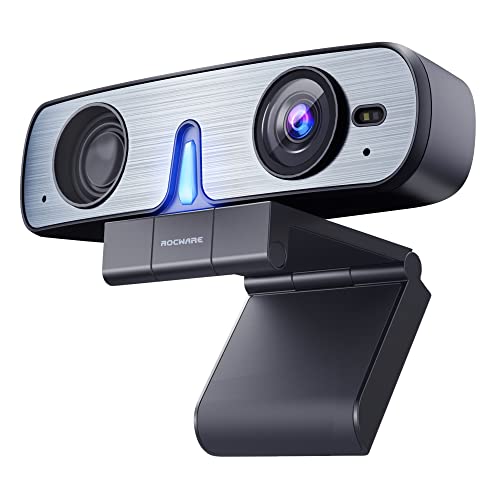
Other 2K webcams from UGREEN, EMEET and others cost less, and 4K models such as the Acer A640 offer more resolution. Conference speakerphones suit rooms with several people. Compare resolution, microphones, field of view and price for the way you will use the camera.
Care and Troubleshooting
Wipe the lens with a soft microfiber cloth and keep the privacy cover closed when you store the camera. If the picture looks dark, increase the room light before you change software settings. If the camera does not appear in an app, close other apps that may hold it, then unplug and reconnect it, or try a different USB port.
You may also want the best webcam guide.
FAQs
Is the PowerConf C200 a 2K camera?
Yes. The listing describes 2K resolution.
Does it have a microphone?
Yes. It has dual microphones with AI noise cancellation.
Does it work with Mac and Windows?
Yes. It supports Windows 7 or later and macOS 10.11 or later.
Does it have a privacy cover?
Yes. A slide-over cover blocks the lens.
Final Thoughts
This anker powerconf c200 review points to a sensible 2K webcam for home offices. Add a lamp for the best picture, use a headset in noisy rooms and set the field of view that suits your desk.