
BenQ PD2705U Review for 2026: A 4K Monitor for Color Work
Disclosure: We may earn a commission when you buy through links on this page, at no extra cost to you. As an Amazon Associate I earn from qualifying purchases. Learn more

A benq pd2705u review for designers and Mac users: 4K IPS color, factory calibration, USB-C power, KVM, and cheaper monitors to compare.
The PD2705U is BenQ's 27 inch 4K monitor for designers, photographers, and Mac users who want accurate color and a tidy desk. This benq pd2705u review covers the panel, calibration, connectivity, ergonomics, and who should pay for it.
You will find notes on color work, USB-C docking, the HotKey Puck, and how it compares with cheaper office monitors. The product table near the top lists related BenQ monitors for price comparison.




BenQ PD2705U Review: The Panel and Color
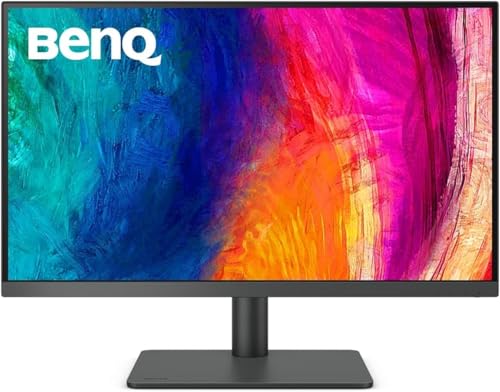
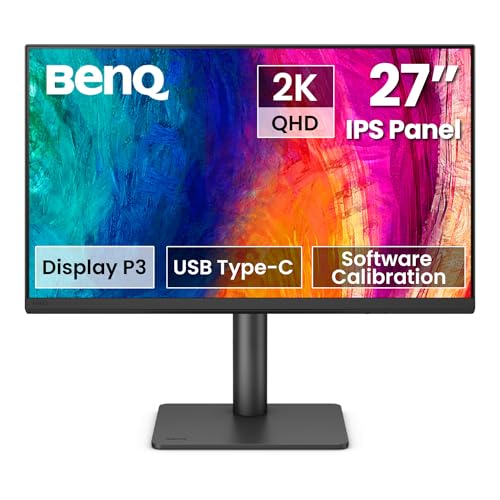
The listing describes a 27 inch 4K UHD IPS panel with 3840 by 2160 resolution, 99 percent sRGB and Rec.709 coverage, HDR10 support, and factory calibration. IPS panels offer wide viewing angles and stable color, and 4K gives sharp text and room for detailed work.
Factory calibration means each monitor is adjusted before shipping, which saves effort for most users. Serious print or video professionals may still want a hardware calibration tool, but for web, photography, and design the starting point is solid.
Designed for Mac and Windows
The Mac ready label refers to color modes and scaling tuned for macOS, along with a USB-C connection that carries video, data, and power. A single cable can run a laptop, charge it with the 65W power delivery listed, and share the keyboard and mouse through the built in USB hub and KVM switch.
Windows users get the same benefits. The KVM feature lets you share one keyboard and mouse between two computers, which suits a desk with a laptop and a desktop.
The HotKey Puck and Ergonomics
A small controller called the HotKey Puck sits on the desk and lets you switch color modes, brightness, and inputs without reaching for buttons on the monitor. It is a thoughtful touch for people who move between sRGB and other modes while working.
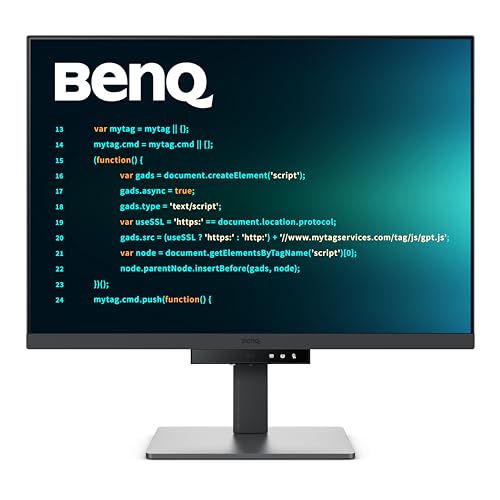
The stand offers ergonomic height and tilt adjustment. Set the top of the screen at or just below eye level, and place the monitor about an arm's length away. A VESA mount is available if you prefer a monitor arm.
Connectivity and Everyday Use
Ports include USB-C, DisplayPort, and a USB hub. Check the full list in the listing, including HDMI, to make sure your devices match. Using one cable for a laptop keeps the desk clean and charges the laptop at the same time.
Text looks crisp at 4K, and scaling in macOS and Windows keeps it readable. If you have a high resolution laptop, a 4K monitor feels like an extension of the same display.
Who Should Buy the PD2705U
- Photographers and designers who need reliable color.
- Mac owners who want a single cable setup.
- Remote workers with a laptop and a second computer.
- Anyone who wants a sharp 4K screen for text heavy work.
It is more than most casual users need. For a lower price, see the Dell S2725QC review, and for a different take on the premium end, the Apple Studio Display review. The best computer monitor guide covers the field.
Limitations to Consider
The refresh rate is aimed at productivity, not fast gaming, so competitive players should look elsewhere. HDR10 support is useful for compatible content, but this is not a bright HDR monitor, and it will not match a high end HDR display for punchy highlights.
Also consider that a 4K monitor needs a capable computer. Older laptops may struggle with 4K scaling, so check your graphics output before ordering.
Setup and Calibration Tips
Connect with the supplied cable, select the correct color mode for your work, and set brightness to a comfortable level for the room. Avoid placing the monitor opposite a bright window, and use a hood or neutral wall to cut glare.
If you do print work, calibrate with a hardware tool every few weeks. Clean the screen with a microfiber cloth and a screen cleaner, never a paper towel or household spray.
A Day With the Monitor: Real Workflows
A photographer can open a raw editor on the left and a folder browser on the right, with plenty of room for the image itself. A designer can keep a layout, a reference board, and chat open at once. A remote worker can plug in a laptop with one cable, take video calls, and have the keyboard and mouse follow automatically when switching between work and personal computers.
These small time savers add up, which is why docking monitors cost more than plain office screens. If you only use one computer and never edit images, a cheaper 4K screen delivers most of the sharpness for less money.
Warranty and Value Questions
Check the warranty length, whether bright pixel policy applies, and how returns are handled. Professional monitors tend to hold their value, and a well cared for unit is easy to resell. Weigh the extra cost against the features you will actually use, such as calibration, USB-C docking, and the puck.
If your budget is tight, compare the lower priced models in the same family. Often the main differences are resolution, USB-C power, and color coverage, so decide which of those matter for your work.
Questions to Ask Before You Order
Does your laptop support video over USB-C and deliver enough power for charging? Will you use the KVM switch, and do you own the cables? Do you need hardware calibration, or is factory calibration enough? Answering these questions tells you whether the monitor is the right size of investment, or whether a simpler model will do the job.
Common Mistakes to Avoid
Do not buy a color accurate monitor and leave it on a very bright factory preset. Do not forget to check that your laptop port supports video over USB-C. And do not place the monitor where daylight shines on the screen, because reflections ruin color judgment more than any panel limit.
FAQs
Does the PD2705U charge a laptop?
The listing mentions 65W USB-C power delivery, which suits many laptops. Check your laptop's power need.
Is it good for gaming?
It is built for color work and productivity, not for fast refresh gaming.
What is the HotKey Puck?
A small desk controller for switching modes and settings without using the monitor buttons.
Can two computers share it?
Yes, the KVM switch lets you share a keyboard and mouse across two computers.
For accurate color and a one cable desk, this benq pd2705u review finds a strong choice, and the table above lists BenQ monitors to compare. Prices and availability can change, so check the product page before ordering.


