Best 1080p Capture Cards: USB, Pass-Through and Setup (2026)
Disclosure: We may earn a commission when you buy through links on this page, at no extra cost to you. As an Amazon Associate I earn from qualifying purchases. Learn more

Console streamers and video creators: how to choose the best 1080p capture card by USB version, pass-through, latency, audio and software support.
A capture card sends your console, camera or second PC into your computer so you can stream, record or edit gameplay. The best 1080p capture card reliably records Full HD at smooth frame rates, adds little delay and works without a complicated setup.
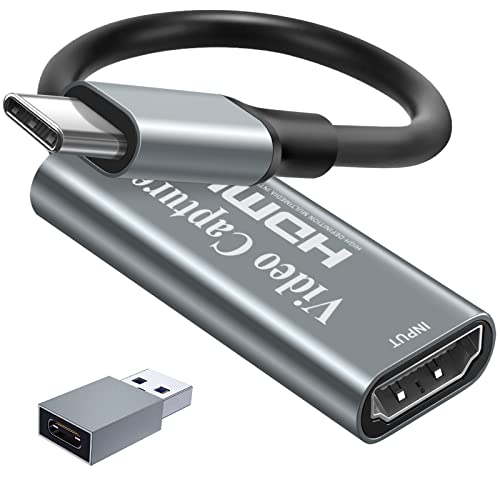
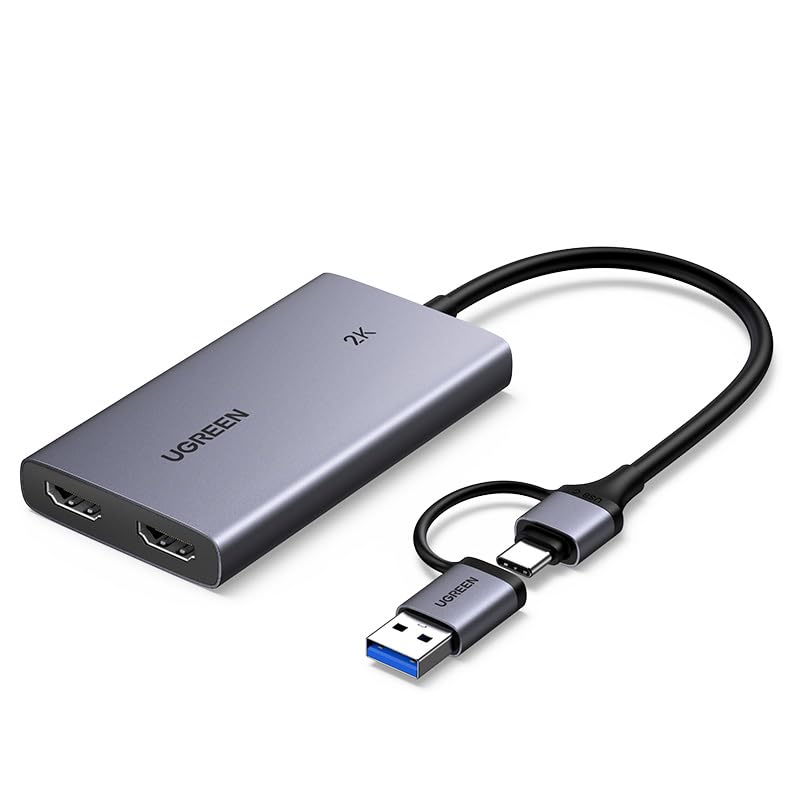
This guide explains how capture cards work, which ports and features to check and which common problems to avoid. The product table lists compact USB capture devices that handle 1080p video.





How a Capture Card Works
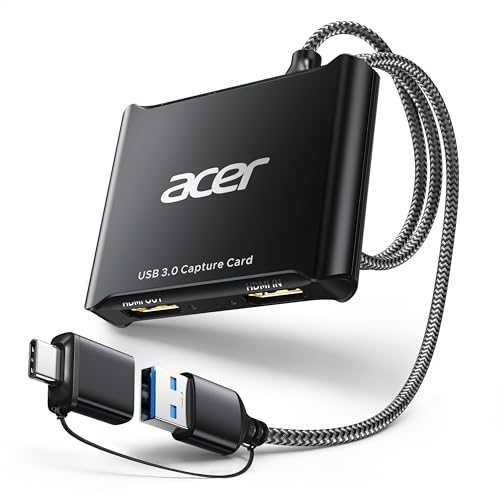
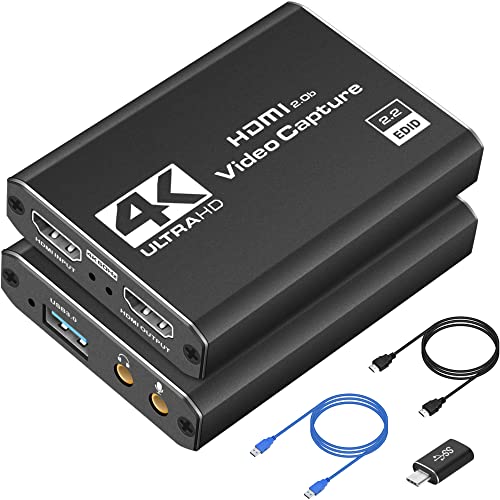
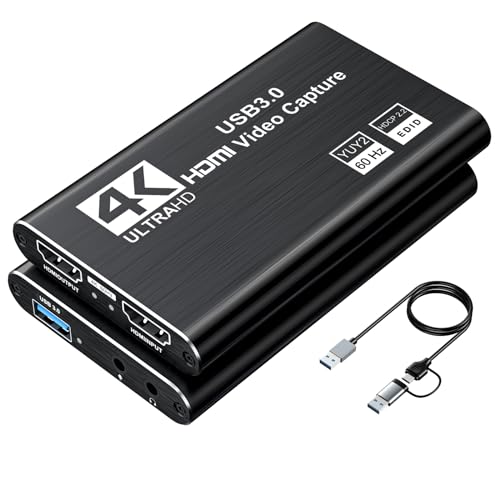
A capture card takes an HDMI video signal and turns it into a USB video source your computer can read, like a webcam. Your console or camera plugs into the card's input, and the card connects to the computer over USB. Many cards also pass the signal through to a TV or monitor, so you can play on the big screen while you record.
A card that supports 1080p at 60fps records most console games smoothly. If a listing says 4K input with 1080p capture, it accepts a 4K signal but records at a lower resolution.
USB 2.0 Versus USB 3.0
USB 3.0 handles 1080p at 60fps with room to spare, which is why most current cards use it. USB 2.0 cards may be limited to lower frame rates or compressed video. Plug the card into a blue USB 3.0 port on the computer, and avoid hubs that share bandwidth with other devices.
Pass-Through and Latency
Pass-through sends the console's signal straight to a display with almost no delay, so you can play without lag while the card records separately. Without pass-through you would need to watch the game on your computer monitor, which adds a small delay that is noticeable in fast games. If you play competitively, make pass-through a priority.
Compatibility
- Consoles: most current consoles output HDMI that these cards accept.
- Cameras and camcorders: a capture card turns a camera with clean HDMI output into a high-quality webcam.
- Laptops and second PCs: useful for dual-PC streaming setups.
- Software: look for support in OBS and other streaming tools. Most cards appear as a standard video device.
Audio and Microphones
Capture cards carry HDMI audio, so the game's sound reaches your recording. Some also have a microphone or line input so you can add your voice. If your card has no mic input, use a USB microphone or a mixer and combine sources in your streaming software.
Protected Content
Some streaming apps and consoles block recording of protected content, and no capture card can bypass that. Gameplay is generally capturable, but certain system menus or apps may show a black screen. Check your console's settings if the capture fails.
Setting Up a Capture Card
Connect the console to the card's HDMI input, connect the card's output to your TV or monitor, and connect the USB cable to the computer. Open your streaming software, add a video capture device and select the card. Set the resolution and frame rate to match your console. If the picture is black, check the console's output resolution and disable any copy protection that applies to games.
Dual-PC and Camera Uses
Streamers with two computers use a capture card to send the gaming PC's video to a streaming PC, which keeps encoding work off the gaming machine. Photographers and presenters use the same cards to turn a camera into a webcam with better optics. Both uses depend on clean HDMI output, so set the camera or PC to avoid on-screen overlays and check that the output resolution matches the card's limits.
Heat, Cables and Reliability
Small capture cards can get warm during long sessions. Give them some airflow and avoid stacking them on top of a hot console. Use a quality HDMI cable and a short USB cable from the box, because a long or cheap cable can cause drops. If your recordings show green flashes or stutter, swap cables and try another USB port before blaming the card.
Choosing the Best 1080p Capture Card
Compare USB version, pass-through, maximum recording resolution and frame rate. Cards in this class are inexpensive, often between $15 and $30, with higher prices for models with extra features such as audio input or better software. Reliability and driver support matter more than a long specification list, so read buyer notes about overheating and dropped frames.
For platform-specific help, read best capture card for ps5 and how to set up a capture card.
Returns and Value Checks
Try the card with your console and your computer as soon as it arrives. Record a few minutes of gameplay with sound, play the clip back and look for stutter, dropped frames or audio drift. If the card disconnects or the picture flickers, try other cables and ports first, then use the return window if the problem remains. Compare warranty terms and check whether the maker publishes driver updates.
A cheap card is a fair choice for casual recording, but streamers who go live every day should look for strong buyer feedback about long-session stability.
Software Choices
Most capture cards work with OBS, the free streaming and recording program, and with common video chat apps. Add the card as a video capture device, choose the resolution and frame rate and add the audio source. Some cards come with their own software, which can be easier for beginners, but check that it does not limit quality or add watermarks.
Storage for Recordings
Recorded gameplay uses a lot of space. A one-hour 1080p recording at a high bitrate can take several gigabytes. Use a fast SSD or an external drive and clear old files regularly. If you stream only, there is no need for large storage, but a drive helps when you want to edit highlights afterward.
Frequently Asked Questions
Do I need a capture card to stream console games?
Many consoles can stream directly, but a capture card gives you better control over quality, overlays and recording.
Can I use a capture card with a laptop?
Yes, if the laptop has a suitable USB port. A USB 3.0 port is best.
Will it add lag to my game?
Pass-through keeps the game on your TV nearly lag-free. The recorded or previewed image on the computer may have a short delay.
Can I capture a camera?
Yes, if the camera outputs clean HDMI video. It becomes a webcam source in your software.
Final Thoughts
Check the USB version, pass-through and software support before you buy. The best 1080p capture card for most streamers is a simple USB 3.0 device that records smooth 1080p video and plugs in without fuss. Prices and availability can change, so check the product page before ordering.