Best 4K Monitors: The Buyer Checklist We Use
Disclosure: We may earn a commission when you buy through links on this page, at no extra cost to you. As an Amazon Associate I earn from qualifying purchases. Learn more

How we judge 4K monitors for work, creative projects and gaming, with three picks, a buyer checklist and red flags.
A 4K monitor packs four times the pixels of a 1080p screen, making text razor sharp, photos more detailed and spreadsheets easier to read. Prices have dropped so far that capable 27 inch 4K monitors now cost about what QHD monitors did a few years ago, while premium OLED and high refresh models push gaming and creative work to new levels. This guide to the best 4k monitors explains the checklist we use to judge them, then shows three picks that pass.
The short answer: most people should choose a 27 inch 4K IPS monitor with a 60Hz to 120Hz refresh rate, at least 300 nits of brightness, a height adjustable stand and USB C if you use a laptop, which costs around $250 to $350; gamers and creators who want the best picture should step up to a 32 inch 4K QD OLED monitor with a 240Hz refresh rate, around $750 to $900.



How We Evaluate 4K Monitors
We score 4K monitors on seven criteria, each with clear thresholds for good and poor performance.
Panel Technology (IPS, VA, OLED, Mini LED)
IPS panels deliver accurate colors and wide viewing angles, making them the best choice for work and photo editing. VA panels offer deeper contrast for movies but can show color shifts at angles. OLED panels, including QD OLED, provide perfect blacks, vivid HDR and near instant response, ideal for gaming and media but with burn in considerations. Mini LED monitors deliver high brightness and contrast for HDR. Good: IPS for work, OLED for gaming and media. Poor: low quality TN or uncalibrated panels.
Stand, Mounting, and Ergonomics
A good stand adjusts height, tilt and swivel, and ideally pivot for portrait mode. VESA mounting holes allow monitor arms for flexible positioning and more desk space. Good: height adjustable stand with VESA 100 support. Poor: tilt only stands that force poor posture.
Refresh Rate and Response Time
Sixty hertz is fine for office work and photo editing, while 120Hz to 144Hz makes scrolling and gaming smoother. High end 4K gaming monitors reach 240Hz, and some dual mode monitors switch to higher refresh at lower resolution. Response times of 1 to 5 milliseconds suit gaming; OLED reaches about 0.03 milliseconds. Good: 120Hz or more for mixed use. Poor: 60Hz panels marketed for competitive gaming.
Connectivity and Ports
Running 4K at high refresh rates requires DisplayPort 1.4 or 2.1, or HDMI 2.1. USB C with DisplayPort Alt Mode and power delivery lets laptops connect with one cable. USB hubs and KVM switches add convenience. Good: DisplayPort, HDMI 2.1 and USB C. Poor: only HDMI 2.0, limiting 4K to 60Hz.
Adaptive Sync and Gaming Features
FreeSync Premium and G Sync compatibility prevent tearing in games. HDMI 2.1 enables 4K 120Hz on PS5 and Xbox Series X. Good: adaptive sync and console friendly HDMI 2.1. Poor: no variable refresh support.
Scaling, Sound, and Extras
At 27 inches, 4K usually runs at 150 percent scaling in Windows or a scaled resolution on macOS for comfortable text size; check that your apps scale well. Built in speakers are usually basic, and some smart monitors include streaming apps. Good: crisp scaling and useful extras like a KVM. Poor: gimmicks that raise price without improving the display.
HDR and Brightness
For office work, 300 to 350 nits is enough. For meaningful HDR, look for VESA DisplayHDR 600 or higher on LCD or True Black 400 on OLED. Many budget monitors labeled HDR10 lack the brightness for real HDR. Good: HDR certifications backed by high brightness or OLED contrast. Poor: HDR labels on dim panels.
3 Picks That Pass Our Checklist
These three monitors come from the product table above and meet every criterion on our checklist.


Best Overall
The Dell 27 Monitor S2725QS, around $280, is our pick for most buyers who want sharp 4K at a fair price. Its first strength is a 27 inch 4K IPS panel with a 120Hz refresh rate, delivering crisp text and smooth scrolling that suits both work and casual gaming. Its second strength is everyday comfort, with AMD FreeSync Premium, eye comfort features and 350 nits of brightness for well lit rooms.
The limitation is the lack of USB C, so laptop users may prefer the S2725QC variant or a USB C model.
Best Value
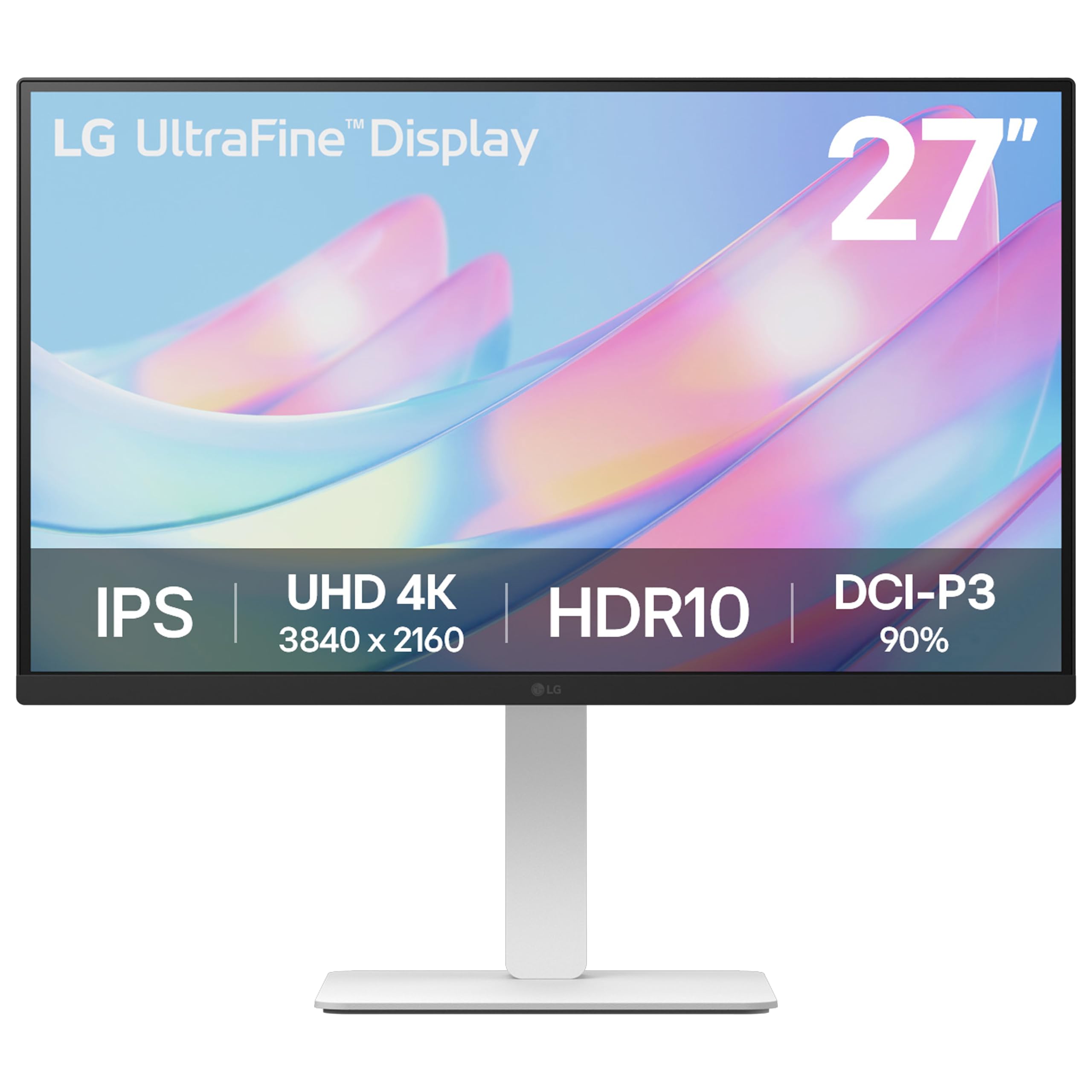
The LG 27US550 UltraFine, around $255, suits buyers who want 4K clarity on a tight budget. Its first strength is a 27 inch IPS 4K panel with HDR10 support and accurate colors for documents and photos. Its second strength is a clean white design that looks great in home offices and creative spaces.
The limitation is a 60Hz refresh rate, which is fine for work but less smooth for gaming.
Best for Heavy Use
The MSI MPG 321URX QD OLED, around $860, is for gamers and creators who spend hours in front of a screen and want the best picture. Its first strength is a 32 inch 4K QD OLED panel with 240Hz refresh and 0.03 ms response, delivering stunning contrast, color and motion clarity. Its second strength is OLED care features, including pixel refresh and panel protection, plus extensive connectivity.
The limitation is OLED burn in risk with static content, so heavy spreadsheet users should vary screen content and use dark themes.
Quick Buyer Checklist
- Does the screen size suit your desk and viewing distance?
- Is the refresh rate right for your use, 60Hz for work or 120Hz and higher for gaming?
- Does it have DisplayPort or HDMI 2.1 for 4K at high refresh?
- Does it include USB C if you use a laptop?
- Is the stand height adjustable or VESA compatible?
- Does it meet a real HDR certification if HDR matters?
- Can your computer or console run 4K smoothly?
- Is there a solid warranty, including burn in coverage for OLED?
Red Flags to Watch For
- Misleading HDR claims. HDR10 labels on dim monitors deliver little benefit.
- HDMI 2.0 only. Limits 4K gaming to 60Hz on consoles and some PCs.
- Vague panel specs. Listings without panel type, brightness or color gamut hide weaknesses.
- Suspicious reviews. Floods of short, similar five star reviews suggest manipulation.
- No burn in warranty on OLED. Look for explicit coverage for OLED monitors.
Is Your Computer Ready for a 4K Monitor?
Displaying 4K for office work is easy for most modern computers, including integrated graphics on recent laptops. Gaming at 4K is far more demanding: high frame rates need powerful graphics cards, though upscaling technologies like DLSS, FSR and XeSS help. Consoles like PS5 and Xbox Series X output 4K at up to 120Hz with HDMI 2.1.
Check your laptop's ports; many support 4K at 60Hz over USB C or HDMI, but higher refresh rates may require Thunderbolt or DisplayPort. MacBooks drive 4K displays well, and macOS scaling looks especially crisp on 27 inch 4K monitors.
27 Inch vs 32 Inch 4K Monitors
Twenty seven inch 4K monitors deliver very high pixel density, around 163 pixels per inch, for extremely sharp text, though you typically run them with scaling. They fit standard desks and suit photo editing and office work. Thirty two inch 4K monitors offer more workspace at closer to native scaling, making them great for multitasking, video editing and immersive gaming. They need deeper desks and work best about 2.5 to 3 feet away.
Choose 27 inches for sharpness and desk friendliness, and 32 inches for space and immersion.
4K Monitors for Photo and Video Editing
Creators benefit enormously from 4K monitors. Photo editors can view images at higher magnification without losing context, and video editors can preview 4K footage at native resolution while keeping timelines visible. Look for 99 to 100 percent sRGB coverage for web work, and 95 percent or more DCI P3 for HDR video and modern devices. Factory calibration and hardware calibration support keep colors consistent.
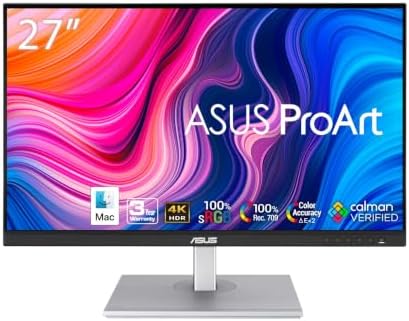
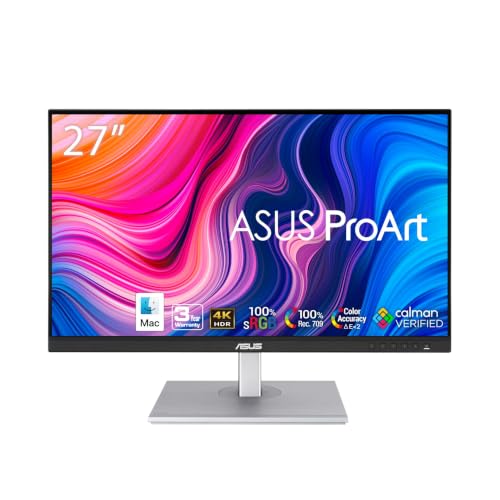
Professional creative monitors like the ASUS ProArt series add calibration reports, uniformity compensation and color modes for different workflows. OLED monitors deliver stunning contrast for HDR grading, though matte IPS panels often remain the choice for print work.
4K Gaming Monitors Explained
Gaming at 4K makes worlds look incredibly detailed, but it demands powerful hardware. On PC, high end graphics cards with upscaling deliver 4K at 100 frames per second or more in many games. Consoles like PS5 and Xbox Series X target 4K at 60 or 120 frames per second, so HDMI 2.1 support is important for console gamers.
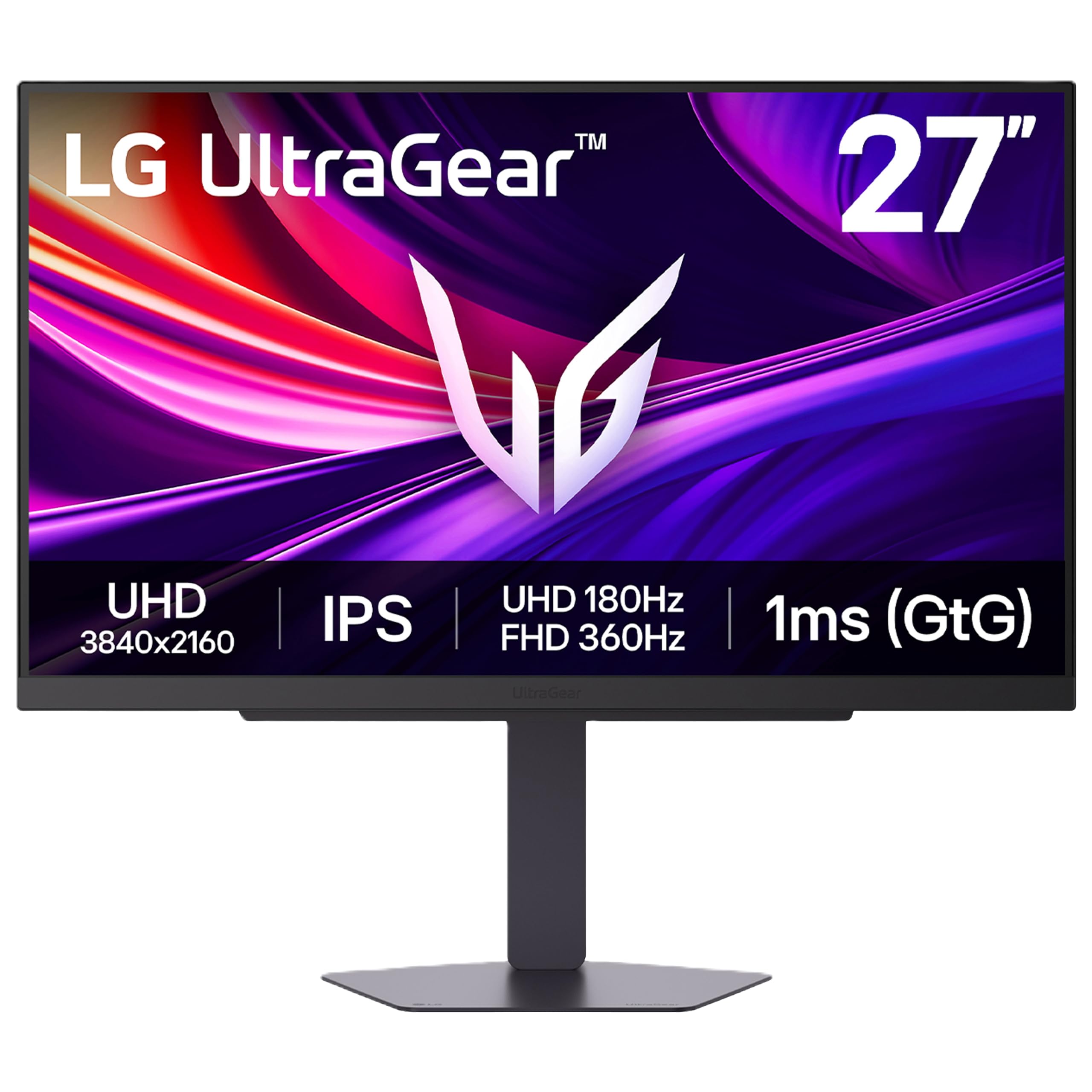
Dual mode monitors like the LG UltraGear 27G810A switch between 4K at high refresh and 1080p at even higher refresh rates, giving competitive players a speed boost. OLED 4K gaming monitors offer the best motion clarity and HDR for immersive single player games.
Using a 4K Monitor with a Mac
Macs pair especially well with 4K monitors. At 27 inches, macOS scaling renders text at a crisp "looks like 2560 by 1440" setting, delivering sharp fonts similar to Retina displays. USB C or Thunderbolt monitors connect MacBooks with a single cable for video, charging and accessories. Check that the monitor's USB C port supplies enough power for your MacBook, ideally 65 to 90 watts.
Setup and Care Tips
Use a certified DisplayPort or HDMI 2.1 cable for high refresh 4K. Set your operating system scaling for comfortable text size and enable HDR only for HDR content. Turn on adaptive sync in your graphics settings for gaming. On OLED monitors, allow pixel refresh cycles and use dark mode and screen savers. Clean screens gently with a microfiber cloth.
How Much to Spend on a 4K Monitor
Around $250 to $350 buys excellent 27 inch 4K IPS monitors for work, school and casual gaming. Around $350 to $500 adds 144Hz to 180Hz refresh rates, USB C power delivery and larger sizes. Around $700 to $1,000 covers 4K OLED gaming monitors with 240Hz refresh and premium HDR. For most buyers, the best 4k monitors sit in the $250 to $400 range.
FAQs
What size 4K monitor should I get for my desk?
A 27 inch 4K monitor suits most desks, while 32 inches works for deeper desks and multitasking. Sit about 2 to 3 feet away. Larger 37 to 43 inch 4K monitors suit wide desks and media use.
IPS vs OLED: which is better for a 4K monitor?
IPS is better for office work and static content, while OLED is better for gaming and media. IPS offers accurate color and no burn in risk. OLED delivers perfect blacks, vivid HDR and instant response but needs care with static elements.
Is 4K worth it for a monitor?
Yes, 4K is worth it on 27 inch and larger monitors for sharper text and images. It improves productivity and photo work. Gamers need powerful hardware to enjoy high frame rates at 4K.
Does refresh rate matter for non gamers?
Higher refresh rates make scrolling and mouse movement feel smoother, but 60Hz is fine for most office work. 120Hz 4K monitors are now affordable and add comfort.
How long do 4K monitors last?
Most 4K monitors last around five to ten years. IPS backlights degrade slowly, while OLED monitors last many years with proper care features enabled.
Can I use a 4K monitor with a laptop?
Yes, most modern laptops support 4K monitors through USB C, HDMI or Thunderbolt. Check your laptop's port specifications for 4K at 60Hz or higher. USB C monitors with power delivery charge the laptop at the same time.
Is a curved 4K monitor worth it?
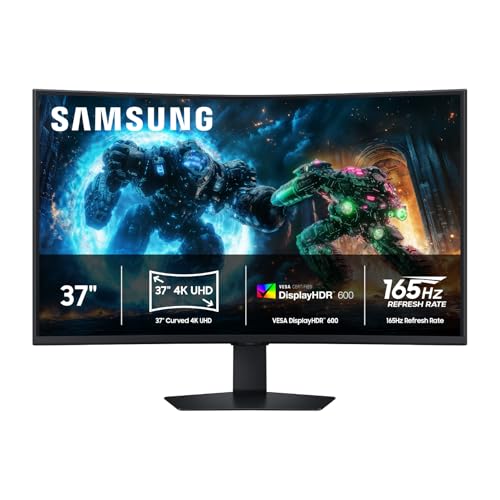
Curved 4K monitors are worth it at 32 inches and larger for immersion. The curve keeps edges at a comfortable viewing angle on big screens. At 27 inches, flat monitors are usually better for productivity.
Wrapping Up
A 4K monitor transforms text clarity, photo detail and gaming immersion. Choose an IPS 4K monitor for work and everyday use, prioritize 120Hz for smoother motion and step up to OLED for the best gaming and media experience. Make sure your computer and ports support your chosen resolution and refresh rate.
Compare the best 4k monitors in the product table above to find the right size, speed and price for your setup.