
Best Engineering Laptops: Every Type Explained Side by Side
Disclosure: We may earn a commission when you buy through links on this page, at no extra cost to you. As an Amazon Associate I earn from qualifying purchases. Learn more

Gaming laptops, mobile workstations, MacBooks, budget laptops and 2 in 1s compared for engineering students and professionals.
Engineering software is some of the most demanding work a laptop can face. CAD programs like SolidWorks, AutoCAD, Fusion and CATIA, simulation tools like ANSYS and MATLAB and coding environments all need strong processors, plenty of memory and, often, capable graphics. On top of that, engineering students carry their laptops across campus every day, and professionals may need certified hardware. This guide to the best engineering laptops compares every type side by side so you can choose the right machine for your program or job.
The short answer: most engineering students should choose a Windows laptop with a modern Intel Core Ultra 7 or AMD Ryzen 7 processor, 16GB to 32GB of RAM, a 1TB SSD and an NVIDIA RTX GPU, which gaming laptops like the Lenovo Legion 5 deliver for around $1,000 to $1,700; professionals who rely on certified CAD drivers should step up to a mobile workstation like the HP ZBook 8 G1i, and budget students can start with an efficient laptop around $600 for lighter coursework.
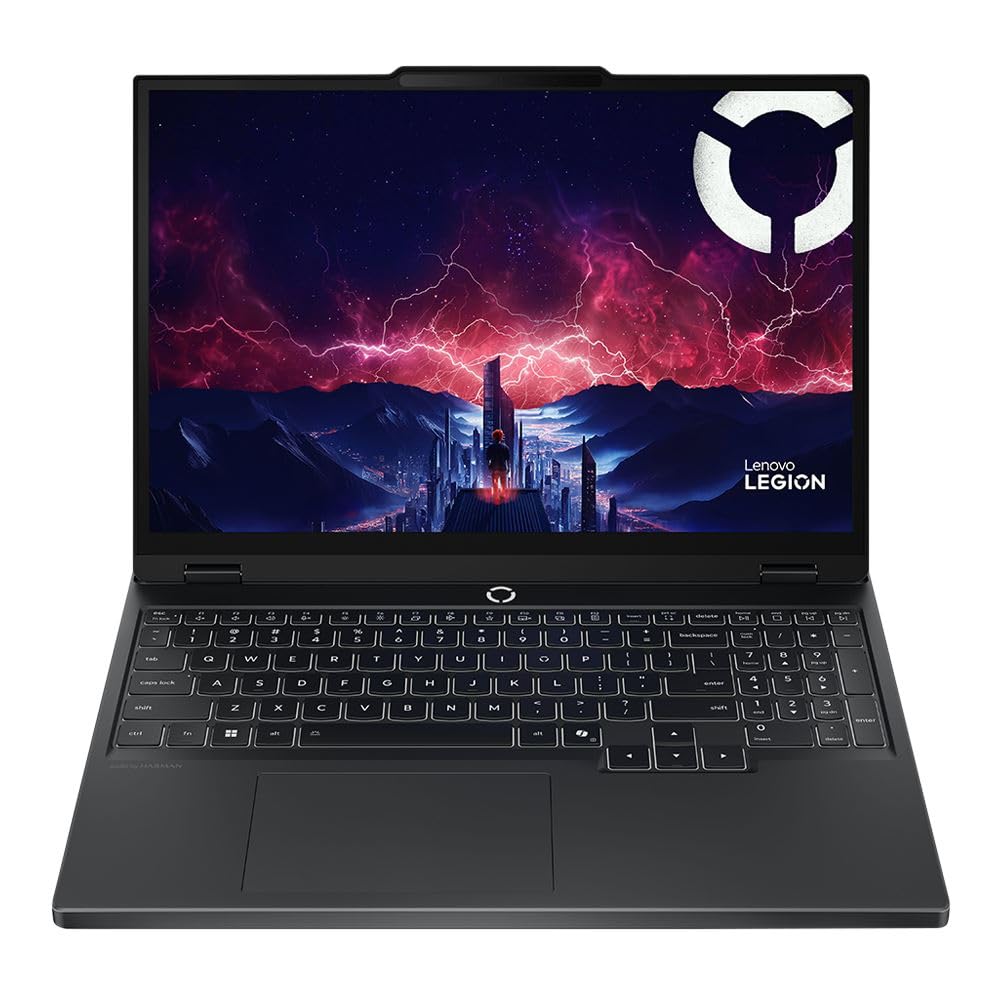
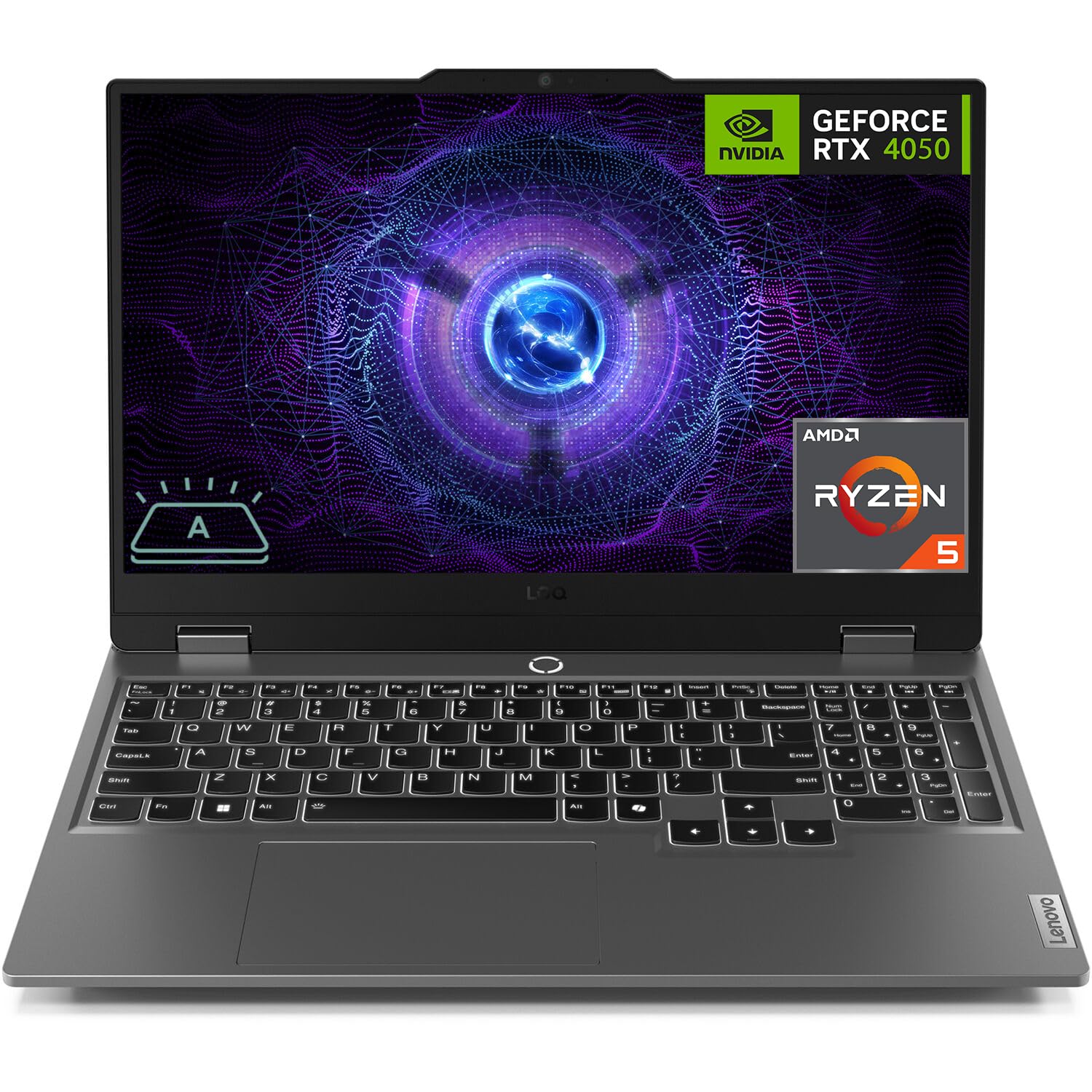

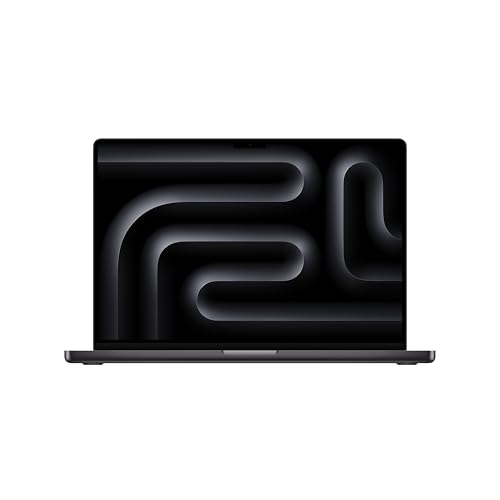

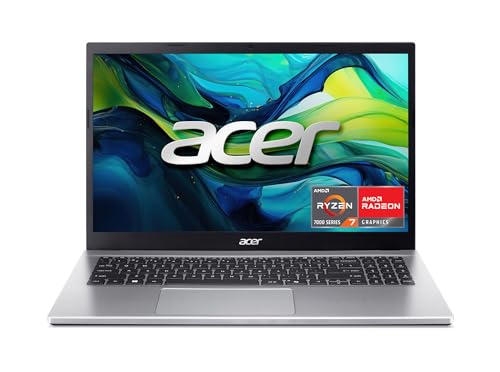

Top 3 Picks at a Glance
These three laptops from the product table above cover the best overall engineering laptop, a value option and a professional workstation.


Types of Engineering Laptops Compared
The table below summarizes the main laptop types engineering students and professionals consider.
| Type | Best For | Pros | Cons | Typical Price |
|---|---|---|---|---|
| Gaming laptops with RTX GPUs | Engineering students, CAD and simulation | Strong CPUs and GPUs for the money | Heavier, shorter battery, uncertified drivers | around $900 to $2,000 |
| Mobile workstations | Professional engineers, certified CAD | ISV certified GPUs, durability, support | Expensive | around $2,000 to $5,000 |
| Premium ultraportables and MacBooks | Software, electrical and coding focused students | Light, long battery, great screens | Some engineering apps are Windows only | around $1,000 to $2,500 |
| Budget laptops | First year students, light coursework | Affordable, portable | Struggle with heavy CAD and simulation | around $500 to $800 |
| 2 in 1 convertibles and tablets | Note taking, sketching, light work | Pen input, flexible | Limited power for CAD | around $700 to $1,500 |
Gaming Laptops
Gaming laptops are the most popular choice for engineering students because they pack high performance CPUs and dedicated NVIDIA RTX graphics at prices well below workstations. These components handle 3D modeling, rendering, simulations and GPU accelerated tools like MATLAB and machine learning frameworks. Models like the Lenovo Legion 5 and LOQ offer upgradeable RAM and storage, plenty of ports and good cooling.
The trade offs are weight, often 5 pounds or more, shorter battery life and consumer graphics drivers that are not certified for professional CAD software. For students, consumer RTX GPUs work well in most programs, but certified hardware matters more in professional settings.
Mobile Workstations
Mobile workstations like the HP ZBook, Lenovo ThinkPad P series and Dell Precision use professional NVIDIA RTX Ada GPUs with drivers certified by independent software vendors for SolidWorks, CATIA, Creo and other tools. They offer business durability, security, ECC memory options on some models and long support cycles.
They suit professional engineers, firms and students in programs that require certified hardware. Their main drawback is price, often double that of a comparable gaming laptop.
Tablets and 2 in 1 Convertibles
Tablets and 2 in 1 laptops excel at handwritten notes, annotating PDFs and sketching diagrams, which many engineering students value in lectures. Convertibles like Yoga and Surface devices run Windows apps and handle light coding and MATLAB work. However, most lack the GPU power for serious CAD, so they work best as companions to a desktop or lab computers.
Gaming Laptops vs 2 in 1 Laptops: Which Should You Choose?
- Performance: Gaming laptops are far faster for CAD, rendering and simulation.
- Portability: 2 in 1 laptops are lighter with longer battery life for full days on campus.
- Note taking: 2 in 1 models with pens are better for handwritten notes and sketches.
- Upgradability: Gaming laptops often allow RAM and SSD upgrades.
- Cost: Gaming laptops deliver more performance per dollar; premium 2 in 1s cost more for portability.
Choose a gaming laptop if your program involves CAD, simulation or 3D work. Choose a 2 in 1 if your work focuses on coding, writing and note taking, and use campus labs for heavy software.
How to Choose the Right Engineering Laptop
Processor and Performance Tier
CAD and simulation software rely heavily on CPU single core speed for modeling and multi core performance for rendering and simulations. Choose an Intel Core Ultra 7 H or HX, AMD Ryzen 7 or Ryzen 9 HS or HX processor for heavy workloads. Efficiency chips like Intel Core Ultra 200V and Snapdragon X suit coding and lighter tasks but struggle with intensive CAD.
Graphics (Integrated vs Dedicated GPU)
Dedicated NVIDIA GPUs accelerate 3D viewports, rendering, CUDA based simulations and machine learning. An RTX 4050, 4060 or 5060 suits most student work, while professional RTX Ada GPUs in workstations provide certified drivers. Integrated graphics handle coding, MATLAB scripts and 2D drafting but slow down with complex 3D assemblies.
RAM and Storage
Sixteen gigabytes of RAM is the minimum for engineering, and 32GB is recommended for large assemblies, simulations and virtual machines. Choose at least a 1TB SSD, since engineering software, datasets and project files take significant space. Laptops with upgradeable RAM and a second M.2 slot let you expand later.
Operating System (Windows, macOS, Linux)
Windows is the safest choice for engineering, since most CAD and simulation software, including SolidWorks, runs only on Windows. MacBooks work well for software engineering, electrical engineering tools that run on macOS and cloud based CAD like Onshape, but some programs require virtualization or remote access. Linux suits programming and many scientific tools.
Keyboard, Display, and Build
Engineers spend long hours typing code and reports, so a comfortable keyboard matters. A 15 to 16 inch screen with 1920 by 1200 or higher resolution gives room for CAD toolbars and multiple windows, and accurate color helps with visualization. Sturdy builds survive daily commutes, and good cooling keeps performance steady during long simulations.
Choosing Engineering Laptops for Your Situation
Best Engineering Laptops for Engineering
The best engineering laptops for engineering programs that involve heavy CAD balance a strong CPU, an RTX GPU, 32GB of RAM and good cooling. Gaming laptops like the Lenovo Legion 5 with RTX 5060 graphics run SolidWorks, Fusion and ANSYS smoothly while staying within student budgets.
Best Engineering Laptops for Work: Which Type Works Best
The best engineering laptops for work are mobile workstations with ISV certified GPUs, business security and onsite support. The HP ZBook 8 G1i with NVIDIA RTX 500 Ada graphics fits firms that need certified reliability for professional CAD.
Best Engineering Laptops under 500: Which Type Works Best
The best engineering laptops under 500 are entry Windows laptops with 16GB of RAM and Ryzen or Intel Core i5 processors. They handle coding, MATLAB scripts, documents and light 2D CAD, but heavy 3D work should run on campus labs or cloud tools.
Best Engineering Laptops for 1000
The best engineering laptops for 1000 are entry gaming laptops like the Lenovo LOQ with RTX 4050 graphics, 16GB of RAM and fast processors. They deliver real CAD and simulation capability at an accessible price, with room to upgrade RAM later.
Best College Engineering Laptops: Which Type Works Best
The best college engineering laptops combine performance with portability and durability. A 15 or 16 inch gaming laptop with an RTX GPU suits mechanical, civil and aerospace students, while electrical and computer engineering students may prefer lighter laptops or MacBooks for coding and circuit tools.
Best Engineering Laptops under 600: Which Type Works Best
The best engineering laptops under 600 include models like the Acer Aspire Go 15 with a Ryzen 7 processor and 16GB of RAM. They are fine for first year coursework and coding but not ideal for demanding CAD assemblies.
Laptops by Engineering Discipline
Mechanical and Aerospace Engineering
Mechanical and aerospace students spend much of their time in SolidWorks, CATIA, Fusion and ANSYS, building 3D assemblies and running finite element simulations. They benefit most from strong CPUs with high single core speeds, RTX graphics with at least 8GB of video memory and 32GB of RAM. A 16 inch screen with good color helps when inspecting complex models.
Civil and Architectural Engineering
Civil engineers work with AutoCAD, Revit and Civil 3D, which handle large drawings and building information models. A capable GPU, 32GB of RAM and a large, sharp display help with detailed plans. Battery life matters less than performance, since much of the work happens at a desk.
Electrical and Computer Engineering
Electrical and computer engineering students use circuit simulators, MATLAB, programming environments and FPGA tools. Many of these run well on mid range laptops, so portability and battery life can take priority. Some tools are Windows only, while others work on macOS and Linux.
Chemical and Biomedical Engineering
These disciplines rely on MATLAB, Python, process simulators and data analysis software. More RAM and a fast CPU matter more than graphics. A balanced laptop with 16GB to 32GB of memory and a comfortable keyboard suits long analysis sessions.
Gaming GPUs vs Professional Workstation GPUs
Consumer RTX GPUs found in gaming laptops offer excellent raw performance for the price and work well in most CAD and simulation software, especially for students. Professional RTX Ada GPUs in mobile workstations use the same underlying architectures but add ISV certified drivers, which software makers verify for stability and accuracy with their applications. Some professional software features or support agreements require certified hardware.
For coursework, a gaming laptop GPU is usually the smarter value. For professional engineers whose employers require certified systems, or who rely on vendor support for mission critical work, a mobile workstation is worth the extra cost.
Accessories for Engineering Students
A three button mouse with a scroll wheel is essential for navigating CAD models, and many engineers use a 3D mouse for smoother rotation. An external monitor makes complex drawings easier to work with at home, and a laptop cooling pad helps during long simulations. A sturdy backpack protects heavier gaming laptops, and an external SSD backs up large project files. Consider a graphing calculator if your courses still require one for exams.
Setup and Care Tips
Install the latest GPU drivers, and on gaming laptops consider NVIDIA Studio drivers, which are optimized for creative and technical apps. Set Windows power mode to best performance when plugged in for simulations. Keep vents clean, use a cooling pad for long renders and avoid soft surfaces that block airflow. Back up project files to cloud storage and an external drive, and use your university's software portal for licensed tools.
Battery Life and Portability on Campus
Engineering students often move between lectures, labs and libraries all day, so battery life and weight matter. Gaming laptops with powerful GPUs typically last three to six hours on light tasks and much less under load, so plan to carry the charger. Look for models with USB C charging support so you can top up with a smaller charger between classes. Efficient laptops and MacBooks can last a full day but give up GPU power.
One practical approach is to choose a performance laptop for your main work and rely on battery saving modes during lectures, switching the GPU off with hybrid graphics settings. Many gaming laptops include MUX switches or Advanced Optimus, which let the integrated GPU handle light work to save power.
Using Cloud and Remote Tools
Many universities provide virtual desktops or remote lab access that run heavy engineering software on powerful servers. Cloud CAD tools like Onshape and Fusion's cloud features also reduce local hardware demands. These options let students with lighter laptops complete demanding assignments, though a stable internet connection is required and performance can lag compared with a powerful local machine.
Common Mistakes When Buying an Engineering Laptop
- Buying 8GB of RAM. Engineering software quickly outgrows it; choose 16GB minimum.
- Choosing Mac without checking software. SolidWorks and some tools are Windows only.
- Skipping a dedicated GPU for CAD heavy majors. Integrated graphics struggle with 3D assemblies.
- Ignoring cooling. Thin laptops can throttle during long simulations.
- Forgetting student discounts. Manufacturers and universities often offer education pricing.
Checking Your Program's Software Requirements
Before buying, check your engineering department's laptop recommendations. Many universities publish minimum and recommended specs for software like SolidWorks, AutoCAD, MATLAB, LabVIEW and ANSYS. Some programs require Windows, specific GPUs or minimum RAM, and some provide virtual desktops that run heavy software remotely.
Mechanical, aerospace and civil engineering typically need the most graphics power for 3D modeling and simulation. Electrical and computer engineering lean on coding and circuit simulation, which run well on most modern laptops. Chemical and biomedical engineering often use MATLAB and data analysis tools that benefit from more RAM.
How Much to Spend on an Engineering Laptop
Around $500 to $800 buys capable laptops for coding, documents and light CAD. Around $1,000 to $1,700 covers RTX gaming laptops that handle most engineering software well, the sweet spot for students. Around $2,000 to $5,000 brings mobile workstations with certified GPUs and premium creator laptops. For most students, the best engineering laptops cost between $1,000 and $1,700.
FAQs
Should I buy a laptop or a tablet for engineering?
Buy a laptop for engineering, and consider a tablet only as a companion for notes. Engineering software needs desktop operating systems, strong processors and dedicated graphics. Tablets help with handwritten notes and reading, but cannot replace a capable laptop.
How long should an engineering laptop last?
A good engineering laptop should last through a four year degree and beyond. Choosing 32GB of RAM, a strong CPU and an RTX GPU, or a model with upgradeable RAM, helps it keep up with software updates.
Is a dedicated GPU worth it for engineering?
Yes, a dedicated GPU is worth it for CAD, 3D modeling, rendering and simulation. It speeds up viewports and GPU accelerated tools. Students focused on coding or electrical engineering may manage with integrated graphics.
How much RAM do I need for engineering?
Choose at least 16GB of RAM, and 32GB for large CAD assemblies and simulations. More memory keeps complex models responsive and lets you run multiple tools at once.
Is a Chromebook enough for engineering school?
No, a Chromebook is not enough for most engineering programs. Engineering software usually requires Windows. Chromebooks can access cloud tools and remote desktops, but a Windows laptop is far more versatile.
Can I use a MacBook for engineering?
A MacBook works for software and electrical engineering, but many CAD programs require Windows. Cloud CAD like Onshape and virtual desktops can help. Check your program's software list before choosing a Mac.
Do engineering students need a 4K screen?
No, a sharp 1920 by 1200 or QHD screen is enough for most engineering work. Higher resolutions help with detailed drawings but drain battery faster and cost more. An external monitor at your desk adds far more workspace for CAD.
Our Verdict
The right engineering laptop depends on your discipline and software. Most students should choose an RTX gaming laptop with a strong CPU and 32GB of RAM, professionals who need certified drivers should invest in mobile workstations and budget or coding focused students can start with efficient laptops. Check your program's requirements before buying.
Compare the best engineering laptops in the product table above to find the right machine for your coursework or career.


