Apple Magic Mouse Review for 2026: Is the Gesture Mouse Worth It?
Disclosure: We may earn a commission when you buy through links on this page, at no extra cost to you. As an Amazon Associate I earn from qualifying purchases. Learn more
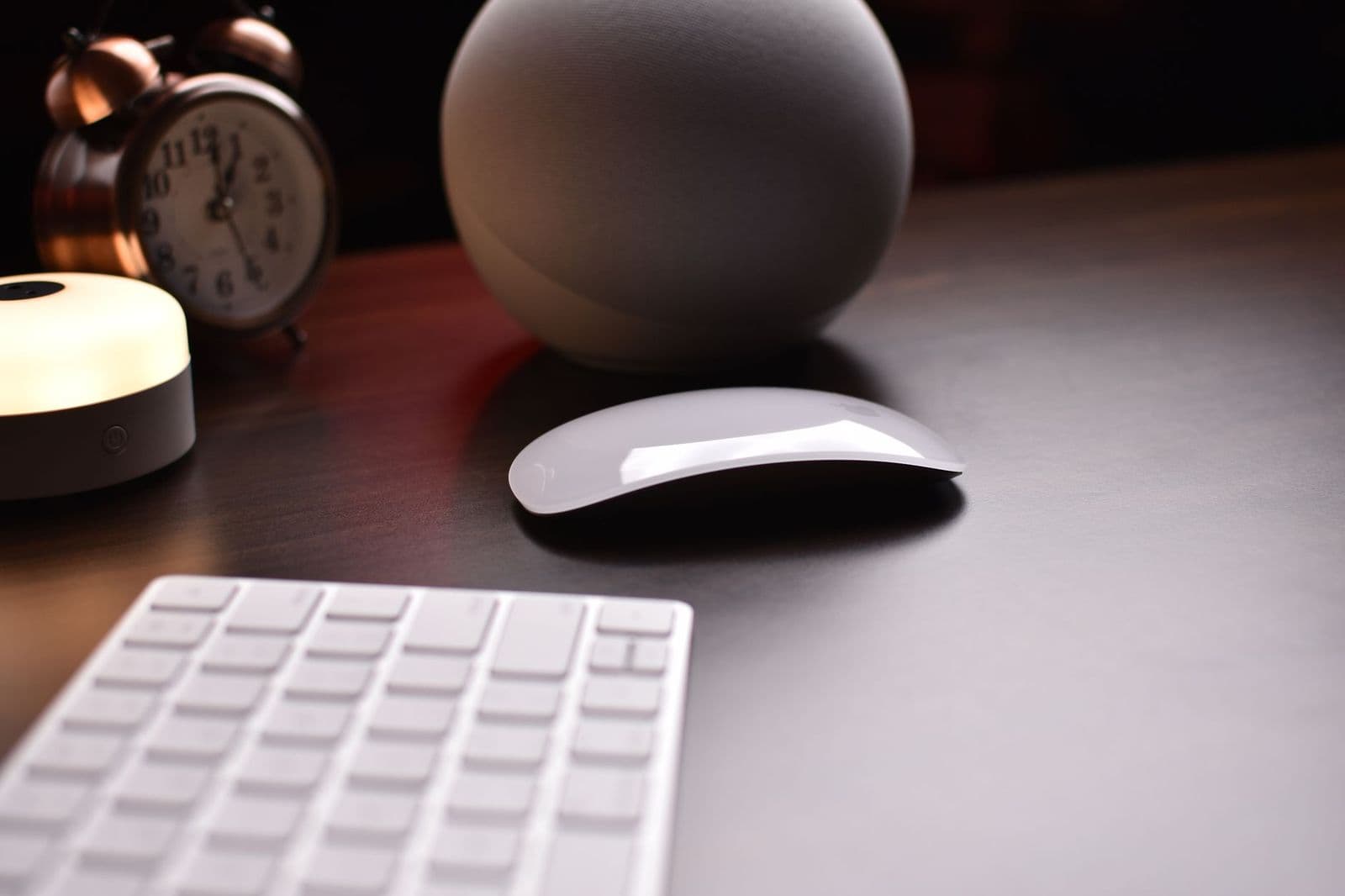
An honest apple magic mouse review on gestures, grip comfort, charging and which users will love or regret this mouse.
This apple magic mouse review covers what daily use is really like: the touch surface, the shape, the charging design and the type of person who ends up loving or hating it. The Magic Mouse is sold in white and black, and the mouse itself is the same in both finishes.
It is a polarizing product, so the useful question is not whether it is good but whether it matches the way you work.
What the Magic Mouse Does Well
The top surface is a single sheet of touch-sensitive glass finish with no visible buttons or wheel. You scroll in any direction with one finger, swipe between pages with two, and click anywhere on the shell. For web browsing, reading long documents and moving through photos, the gesture control is smooth and feels natural on macOS.
The listing says the mouse is wireless and rechargeable, with a battery that lasts about a month or more between charges. It pairs with a Mac automatically and comes with a woven USB-C cable that both charges and pairs it. Its optimised foot design lets it glide across a desk with little effort.
Where It Falls Short
The shell is low and flat, so you grip it with your fingertips rather than your palm. For short sessions that is fine. After a long day of editing or spreadsheet work, many people feel tension in the hand and look for something taller.
There is also no dedicated right-click button as such, no thumb button and no side wheel. Right-click works by touch, but missing it by a few millimeters is a common annoyance. Dragging and holding can feel awkward because your fingers are also used to hold the shell.
Charging Design
The charging port sits under the mouse, so you cannot use it while it charges. A short charge gives hours of use, so most owners simply plug it in at the end of the day or during a break.
Compatibility With Windows and Other Devices
The mouse works over Bluetooth, so it will pair with a PC, but the gestures are tied to macOS and its settings. On Windows you get basic pointing and scrolling, not the full set of swipes, and you may want third-party drivers to adjust tracking.
Because it connects to one device at a time in practice, switching between a Mac and another computer means opening Bluetooth settings. If you use several machines, a mouse that stores multiple pairings is more convenient.
Setting It Up Well
Open the Mouse section of System Settings and adjust tracking speed, scroll direction and the secondary click side. Turning on smart zoom and swipe between pages makes better use of the surface. Many users pair it with a desk pad, since the slick foot slides easily and a pad stops it drifting.
- Charge it fully before the first long session.
- Keep the underside clean so the foot glides evenly.
- Set the secondary click to the side you prefer.
- If your hand tires, try a different grip or take a break before replacing it.
Daily Use in Different Jobs
Writers and researchers tend to like it best. Long pages of text, web articles and PDFs move under one finger with almost no effort, and the quiet click rarely disturbs anyone nearby. The lack of a wheel is barely noticed because the whole surface acts as one.
Designers and video editors have mixed feelings. Precise dragging and dropping, holding a clip while you scroll a timeline, or making small adjustments to a slider can be harder when your fingers also support the shell. Many of them keep a trackpad or a second mouse for fine work.
Office users who live in spreadsheets often want a real wheel and a thumb button. The Magic Mouse can handle the job, but a mouse with more physical controls makes repetitive tasks faster.
Left-Handed Use
The body is symmetrical, so it works for left-handed users, and the secondary click can be moved to the left side in settings. This is one of the few mice that treat left and right hands equally without a special model.
Cleaning and Care
Wipe the shell with a soft, slightly damp cloth and dry it. Do not let liquid run into the port at the bottom. Keep the glide foot free of dust and crumbs, since debris under it causes jerky motion that is often mistaken for a fault.
Who Should Buy It and Who Should Not
It suits people who want a clean, minimalist desk, who browse and read more than they edit, and who already use Apple devices. It is a poor fit for gamers, power users who need extra buttons, and anyone with wrist strain who wants a taller grip.
Alternatives to Think About
If the shape is the problem, a sculpted wireless mouse with a thumb rest is the usual fix. If you want the same gestures in a different body, look for a mouse that has a gesture button and a smooth scroll wheel. Our apple magic mouse alternative guide walks through those options.
Is It Worth the Price?
The Magic Mouse costs more than most basic wireless mice, and the extra goes to the surface, the finish and the integration with the Mac. If you value the gestures, it is a fair price. If you mostly want a comfortable pointer, a cheaper mouse will serve you better.
FAQs
Does the Magic Mouse need batteries?
No. It has a built-in rechargeable battery that charges through a USB-C cable.
Can I use it while it is charging?
Not comfortably, because the port is on the bottom and the cable would sit under the mouse. A quick top-up before work usually avoids the problem.
Is the white or black version better?
They work the same. Black hides smudges less well and suits dark desk setups, while white matches a light desktop and keyboard.
Does it work with an iPad?
Yes, it connects by Bluetooth and the iPad shows a pointer, though the available gestures are not identical to the Mac.
Final Verdict
Our apple magic mouse review sums it up: it is the best mouse for gesture lovers who prize looks and macOS integration, and a mediocre one for anyone who wants a comfortable grip and extra buttons. Try to hold one before buying, or keep the return window in mind.