
Best 1080p 144hz Gaming Monitors: Panels, Sync and Size (2026)
Disclosure: We may earn a commission when you buy through links on this page, at no extra cost to you. As an Amazon Associate I earn from qualifying purchases. Learn more

Gamers with a mid-range graphics card: how to choose the best 1080p 144hz gaming monitors by panel type, adaptive sync, size and connections.
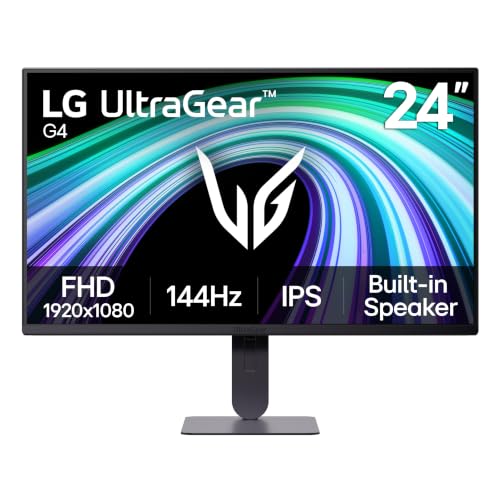
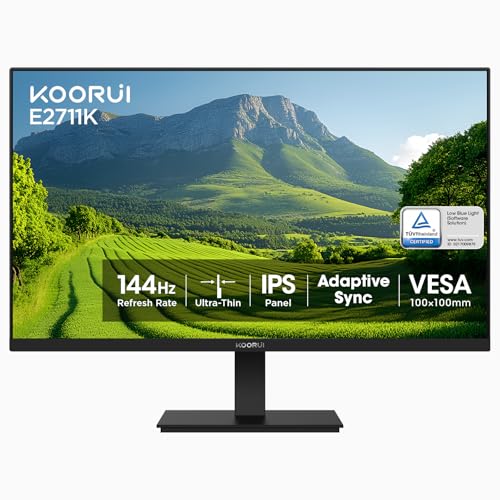
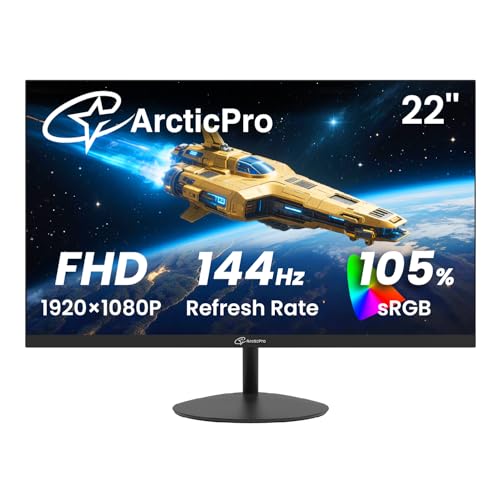
A 1080p panel running at 144Hz is the most practical gaming monitor for most players: the frame rate is smooth, the resolution is easy on the graphics card and the price stays modest. The best 1080p 144hz gaming monitors pair that refresh rate with a quick panel, adaptive sync and a stand that suits a desk.
This guide explains why this combination works, how panel types differ and which details separate a good gaming monitor from one that only looks good in the listing. The product table gives you a range of sizes and prices to compare with the points below.

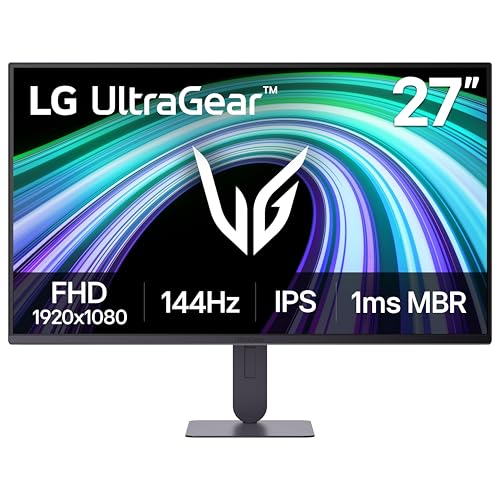
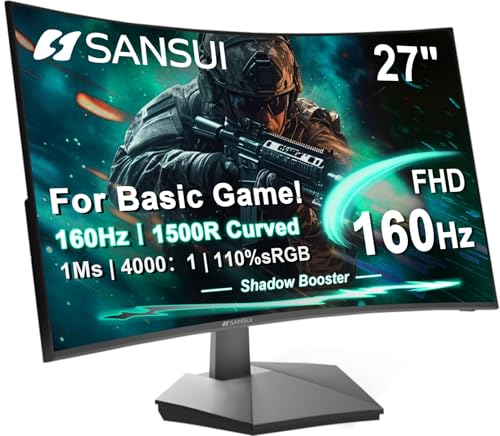
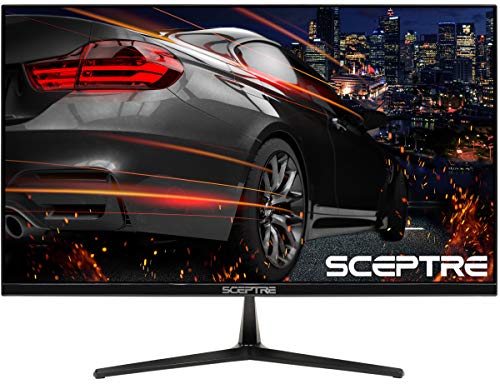

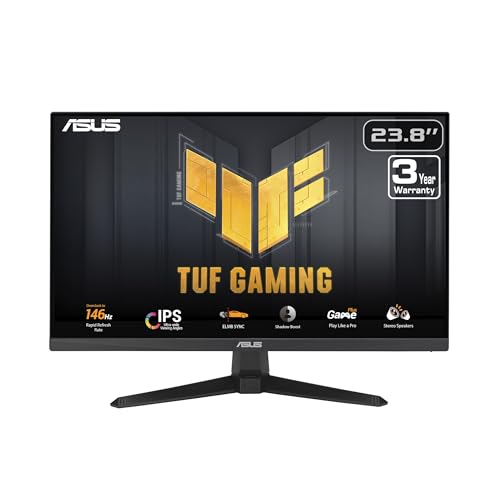

Why 1080p at 144Hz Is a Sweet Spot
Refresh rate describes how many times per second the screen redraws. At 144Hz the picture updates far more often than a standard 60Hz display, which makes fast camera movement, aiming and scrolling look smoother. Your graphics card has to produce enough frames to use it, and 1080p is the resolution where mid-range cards can do that in many games without turning every setting down.
If you play competitive shooters or racing games, the smoother motion helps you track targets. If you mostly play slower single-player games, the benefit is real but less dramatic, so weigh it against price.
Panel Types
- IPS panels have wide viewing angles and good color, and many modern gaming IPS screens are also fast. They are the usual choice for a balance of looks and speed.
- VA panels offer deeper contrast and often come in curved designs, which suit dark games and movies. Their response time can be slower in dark scenes.
- TN panels are the oldest fast type, with very quick response but weaker color and viewing angles.
Response Time and Motion Blur
Response time says how quickly a pixel changes color. The one-millisecond claims on listings are measured under favorable conditions, so do not treat them as a guarantee. What matters is whether the screen shows trailing ghosts in fast scenes, and buyer notes often reveal that. Many gaming monitors let you adjust an overdrive setting: a moderate level cuts blur, while a high level can add a bright halo around moving objects.
Adaptive Sync
Adaptive sync (sold as FreeSync or G-Sync Compatible) lets the monitor match its refresh rate to the frames your graphics card produces. It prevents screen tearing and keeps motion smooth when the frame rate dips. Check that your graphics card supports the standard, and that you connect with a cable and port that handle it. Use DisplayPort when available.
Size: 24, 27 or Something Else
A 24 inch screen at 1080p looks sharp from a normal desk distance and fits competitive setups where you want to see the whole picture without moving your head. A 27 inch screen feels more immersive, but the same number of pixels spreads over a larger area, so text and edges look softer. Curved screens help fill your view at 27 inches and above, though curves are a matter of taste.
Connections
You need at least one DisplayPort or HDMI input that supports the refresh rate. After connecting, open your operating system's display settings and set the refresh rate manually, because many PCs default to 60Hz until you change it. If you also use a console, check which port carries which refresh rate on that monitor. Headphone jacks and USB hubs are useful extras.
Ergonomics and Comfort
A stand that adjusts for height and tilt saves your neck during long sessions. Check for a VESA mount if you want a monitor arm. A flicker-free backlight and a low blue light mode help during evening play. Wide bezels look dated and waste space on multi-monitor setups, so look for slim frames if you plan two screens side by side.
HDR, Color and Picture Settings
Entry-level gaming monitors often advertise HDR, but without bright backlights and local dimming the effect is mild. Treat it as a bonus, not a reason to buy. Color coverage matters more for how games look every day. Open the on-screen menu and try the gaming and standard presets: the default is often too bright and too blue. A small drop in brightness and a neutral color temperature can make long sessions more comfortable.
Console and Second-Screen Use
A 144Hz monitor also works with a console, though the console decides which refresh rate it outputs. Check the console's video settings and the monitor's port details before you rely on the high refresh rate. If you use the monitor beside a laptop or a second display, match the sizes so the cursor does not jump awkwardly between screens, and keep the bezels slim.
For streamers, a 1080p monitor matches the output of most streaming setups, which keeps the preview sharp and the workflow simple.
Choosing the Best 1080p 144hz Gaming Monitors
Decide how much of your budget goes to the screen compared with the graphics card. A fast monitor is wasted on a weak graphics card, but a strong card is held back by a slow display. Many good models cost between about $100 and $200, with smaller or older designs below that and larger or more feature-rich ones above.
For related comparisons, read best 1080p 144hz monitors and best pc monitors for gaming.
Frequently Asked Questions
Is 144Hz noticeable compared with 60Hz?
Yes, most players notice the smoother motion within minutes, especially in fast games and when moving the mouse.
Do I need a powerful graphics card?
You need a card that can produce high frame rates at 1080p. Many mid-range cards can manage in popular games, but demanding titles may need lower settings.
Is 1080p enough on a 27 inch monitor?
It works, and many gamers prefer the higher frame rates, but the image is less sharp than on a higher-resolution panel of the same size.
Why does my monitor still look like 60Hz?
Windows and some consoles do not switch automatically. Open the display settings and select the higher refresh rate, and check the cable.
Final Thoughts
Match the monitor to your graphics card, pick a panel type that suits your games and set the refresh rate after you plug it in. The best 1080p 144hz gaming monitors offer smooth motion and low input lag at a price that leaves room for a strong graphics card. Prices and availability can change, so check the product page before ordering.


