Best 1080p Webcams: Webcams for Work Calls and Online Classes for 2026
Disclosure: We may earn a commission when you buy through links on this page, at no extra cost to you. As an Amazon Associate I earn from qualifying purchases. Learn more

Which of the best 1080p webcams suits your desk? Autofocus, microphones, field of view and privacy covers explained for remote work and classes.
A laptop camera that looks grainy and dim is the usual reason people shop for an external one, and a full HD webcam is the cheapest fix. This guide to the best 1080p webcams is written for people who spend hours in meetings, lessons and family calls and want to look clear without learning photography.
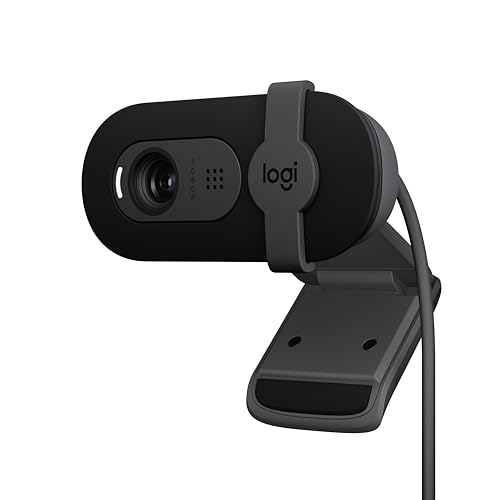
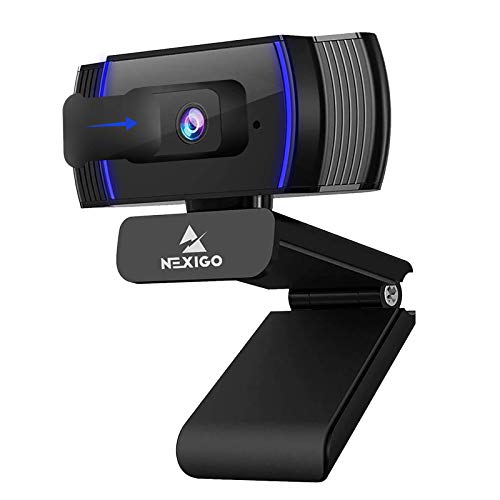
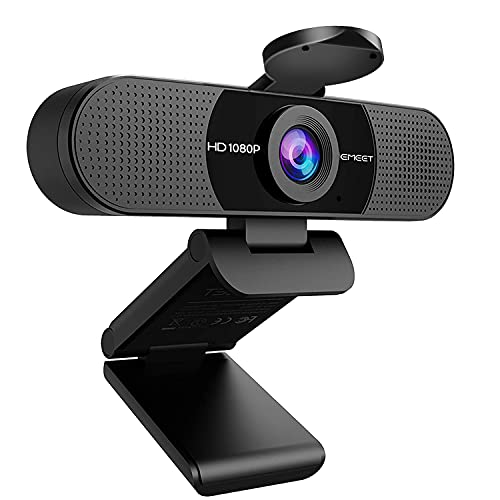
The table above lists webcams that record in 1080p. The sections below explain which features you will notice on a real call.





What Makes a Webcam Look Good on a Call
Light Matters More Than Pixels
A sharp sensor cannot fix a dark room. Put a window or a lamp in front of you, not behind you, and the same webcam looks dramatically better. Many models handle dim rooms with automatic brightness correction, which helps, but a simple desk lamp is still the biggest upgrade.
Autofocus or Fixed Focus
Fixed focus is set for a person sitting at arm's length and works well for a single seated user. Autofocus follows you when you lean back, hold up a document or move around the room. If you share a desk, teach, or show objects to the lens, autofocus is worth the small extra cost.
Frame Rate
Most 1080p webcams record at 30 frames per second, which suits calls. Some offer 60 frames per second, which looks smoother for streaming and fast gestures, but call apps often limit the stream anyway. Check that the frame rate you want is available at 1080p and not only at a lower setting.
Field of View
A narrower view frames one person neatly. A wide view fits two people or a whiteboard but also shows more of your room. Adjustable fields of view let you switch, and a plain background makes either choice look tidy.
How to Choose the Best 1080p Webcams for Your Setup
Built-In Microphones
Most webcams include one or two microphones. They are fine in a quiet room, but they sit far from your mouth and pick up keyboard clatter. If audio quality matters for sales calls or teaching, a headset or a separate desk microphone will sound better than any webcam.
Privacy Shutter
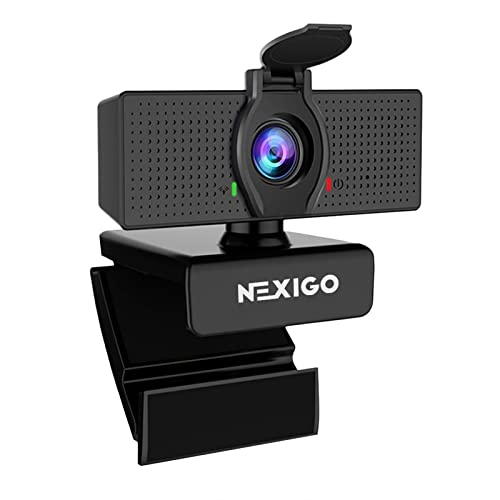
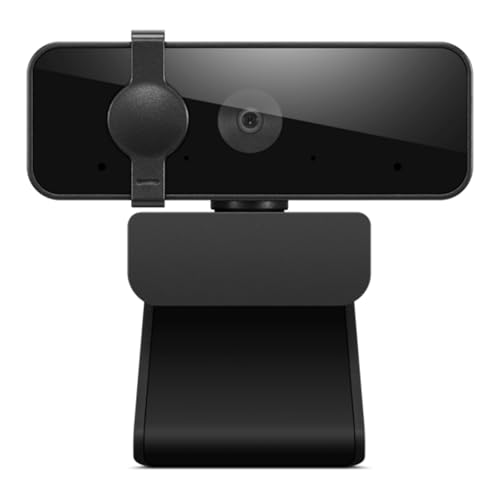
A physical cover gives you peace of mind between calls and costs nothing to use. If a model lacks one, a small adhesive slider works too. Choose what makes you comfortable on a shared computer.
Mounting and Cable
Check that the clip fits your monitor, a laptop lid or a tripod thread. A short cable can limit where the camera sits, so measure the distance to your computer before you buy. Plug-and-play USB models need no driver, while software control gives you sliders for brightness and zoom.
Software Compatibility
Confirm that the webcam works with your operating system and meeting tools. Basic video works almost everywhere, while extras such as framing and background effects usually need the maker's software.
Common Situations and What to Look For
- Remote work: an autofocus camera with a privacy cover and decent low-light handling.
- Teaching: a wider view and a stable mount for showing a board or a document.
- Family calls: simple plug-and-play use and a stand that sits on a shelf or screen.
- Shared desks: a model with a lens cover so it is easy to close off.
What Different Price Levels Usually Buy
Entry-level 1080p webcams give you a clear picture in good light, a basic microphone and a fixed or simple autofocus lens. They are an easy upgrade over most laptop cameras and are enough for classes and family calls.
Mid-priced models usually add faster or more reliable autofocus, better handling of dim rooms, a wider choice of fields of view and software for brightness and zoom. If you spend most of your workday on video, this is the tier where daily comfort improves most.
Premium models add framing that follows you, smoother motion and sometimes larger sensors. They help presenters who move around, but a lamp and a headset still add more to the experience than an expensive lens does.
Fitting the Webcam to Your Desk
Measure the thickness of your monitor bezel or laptop lid before you buy, since thin laptop screens can struggle to hold a heavy webcam steady. Look for a clip with rubber grips and a hinge that tilts. If you use two monitors, think about which screen you look at during calls and put the camera above that one, otherwise you will always seem to look slightly away from the people you speak to.
For a desk that is shared between users, a webcam with a lens cover or an adjustable stand saves arguments over angle and privacy. Cable length matters on standing desks, where the monitor rises and the cable needs slack.
Setting Up Your Webcam
Place the lens at eye level, ideally at the top of the screen, so you appear to look at the other person. Clean the lens with a microfiber cloth, avoid pointing it at a bright window, and check the picture inside your call app before the meeting begins, not during it. Keep the USB cable away from power adapters to prevent interference.
1080p Webcams: Your Questions Answered
Is a 1080p webcam better than my laptop camera?
Usually yes, particularly if your laptop camera is an older or lower-resolution unit. A dedicated webcam also lets you place the lens at a better angle than the laptop screen allows.
Do I need 4K for video calls?
No. Calling apps compress the video, so most people cannot see the difference, and a higher resolution demands more bandwidth and a faster USB port. Full HD is the sensible choice for meetings.
Does a webcam work with a Mac and a Windows laptop?
Most plug-and-play models work with both. Read the listing for supported systems and check whether any features need software that only one system supports.
Why does my picture look blurry?
A smudged lens, a dim room or fixed focus at the wrong distance cause most blur. Clean the lens, add light in front of you and sit at the distance the camera was designed for.
Final Thoughts
Pick a webcam by how you work: autofocus and a privacy cover for shared desks, a wider view for teaching, and simple plug-and-play use for family calls. The best 1080p webcams make a bigger difference when paired with good lighting and a decent headset, so budget for those too. Compare the models in the table above and choose the one that fits your desk, your system and your daily routine.