
Best 165 Hz Monitors in 2026: Buying Guide
Disclosure: We may earn a commission when you buy through links on this page, at no extra cost to you. As an Amazon Associate I earn from qualifying purchases. Learn more

How to choose the best 165 Hz monitors: panel types, resolution, adaptive sync, response time and what your graphics card can drive.
A 165 Hz monitor refreshes the screen 165 times every second, which makes motion look smoother and cursors and cameras feel more responsive than on a standard 60 Hz display. It sits in the sweet spot between affordable and high end, which is why so many gamers pick it. This guide explains how to choose the best 165 Hz monitors for your games, your graphics card and your desk.
The product table lists models in several sizes and resolutions. Read the sections below to decide which combination of size, resolution and panel type fits you.
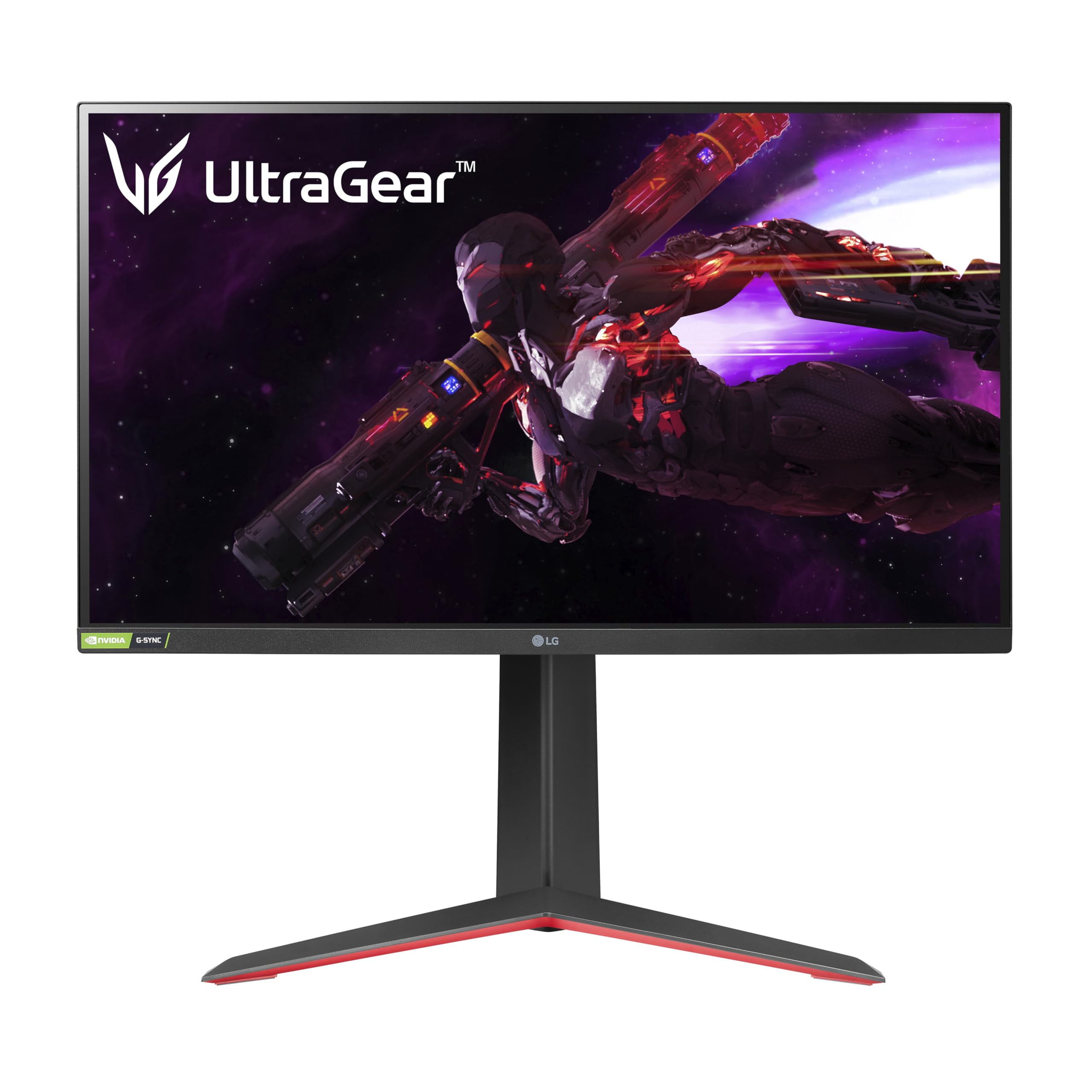


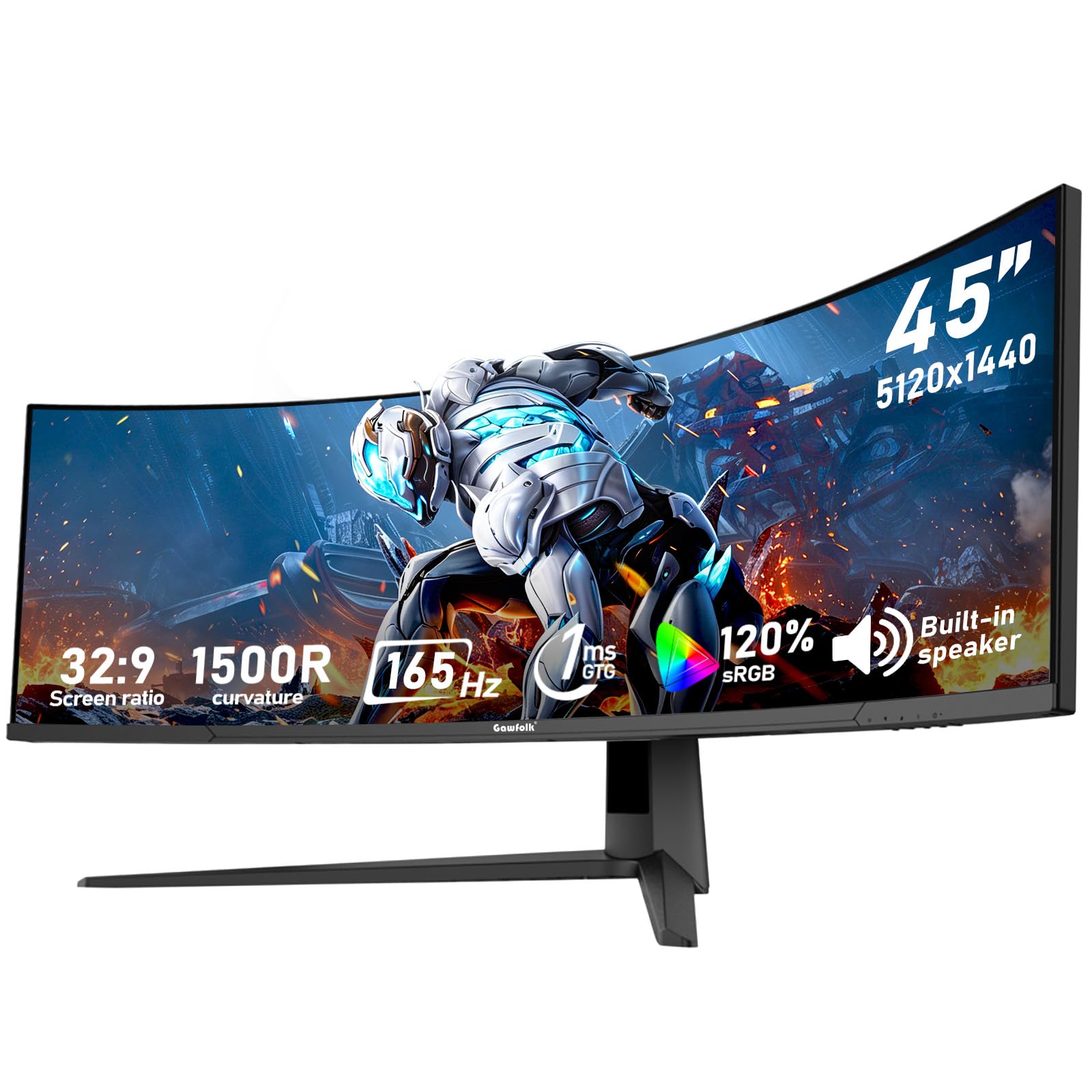
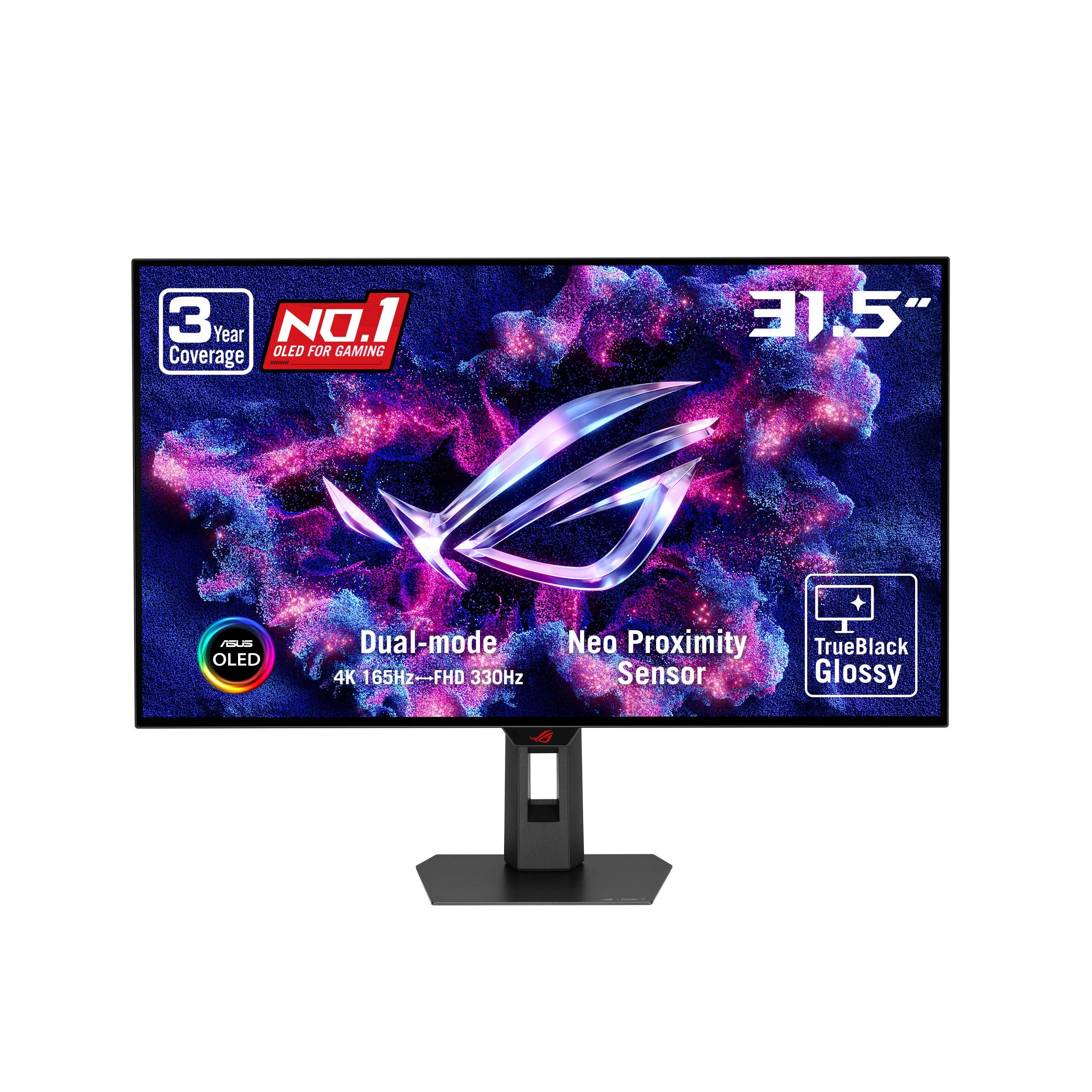
What 165 Hz Changes in Practice
Refresh rate matters when your graphics card can produce enough frames. A 165 Hz panel can show up to 165 frames each second, and each frame is on screen for about six milliseconds. Fast action, such as shooter games and racing games, looks clearer, and the delay between your input and the picture shrinks. Even on the desktop, scrolling and moving windows feel smoother.
The gain from 60 to 165 Hz is large, while the gain from 165 to 240 Hz is smaller and costs more. For many players, 165 Hz is a comfortable target. To compare with other rates, see our guides to the 240 Hz monitors, 75 Hz monitors and 60 Hz monitors.
Resolution, Size and Your Graphics Card
To use 165 Hz you need a graphics card that can produce frames at that rate. A 1080p monitor is the easiest to drive, a 1440p monitor needs a stronger card, and 4K is demanding at high refresh. Many players choose 1440p at 27 inches for a balance of sharpness and speed. Ultrawide panels give a wide field of view but need more graphics power.
Think about screen size and desk depth. A 24 inch panel suits competitive play and small desks, 27 inches is a popular all rounder, and 32 inches and ultrawide suit immersive games and productivity. Match resolution to size so text looks sharp without scaling.
Panel Type and Response Time
IPS panels give good color and viewing angles and are common at this refresh rate. VA panels offer higher contrast and deeper blacks, but some show slower response in dark scenes. OLED and QD OLED panels offer excellent contrast and fast response and cost more. Check reviews on motion clarity and not just the stated response time.
Manufacturers quote response time in milliseconds, often measured under favorable conditions. A low number is good, but real results vary. Overdrive settings can speed up pixels, though too much creates a ghost trail. Look for reviews that measure the monitor in its default and best modes.
Adaptive Sync and Connections
Adaptive sync reduces tearing by matching the monitor's refresh rate to the frames your graphics card is making. G-SYNC and FreeSync are the two main versions, and many monitors work with either. Check that your graphics card supports the technology and that the monitor lists it. Use DisplayPort to reach the full 165 Hz at higher resolutions, since some HDMI ports limit the rate.
Check the ports too. A USB hub on the monitor is handy for peripherals, and a headphone jack helps. An adjustable stand with height and tilt makes long sessions more comfortable, and VESA mount holes let you use a monitor arm.
Color, Brightness and HDR
Color coverage matters if you edit photos or like vivid games. Many panels list the percentage of sRGB or DCI P3 they cover. Brightness measured in nits affects how readable the screen is in bright rooms, and contrast affects how deep dark scenes look. HDR labels vary widely, and entry level HDR often adds little, so look for real HDR performance in reviews.
Set Up Your Monitor to Actually Run at 165 Hz
Many people buy a fast monitor and never reach its full speed. After connecting the cable, open the display settings in your operating system and choose the highest refresh rate in the advanced menu, because the default is often 60 Hz. Then open the graphics driver panel to turn on adaptive sync, and check the monitor's on screen menu to enable it there as well. Make sure the cable is a certified DisplayPort cable or a high speed HDMI cable.
In games, set the frame rate limit just below the refresh rate if your graphics card cannot always keep up, since steady frames feel smoother than a number that jumps around. Turn on vertical sync only if tearing bothers you and adaptive sync is not available.
Esports Versus Immersive Play
If you play fast competitive games, a smaller 24 or 27 inch panel with a fast response time keeps the whole screen in your line of sight, and the high refresh rate helps you track targets. Many players keep resolution at 1080p or 1440p to hold high frame rates. If you prefer story games and open worlds, a larger or ultrawide panel gives immersion, and a slightly lower frame rate still looks excellent at 165 Hz with adaptive sync.
For mixed use, such as office work during the day and games in the evening, a 27 inch 1440p monitor is a flexible choice. If you share the desk with a console, check that the monitor supports the modes the console uses, since consoles output specific resolutions and refresh rates.
Frequently Asked Questions
Is 165 Hz worth it over 144 Hz?
It is a small step. If the price is similar, 165 Hz is a bonus, but you will not notice a big difference.
Do I need a powerful graphics card?
You need one that can produce high frame rates at your chosen resolution. A weaker card still benefits from the smoothness at lower frame rates.
Which cable do I need?
DisplayPort is the safest way to reach 165 Hz, especially at higher resolutions. Check the HDMI version if you use HDMI.
Are curved monitors good for 165 Hz?
Curved panels help immersion on large and ultrawide screens. They can distort straight lines in design work, so choose based on use.
Final Thoughts
The best 165 Hz monitors give smooth motion on a panel that suits your graphics card, your desk and your games. Choose the size and resolution first, compare panel types and sync support and use the product table to find a model in your budget. A balanced setup is better than a fast monitor you cannot drive.


