
Best Monitors for Home Office: Reviews and Buying Guide
Disclosure: We may earn a commission when you buy through links on this page, at no extra cost to you. As an Amazon Associate I earn from qualifying purchases. Learn more
A buying guide to home office monitors with USB-C docking, ergonomic stands and sharp text, with three short picks.
A good monitor is one of the best investments for anyone working from home. A larger, sharper screen at eye level reduces neck strain, makes spreadsheets and documents easier to read and lets you keep video calls and work apps side by side. The right model can also charge your laptop and connect your keyboard and mouse through a single cable. This guide to the best monitors for home office setups explains what matters, then highlights three picks.
The short answer: most remote workers should choose a 27 inch IPS monitor with QHD 2560 by 1440 or 4K resolution, a USB C port with 65 watts or more of power delivery, a height adjustable stand and flicker free eye care, which costs around $250 to $350; spend more for a premium USB C hub monitor with Ethernet and KVM features, or an ultrawide if you juggle many windows.
Our Top 3 Picks at a Glance
These three monitors from the product table above cover the best overall choice, an affordable USB C option and a premium docking monitor.

Best Overall
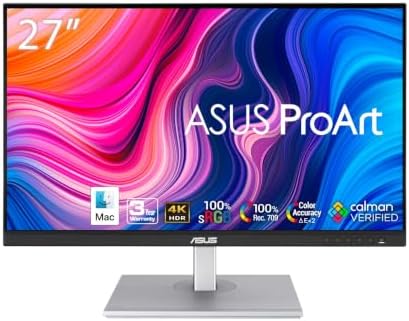
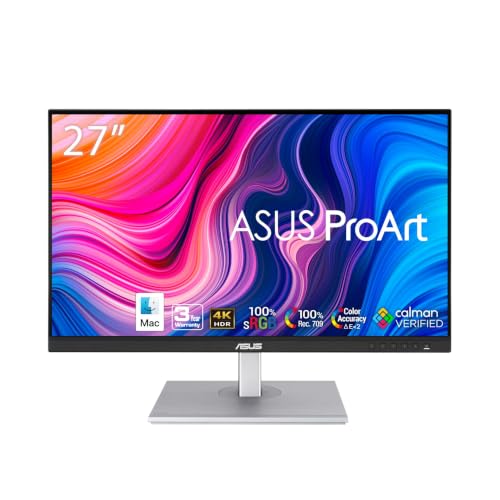
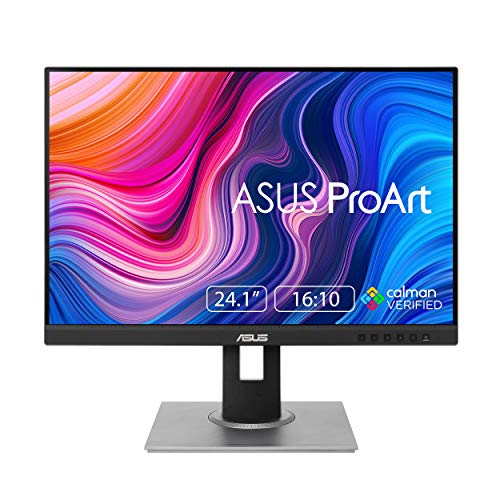
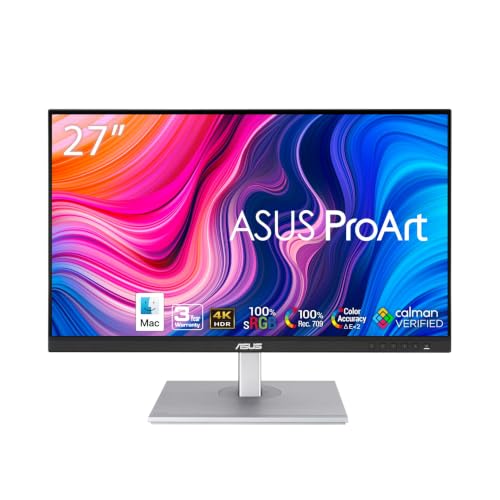
The ASUS ProArt PA279CV, around $295, is our pick for home office workers who want sharp text, accurate color and laptop friendly connectivity. Its first strength is a 27 inch 4K UHD IPS panel that renders documents, spreadsheets and photos with crisp detail and factory calibrated color, useful for both office work and creative side projects. Its second strength is USB C connectivity, letting compatible laptops send video and data through a single cable, plus an ergonomic stand that adjusts height, tilt, swivel and pivot.
The limitation is a 60Hz refresh rate, which is fine for work but less smooth than high refresh monitors for gaming.
Best Value
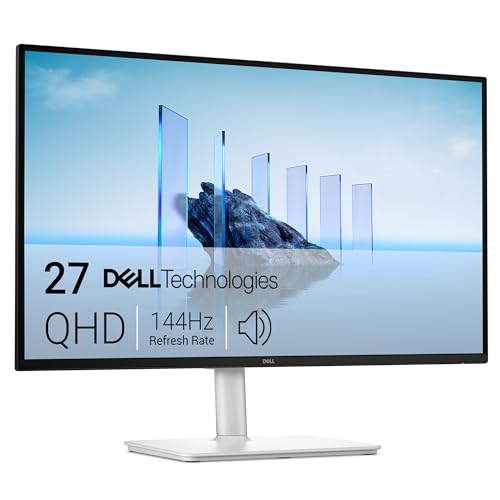
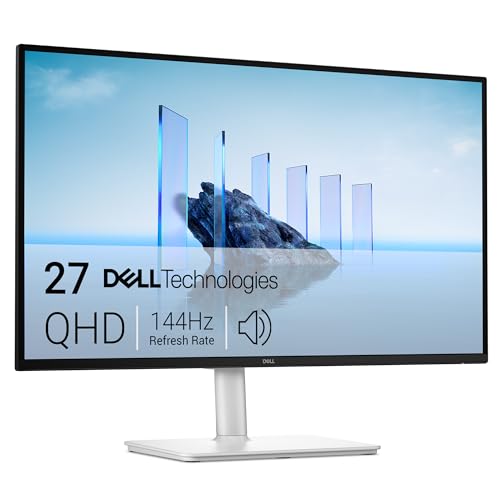
The Dell 27 Plus QHD USB C Monitor S2725DC, around $250, suits remote workers who want a modern, comfortable screen at a fair price. Its first strength is single cable convenience: USB C with up to 65 watts of power delivery charges many laptops while carrying video and data. Its second strength is a QHD 2560 by 1440 panel with a 144Hz refresh rate, TÜV certified eye comfort and a height, tilt, pivot and swivel adjustable stand. Built in dual speakers handle calls without extra gear.
The limitation is QHD resolution rather than 4K, so text is slightly less sharp than on 4K models at the same size.
Best Premium Pick
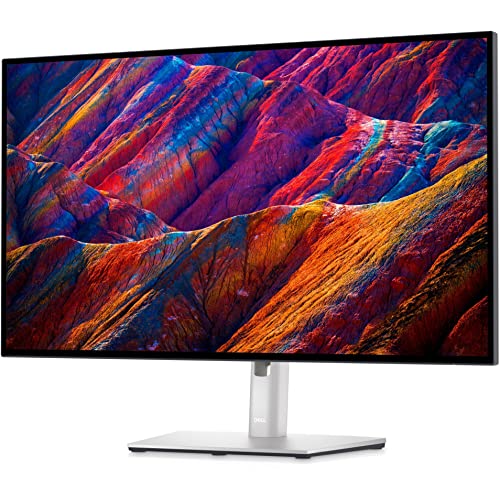
The Dell UltraSharp U2723QE, around $640, is for professionals who want the ultimate home office hub. Its first strength is a 27 inch 4K IPS Black panel with deeper contrast than standard IPS and excellent color accuracy. Its second strength is extensive connectivity, with a USB C hub that delivers up to 90 watts of power, Ethernet, multiple USB ports and KVM support for switching between two computers with one keyboard and mouse.
The limitation is price; it costs more than twice as much as capable QHD USB C monitors.
How to Choose the Best Monitors for Home Office: Buying Guide
Here are the features that separate the best monitors for home office work from basic screens.
Features That Matter for Home Office
Home office monitors should prioritize comfort, clarity and convenience. Sharp text reduces eye strain during long reading and writing sessions. USB C connectivity simplifies laptop setups. Flicker free backlights and low blue light modes help during all day use. Built in webcams or speakers can declutter desks, though external webcams usually offer better quality. Look for factory calibration if you also edit photos.
Panel Technology (IPS, VA, OLED)
IPS panels are the best choice for most offices, with accurate color and wide viewing angles. IPS Black panels add deeper contrast. VA panels offer higher contrast but can show color shifts at angles. OLED monitors look stunning but are pricier and carry burn in risk with static office content like taskbars, so they suit mixed media use more than spreadsheet heavy work.
Connectivity and Ports
USB C with DisplayPort Alt Mode and power delivery lets laptops connect, charge and transfer data with one cable. Look for 65 watts or more for most laptops and 90 watts for larger ones. Built in USB hubs, Ethernet ports and KVM switches add convenience. HDMI and DisplayPort inputs support desktops and second computers.
HDR and Brightness
Office monitors need around 300 to 350 nits of brightness for comfortable viewing in most rooms. HDR support is less important for work, though HDR400 certified models offer a modest boost for videos. Anti glare matte coatings help in rooms with windows.
Adaptive Sync and Gaming Features
If you game after work, choose a monitor with FreeSync or G Sync compatibility and a refresh rate of 100Hz or higher. Many home office monitors now offer 100Hz to 144Hz, making scrolling smoother too.
Stand, Mounting, and Ergonomics
An adjustable stand is essential. Height adjustment lets you place the top of the screen at or slightly below eye level, reducing neck strain. Tilt, swivel and pivot add flexibility, and VESA mounts allow monitor arms. Dual monitor setups benefit from arms that free desk space.
Refresh Rate and Response Time
Sixty hertz is sufficient for office work, but 100Hz to 144Hz monitors make scrolling documents and moving windows feel smoother. Response time matters mainly for gaming; 5 milliseconds or less is plenty for office use.
Resolution and Screen Size
For 24 inch monitors, 1920 by 1200 or 1080p works well. At 27 inches, QHD is the minimum for sharp text, and 4K offers the crispest detail, especially on Macs. Ultrawide 34 inch monitors with 3440 by 1440 resolution replace dual monitor setups.
Types of Monitors
Productivity and Ultrawide Displays
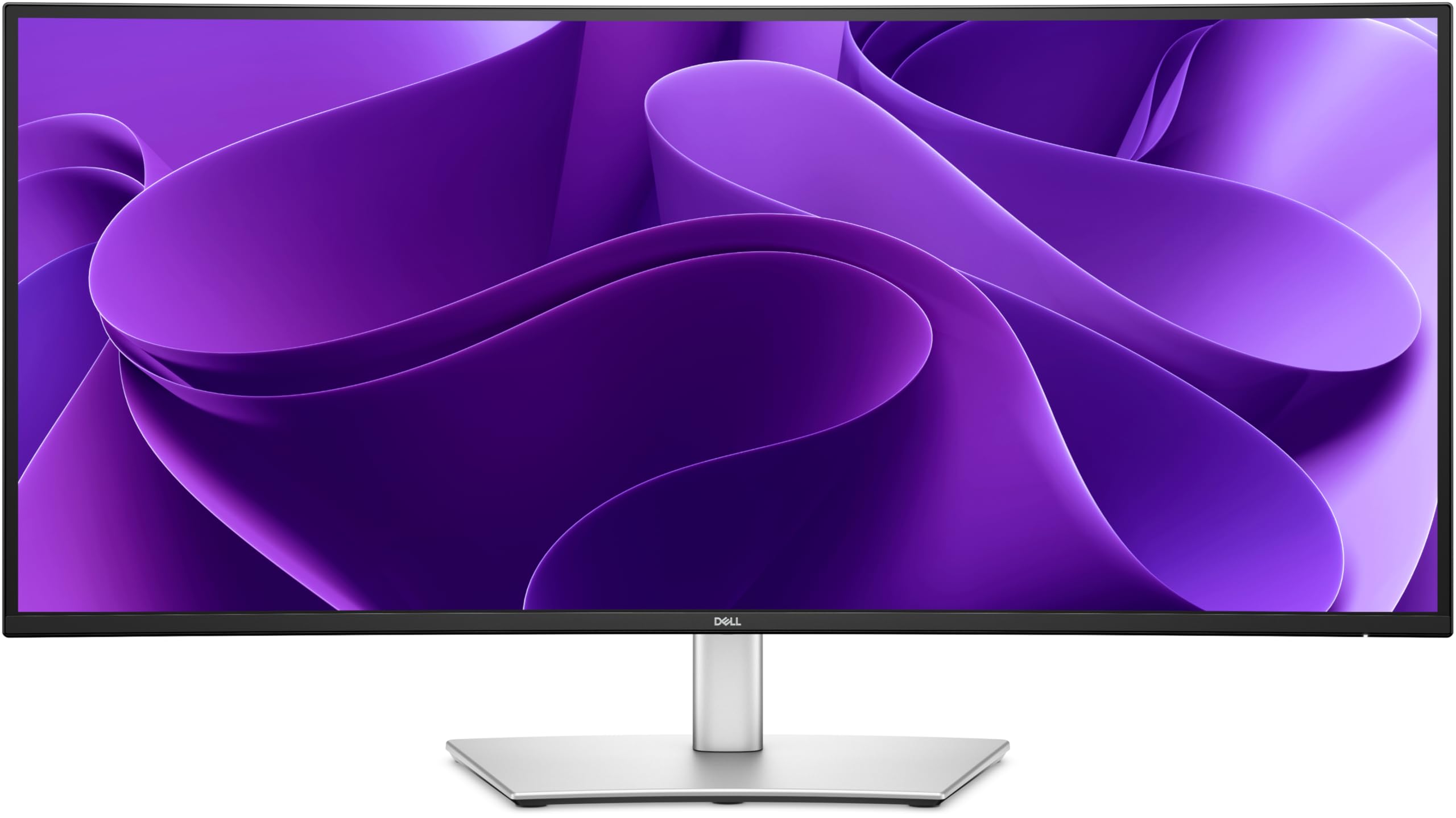
Ultrawide monitors like the Dell Pro 34 Plus give a seamless wide workspace for spreadsheets, timelines and multiple windows. They suit power users and replace two separate monitors.
Budget Displays
Budget 24 to 27 inch monitors with 1080p or QHD resolution cover basic office work at low prices, though they may lack USB C and adjustable stands.
Creator Displays
Professional displays like the ASUS ProArt series focus on factory calibrated color for photo editing and design alongside office tasks.
Gaming Displays
High refresh gaming monitors work for office tasks too, and models with USB C bridge work and play.
Setup and Care Tips
Position the monitor about an arm's length away with the top of the screen at or slightly below eye level. Reduce glare by placing it perpendicular to windows. Calibrate brightness to match room lighting and enable low blue light modes in the evening. Clean the screen with a dry microfiber cloth. Use a USB C cable rated for video and power, and update monitor firmware if the manufacturer provides tools.
Connecting a Laptop to Your Home Office Monitor
The easiest setup uses a single USB C cable. Check that your laptop's USB C or Thunderbolt port supports DisplayPort Alt Mode and charging; most modern Windows laptops and all recent MacBooks do. Connect the laptop to the monitor's USB C port, and the monitor will display video, charge the laptop and pass through USB devices such as a keyboard, mouse and webcam plugged into the monitor's hub.
If your laptop lacks USB C video, use HDMI or a USB C to HDMI adapter, then connect a separate charger. For two monitors, Windows laptops often support daisy chaining over DisplayPort or using a dock, while base model MacBooks may support only one external display without a special DisplayLink dock. Set the external display as primary in system settings and adjust scaling so text looks comfortable.
Using a KVM Switch for Work and Personal Computers
Many remote workers use a company laptop and a personal computer at the same desk. Monitors with built in KVM switches let one keyboard, mouse and webcam control both computers, switching with a button or hotkey. This keeps work and personal devices separate without duplicating peripherals. Standalone KVM switches offer the same benefit for monitors without the feature.
Single Monitor, Dual Monitors or Ultrawide?
A single 27 inch QHD or 4K monitor suits most remote workers, offering enough space for two windows side by side. Dual monitors give more total screen area for multitaskers who keep email, chat and documents open at once; matching models and a dual monitor arm create a clean setup. An ultrawide monitor offers similar space without a bezel in the middle, ideal for spreadsheets and timelines.
Consider your desk width, laptop ports and graphics capability. Many laptops support two external displays only through docks or specific ports, so confirm compatibility before buying two monitors.
Building an Ergonomic Home Office Around Your Monitor
A monitor is only part of an ergonomic setup. Pair it with an adjustable chair that supports your lower back, a desk at elbow height and an external keyboard and mouse positioned so your wrists stay neutral. If you use a laptop, raise it on a stand or close it and use the monitor as your main display.
Lighting matters too. A desk lamp or monitor light bar reduces contrast between a bright screen and a dark room, easing eye strain. Follow the 20 20 20 rule: every 20 minutes, look at something 20 feet away for 20 seconds.
How Much to Spend on a Home Office Monitor
Around $120 to $200 buys good 24 to 27 inch 1080p and QHD monitors with eye care features. Around $250 to $400 is the sweet spot, covering 27 inch QHD and 4K USB C monitors with adjustable stands. Around $500 to $700 brings premium hub monitors with Ethernet, KVM and IPS Black panels, plus ultrawide options.
Frequently Asked Questions
What features matter most in monitors for home office?
Sharp resolution, an adjustable stand and USB C connectivity matter most. QHD or 4K at 27 inches keeps text crisp, ergonomic stands reduce strain and USB C simplifies laptop setups. Eye care features help during long workdays.
IPS vs OLED: which is better for office work?
IPS is better for most office work. It offers accurate color, wide viewing angles and no burn in risk with static content. OLED is stunning for media and creative work but costs more and needs care with static elements.
Is 4K worth it for a home office?
4K is worth it on 27 inch and larger monitors for sharper text and photos. Mac users especially benefit from 4K scaling. QHD remains a great value and is easier for older laptops to drive.
How long do monitors last?
Most monitors last around five to ten years. LED backlights degrade slowly, and quality monitors stay useful through several laptop upgrades.
What size monitor should I get for my desk?
A 27 inch monitor suits most desks, while 24 inches works for compact spaces and 34 inch ultrawides need wide desks. Sit about 20 to 30 inches away for comfortable viewing.
Does refresh rate matter for non gamers?
A higher refresh rate makes scrolling and mouse movement smoother, but it is optional for office work. 60Hz is fine, while 100Hz to 144Hz adds comfort at little extra cost.
Do I need a monitor with a built in webcam?
A built in webcam is convenient but not essential. External webcams often deliver better image quality and flexible placement. Monitors with pop up webcams keep desks tidy and work well for occasional calls.
Are curved monitors good for office work?
Curved monitors are good for ultrawide office setups, but flat screens work best at 24 to 27 inches. The curve keeps edges at a similar distance from your eyes on wide screens. For standard sizes, flat panels are cheaper and better for straight lines in documents.
Our Verdict
The right home office monitor makes long workdays more comfortable and productive. Prioritize a sharp 27 inch QHD or 4K IPS panel, an adjustable stand and USB C with power delivery. Value buyers will love capable QHD USB C monitors, most remote workers will thrive with a 4K model and professionals can invest in premium hub monitors with Ethernet and KVM.
Compare the best monitors for home office setups in the product table above to find the right screen for your desk and budget.


