
Best Monitors for Xbox Series X: Every Type Explained Side by Side
Disclosure: We may earn a commission when you buy through links on this page, at no extra cost to you. As an Amazon Associate I earn from qualifying purchases. Learn more

4K 120Hz, 1440p OLED, large and budget monitors compared for Xbox Series X, with HDMI 2.1, VRR and HDR settings explained.
The Xbox Series X can output 4K at up to 120 frames per second with HDR and variable refresh rate, but many monitors cannot take full advantage of it. Some lack HDMI 2.1 bandwidth, others top out at 60Hz over HDMI and some cannot display HDR properly. Choosing the right screen unlocks smoother gameplay, sharper visuals and lower input lag. This guide to the best monitors for xbox series x compares every type side by side so you can pick the right one for your setup.
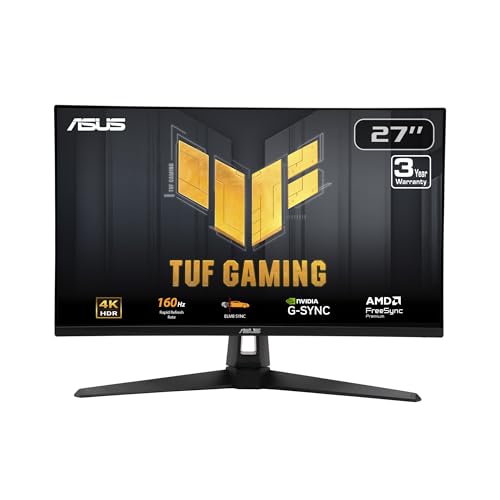
The short answer: most Xbox Series X owners should choose a 27 inch 4K monitor with HDMI 2.1, a 120Hz or higher refresh rate and VRR support, such as the ASUS ROG XG27UCG around $450; budget buyers can get 4K at 160Hz from the ASUS TUF VG27UQ1A around $260, and those who want the best picture should step up to a 32 inch 4K QD OLED like the MSI MPG 321URX.



Top 3 Picks at a Glance
These three monitors from the product table above cover the best overall choice, the best value and the best premium picture for Xbox Series X.


Types of Monitors Compared
The table below summarizes the main monitor types for Xbox Series X.
| Type | Best For | Pros | Cons | Typical Price |
|---|---|---|---|---|
| 27 inch 4K high refresh | Most Xbox gamers | Sharp 4K, 120Hz or more, VRR | Need HDMI 2.1 for full features | around $260 to $500 |
| 32 inch 4K OLED | Premium picture, HDR fans | Perfect blacks, vivid HDR, fast response | Expensive, burn in care | around $750 to $900 |
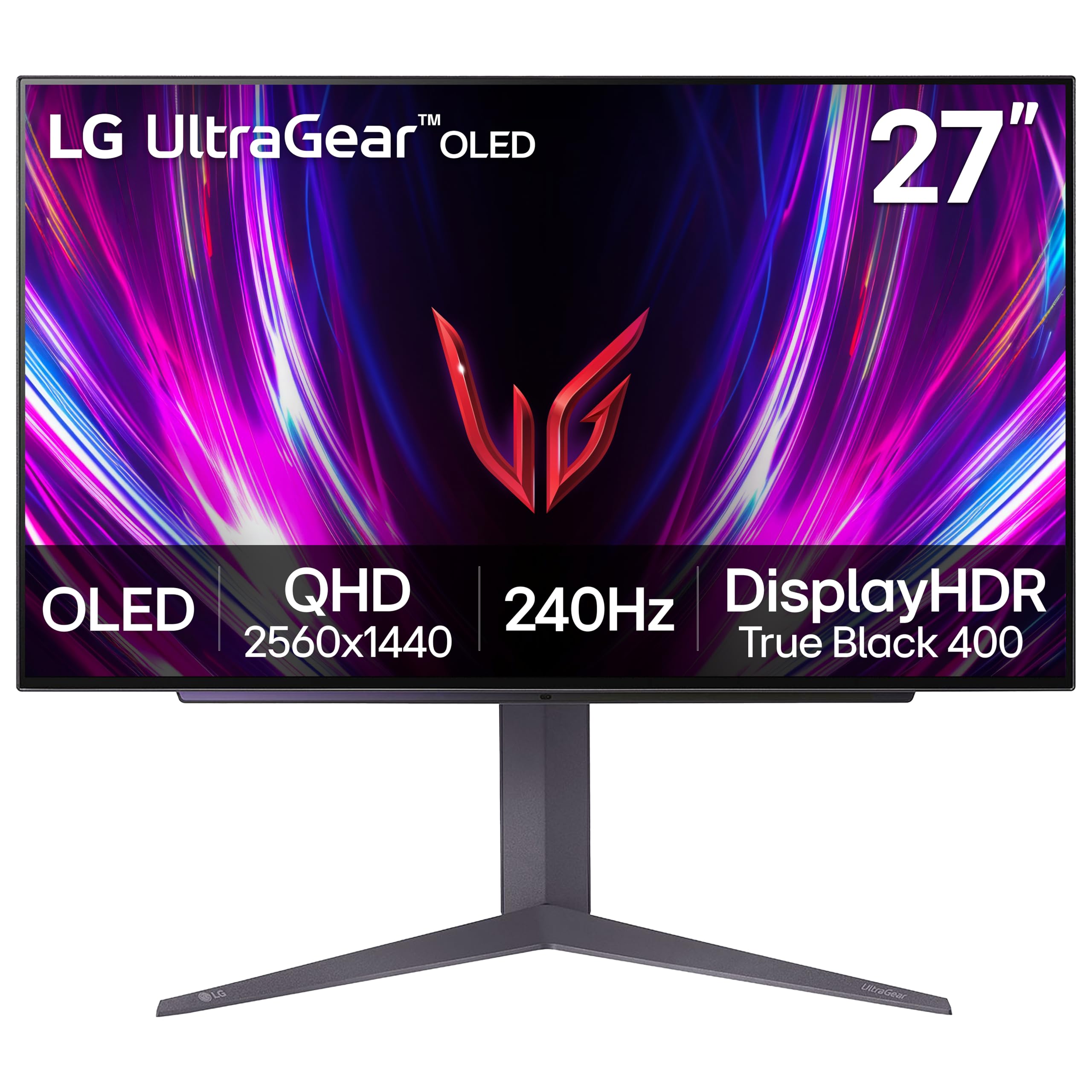
| 27 inch 1440p OLED or IPS | Competitive players | Fast response, lower cost per performance | Lower resolution than 4K | around $300 to $550 |
| Large 40 inch and up | Couch and bedroom gaming | Big immersive screen | Takes desk space, lower pixel density | around $500 to $1,000 |
| Budget 4K monitors | Tight budgets | Affordable 4K | Weaker HDR, fewer features | around $190 to $300 |
Large Screen Options
Large 40 inch or bigger monitors and small TVs create an immersive experience for couch or bedroom gaming. They suit Xbox players who sit farther back or want a cinematic feel. Look for HDMI 2.1 support for 4K 120Hz and VRR, since many large screens still limit HDMI bandwidth. Pixel density is lower than on 27 inch monitors, but at normal distances 4K still looks sharp.
Gaming Displays
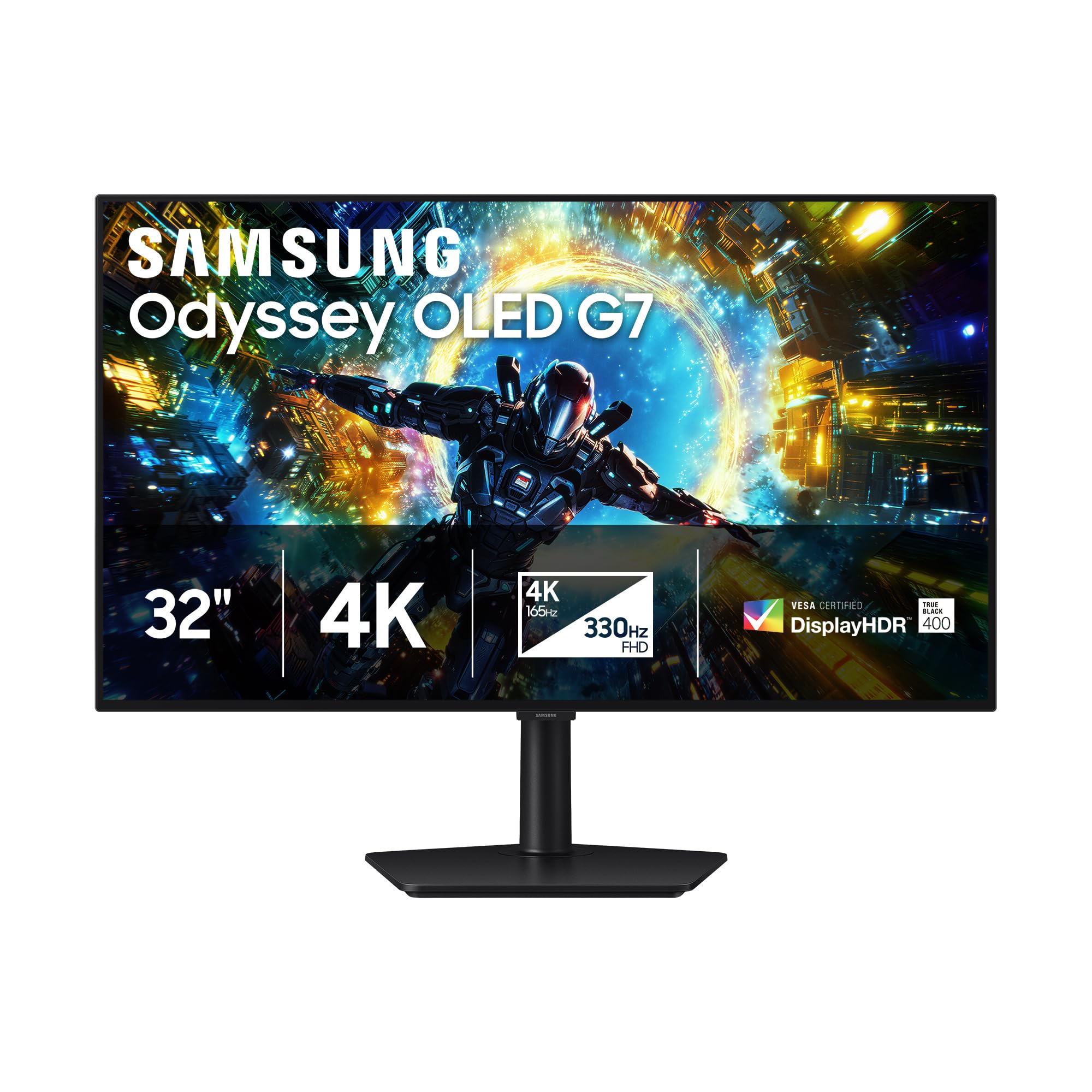
27 and 32 inch gaming monitors are the most popular choice for desk based Xbox gaming. 4K models with 120Hz or higher refresh rates and HDMI 2.1 unlock the Series X's full potential. OLED models like the MSI MPG 321URX and Samsung Odyssey OLED G7 add perfect blacks and stunning HDR. IPS models offer bright, accurate color at lower prices.
Productivity and Ultrawide Displays
Ultrawide monitors are popular for PC gaming, but Xbox consoles do not support ultrawide aspect ratios, displaying games with black bars on the sides. If you also use the monitor for work or PC gaming, an ultrawide can still make sense, but for Xbox focused setups, standard 16 by 9 monitors are better.
Budget Displays
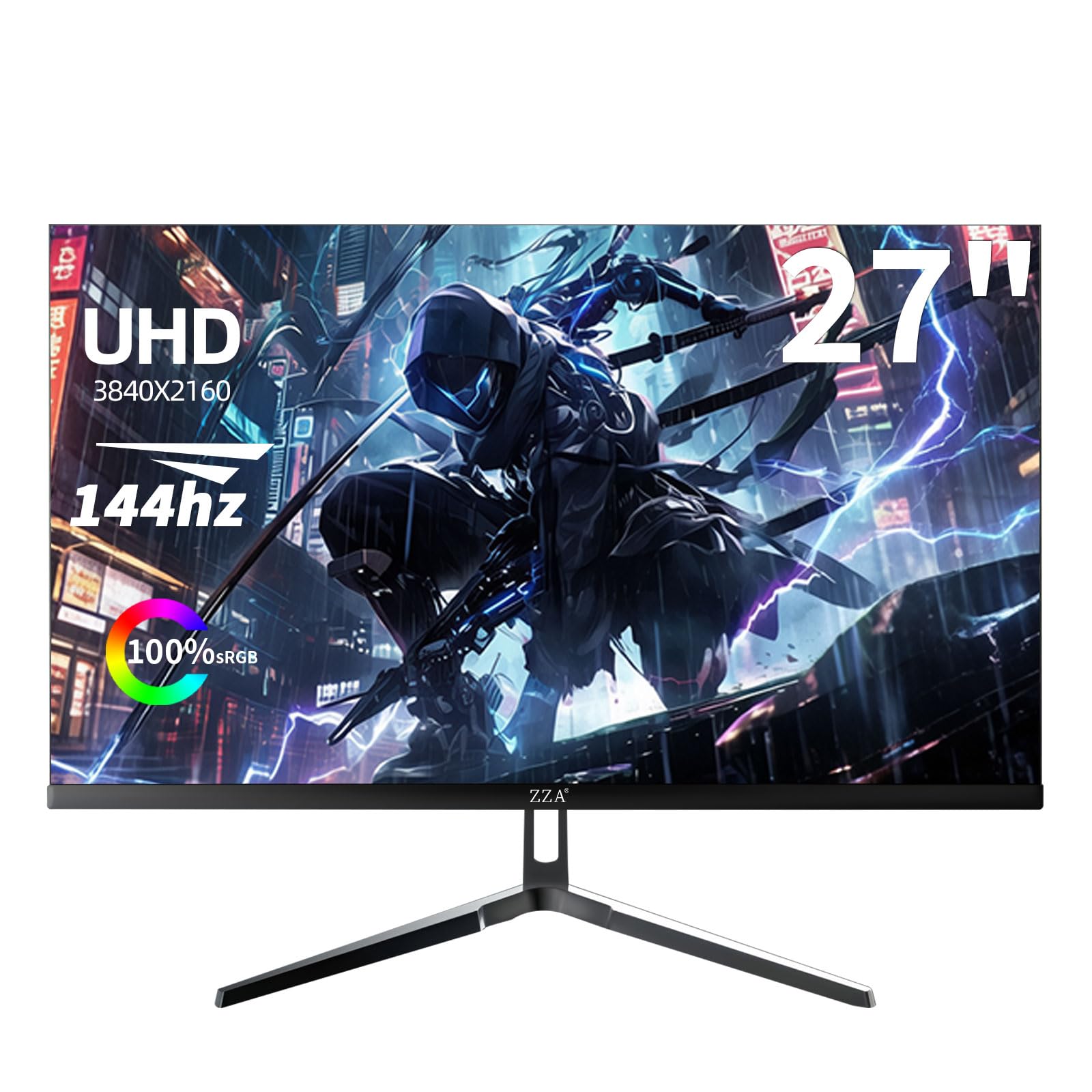
Budget 4K monitors under $300, like the ZZA 27 inch 4K 144Hz model, bring 4K resolution and high refresh rates to tight budgets. They may have weaker HDR and simpler stands, but they deliver a big upgrade over 1080p screens for Xbox gaming.
4K Gaming Monitors vs Large Screen Options: Which Should You Choose?
- Sharpness: 27 inch 4K monitors deliver very sharp images at desk distance.
- Immersion: Large screens fill more of your view from a couch.
- Response time: Gaming monitors usually respond faster with lower input lag.
- Desk space: Gaming monitors fit desks; large screens need more room.
- Price: 27 inch 4K monitors cost less than large high refresh screens.
Choose a 27 or 32 inch gaming monitor for desk gaming. Choose a large screen for couch gaming or if you want a TV like experience.
How to Choose the Right Monitor
Refresh Rate and Response Time
The Xbox Series X supports up to 120Hz output. A monitor with 120Hz or higher refresh rate lets supported games run at up to 120 frames per second for smoother motion. Response times of 1 to 5 milliseconds reduce blur, while OLED panels respond almost instantly. Monitors above 120Hz still benefit Xbox players by handling VRR ranges and PC use.
Features That Matter for Xbox Series X
HDMI 2.1 is the key feature for 4K at 120Hz. Some monitors use HDMI 2.0, limiting 4K to 60Hz or requiring lower resolution for 120Hz. Look for HDMI VRR support to reduce tearing and auto low latency mode, which switches the monitor into game mode automatically. HDR10 support enables HDR gaming, and higher brightness makes HDR more impactful.
Speakers and Audio
Built in monitor speakers are usually weak. Many Xbox players use headsets connected to the controller or a soundbar connected through the monitor's audio output. Check for a 3.5 mm headphone jack on the monitor if you want to route audio from HDMI.
Panel Technology (IPS, VA, OLED, Mini LED)
IPS panels offer accurate color and wide viewing angles. VA panels provide deeper contrast for dark games. OLED delivers perfect blacks and instant response, ideal for HDR. Mini LED monitors offer high brightness for HDR. Choose OLED for the best picture and IPS for value and bright rooms.
Resolution and Size
Xbox Series X supports 4K, 1440p and 1080p output. 4K monitors take full advantage of the console's visuals, while 1440p monitors are a good middle ground with high refresh. For 27 inch screens, 4K looks noticeably sharper than 1440p.
Best Monitors for Specific Needs
Best PC Monitors for Xbox Series X
The best pc monitors for xbox series x serve both a gaming PC and an Xbox, with DisplayPort for PC and HDMI 2.1 for the console. Models like the ASUS ROG XG27UCG and MSI MPG 321URX deliver high refresh 4K for both systems, letting you switch inputs between platforms.
Best Monitors for Xbox Series X under 300: Which Type Works Best
The best monitors for xbox series x under 300 are 27 inch 4K IPS monitors with 120Hz or higher refresh, such as the ASUS TUF VG27UQ1A and ZZA 4K 144Hz monitor. They deliver sharp 4K and smooth gameplay, though HDR is modest. Check HDMI version to confirm 4K 120Hz support.
Xbox Series X Display Settings to Change
After connecting your monitor, open Settings, General, TV and display options on the Xbox. Set resolution to 4K UHD and refresh rate to 120Hz if available. Under Video modes, enable Allow 4K, Allow HDR10, Allow variable refresh rate and Allow auto low latency mode. Run the HDR game calibration app to set brightness levels for your monitor. If 120Hz does not appear, check that you are using an HDMI 2.1 port and the included Ultra High Speed HDMI cable.
Understanding HDMI 2.1 and Xbox Series X
HDMI 2.1 is the connection standard that lets the Xbox Series X send 4K video at 120 frames per second with HDR and variable refresh rate. It provides much more bandwidth than HDMI 2.0, which tops out at 4K 60Hz or 1440p 120Hz. Some monitors advertise HDMI 2.1 but offer reduced bandwidth, so check that the specifications mention 4K 120Hz over HDMI specifically, not just over DisplayPort.
The Xbox also supports auto low latency mode, which tells the monitor to switch into its game mode automatically, and HDMI VRR, which syncs the refresh rate to the game's frame rate to prevent tearing. Monitors that support these features over HDMI deliver the smoothest experience.
HDR Gaming on Xbox Series X
Many Xbox games support HDR, and Auto HDR adds HDR effects to older titles. To make HDR look good, a monitor needs high peak brightness and strong contrast. OLED monitors and Mini LED monitors deliver the most impressive HDR, while budget IPS monitors labeled HDR10 may only show modest improvements. Run the Xbox HDR game calibration app to set the correct brightness range for your display, and enable Dolby Vision gaming if your monitor supports it.
Monitor vs TV for Xbox Series X
TVs offer large screens, strong HDR and often Dolby Vision gaming support, making them ideal for living rooms and couch play. Monitors deliver lower input lag, faster response times and sharper images at desk distance, making them better for competitive gaming and small spaces. Many gamers use a monitor for focused play at a desk and a TV for relaxed couch sessions. If you have limited space or play at a desk, a monitor is the better choice.
Common Mistakes When Buying an Xbox Monitor
- Buying HDMI 2.0 only monitors. They cannot display 4K at 120Hz from the Xbox.
- Using old HDMI cables. Use the included Ultra High Speed HDMI cable for full bandwidth.
- Choosing ultrawide for console use. Xbox does not support ultrawide aspect ratios.
- Trusting HDR labels alone. Low brightness monitors deliver weak HDR.
- Skipping VRR. Without VRR, frame rate fluctuations cause tearing and stutter.
Tips to Get the Most From Your Monitor
Use the Ultra High Speed HDMI cable included with the Xbox, since older cables may not support 4K 120Hz. Enable game mode on the monitor for lower input lag, and turn off unnecessary picture processing. Calibrate HDR using the Xbox HDR calibration app. Keep monitor firmware updated, and on OLED monitors, let pixel refresh cycles run and use the Xbox's screen dimming features.
Setting Up an Xbox Gaming Desk
A desk based Xbox setup benefits from a few extras. Place the monitor about an arm's length away with the top of the screen near eye level. Use a gaming headset connected to the controller for chat and immersive audio, or connect a soundbar or speakers to the monitor's audio output. Keep the Xbox Series X in a ventilated spot, since it pushes hot air out the top, and avoid enclosed cabinets. A controller charging stand keeps controllers ready, and cable management keeps HDMI and power cables tidy.
If you also game on PC, choose a monitor with multiple inputs and easy input switching, so you can move between Xbox and PC without unplugging cables.
How Much to Spend on Monitors for Xbox Series X
Around $190 to $300 buys budget 4K high refresh monitors. Around $300 to $500 covers quality 27 inch 4K 144Hz to 160Hz monitors with HDMI 2.1. Around $500 to $900 brings 1440p and 4K OLED monitors with stunning HDR. For most players, the best monitors for xbox series x cost between $260 and $500.
Frequently Asked Questions
What features matter most in monitors for Xbox Series X?
HDMI 2.1, 4K resolution and a 120Hz or higher refresh rate matter most. VRR support reduces tearing, ALLM switches to game mode automatically and HDR10 support improves visuals in compatible games.
Does refresh rate matter for non gamers?
For non gamers, refresh rate mainly affects smoothness when scrolling and navigating. For Xbox gaming, 120Hz makes supported games noticeably smoother and more responsive.
IPS vs OLED: which is better for Xbox?
OLED is better for HDR, contrast and response time, while IPS is better for brightness and price. OLED delivers stunning visuals in dark rooms, while IPS monitors handle bright rooms and long static menus without burn in risk.
Is 4K worth it for Xbox Series X?
Yes, 4K is worth it for Xbox Series X. The console is designed for 4K gaming, and 4K monitors show noticeably more detail. Many games also offer performance modes that run at 120 frames per second with dynamic resolution.
Can I use a 1440p monitor with Xbox Series X?
Yes, Xbox Series X supports 1440p output at up to 120Hz. A 1440p monitor is a good value option with high refresh rates, though 4K monitors look sharper.
Do I need a special HDMI cable for 4K 120Hz?
Yes, use an Ultra High Speed HDMI cable, like the one included with the Xbox Series X. Older cables may not support the bandwidth needed for 4K at 120Hz with HDR. Look for certified cables if you need a longer length.
Does Xbox Series S work with these monitors?
Yes, Xbox Series S works with these monitors, though it targets 1440p and supports up to 120Hz. A 1440p high refresh monitor pairs especially well with the Series S, while 4K monitors still upscale its output.
Is input lag important for Xbox gaming?
Yes, low input lag makes controls feel responsive, especially in shooters and fighting games. Gaming monitors typically have lower input lag than TVs. Enable game mode and ALLM to minimize delay.
Wrapping Up
The right monitor unlocks the Xbox Series X's full potential. Choose a 27 inch 4K monitor with HDMI 2.1 for the best balance, a budget 4K high refresh model to save money and a 4K OLED for the best picture and HDR. Enable 120Hz, VRR and HDR in your Xbox settings to get the most from your display.
Compare the best monitors for xbox series x in the product table above to find the right screen for your games and budget.


