
Best OLED Monitors: The Buyer Checklist We Use
Disclosure: We may earn a commission when you buy through links on this page, at no extra cost to you. As an Amazon Associate I earn from qualifying purchases. Learn more
How we judge OLED monitors for gaming and work, with three picks, a buyer checklist, red flags and burn in care tips.
OLED monitors have moved from expensive niche products to the top choice for gamers and creators who want perfect blacks, vivid color and near instant response. Prices have fallen fast, and today there are 27 inch QHD and 32 inch 4K OLED monitors for far less than they cost just a couple of years ago. This guide to the best oled monitors explains the checklist we use to judge them, so you can compare any model with confidence, then shows three picks that pass.
The short answer: most buyers should choose a 27 inch 1440p QD-OLED or WOLED monitor with a 240Hz to 360Hz refresh rate, DisplayPort and HDMI 2.1, VESA DisplayHDR True Black 400 and a three year burn in warranty, which costs around $380 to $600; step up to a 32 inch 4K OLED around $750 to $900 for sharper text, larger games and creative work.



How We Evaluate OLED Monitors
We score OLED monitors on seven criteria. Each includes thresholds for good and poor performance.
Panel Technology (QD-OLED, WOLED, IPS, Mini LED)
OLED panels light each pixel individually, so blacks are truly black and contrast is effectively infinite. QD-OLED panels from Samsung Display use quantum dots for very bright, saturated color. WOLED panels from LG Display use a white subpixel for high brightness and often a more neutral look. IPS and mini LED monitors cost less and get brighter on full screen content, but cannot match OLED contrast or response. Good: current generation QD-OLED or WOLED panels. Poor: older OLED panels without modern burn in protection.
Adaptive Sync and Gaming Features
Adaptive sync prevents screen tearing by matching refresh rate to your graphics card's output. Look for AMD FreeSync Premium Pro and NVIDIA G-SYNC compatibility. HDMI 2.1 ports allow consoles to run at 4K 120Hz or 1440p 120Hz with variable refresh. Features like black frame insertion, crosshair overlays and low input lag modes help competitive players. Good: FreeSync Premium Pro, G-SYNC compatible and HDMI 2.1. Poor: no variable refresh support or older HDMI ports only.
HDR and Brightness
OLED monitors deliver excellent HDR thanks to per pixel contrast, but full screen brightness is lower than mini LED. Look for VESA DisplayHDR True Black 400 or 500 certification, which indicates strong HDR performance on OLED. Peak brightness on small highlights often reaches around 1,000 nits. For bright rooms, consider matte anti glare coatings. Good: True Black 400 or higher with bright highlights. Poor: dim panels without HDR certification.
Connectivity and Ports
Ports matter for PCs, consoles and laptops. DisplayPort 1.4 or 2.1 supports high refresh rates on PCs, HDMI 2.1 supports consoles and USB C with power delivery lets laptops connect with one cable. A USB hub and KVM switch help users who share a monitor between devices. Good: DisplayPort, two HDMI 2.1 ports and USB C. Poor: a single HDMI 2.0 port.
Stand, Mounting, and Ergonomics
A good stand adjusts height, tilt, swivel and sometimes pivot, letting you position the screen at eye level. VESA 100 mounting allows monitor arms, which free desk space and help reduce static elements like taskbars staying in one place. Good: height adjustable stand and VESA support. Poor: tilt only stands that force awkward posture.
Refresh Rate and Response Time
OLED pixels respond in about 0.03 milliseconds, eliminating motion blur and ghosting. Refresh rates of 240Hz to 360Hz suit most gamers, while 480Hz and 500Hz models target competitive esports. Some 4K OLED monitors offer dual mode, switching between high resolution at 240Hz and lower resolution at 480Hz. Good: 240Hz or higher with true 0.03 ms response. Poor: 60Hz OLED panels intended mainly for office use priced like gaming monitors.
Burn In Protection and Warranty
OLED panels can develop image retention if static elements remain on screen for long periods. Modern monitors include pixel shift, pixel refresh cycles, logo detection and heat management. Many brands now offer burn in coverage in their warranties, often for two or three years. Good: automatic care features plus explicit burn in warranty. Poor: no mention of burn in coverage.
3 Picks That Pass Our Checklist
These three monitors come from the product table above and meet every criterion on our checklist.


Best Overall
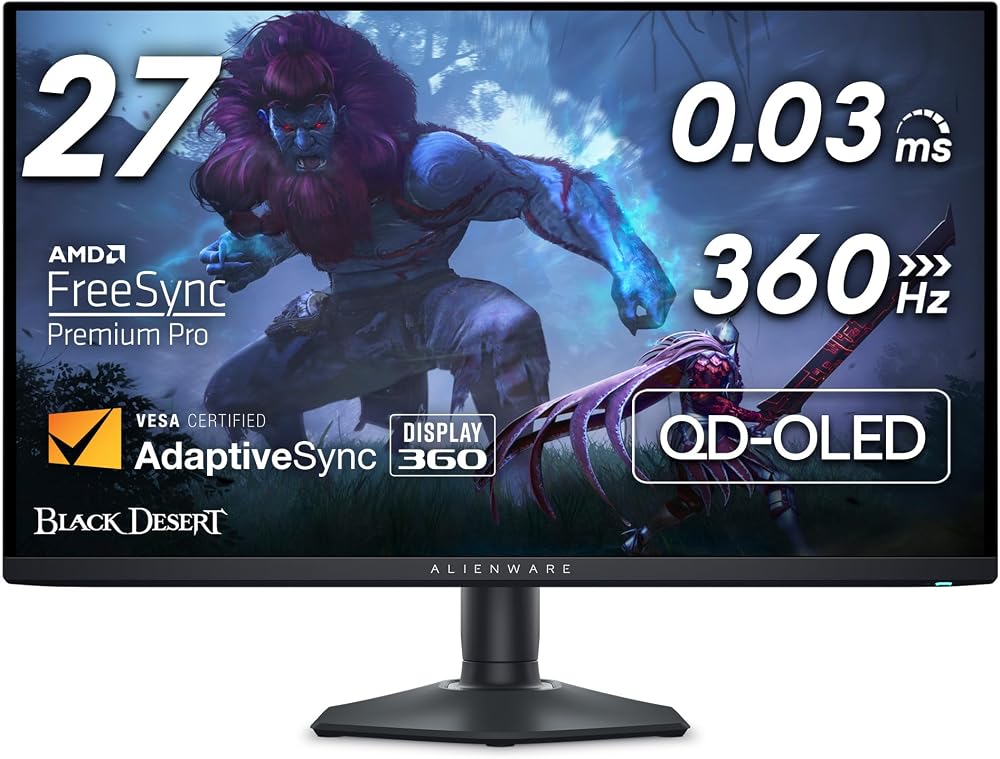
The Alienware AW2725DF, around $585, is our pick for PC gamers who want a fast, vibrant 27 inch OLED. Its first strength is a QD-OLED panel at 2560 by 1440 with a 360Hz refresh rate and 0.03 ms response time, delivering exceptionally smooth, clear motion in shooters and racing games. Its second strength is rich HDR and color thanks to quantum dot technology, plus AMD FreeSync Premium Pro support. A well built height adjustable stand and Alienware's warranty support round out a complete package.
The limitation is that QHD resolution shows slightly softer text than 4K, which matters more for productivity than gaming.
Best Value
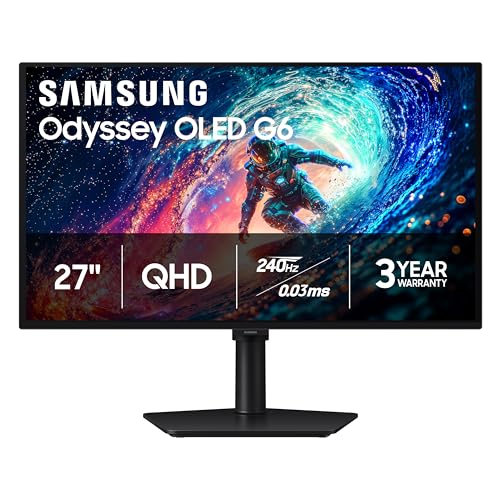
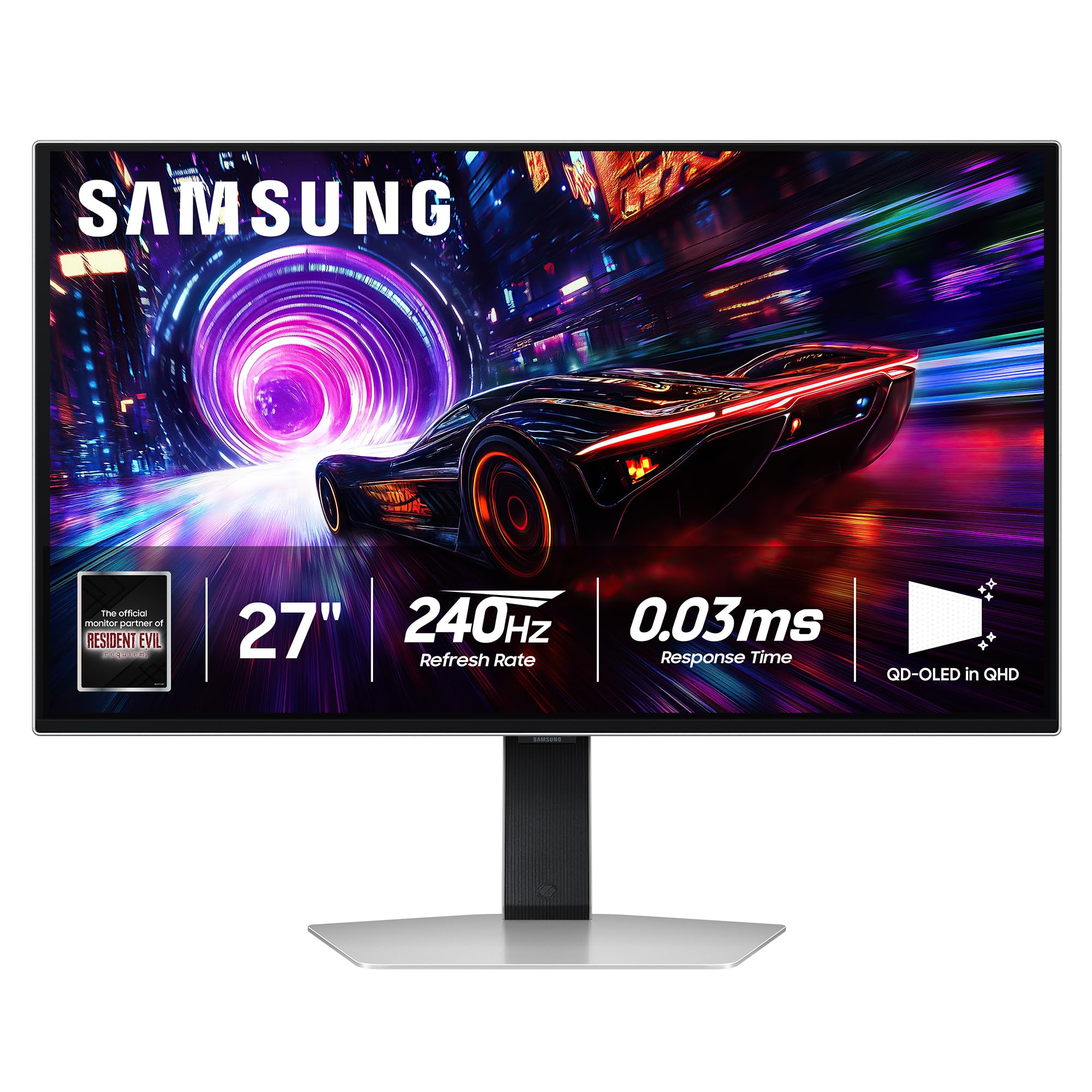
The Samsung 27 inch Odyssey OLED G6 (G61SH), around $385, suits gamers who want OLED contrast and speed at a mainstream price. Its first strength is a QD-OLED QHD panel running at 240Hz with 0.03 ms response time for smooth gameplay. Its second strength is Samsung's glare free coating, which reduces reflections in bright rooms while keeping colors punchy.
The limitation is a lower refresh rate than premium 360Hz and 500Hz models, though most players will not notice the difference outside competitive esports.
Best Premium Pick
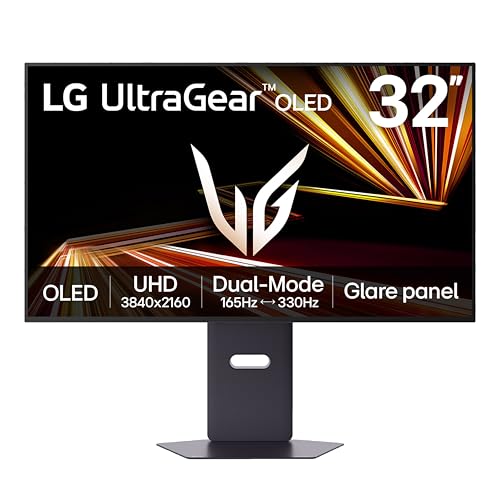
The LG UltraGear 32GX850A, around $760, is for gamers and creators who want a large, sharp 4K OLED. Its first strength is a 32 inch 4K glossy OLED panel that makes text crisp for work and games incredibly detailed. Its second strength is dual mode operation, switching between 4K at 165Hz and a lower resolution at 330Hz for fast competitive play.
The limitation is that the glossy finish reflects light in bright rooms, so it suits controlled lighting best.
Quick Buyer Checklist
- Does the monitor size and resolution suit your desk and distance?
- Is the refresh rate at least 240Hz for gaming?
- Does it have DisplayHDR True Black 400 or higher?
- Does it include DisplayPort and HDMI 2.1 for your devices?
- Is the stand height adjustable or VESA compatible?
- Does the warranty explicitly cover burn in?
- Do you prefer glossy for contrast or matte for glare control?
- Does your graphics card support the resolution and refresh rate?
Red Flags to Watch For
- Vague burn in policies. Monitors without clear burn in coverage carry more long term risk.
- Misleading refresh rates. Some listings advertise dual mode peaks without explaining resolution limits.
- Suspicious reviews. Floods of short, similar five star reviews suggest manipulation.
- Short warranties. OLED monitors should come with at least two years of coverage.
- Missing HDR certification. HDR claims without VESA certification may not deliver real HDR.
Care and Maintenance Tips
Let the monitor run pixel refresh cycles when prompted, usually after you turn it off. Enable pixel shift and screen savers, auto hide the taskbar and use dark mode to reduce static elements. Clean the screen with a dry microfiber cloth only. Calibrate picture settings by turning off overly vivid modes. Use quality DisplayPort or HDMI 2.1 cables for high refresh rates, and update monitor firmware when available.
QD-OLED vs WOLED: What Is the Difference?
QD-OLED panels, made by Samsung Display, use blue OLED pixels combined with quantum dot layers to produce red and green. They deliver very bright, saturated colors and excellent viewing angles. In bright rooms, some QD-OLED panels can make blacks appear slightly gray because of how the panel reflects ambient light, which matte or glare free coatings help address.
WOLED panels, made by LG Display, use white OLED subpixels with color filters and an extra white subpixel to boost brightness. They tend to maintain deep blacks in lit rooms, and newer generations deliver high brightness and strong color. Text rendering can differ slightly between technologies due to subpixel layouts, though modern panels have improved significantly. Both make excellent monitors; choose based on price, features and the specific model's performance.
Is an OLED Monitor Good for Work?
OLED monitors are excellent for creative work like photo and video editing, thanks to accurate color, deep blacks and wide color gamuts. For office work with static spreadsheets and toolbars for hours, burn in protection features and good habits matter. Use dark themes, auto hide taskbars, vary your desktop background and let the monitor run its care cycles.
Text clarity on 1440p OLED monitors is good, while 4K OLED monitors provide noticeably sharper text for documents and coding. If your work involves many hours of static content daily, a high quality IPS monitor might be a lower risk choice, with an OLED reserved for gaming and media.
How Much to Spend on an OLED Monitor
Around $350 to $450 buys 27 inch QHD OLED monitors at 240Hz, the best entry point for most gamers. Around $550 to $750 adds 360Hz to 500Hz refresh rates, premium stands and features. Around $750 to $1,000 covers 32 inch 4K OLED monitors and dual mode panels. Ultrawide and 45 to 49 inch OLED monitors cost more for immersive racing and flight setups.
For most people, the best oled monitors for the money sit in the $380 to $760 range, delivering huge improvements over IPS panels in contrast and motion clarity without paying for niche features.
OLED Monitors: Your Questions Answered
Is 4K worth it on an OLED monitor?
4K is worth it on 32 inch OLED monitors and for productivity, while 1440p suits 27 inch gaming monitors. 4K delivers sharper text and more detail but requires a powerful graphics card for high frame rates. 1440p offers a better balance of sharpness and performance for most gamers.
How long do OLED monitors last?
Modern OLED monitors typically last many years with proper care. Pixel refresh features, varied content and moderate brightness reduce burn in risk. Many brands offer burn in warranties of two to three years, providing peace of mind for regular use.
Does refresh rate matter for non gamers?
Yes, higher refresh rates make scrolling and cursor movement feel smoother even for non gamers. OLED's instant response makes motion especially crisp. For office work and media, 120Hz to 240Hz is plenty.
IPS vs OLED: which is better?
OLED is better for contrast, response time and HDR, while IPS is better for brightness, price and static work. OLED delivers perfect blacks and instant motion. IPS monitors cost less, get brighter full screen and have no burn in risk.
What size should I get for my desk?
A 27 inch monitor suits most desks, while 32 inches works for deeper desks and 4K. Sit about 2 to 3 feet away from a 27 inch screen and slightly farther from 32 inches. Ultrawides need wider desks.
Glossy or matte: which OLED finish is better?
Glossy OLED screens deliver deeper blacks and punchier color, while matte screens reduce reflections in bright rooms. Choose glossy if you control your lighting, such as a dim gaming room. Choose matte or glare free coatings if your desk faces windows or bright overhead lights.
Do I need a powerful graphics card for an OLED monitor?
You need a graphics card that can reach the monitor's refresh rate to get the full benefit. A 1440p 240Hz OLED pairs well with upper midrange GPUs, while 4K high refresh OLEDs need high end graphics cards. Consoles work well with HDMI 2.1 at 120Hz.
Our Verdict
OLED monitors offer the best picture quality and motion clarity available today. Prioritize panel generation, refresh rate, HDR certification and burn in warranty, then choose size and resolution based on your desk and graphics card. Most gamers will love a 27 inch QHD OLED, value seekers can find great 240Hz options under $400 and creators and 4K gamers should consider 32 inch models.
Compare the best oled monitors in the product table above to find the right size, speed and price for your setup.


