
Anker vs Plugable Docking Station Comparison: Which Is Better in 2026?
Disclosure: We may earn a commission when you buy through links on this page, at no extra cost to you. As an Amazon Associate I earn from qualifying purchases. Learn more

Anker vs Plugable docking station: how the two brands differ on displays, charging and value for laptop desk setups.
Both Anker and Plugable make laptop docks that turn a single USB-C port into a full desk, but they come at the job from different directions. This Anker vs Plugable docking station comparison explains where each brand is strong so you can match the dock to your laptop, monitors and budget.
The table above lists current docks from both companies, from compact hubs to triple-display models. Read the sections below to learn which features matter before you compare prices.




What Each Brand Focuses On
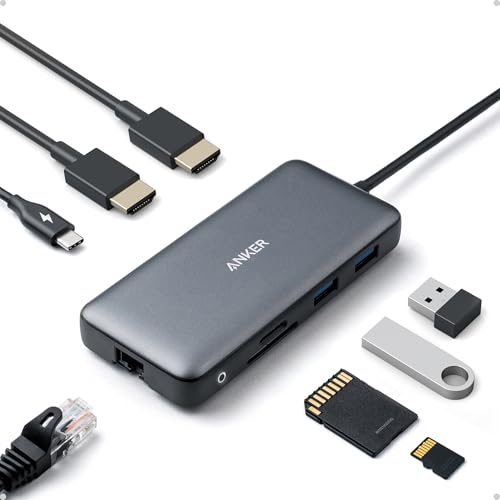
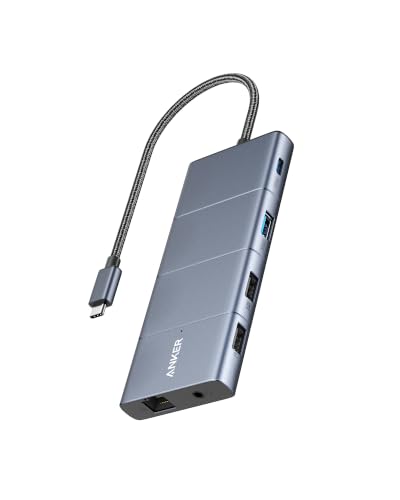
Anker is a mass-market electronics brand, so its docks range from cheap, pocketable hubs to premium models in its Prime line. You see a lot of port counts in the names, such as 8-in-1, 11-in-1 and 13-in-1, aimed at shoppers who want everything in one box at a fair price.
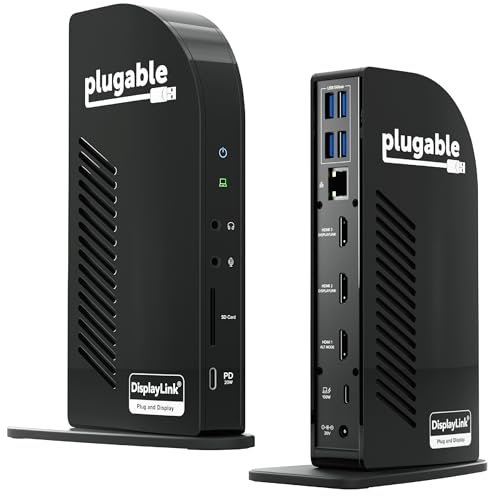
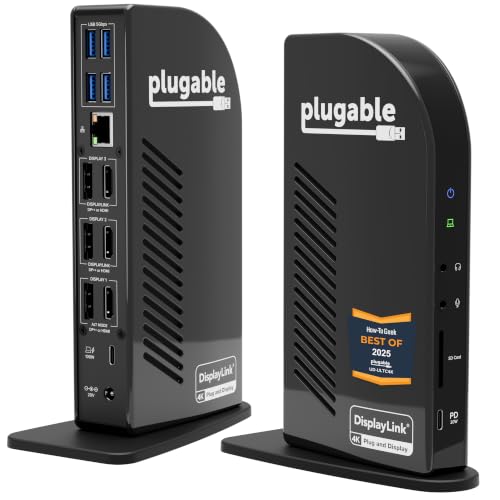
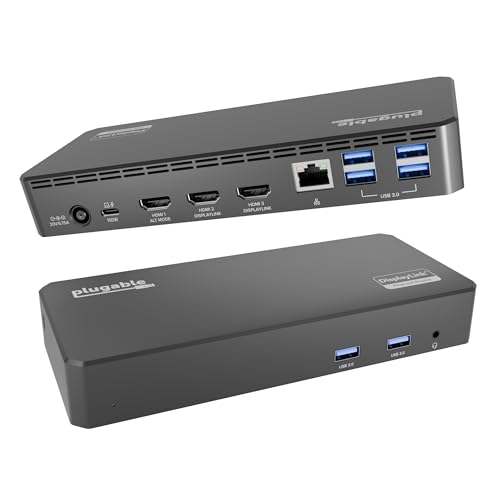
Plugable is a specialist that concentrates on docking and display adapters. Its catalog is built around dock families for Windows, Mac and Chromebook users, and its product pages spend more time on driver support and monitor compatibility.
Display Support Is the Real Dividing Line
Most buyers choose a dock for the monitors. Many cheap USB-C hubs mirror the same image on two screens, because they rely on a single video stream from the laptop. Docks that use DisplayLink technology, which Plugable and some Anker models use, can create extra independent displays, but they need a driver and add a little CPU load.
Check the monitor limit for your exact laptop and operating system, not only the dock. A Mac with a base chip supports fewer external displays than the same dock suggests.
Power Delivery and Laptop Charging
A dock that cannot charge your laptop properly leaves you with a second charger on the desk. Compare the wattage passed to the laptop with your laptop's own charger, and be careful with thin ultrabooks that accept 65W against gaming laptops that want much more.
Plugable states its charging wattage clearly in each product name, which makes comparisons easy. Anker lists it too, though some compact models charge less than their port count suggests.
Ports, Speed and Ethernet
Count what you will plug in every day: monitors, keyboard dongle, webcam, headset, wired network, card reader, external drive. Wired Ethernet matters for video calls, and a card reader matters for photographers.
- Choose Anker if you want many ports for a low price or a premium Prime-style dock with fast charging.
- Choose Plugable if display compatibility and driver support matter most.
- Whichever you pick, check the USB generation of the ports you plan to use for drives.
Build Quality and Heat
Docks that run triple monitors and pass high charging power get warm. Metal-bodied models dissipate heat better than all-plastic hubs, and a dock with a fan or generous vents is better for long workdays. Keep it out of enclosed shelves and away from direct sun.
Value and Support
Anker usually wins on price for similar port counts, and its warranty process is familiar to many buyers. Plugable often costs more, but it offers detailed compatibility lists and support aimed at IT teams. If you manage several desks, that can save time.
For a broader look at premium docks, our best docking station guide and the CalDigit TS5 Plus review show what the top end offers, while the CalDigit Element Hub review covers a simpler hub.
Anker vs Plugable Docking Station: Which Should You Buy
Pick Anker for budget-friendly breadth, travel-friendly size and a wide range from tiny to premium. Pick Plugable for multiple independent monitors, drivers that work across operating systems and clear charging specs. If you only need one monitor and a handful of USB ports, either brand will do and the cheaper one is the sensible buy.
Choosing by Laptop Type
Match the dock to your computer instead of the other way around. A Windows ultrabook with a single USB-C port benefits from a compact dock with HDMI, USB-A and power passthrough. A Thunderbolt workstation laptop can take advantage of a Thunderbolt 4 dock with fast storage and several monitors.
Mac owners should check chip limits before buying. Base-level Apple chips are limited in the number of external displays, and the usual workaround is a DisplayLink dock with a driver. Chromebook owners should look for explicit ChromeOS support on the listing.
Setup Tips That Save Headaches
Update the laptop's firmware and graphics drivers before plugging in a new dock, since most early problems come from old software. Use the cable that came with the dock rather than a random one, because long or cheap USB-C cables can limit video and charging.
If a monitor flickers, try a different port on the dock first, then a different cable. Keep the original box until you have used every port at least once, so a return is still possible if one fails.
Price Tiers to Expect
Small hubs from both brands cost around the price of a lunch, while multi-display docks cost a few times that. Thunderbolt models sit in the premium bracket. Anker tends to be cheaper in the entry tier, while the two brands are close in the middle range. Check the product table for the current spread rather than relying on old numbers.
A Note on Warranty and Registration
Docks sit in the middle of your workflow, so a failure is disruptive. Register the product, save the order number and read the warranty length on the listing. Longer cover is a sign that the maker expects the dock to last, and it is worth a few dollars more.
FAQs
Can one dock drive three monitors?
Some can, particularly DisplayLink models, but your laptop's own limits apply. Read the compatibility notes on the listing.
Do I need drivers?
Plain USB-C and Thunderbolt docks generally do not, while DisplayLink docks do. Plugable lists the driver requirements on its pages.
Will a dock charge my laptop fast enough?
Only if the wattage matches or exceeds what the laptop expects. Under-powered docks charge slowly or not at all under load.
Is a hub the same as a dock?
Not quite. Hubs add ports in a small body, while docks usually add a power supply, more video outputs and Ethernet.
Final Verdict
The Anker vs Plugable docking station choice is a trade between value and display flexibility. Anker offers more variety and lower prices, while Plugable is the safer option for multi-monitor setups across operating systems. Check the product table, match the monitor count and charging wattage to your laptop, and buy the model that fits your desk rather than the longest port list. If this anker vs plugable docking station comparison still leaves you torn, shortlist your favorite and rely on the return window.
Prices and availability can change, so check the product page before ordering.


