
Best 1 Gig Routers for 2026: How to Pick the Right One
Disclosure: We may earn a commission when you buy through links on this page, at no extra cost to you. As an Amazon Associate I earn from qualifying purchases. Learn more

Best 1 gig routers explained: Wi-Fi 6, 6E, and 7, port speeds, mesh or single router, and setup tips for full gigabit speed.
A gigabit internet plan is wasted on a router that cannot keep up, and a router with fast Wi-Fi is wasted if its ports are slow. The best 1 gig routers give you full gigabit speeds over Ethernet, strong Wi-Fi in every room, and settings you can manage without a networking degree.
This guide explains what "1 gig" really means, which specifications decide real speed, and how to choose between a single router, a mesh system, and a router with a modem built in. The product table near the top lists current options so you can check prices.
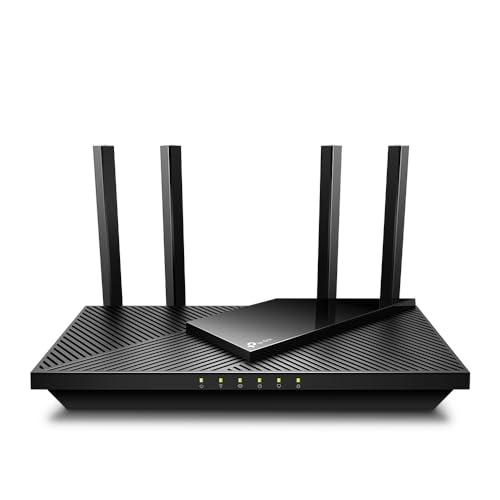


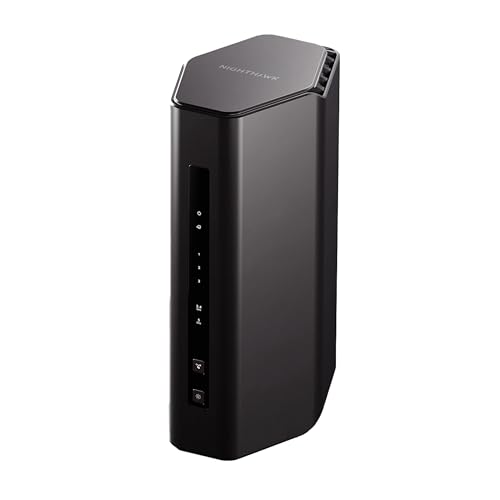


What 1 Gig Routers Actually Do
A gigabit connection delivers up to 1,000 megabits per second from your provider. To use it, every link between the modem and your device must also be gigabit: the router's WAN port, its LAN ports, your cables, and your device's network card.
Wi-Fi is the part that usually falls short. Wireless speeds depend on distance, walls, and the number of devices, so a good router matters most for phones, laptops, and TVs that do not use a cable.
Best 1 Gig Routers: Wi-Fi Standards Explained
Current routers use Wi-Fi 6, Wi-Fi 6E, or Wi-Fi 7. Wi-Fi 6 is the sensible baseline for a gigabit plan, offering better handling of many devices than older standards. Wi-Fi 6E adds a clean extra band, and Wi-Fi 7 adds higher peak speeds and better handling of busy homes.
Your devices must support the standard to benefit. If most of your phones and laptops are a few years old, a Wi-Fi 6 router already gives them everything they can use, and paying for Wi-Fi 7 gains little today.
Ports and Wired Speeds
Check that the WAN and LAN ports are gigabit or faster, since older routers may have slower ports. A 2.5 gigabit port is useful for a fast desktop or a network storage box, and it leaves room to grow if your provider raises speeds.
Count the LAN ports against your devices. A gaming PC, a console, a streaming box, and a printer can fill four ports quickly, and a small switch is an easy way to add more.
Single Router or Mesh System
A single router works well in an apartment or a small home. In a larger house, or one with thick walls, a mesh system places extra nodes around the home to spread the signal. Mesh costs more but removes dead spots and handles roaming between rooms.
Wired backhaul, where nodes connect to the router by Ethernet, gives the best mesh performance. If you cannot run cables, choose a tri band system that keeps a dedicated band for node traffic.
Modem and Router Combos
Some units combine a cable modem and a router. They save space and a rental fee, but they limit upgrades, since a failed modem takes the router with it. A separate modem and router give you more flexibility to upgrade each part.
If you rent a modem from your provider, check that it supports your speed tier. A modem that cannot handle gigabit will cap the whole setup.
Security and Management
Look for automatic firmware updates, a guest network, parental controls, and WPA3 support. Easy management through a phone app helps nontechnical users, while advanced features like VLANs and VPN support suit tinkerers.
Change the default admin password, keep the firmware current, and turn off remote management unless you need it.
Who Should Choose Which
- Apartment dwellers: a single Wi-Fi 6 router is usually enough.
- Large homes: a mesh system with wired backhaul.
- Gamers and creators: a router with 2.5 gigabit ports and good quality of service tools.
- Budget buyers: a reliable Wi-Fi 6 router rather than the latest standard.
For provider specific advice see our guides to the best routers for 1 gig internet, the best routers for Spectrum, and the best WLAN routers.
Setup Tips for Full Speed
Place the router in a central, open location, away from metal objects and microwaves. Use short, good quality Ethernet cables, and run a speed check with a wired device first to confirm your plan delivers. Update the firmware and pick separate network names for the bands if a device struggles to connect.
Use channel width and band settings sparingly. The default automatic choices work well in most homes.
Quality of Service, Gaming, and Streaming
If several people stream and game at once, a router with quality of service settings can prioritize the traffic that matters. Look for simple presets such as gaming or video calls rather than complicated rule lists. Many modern routers also offer smart queue features that reduce lag when someone starts a large download.
Wired connections still beat wireless for consoles and desktop PCs. Plug in the devices that matter most, and leave Wi-Fi for phones and laptops.
Placement and Antenna Tips
Put the router high, in the middle of the home, away from thick walls, mirrors, and appliances. Point external antennas in different directions, one vertical and one angled, to cover different floors. If your home is long or has several floors, a second access point or a mesh node in the middle extends the signal far better than a bigger router in a corner.
Avoid placing the router in a cabinet or behind the TV, since both block the signal.
Firmware, Security, and Privacy
Install firmware updates as soon as they appear, and enable automatic updates if the router offers them. Replace default passwords, use WPA3 where devices support it, and set up a guest network for visitors and smart devices. Turn off features you do not use, such as remote administration.
If privacy matters, check whether a router requires an account to manage it, and what data it collects. Some routers let you run entirely locally, which some buyers prefer.
Mistakes to Avoid
Do not buy the fastest number on the box without checking your devices. Do not forget that a modem rented from your provider may cap your speed. Do not use old, damaged Ethernet cables, and do not ignore the warranty. A reliable router with good support beats a flashy one that stops getting updates.
FAQs
Do I need Wi-Fi 7 for a gigabit plan?
No. A good Wi-Fi 6 router handles gigabit well, and Wi-Fi 7 helps mainly if your devices support it.
Will a router make my internet faster?
It cannot exceed your plan, but a better router removes bottlenecks inside your home.
Is mesh better than a single router?
Mesh is better in large or complicated homes. In small spaces, a single router is enough.
Do I need new cables?
Use Cat5e or better cables for gigabit speeds.
The right pick from the best 1 gig routers comes down to home size, device age, and port needs, so compare the models in the table above before ordering. Prices and availability can change, so check the product page before ordering.


