
Best 1440p 144hz Monitors: The Sweet Spot for Gamers in 2026
Disclosure: We may earn a commission when you buy through links on this page, at no extra cost to you. As an Amazon Associate I earn from qualifying purchases. Learn more

Sharp 1440p and smooth 144Hz without a flagship card. See how to choose among the best 1440p 144hz monitors.
The best 1440p 144hz monitors are the practical middle of PC gaming: sharper than Full HD, smoother than a standard 60Hz screen and light enough on your graphics card that you do not need a flagship GPU. A 1440p screen at 144Hz is also a comfortable desktop, with enough room for two windows without squinting at text.
This guide explains what you gain at this resolution and refresh rate, what graphics card you need to feed it, and how to choose between flat, curved and ultrawide designs. The product table after the introduction lists in-stock monitors from around $145 to well over $800.

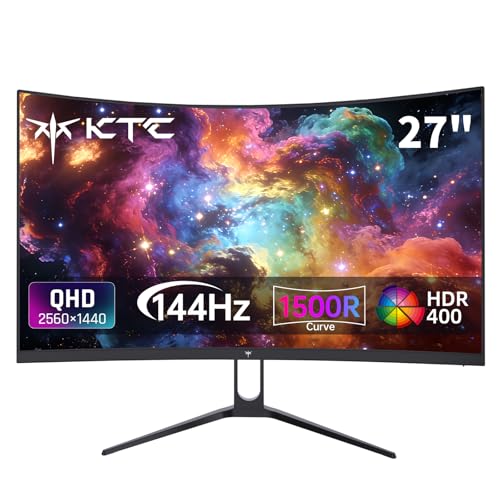
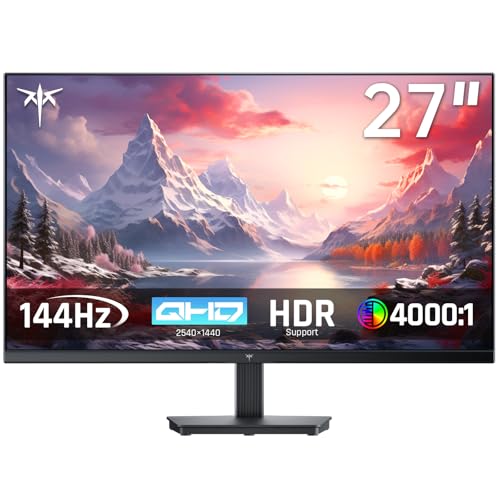
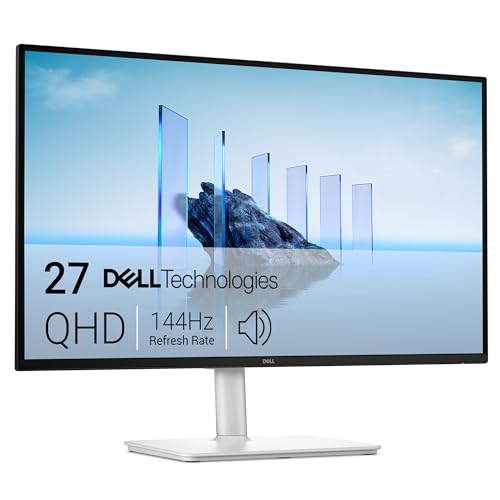

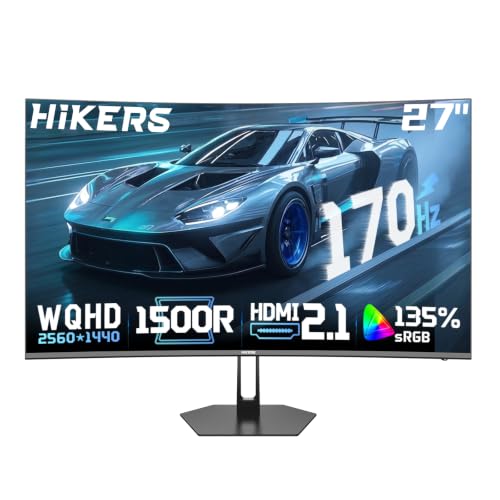

Why 1440p at 144Hz Is a Sweet Spot
1440p means 2560 by 1440 pixels, about 78 percent more pixels than Full HD but far fewer than 4K. At 27 inches that gives a crisp picture where text is clean and games show detail without the heavy cost of 4K. The 144Hz refresh rate redraws the screen 144 times per second, which makes motion clearer and mouse movement feel quicker in shooters and racing games.
Price is the other reason. Because both the resolution and the refresh rate are mainstream, competition is strong and quality is high, so you can get a very good monitor for a modest price. If you want to see what a higher refresh rate adds, the guide to 240Hz 1440p monitors shows the next step up.
What Graphics Card Do You Need
To use 144Hz, your game must output close to 144 frames per second. At 1440p, mid range current graphics cards reach that in many esports and older titles, while demanding new games may need lowered settings or upscaling such as DLSS or FSR. A card with enough video memory matters too, since high texture settings use more at this resolution. If your card cannot hit 144 frames in your games, the monitor still looks sharper and works well at lower frame rates, especially with adaptive sync.
Choose the Shape and Size
27 inch flat or curved
A 27 inch screen is the standard for 1440p, giving a good pixel density. Curved models add immersion for a modest price, and a gentle curve suits single player games and desk work. A flat panel is better if you do color sensitive work or use multiple screens side by side.
32 inch
Larger 32 inch 1440p monitors give a bigger picture but a lower pixel density, so text is a little softer. They suit couch or distance setups better than close desks.
Ultrawide 34 to 49 inch
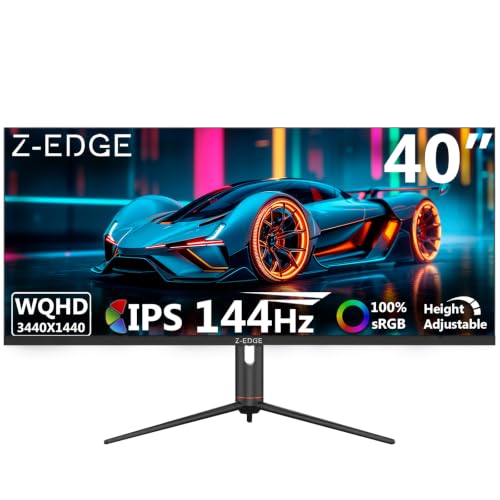
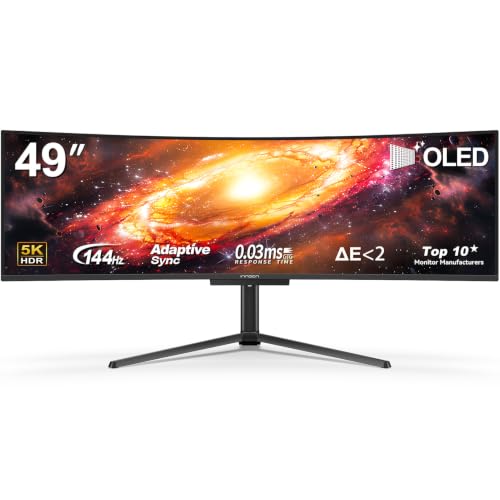
Ultrawide monitors at 3440 by 1440 or 5120 by 1440 add horizontal space for racing, flight and productivity. They need more graphics power and a wide desk, and not every game supports the aspect ratio. The big 49 inch models replace a dual monitor setup in one piece.
Panel Type and Image Quality
IPS panels offer accurate color and wide viewing angles and are the all round choice. VA panels have deeper blacks and higher contrast but can smear dark scenes in fast action. OLED and QD-OLED panels give top contrast and rapid response, but they cost more and need care with static images. HDR support is usually modest on budget models, so treat HDR400 as a mild improvement rather than true HDR.
Look at response time claims with caution; the figures are measured under ideal conditions. Reading buyer feedback on ghosting and backlight bleed gives a clearer picture.
Connections and Features
Check for DisplayPort and HDMI inputs that support 144Hz at 1440p; older HDMI versions may limit it. Adaptive sync (FreeSync or G-Sync compatible) removes screen tearing when the frame rate varies. Look for a height adjustable stand or a VESA mount, and a USB-C port with power delivery if you want to use the monitor with a laptop. Some models add built in speakers, which are fine for casual use.
The page about the best gaming monitors 144hz 1440p offers a related view, and the more general best 144hz monitors guide covers other resolutions. If you prefer panels with accurate color, check 1440p IPS monitors.
Setting It Up So You Actually Get 144Hz
A common surprise is a new monitor stuck at 60Hz. Windows often defaults to that rate, so open the advanced display settings and choose the highest refresh rate in the list. In the graphics driver software, switch on adaptive sync, and in games set the display mode to full screen or borderless with the refresh rate shown correctly. If the option is missing, swap the cable or the port before suspecting the monitor.
Spend a few minutes on picture settings as well. Many gaming monitors ship with strong overdrive, which can leave bright trails behind moving objects, so try the medium setting first. Lower the brightness for evening use and turn off any artificial sharpening. When you compare the best 1440p 144hz monitors in the table, remember that a calibrated picture from a middle priced model often looks better than a default picture from an expensive one.
FAQs
Is 144Hz worth it over 60Hz?
Yes, for gaming. The difference in motion clarity and responsiveness is easy to see, and even desktop use feels smoother.
Do I need a DisplayPort cable?
Often yes. DisplayPort reliably carries 1440p at 144Hz, and a good HDMI cable can too if both ends support it. Use the cable that comes in the box.
Is 1440p too demanding for my graphics card?
A mid range card runs most games well at 1440p with sensible settings. Lower a few settings in the most demanding titles.
27 inch or 32 inch?
For a desk, 27 inch gives a sharper picture. Choose 32 inch only if you sit further back.
Final Verdict
The best 1440p 144hz monitors mix a sharp 27 inch panel, adaptive sync and the right ports at a price your graphics card can match. Use the product table to compare panel types and sizes, and pick curved or ultrawide only if it fits your desk and games.
Prices and availability can change, so check the product page before ordering.


