
Best 1TB Internal Hard Drives for 2026: Size, Speed and Workload Guide
Disclosure: We may earn a commission when you buy through links on this page, at no extra cost to you. As an Amazon Associate I earn from qualifying purchases. Learn more
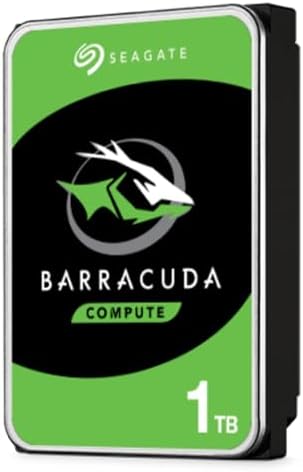
Best 1tb internal hard drives explained: drive size, spin speed, workload ratings and SATA connections for PCs, laptops and NAS boxes.
Adding or replacing an internal hard drive is one of the cheapest ways to give a desktop, a NAS or an older laptop more room. This guide to the best 1tb internal hard drives covers the choices that matter before you buy: drive size, rotation speed, the job the drive was built for and how it connects to your computer.
The product table lists internal drives that are available new, from everyday desktop models to laptop sized drives and models built for network storage. The sections below help you pick a drive that fits your machine and your workload.


Match the Drive Size to Your Computer
Desktop PCs use 3.5 inch drives, which need a full size bay and a power lead. Laptops, many small PCs and game consoles use 2.5 inch drives, which are thinner and draw less power. Look at the bay or the old drive before you order, and note the thickness for laptops, since some slim notebooks only take the thinner kind.
A 2.5 inch drive can sit in a desktop bay with a bracket, but a 3.5 inch drive will not fit in a laptop at all.
5400 or 7200 RPM
Spin speed changes how quickly the drive finds and moves data. A 7200 rpm drive is quicker and suits a desktop that holds games or large working files. A 5400 rpm drive is quieter and cooler and suits laptops, backup drives and storage that is read less often.
Cache size is the second number in many listings. A larger cache can help with small repeated reads, but spin speed matters more in daily use.
Workload Ratings: Desktop, NAS and Performance
Makers sort drives by the job they expect. Desktop drives are the everyday choice for a single PC. Network storage drives are tuned for constant operation in a small enclosure with other drives. Performance lines favour speed and come with heavier use ratings, and they usually cost more.
Choose the rating that matches your use. A NAS drive in a normal PC works, but you pay for features you do not use, and a desktop drive in a NAS may wear faster.
Connector and Cables
Almost all internal hard drives use SATA. You need a free SATA data port on the motherboard and a SATA power connector from the power supply. Both are standard cables, though some small cases have only one spare lead. A new drive often comes without a cable, so check the listing and buy one if your motherboard box did not include a spare.
Using an Internal Drive in a Console or an Older Laptop
Some consoles and older laptops accept a 2.5 inch hard drive as an upgrade. Read the console guide for the exact size, the supported interface and any thickness limit. Many people now choose an SSD for a laptop or a console because of the speed boost, but a hard drive remains a cheaper way to add large storage.
SMR and CMR Recording
Internal drives record data in two ways. Conventional recording writes tracks separately and keeps steady speed under heavy writes. Shingled recording packs tracks closer and can slow down during long writes. Makers do not always list which method a drive uses, so check the product page and buyer notes if you plan to use the drive in a RAID or NAS setup.
Capacity, Price and Reading the Listing
One terabyte is plenty for a game library, a media archive or a set of backups, and the price gap to the next size is often small, so compare both before buying. Read the listing for a clear condition label, a model number and a warranty period. Drives sold as bare or pulled from other systems may arrive without a cable or a box, and a short warranty is a warning sign. For a wider comparison, see our guide to the best internal hard drives.
Noise, Heat and Vibration
Hard drives hum and click, and a 7200 rpm drive makes more noise than a slower one. In a quiet room or a media PC, check buyer comments about sound. Good airflow in the case and rubber mounts reduce both heat and vibration.
Backups and Health Checks
A drive that holds your only copy of important files is a risk, however good the brand. Keep a second copy on another drive or in cloud storage, and check drive health once or twice a year with the maker tool or a built in report. Replace a drive that starts to show errors rather than waiting for it to fail.
Installing the Drive
- Switch off the computer, unplug it and touch the metal case to discharge static.
- Mount the drive in the bay with four screws and connect the SATA and power cables.
- In the operating system, open disk management, initialise the new disk and format it.
- Move files across, then check that they open before you delete the originals.
Frequently Asked Questions
Should I buy a hard drive or an SSD?
An SSD is faster and quieter. A hard drive costs less per terabyte and works well for bulk storage and backups.
Will a 3.5 inch drive fit my laptop?
No. Laptops use the smaller 2.5 inch size.
Is 7200 rpm worth it?
For a desktop that opens large files often, yes. For backups and media archives 5400 rpm is enough.
Can I use a NAS drive in my PC?
Yes, it works, though it is built for a different job, and you may pay for features that you will not use.
Do I need to format the drive?
Yes. A new internal drive must be initialised and formatted in the operating system before use.
How do I choose the best 1tb internal hard drives?
Match the drive size and connector to your computer, then pick the spin speed and workload rating.
Final Verdict
The best 1tb internal hard drives are the ones that match your machine: the right size for the bay, a spin speed that fits your workload and a rating built for how the drive will be used. Compare the options in the product table, check the cable situation before you order, and keep a second copy of important files. Prices and availability change, so check the product page before ordering.


