
Best 16GB RAM in 2026: DDR4 and DDR5 Kit Guide
Disclosure: We may earn a commission when you buy through links on this page, at no extra cost to you. As an Amazon Associate I earn from qualifying purchases. Learn more

How to choose the best 16GB RAM: DDR4 or DDR5, a pair of 8GB sticks or one 16GB stick, speed, latency and compatibility.
Sixteen gigabytes of memory is a comfortable amount for gaming, office work and general use, and it is also the easiest upgrade to buy wrong. The wrong generation will not fit your board, a single stick can run slower than a pair and a high advertised speed means nothing if your system does not support it. This guide helps you choose the best 16GB RAM kit with a few simple checks.
The product table lists desktop kits and laptop modules across several speeds and generations. Read the sections below first so you buy the right type for your computer.




Step One: DDR4, DDR5 or Something Older
Memory generations are not interchangeable. DDR5 modules do not fit in a DDR4 slot, and DDR3 is older still. Check your motherboard or laptop manual for the supported type, or look up the model number on the manufacturer's site. Newer platforms use DDR5, and many systems from the past several years use DDR4.
DDR5 offers higher speeds and more bandwidth, while DDR4 is cheaper and mature. If you already own a DDR4 board, buying DDR4 memory is sensible. For a new build, DDR5 is the future path. Our guide to DDR4 versus DDR5 goes deeper, and the best DDR4 RAM list covers that generation.
One 16GB Stick or Two 8GB Sticks
Two modules in dual channel give more bandwidth than a single module of the same total size. For gaming and for integrated graphics, a pair of 8GB sticks often performs better than one 16GB stick. A single 16GB module leaves a slot open for a later upgrade to 32GB, which can be a good reason to choose it.
If you plan to upgrade soon, think about the path. Adding a second 16GB stick later is simple if your board has an open slot, though matching the speed and timings of the first stick matters. A kit sold as a pair is tested together and is the safest choice for stable operation.
Speed, Latency and Real Gains
Speed is shown as a number such as 3200 or 6000, measured in megatransfers per second. Latency is shown as CL followed by a number, and lower is better at the same speed. Faster memory helps most in tasks that depend on memory bandwidth, such as integrated graphics, some games and video work. For everyday use, the difference between mid and high speed kits is small.
Choose a speed your processor supports without trouble. AMD and Intel platforms have a recommended range, and going far beyond it can cause instability. A kit with a sensible speed and tight latency is a better value than the fastest kit with a high price.
XMP, EXPO and BIOS Settings
Memory modules run at a default safe speed unless you enable a profile in the BIOS. Intel systems use XMP, and AMD systems use EXPO or a similar profile. Without enabling it, your fast memory may run slower than advertised. Update the BIOS if needed, enable the profile and check the speed in the operating system afterward.
If the system will not boot after you enable a profile, reset the BIOS and try again. Consult the motherboard's list of tested memory kits if you want certainty. It helps to buy a kit from a reputable maker with a lifetime warranty.
Heat Spreaders, RGB and Height
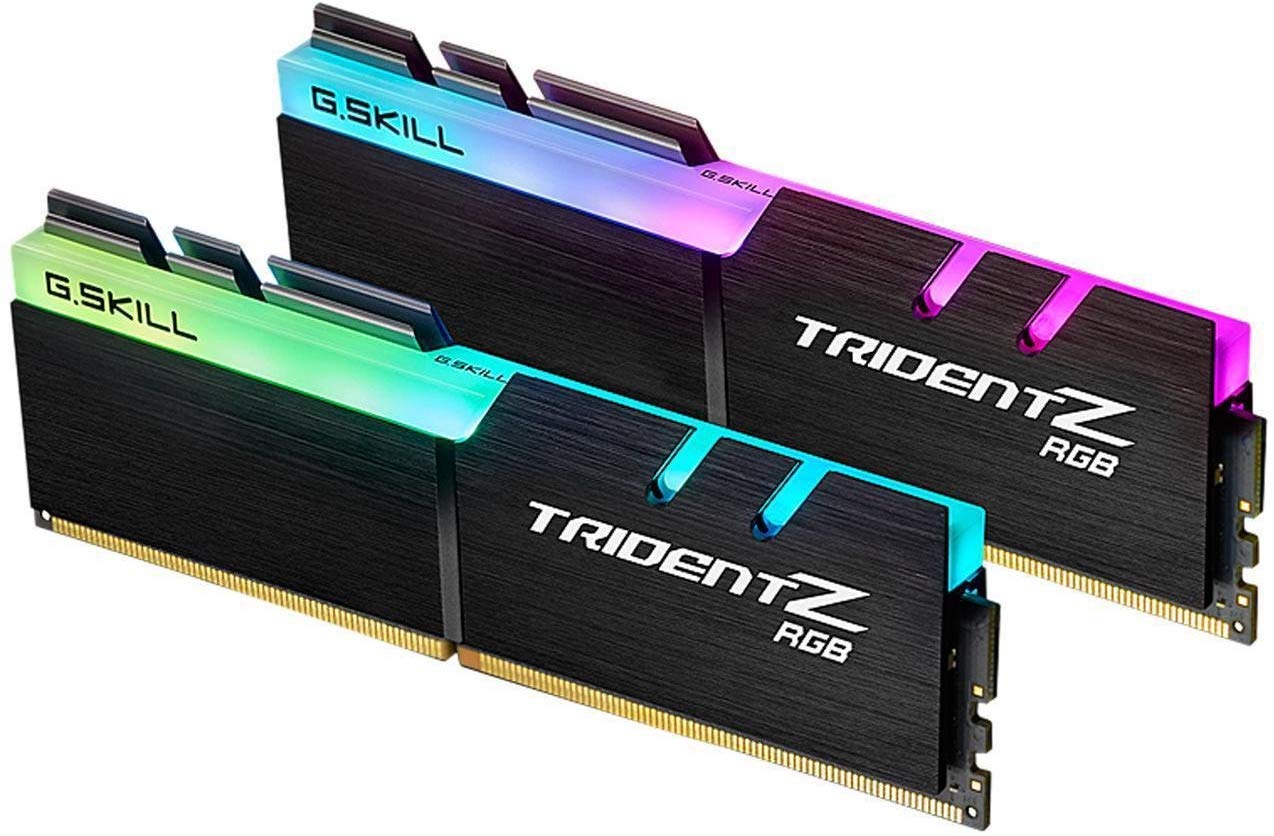
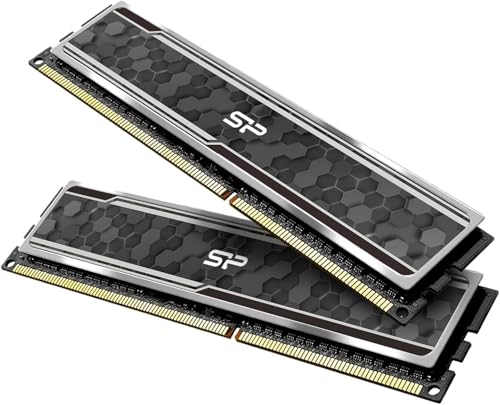
Heat spreaders protect modules and add a small amount of cooling, though standard speed memory seldom needs it. Tall heat spreaders can clash with large air coolers, so check the height of the memory against your cooler's clearance. RGB lighting is a matter of taste and adds cost.
For small cases and low profile builds, choose slim modules with minimal height. Laptops use SODIMM modules, which are smaller than desktop modules, so make sure you order the right form factor. See our how much RAM do I need and 16GB versus 32GB RAM guides for planning.
Installing Memory Safely
Switch off the computer, unplug it and touch a metal part of the case to discharge static. Open the clips at the ends of the slot, line up the notch in the module with the key in the slot and press down evenly until the clips snap shut. For two sticks, check the motherboard manual for the correct slots, since dual channel usually uses slots one gap apart.
After installing, turn the computer on and enter the BIOS to confirm the full capacity shows up. Then enable the speed profile and save. If the computer does not start, reseat the modules and check that they are fully clicked in. A quick memory check tool can confirm there are no errors, and running it overnight gives extra confidence for a new kit.
Laptop and Small Form Factor Memory
Many laptops use SODIMM modules that are about half the length of desktop sticks. Some thin laptops solder memory to the board, so there is nothing to upgrade, and others have one or two slots. Check the maker's support page for the maximum capacity and speed your laptop accepts. Mini PCs often use the same SODIMM format. Buying a matched pair gives dual channel performance, and replacing a single 8GB module with a 16GB module is a common upgrade for older machines.
Warranty and Brand Support
Memory is a part you install once and forget, but when something goes wrong it helps to have good support. Established makers offer a lifetime limited warranty and publish compatibility lists. Keep the packaging and the receipt, and register the kit if the maker asks. If you ever see random crashes or blue screens after an upgrade, test the memory one stick at a time to find a faulty module, and use the warranty to replace it.
Frequently Asked Questions
Is 16GB of RAM enough?
For most gaming and office use, yes. Heavy video editing and virtual machines may need more.
Can I mix different RAM kits?
It can work but is risky. Mixed kits may run at the lowest common speed or cause instability, so a matched kit is safer.
Why is RAM price changing?
Memory prices move with supply, demand and new technologies. See our explainer on why RAM is so expensive.
Do I need heat spreaders?
Not for standard speeds. They help for high speed kits and add style, but check clearance with your cooler.
Final Thoughts
The best 16GB RAM is the right generation for your board, bought as a matched kit and run at a speed your system supports. Check compatibility first, choose between one stick and two based on your upgrade plans and enable the memory profile in the BIOS. Use the product table to compare speeds and prices.


