
Best 2 in 1 Laptop for Drawing for 2026: Pens, Hinges and Screens That Feel Natural
Disclosure: We may earn a commission when you buy through links on this page, at no extra cost to you. As an Amazon Associate I earn from qualifying purchases. Learn more

Best 2 in 1 laptop for drawing explained: hinge, pen pressure, screen feel and size for sketching on a convertible.
Drawing on a laptop screen feels different from drawing on paper, and a 2-in-1 that folds flat is the closest a laptop gets. If you want to sketch ideas, trace photos, doodle in a notebook app or learn digital painting, the right convertible lets you do it without buying a separate drawing tablet. This guide to the best 2 in 1 laptop for drawing explains the hardware details that decide whether drawing feels natural.
The product table lists convertibles available new that come with a stylus or support pens. The sections below show what to check so that your lines look smooth and your wrist stays comfortable.

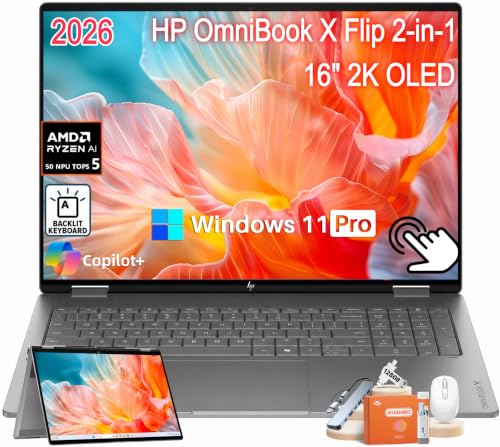
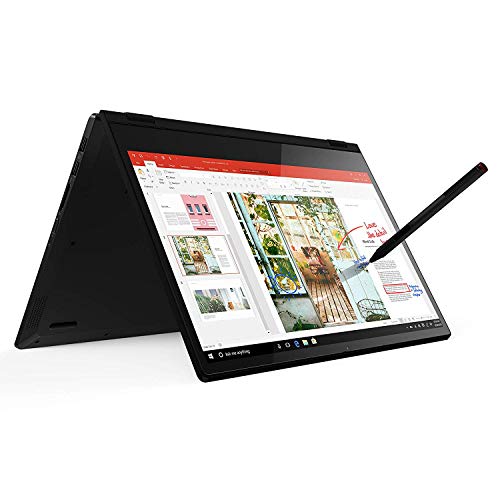
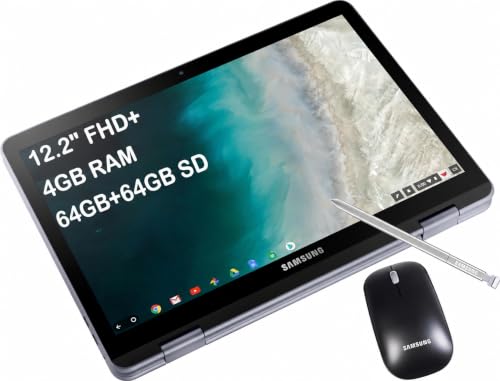
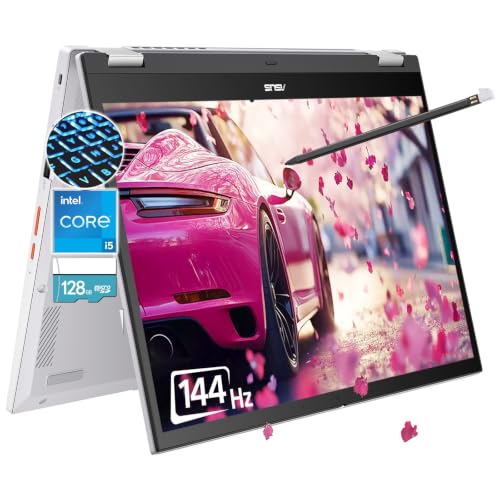


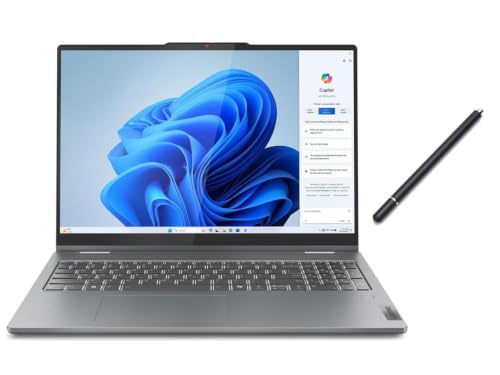


Why a 2-in-1 for Drawing
A drawing tablet needs a computer, and a standard tablet runs limited software. A 2-in-1 laptop gives a full drawing screen, a keyboard for shortcuts and a computer for apps in one device. You can sketch with the screen flat, then fold it back and type, which makes it practical for school and work.
Folding Angle and Posture
Look for a hinge that sits stable at a shallow angle on a desk, since a screen that bounces when you press hurts accuracy. Many artists draw with the screen propped at a gentle slope, others hold the laptop in tablet mode on their lap. Check that the hinge feels firm and that the base does not tip when you press the edge.
Pen Pressure and Tilt
Pressure sensitivity makes thin lines light and thick lines heavy, which is the base of natural looking art. Tilt adds shading effects like a pencil on its side. Active pens offer both, while simple capacitive styluses do not. Bundled styluses in many listings are capacitive, so read the listing to see which type is included.
Parallax and Surface Feel
Parallax is the gap between the pen tip and the line on screen. A thinner screen glass reduces it. Surface feel matters too: glossy glass feels slippery, while a matte film adds friction like paper. A screen protector with a paper texture is a cheap upgrade.
Responsiveness
Smooth lines depend on a quick processor and a screen that tracks the pen well. Heavy brushes and big canvases stress cheap processors. Choose a machine with at least eight gigabytes of memory, and sixteen if you paint large pieces.
Screen Size
A 14 inch screen gives a notebook size canvas that is easy to carry. A 16 inch screen gives more room and a closer feel to a desk tablet, but weighs more. Smaller 11 or 12 inch Chromebook style convertibles work for sketching and notes, with less workspace.
Apps and Learning
Free and paid drawing apps run on Windows and some run on ChromeOS. Beginners can start with a free sketch app and add a full painting program later. Check that your chosen app supports the pen and runs well on the processor in your laptop.
Weight in Tablet Mode
A convertible weighs more than a tablet, and drawing for an hour with it on your lap is tiring. If you plan to draw in tablet mode often, favour lighter models. If you draw mostly at a desk, weight matters less.
Setup Tips
- Pair the pen and adjust the pressure curve in the pen settings.
- Turn on palm rejection and rest your hand as you draw.
- Keep a spare nib if your pen uses replaceable tips.
- Wipe the screen and the pen tip regularly.
Practice Tips for Smoother Lines
Lines look best when you draw from the shoulder and elbow, not just the fingers, so give yourself room and rest your forearm on the desk. Zoom in for detail and zoom out for shape. Use stabiliser settings in your app to smooth out shaky strokes, and keep the pen tip clean. A short daily sketch session builds control faster than occasional long ones.
Cheap Upgrades That Improve Feel
A paper textured screen film adds friction and cuts glare. A spare pen tip means you can replace a worn nib quickly. A small desk stand holds the laptop at a gentle slope. A glove with two cut fingers prevents smudges and lets your hand glide over the glass. None of these cost much, and together they make drawing noticeably more comfortable.
Budget Considerations
Beginners can start with a bundled stylus and a budget convertible and learn the basics at low cost. If you outgrow it, move to a model with an active pen and a better display. Avoid paying for a powerful processor you will not use, and put money into the pen and the screen first, since they change how drawing feels more than any other part.
Choosing Between Models for Sketching
A smaller convertible with a stylus is enough for doodles, mind maps and quick sketches. A larger one with a strong processor suits detailed painting. If you are not sure, start with a model that has a firm hinge and a bundled pen, since you can move up later once you know what you enjoy drawing most.
Keeping Your Drawing Files Safe
Save work often, use cloud sync for active projects and keep a weekly backup on an external drive. Name files clearly and keep layered originals alongside exports, since a flattened copy cannot be edited later.
Frequently Asked Questions
Can I use a normal stylus for drawing?
A capacitive stylus works for simple drawing but does not read pressure.
Do I need a big screen?
Not to start. A 14 inch screen is a comfortable canvas.
Will a Chromebook do?
For sketching and notes, yes, as long as your app is supported.
Does the pen need charging?
Some pens use batteries or charge, others use none. Check the listing.
Is a matte screen better for drawing?
Many artists prefer the paper like feel, but glossy screens look brighter.
How do I choose the best 2 in 1 laptop for drawing?
Check the hinge stability and the pen type first, then the screen surface and size.
Final Verdict
The best 2 in 1 laptop for drawing has a firm hinge, a pen that reads pressure and a screen that feels good under the nib. Compare the options in the product table and see our guides on the best touchscreen 2-in-1 laptop and whether a 2-in-1 laptop is worth it. Prices and availability change, so check the product page before ordering.


