Best 24 Inch Monitors for Photo Editing in 2026: Color, Sharpness and Honest Limits
Disclosure: We may earn a commission when you buy through links on this page, at no extra cost to you. As an Amazon Associate I earn from qualifying purchases. Learn more

Best 24 inch monitors for photo editing need an IPS panel, good sRGB coverage and a sharp picture. Compare color, resolution and calibration.
Photo editing puts unusual demands on a monitor: you need colors you can trust, detail you can inspect and a panel that looks the same from where you sit. The best 24 inch monitors for photo editing are not the fastest or the cheapest; they are IPS screens with solid sRGB coverage, a sharp resolution and, ideally, a way to calibrate.
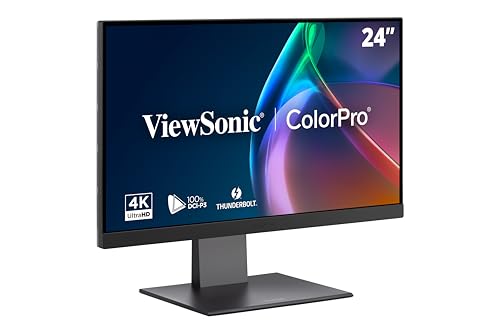
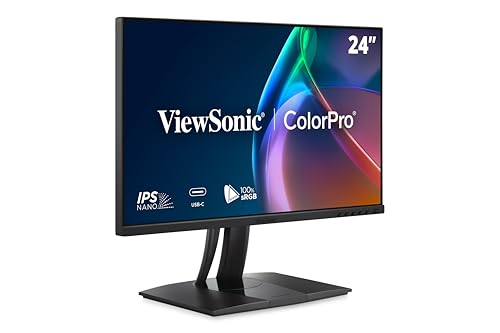
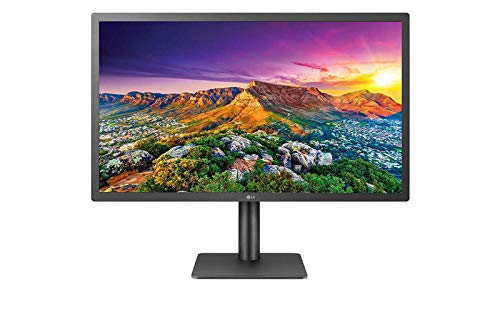
The product table lists 24-inch models from 4K professional-style screens to QHD and 1080p IPS monitors with 100 percent sRGB claims. This guide explains what each feature does for editing, and where marketing numbers can mislead.

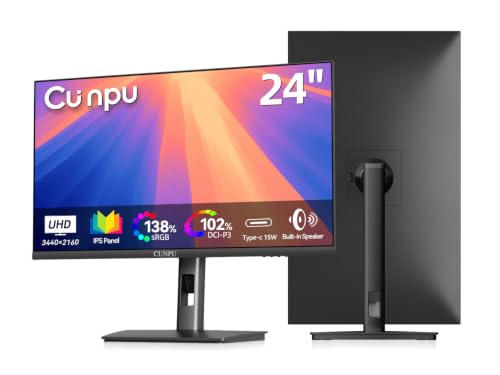
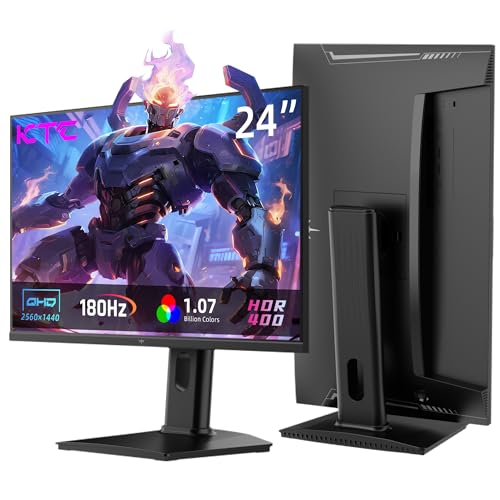

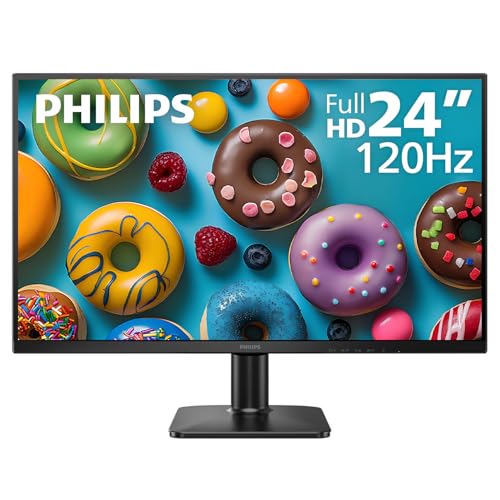

Panel Type: Choose IPS
IPS panels hold colors and brightness across wide angles, which is why they are the standard for photo work. VA panels have deeper blacks but shift color off-center, and TN panels shift the most. If the monitor shows a different tone at the top and bottom of the screen, you will edit the wrong color. Choose IPS or a similar technology, and check the listing for it.
Color Coverage: sRGB and Beyond
For web and most print-lab work, sRGB is the target. A monitor listing 99 or 100 percent sRGB coverage can show nearly all of that range. Wider color spaces such as Adobe RGB and DCI-P3 matter for specific print and video workflows, and monitors that cover them cost more.
Coverage is not accuracy. A monitor can cover the space and still show colors slightly off out of the box. Look for models that mention factory calibration, and plan to calibrate with a hardware tool if color matters to your income. Our guide to the best monitors for photo editing compares larger screens.
Resolution: 4K, QHD or 1080p
A sharp screen helps you judge focus and detail. At 24 inches, 4K gives a very high density, QHD a good one and 1080p a basic one. Higher resolution lets you see more of the image at once at 100 percent zoom, and text and interface look cleaner.
If your budget is limited, QHD IPS offers a good balance. 4K is lovely, but you also need a computer that handles larger files smoothly. 1080p is acceptable for hobby editing and quick social work.
Brightness, Uniformity and Coating
A matte coating reduces reflections that confuse color judgment, and a glossy one looks richer but needs a controlled room. Brightness should be adjustable to a comfortable level for your room. Uniformity, meaning the same brightness and color across the screen, matters for editing, and is hard to judge from a listing. Check the return policy and look at flat gray images when it arrives.
Calibration
A hardware calibrator measures your screen and creates a profile, so colors match across devices and prints. Many photographers calibrate every month or so, since monitors drift. Some monitors include a calibration report or software, and a few support hardware calibration. If you edit for clients or print, budget for a calibrator.
Without one, use the monitor's sRGB mode and keep the brightness moderate. Compare your edits on a phone or a second screen, and make small adjustments rather than extreme ones.
USB-C, Ports and Workflow
USB-C with power delivery suits laptop-based editors who want one cable. Look for HDMI and DisplayPort for a desktop. A USB hub helps connect card readers and drives. A pivot stand lets you rotate to portrait for vertical images and tall web pages.
Desk Setup for Editing
Place the monitor at arm's length in a room with controlled light. Avoid bright windows behind or beside the screen. A neutral gray wall behind the monitor helps your eyes judge color. A hood reduces glare if you cannot control the light. Keep the screen clean, and take breaks.
Budget Tiers and Alternatives
The best 24 inch monitors for photo editing at the top of the table cost real money and include features such as Thunderbolt. Mid-range models offer QHD and good sRGB coverage. Budget models are fine for hobby work but may lack uniformity. For a larger screen, see the best 27 inch monitors for photo editing, and for tighter budgets the best affordable monitors for photo editing.
Common Mistakes
The most common mistake is trusting a gaming monitor's vivid mode for editing. Those presets oversaturate colors, so your photos look dull on every other screen. Switch to an sRGB or standard mode and keep sharpening off. Another mistake is editing at maximum brightness; a bright screen makes shadows look lighter than they are, and your prints come out dark.
A third mistake is skipping a room check. Bright overhead lights and colored walls influence how you see color. Choose the best 24 inch monitors for photo editing, and then give them a neutral environment. Finally, avoid judging a screen by the box claims alone, since sRGB percentages tell you the range but not the accuracy.
Soft Proofing and Print Work
If you print your photos, soft proofing in your editing software shows an approximation of how the print will look, using the printer's profile. It works best on a calibrated monitor with moderate brightness, and it helps you adjust before you spend on paper and ink. A matte screen coating and a neutral room make it more reliable.
One last tip: save a few reference images with known colors, such as a gray ramp and a skin-tone portrait, and look at them whenever you change a setting. They give you a fast visual check that the screen has not drifted, and they help you notice if a firmware update or a driver change altered the picture.
FAQs
Is sRGB enough for photo editing?
For web and most print shops, yes. Wider spaces matter for specific workflows.
Do I need to calibrate?
For color-critical work, yes. A hardware tool is the best way.
Is 4K necessary?
No, but it shows more detail. QHD is a good balance.
Can I edit on a gaming monitor?
Some have good IPS panels, but check color coverage and uniformity.
Final Thoughts
The best 24 inch monitors for photo editing combine an IPS panel, solid color coverage and a sharp picture with a way to calibrate. Choose the resolution your computer can handle, plan your lighting and compare the models in the product table.
Prices and availability can change, so check the product page before ordering.