
Best 27 Inch Monitors for Home Office: Comfort, USB-C and Video Call Setups for 2026
Disclosure: We may earn a commission when you buy through links on this page, at no extra cost to you. As an Amazon Associate I earn from qualifying purchases. Learn more

Long days at a desk reward comfort features, so the best 27 inch monitors for home office combine a sharp panel, an adjustable stand and one-cable laptop docking.
Working from home turns a spare corner into an office, and the monitor is where your eyes spend most of the day. A good one makes spreadsheets, documents and video calls easier, and a poor one leaves you with a stiff neck by Thursday. The best 27 inch monitors for home office put comfort first: a sharp panel, an adjustable stand and a connection that works with your laptop without a cable jungle.
This guide covers what matters for daily office use: resolution for text, USB-C docking, ergonomics, eye comfort features and the details that make video calls and dual screen setups smoother.
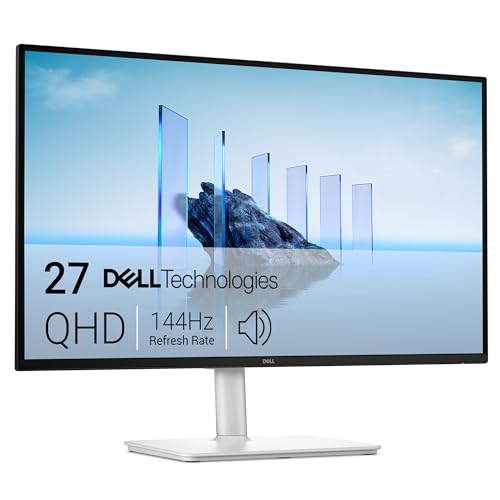


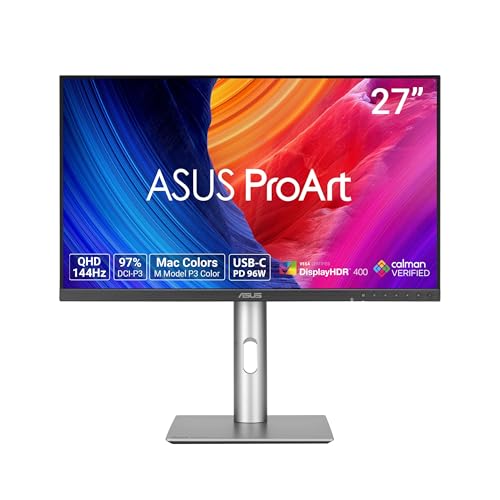
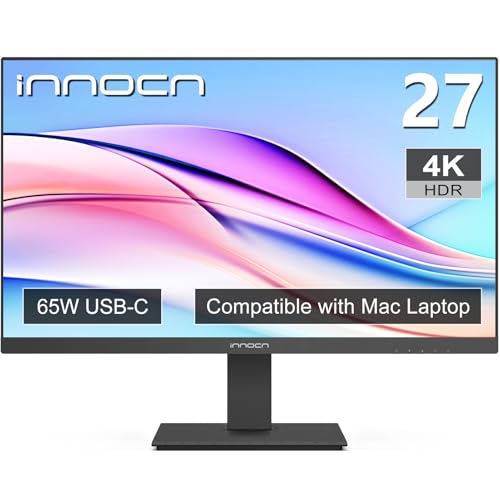


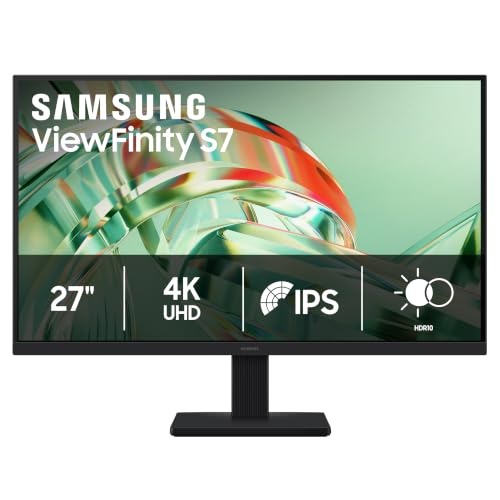

Why 27 Inches Suits a Home Office
A 27 inch screen shows a document and a reference window side by side without shrinking either one. Compared with a laptop display, you gain space for a chat app, a calendar and a browser at once. It fits on most desks, and if you keep the laptop beside it you have a natural two screen setup.
The size also suits video calls: the screen is large enough to show gallery view of several people at a comfortable scale. If you share the desk with a partner, the extra width helps you split the space.
Sharpness for Text
Most office work is text, so resolution matters. A 1080p screen at 27 inches shows visible pixels up close and is a budget choice. A 1440p screen gives clearly sharper text and is the sweet spot.
A 4K screen is sharpest and reduces eye strain for people who read dense documents, though it needs scaling and a capable laptop. See our 27 inch monitors guide for the broader range.
One-Cable Docking with USB-C
The biggest quality of life upgrade is a USB-C port that supports video and power delivery. Plug a single cable into your laptop and it connects the display, charges the battery and links the keyboard and mouse through the screen's USB hub. Check the power delivery rating against your laptop's charger: a low wattage port may not keep a powerful laptop charged under load.
If you swap between a work laptop and a personal computer, look for a screen with a simple input switch or a built in KVM, which lets one keyboard and mouse control both.
Ergonomics You Should Not Skip
Look for height adjustment, tilt and, ideally, swivel and pivot. The top edge of the screen should sit at or just below eye level, and the screen should be about an arm's length from you. If the stand cannot adjust, a VESA mount lets you fit an arm, which frees desk space too.
Good ergonomics beat any spec. A modest screen at the right height is more comfortable than a premium one that forces you to look up. If you also use a laptop, raise it to the same height as the monitor, so that your neck stays neutral.
Eye Comfort Features
Flicker free backlights and low blue light modes are common and help during long sessions. A matte coating reduces reflections from windows and lamps. Automatic brightness is rare, so adjust the brightness by hand to match the room, and lower it in the evening.
Place the screen so that windows are to the side. A small desk lamp behind the screen reduces the contrast between the screen and the wall, which is easier on your eyes than working in a dark room with a bright display.
Video Calls and Webcams
Most monitors do not include a webcam, and the ones that do are rarely great. A separate webcam on top of the screen is better. Position it at eye level, and use a monitor with thin bezels so the camera sits close to the screen center. A USB hub on the monitor makes it easy to plug in a webcam and a headset.
Mistakes to Avoid
- Buying on price alone and ending up with a stand that cannot rise to eye level.
- Choosing USB-C without checking the wattage for your laptop.
- Ignoring resolution and living with soft text for years.
- Putting the screen in front of a window and fighting glare all afternoon.
- Forgetting a monitor arm, which can solve stand problems cheaply.
Dual Screen and Laptop Layouts
Many home offices use the laptop screen as a second display. Place the monitor directly in front of you and the laptop to one side, raised to the same height so that your neck does not drop. Use the laptop for chat, email and notes, and keep the main task on the large screen.
If you want two monitors, buy matching models or at least matching heights so the edges line up. A dual monitor arm clamps to the desk and lets you adjust each screen independently, which is cheaper and tidier than two stands. Check the weight limit and VESA pattern of the monitors before ordering an arm.
Cable Management and Lighting
A single USB-C cable reduces clutter, but you still have power and perhaps a webcam. Use cable clips along the stand and a short extension to keep the desk tidy. Label the plugs so that you can swap equipment quickly.
Lighting affects comfort as much as the screen. Soft light from the side and a small lamp behind the monitor reduce the contrast between the display and the wall. Avoid sitting with a bright window behind you, which turns the screen into a mirror, and avoid a bare bulb above that reflects off the glass.
Frequently Asked Questions
Is 27 inches too big for home office?
It suits most desks of two feet depth or more. A monitor arm helps on shallower desks.
Do I need 4K for office work?
Not necessarily. 1440p is a good balance. 4K helps if you read dense documents or work with images.
What does USB-C power delivery do?
It lets one cable charge your laptop while carrying the display signal, so you plug in once and have power and picture.
Should I get two monitors?
Two screens help if you juggle many windows. For many people one 27 inch screen plus the laptop is enough.
Final Thoughts
The best 27 inch monitors for home office keep you comfortable for hours: sharp text, an adjustable stand, USB-C docking if you use a laptop, and eye friendly features. Set the screen at eye level, keep windows to the side, and spend on the panel and stand before extras.
Prices and availability can change, so check the product page before ordering.


