Best 27 Inch Monitors for MacBook Pro: Sharp Scaling, USB-C Charging and Color for 2026
Disclosure: We may earn a commission when you buy through links on this page, at no extra cost to you. As an Amazon Associate I earn from qualifying purchases. Learn more

Crisp text and one-cable charging define the best 27 inch monitors for macbook pro, and resolution choice decides how sharp macOS looks at 27 inches.
A MacBook Pro has one of the best laptop displays you can buy, so the external screen beside it has a high bar to clear. Macs treat external monitors differently from Windows computers: they render the interface at very high internal resolutions, and the way a screen scales can make text look razor sharp or slightly soft. The best 27 inch monitors for macbook pro are chosen for scaling, charging and color rather than for gaming specs.
This guide explains how macOS handles 27 inch screens, which resolution looks best, how a single USB-C cable can power the laptop, and how to match color and brightness to the built in display.
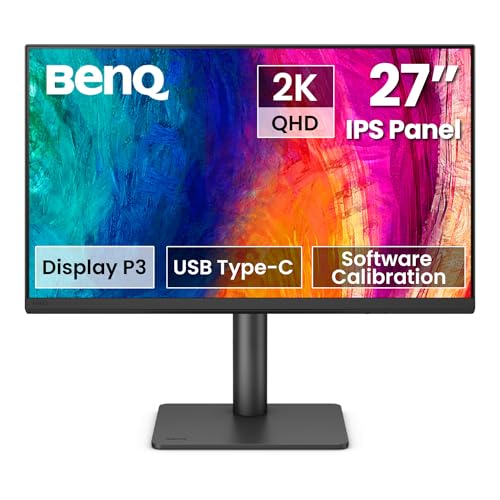



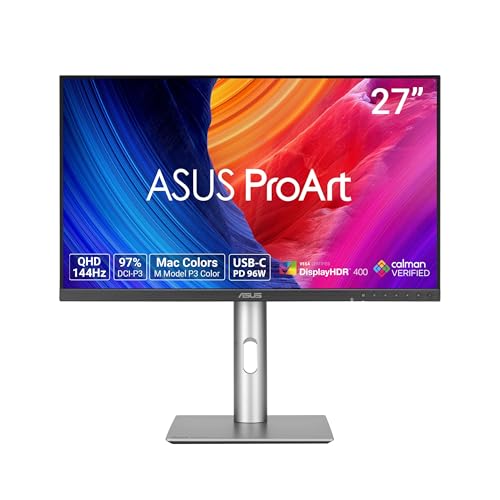
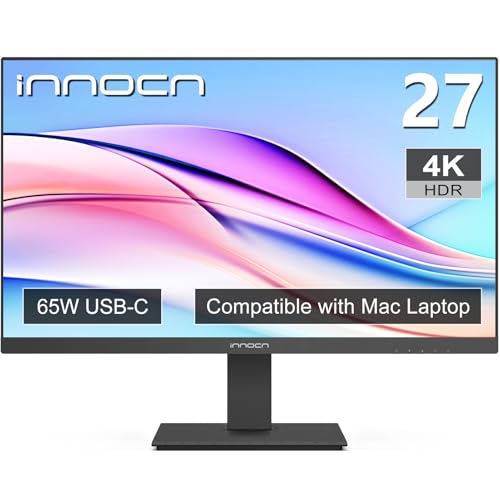
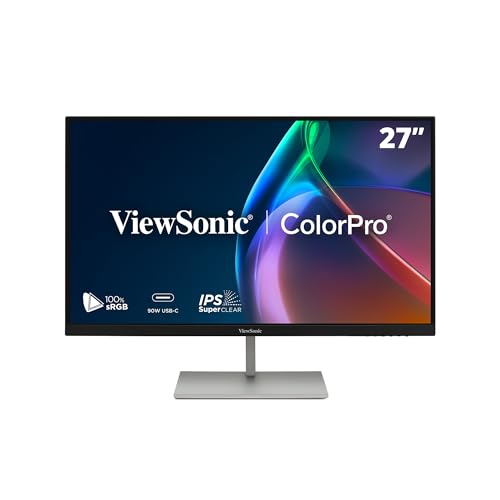
How macOS Handles Resolution
Apple's Retina approach doubles the interface in both directions so text stays small in physical size but dense with pixels. At 27 inches, a true 5K panel of 5120 by 2880 matches that exactly, which is why it looks the sharpest on a Mac. A 4K panel runs through a scaled mode that renders at a larger internal size and shrinks the result. It looks very sharp, though a little less perfect than 5K, and it asks the graphics hardware to do slightly more work.
A 1440p panel works on a Mac but it is a standard density display. Text looks clean but not as crisp as a Retina screen, and you will notice the difference next to the laptop. If you read and write on the Mac all day, a 4K or 5K screen is the better match. Our page on monitors for MacBook Pro shows other sizes.
One Cable for Picture, Power and Peripherals
A USB-C or Thunderbolt monitor with power delivery lets you connect the MacBook with one cable that carries video, charges the laptop and links a keyboard and mouse through the screen's hub. Look at the wattage: a screen that supplies 65 to 90 watts will charge a Mac laptop at normal use, though a heavy workload on a large MacBook Pro may drain the battery slowly with a low wattage port.
Thunderbolt monitors add extra ports such as Ethernet and a card reader, which turns the screen into a dock. If you use a Mac at a fixed desk, this gives the cleanest setup. Our guide to desktop monitors for MacBook Pro explains the options.
Color and Brightness Matching
MacBook Pro displays cover a wide color range, so an external screen with only basic sRGB coverage can look dull next to it. If you edit photos or video, choose a monitor with wide gamut coverage and a factory calibration report. For everyday office use, standard sRGB coverage is fine.
Brightness also differs. The laptop can be very bright, and many external screens are dimmer. Pick a model with enough brightness for your room, and set both screens to a similar level so the move between them is comfortable.
Mac Specific Quirks
The keyboard brightness and volume keys control Apple displays automatically but often do not control third party monitors. Free utilities can add that function, or you can use the buttons on the screen. Some monitors lose settings when the Mac sleeps, and a firmware update or a different cable can help.
Clamshell mode, where you close the lid and use an external keyboard and mouse, works well with a monitor that wakes reliably. Check how many external displays your Mac model supports, since the limit depends on the chip, and Apple's specification page lists it.
Refresh Rate and Gaming
Many Mac users do not need fast refresh, and 60 hertz is fine for work. Newer MacBook Pro models have a high refresh laptop screen, so some people want smoother scrolling on the monitor too. A 120 or 144 hertz screen provides that, but check that your Mac supports it over the cable you use.
Mistakes to Avoid
- Buying a 1440p panel and expecting Retina sharpness.
- Using a USB-C port that supports only 15 watts and assuming it charges the laptop.
- Forgetting to use the right cable: a cheap cable may carry power but not video.
- Assuming the keyboard brightness keys control any monitor.
- Ignoring the Mac's external display limit when planning a multi screen desk.
Choosing a Size and Layout Beside the Laptop
A 27 inch screen next to a 14 or 16 inch laptop is a common pairing. Put the monitor in front of you and the laptop to one side, raised on a stand to roughly the same height. Use the monitor for your main work and the laptop for chat, music or notes. If the MacBook sits in clamshell mode under the desk or behind the screen, a docking style monitor with a keyboard and mouse hub keeps everything on one cable.
Check the viewing distance as well. Retina style sharpness means you can sit a little closer without seeing pixels, but a 27 inch screen still needs an arm's length of space. A monitor arm lets you pull the screen toward you for detailed work and push it back for video.
Which Resolution Fits Which Mac Task
For writing, coding and spreadsheets, sharp text is the priority, so choose 4K or 5K and use the scaled mode that feels comfortable. For photo and video editing, add wide gamut coverage and a factory color report. For light office work and video calls, a 1440p USB-C monitor with power delivery is a perfectly good and cheaper choice, as long as you accept that the text will not look quite as crisp as the built in display.
Frequently Asked Questions
Is 4K good enough for a MacBook Pro?
Yes. It looks very sharp using scaled resolution, though 5K matches Retina exactly.
Can one cable charge my MacBook Pro and show the picture?
Yes, if the monitor has USB-C or Thunderbolt with power delivery, and the cable supports both.
Do I need a Thunderbolt monitor?
Only if you want the dock features such as Ethernet and extra ports. A USB-C monitor handles picture and charging.
Will a Windows focused monitor work with a Mac?
Yes, as long as the resolution and ports suit. Some features such as brightness keys need extra software.
Final Thoughts
The best 27 inch monitors for macbook pro deliver sharp scaling, one cable charging and matching color. Prefer 4K or 5K, check the power delivery wattage, and confirm your Mac supports the number of displays you want to use. Our overview of 24 inch options helps if desk space is tight.
Prices and availability can change, so check the product page before ordering.