Best Desktop Monitors for MacBook Pro: Every Type Explained Side by Side
Disclosure: We may earn a commission when you buy through links on this page, at no extra cost to you. As an Amazon Associate I earn from qualifying purchases. Learn more

5K Retina, 4K USB-C, ultrawide and budget monitors compared for MacBook Pro, with macOS scaling, Thunderbolt and setup tips.
A MacBook Pro has one of the best laptop screens available, so an external monitor needs to measure up. Text should look crisp with macOS scaling, colors should match the built in display and a single USB C or Thunderbolt cable should ideally connect video, charging and accessories. Many monitors that look great on Windows PCs make text look fuzzy on a Mac. This guide to the best desktop monitors for macbook pro setups compares every type side by side so you can choose with confidence.
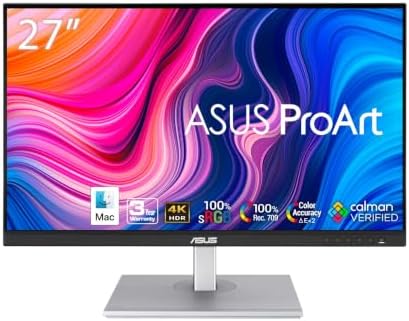
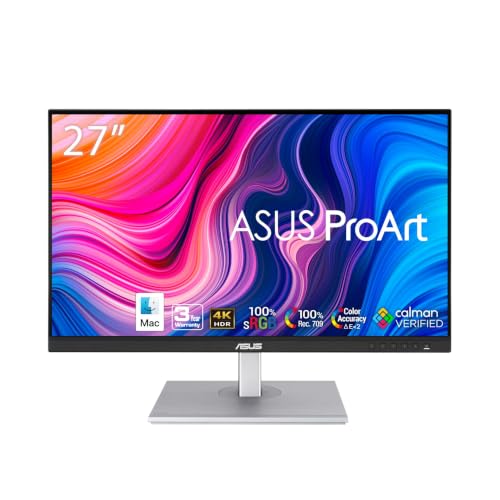
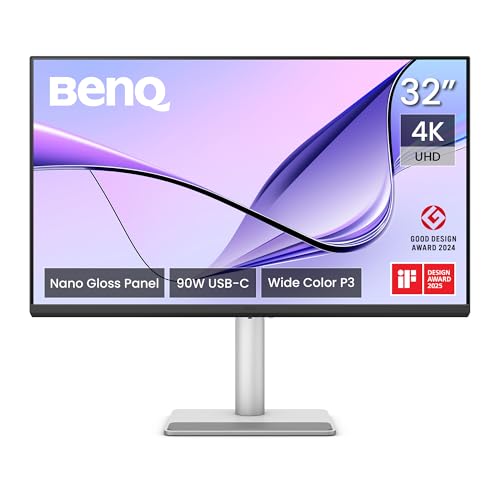
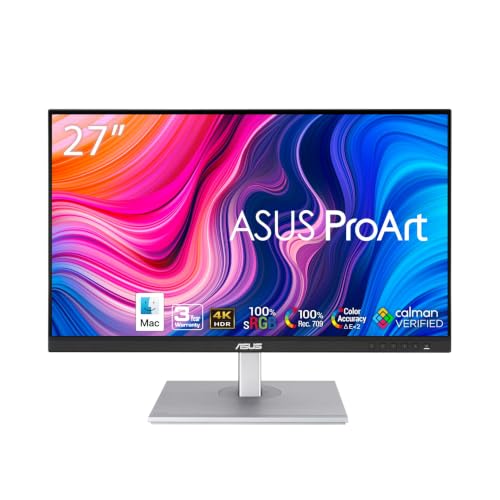
The short answer: most MacBook Pro owners should choose a 27 inch 4K monitor with USB C power delivery of 90 watts or more, such as the BenQ MA270U around $550, which is tuned for Mac colors and scaling; budget buyers can get sharp results from a 27 inch 4K USB C monitor like the ASUS ProArt PA279CV around $295, and anyone who wants Retina quality text should step up to a 5K display like the Apple Studio Display.

Top 3 Picks at a Glance
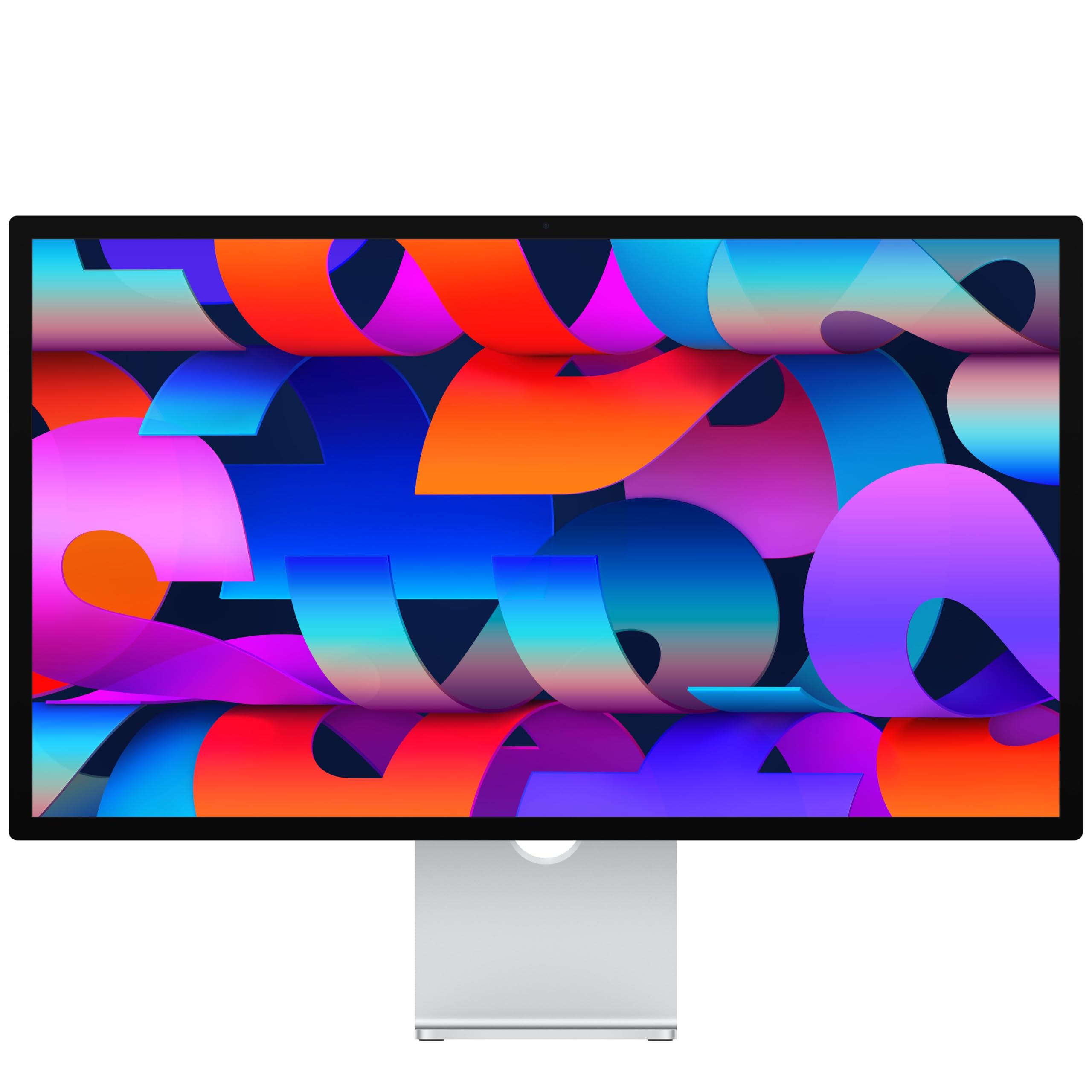
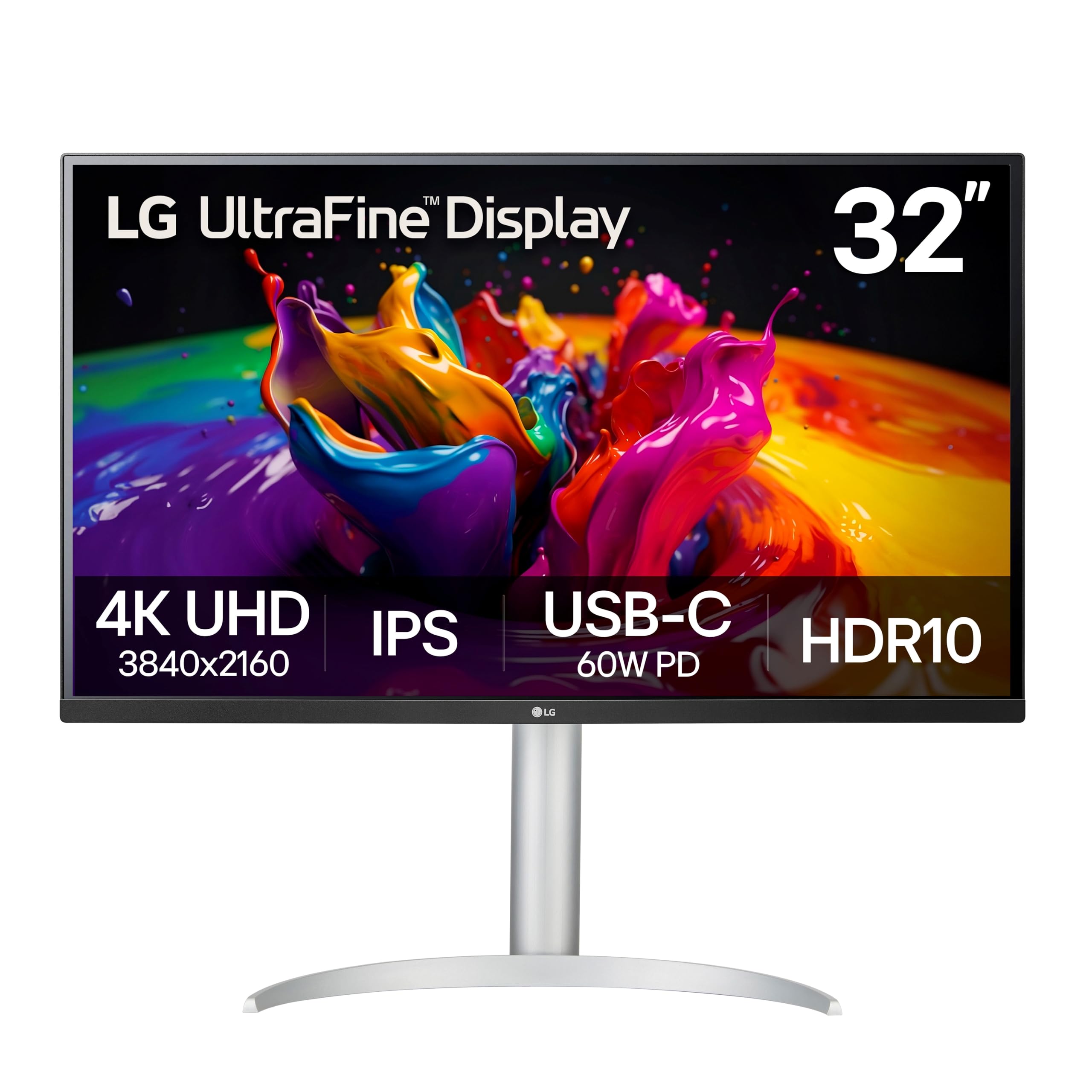
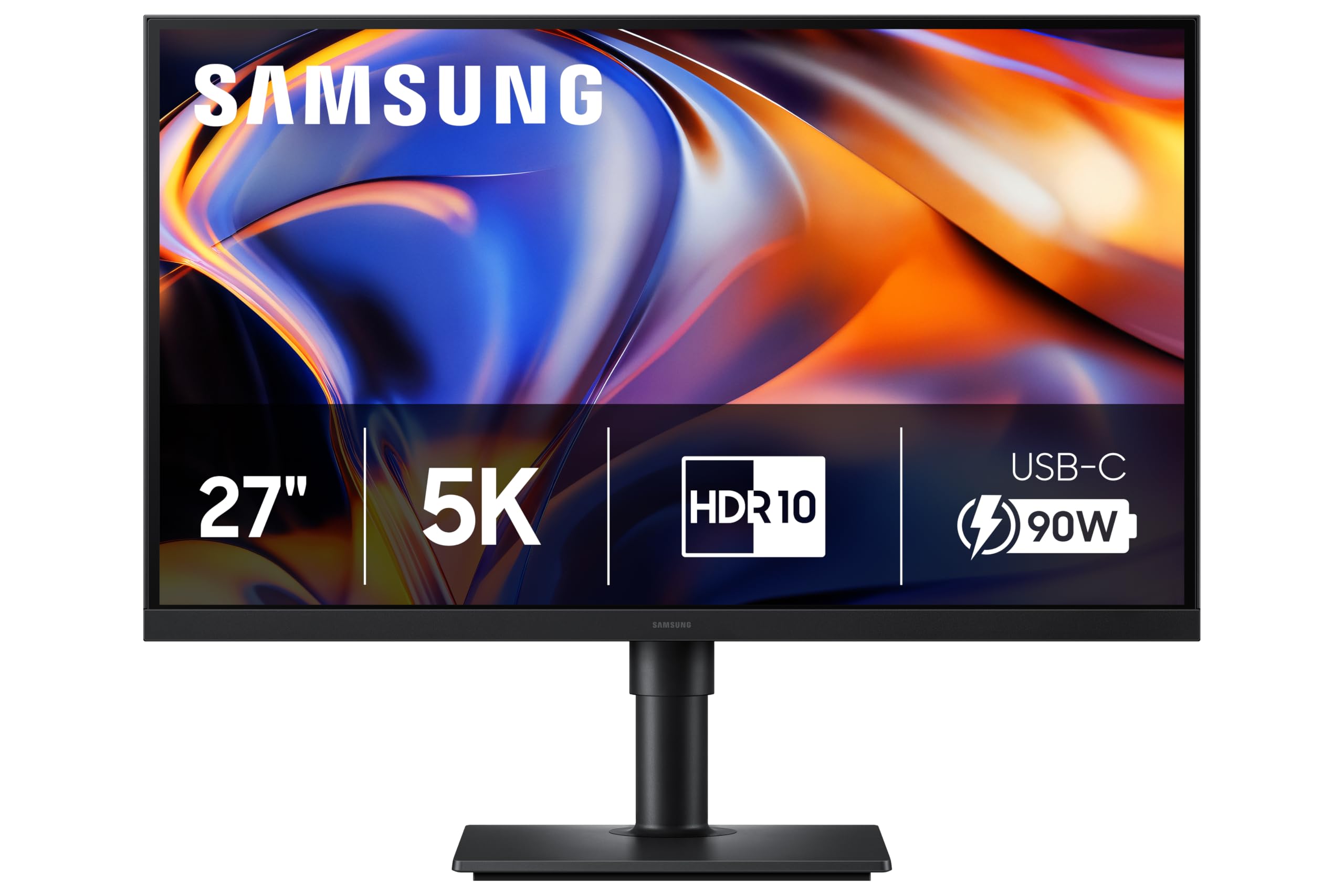
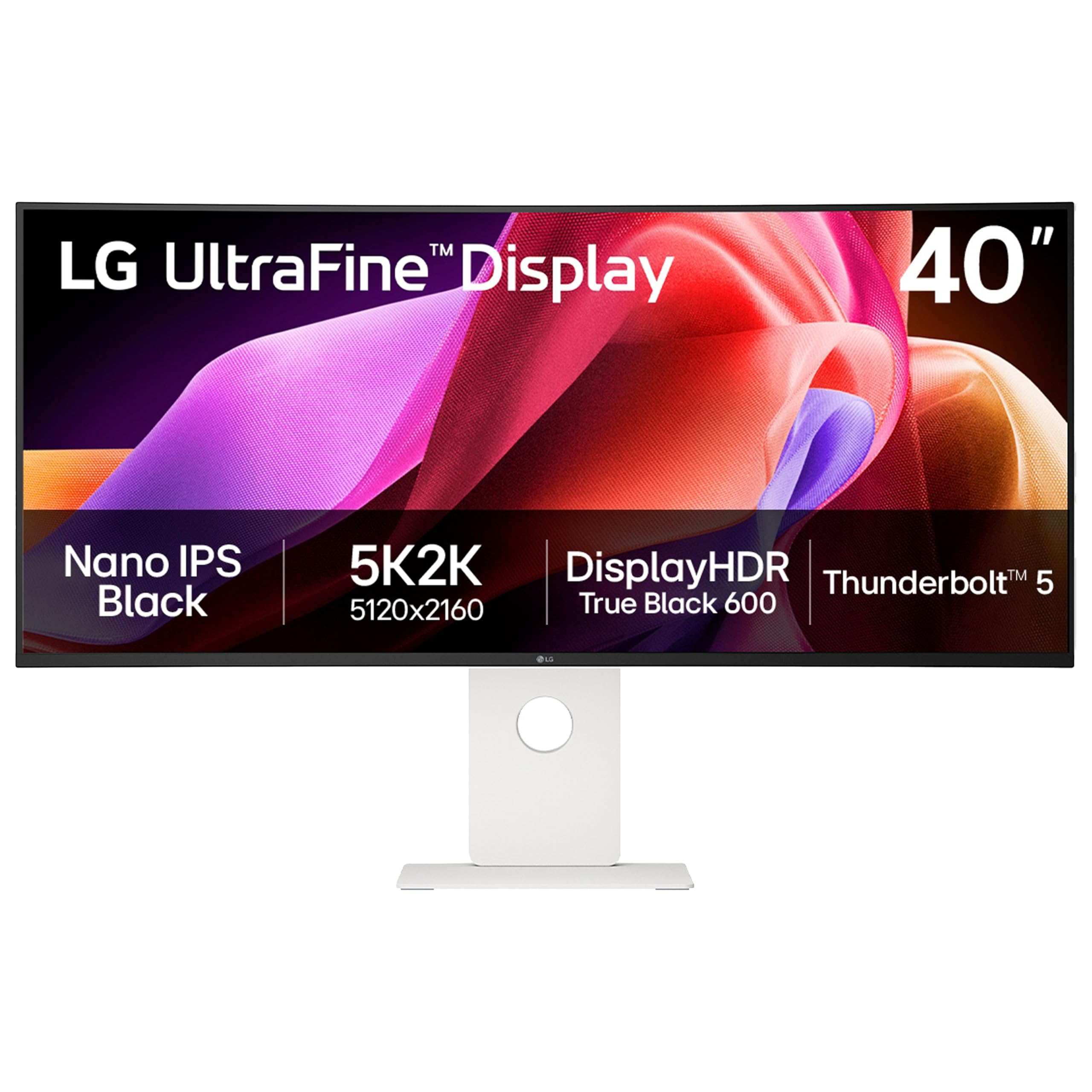
These three monitors from the product table above cover the best Mac focused option, the best value and a premium Retina display.


Types of Desktop Monitors Compared
The table below summarizes the main monitor types MacBook Pro owners choose from.
| Type | Best For | Pros | Cons | Typical Price |
|---|---|---|---|---|
| 27 inch 5K Retina | Designers, photographers, text heavy work | Perfect macOS scaling, Retina sharpness, P3 color | Expensive | around $700 to $1,600 |
| 27 inch 4K USB C | Most MacBook Pro users | Sharp text, single cable docking, good value | Slightly less crisp than 5K at default scaling | around $280 to $600 |
| 32 inch 4K | Video editors, multitaskers | More workspace, larger images | Lower pixel density than 27 inch 4K | around $380 to $850 |
| Ultrawide 5K2K | Timeline editing, coding, multitasking | Huge workspace, immersive | Wide desk needed, expensive | around $1,000 to $1,700 |
| Budget QHD | Light use, tight budgets | Affordable | Text looks softer on macOS | around $200 to $300 |
5K Retina Displays
Displays with 5120 by 2880 resolution at 27 inches, like the Apple Studio Display and Samsung ViewFinity S9 class, match macOS's preferred pixel density for Retina scaling. Text and interface elements appear exactly as sharp as on a MacBook Pro screen, with no compromise in workspace. The Apple Studio Display adds a built in camera, microphones, speakers and single cable Thunderbolt connectivity.
These displays suit designers, photographers, writers and anyone who stares at text all day and wants the best clarity. The main drawback is price.
27 Inch 4K USB C Monitors
27 inch 4K monitors are the most popular choice for Mac users. At macOS's scaled resolution that looks like 2560 by 1440, text appears crisp and workspace is generous. Mac focused models like the BenQ MA270U tune colors and brightness to match MacBook displays and include USB C with 90 watts of power delivery, so one cable charges the laptop and carries video and data.
They suit most MacBook Pro owners, from remote workers to students and creators, offering the best balance of sharpness and price.
32 Inch 4K and Ultrawide Monitors
32 inch 4K monitors like the BenQ MA320UP and LG 32UP83A offer more physical space for side by side windows and video timelines, though pixel density is lower than on 27 inch models. Ultrawide 5K2K displays like the LG 40U990A provide a massive canvas for editing, coding and multitasking with Thunderbolt connectivity.
These suit video editors, developers and multitaskers with large desks.
Budget QHD Monitors
27 inch QHD monitors at 2560 by 1440 are affordable but run at a pixel density that macOS does not scale as sharply, so text can look slightly soft compared with 4K. They suit light use or secondary displays when budget matters most.
4K vs 5K Monitors for Mac: Which Should You Choose?
- Sharpness: 5K at 27 inches delivers true Retina sharpness; 4K looks very good but slightly less crisp at the same workspace.
- Price: 4K monitors cost a fraction of 5K displays.
- Features: Premium 5K displays often add cameras, speakers and Thunderbolt hubs.
- Color: Both can offer wide P3 color; check specs for creative work.
- Value: 4K USB C monitors deliver most of the benefit for most users.
Choose 5K if text clarity and design work are top priorities and budget allows. Choose 4K for the best value and a great everyday experience.
How to Choose the Right Desktop Monitor
Pixel Density and macOS Scaling
macOS looks best at around 218 pixels per inch, which 5K delivers at 27 inches and 4K delivers at about 21.5 to 24 inches. On 27 inch 4K monitors, macOS uses scaled resolutions that still look crisp for most users. Avoid low resolution monitors at large sizes, where text appears blurry.
USB C, Thunderbolt, and Power Delivery
Single cable docking is the biggest convenience upgrade. Look for USB C or Thunderbolt with power delivery of at least 90 watts to charge a MacBook Pro, especially 16 inch models. Built in USB hubs let you connect keyboards, mice and drives through the monitor. Thunderbolt monitors support daisy chaining and higher bandwidth.
Features That Matter for MacBook Pro
MacBook Pro screens use the wide P3 color gamut, so choose monitors with high P3 coverage for consistent colors. Brightness controls from the keyboard, macOS compatible software and color modes tuned for Mac help integrate the monitor smoothly. Check how many external displays your MacBook supports; M4 Pro and Max chips support multiple displays, while base chips have limits.
Stand, Build, and Ergonomics
Height adjustable stands keep the monitor at eye level and reduce neck strain. VESA mounts allow monitor arms. Aluminum builds and white designs match MacBook aesthetics, and matte or nano texture finishes reduce glare.
Setting Up a Monitor With Your MacBook Pro
Connect the monitor with a USB C or Thunderbolt cable rated for video and power. In System Settings, open Displays, choose the external monitor and select a scaled resolution; for 27 inch 4K, the option that looks like 2560 by 1440 is a good balance. Arrange displays to match their physical positions and set the main display if you work in clamshell mode with the lid closed.
Enable True Tone or adjust color profiles for consistency, and use keyboard brightness keys if the monitor supports them. For clamshell mode, connect an external keyboard, mouse and power through the monitor.
Using a MacBook Pro in Clamshell Mode
Clamshell mode lets you close your MacBook Pro's lid and use it like a desktop with an external monitor, keyboard and mouse. It keeps your desk tidy and positions the main screen at a comfortable height. To use clamshell mode, connect the MacBook to power, either directly or through the monitor's USB C power delivery, then connect an external keyboard and pointing device and close the lid.
The MacBook continues running with the external display as the main screen. Good ventilation matters, so use a vertical stand or leave space around the laptop. Clamshell mode works especially well with single cable monitors that also provide charging and USB hub connections.
Matching Colors Between MacBook and Monitor
MacBook Pro displays use wide P3 color and are carefully calibrated, so external monitors can look different side by side. Choose monitors with high P3 coverage and a Mac or P3 color mode. In System Settings, select the monitor's color profile, and consider calibrating with a colorimeter for creative work. Matching brightness levels between screens also improves consistency.
Mac focused monitors like BenQ's MA series include modes designed to match MacBook color and brightness, reducing the need for manual tweaks. Photographers and video editors should look for factory calibration reports and hardware calibration support.
Accessories for a MacBook Pro Desk Setup
A complete desk setup often includes a vertical laptop stand for clamshell mode, a Magic Keyboard and Magic Trackpad or mouse, and a monitor arm to free space. A Thunderbolt dock adds extra ports if your monitor lacks a hub. Webcams and microphones improve video calls when the laptop lid is closed, though premium monitors like the Studio Display include them. A desk lamp or monitor light bar reduces eye strain during evening work.
Common Mistakes When Choosing a Monitor for Mac
- Buying low pixel density monitors. 27 inch 1080p or large QHD monitors can make macOS text look blurry.
- Ignoring power delivery. Monitors with 65 watts or less may charge 16 inch MacBook Pros slowly under load.
- Overlooking display limits. Base chip MacBooks may not support the multiple monitors you plan to use.
- Skipping cable checks. Not all USB C cables carry video and full power; use certified cables.
Care and Maintenance Tips
Clean screens gently with a dry microfiber cloth, especially on matte or nano texture finishes. Update monitor firmware through manufacturer apps when available. Use quality cables to avoid flickering, and avoid placing monitors in direct sunlight to protect panels and reduce glare.
How Much to Spend on Desktop Monitors for MacBook Pro
Around $280 to $400 buys excellent 27 inch 4K USB C monitors for everyday work. Around $500 to $850 adds Mac tuned colors, 90 watt charging, 32 inch sizes and IPS Black panels. Around $1,000 to $1,700 covers 5K Retina displays and 5K2K ultrawides. Most MacBook Pro owners find the best desktop monitors for macbook pro value between $300 and $600.
Desktop Monitors: Your Questions Answered
What features matter most in desktop monitors for MacBook Pro?
High pixel density, USB C power delivery and P3 color matter most. A 27 inch 4K or 5K panel keeps text sharp, 90 watt charging powers your MacBook through one cable and wide color matches the built in display.
Does a MacBook Pro support multiple monitors?
It depends on the chip. MacBook Pro models with M4 Pro and M4 Max chips support multiple external displays, while base M chips support fewer. Check Apple's specifications for your model before buying two monitors.
How long should a desktop monitor last?
A quality monitor typically lasts around five to ten years. Monitors often outlast several MacBooks, so investing in a good display pays off over time.
Is 4K enough for a MacBook Pro?
Yes, 4K is enough for most MacBook Pro users at 27 inches. Scaled resolutions look crisp and offer plenty of workspace. Choose 5K for the sharpest possible text and design work.
Do I need Thunderbolt or is USB C enough?
USB C with DisplayPort Alt Mode is enough for most single monitor setups. Thunderbolt adds higher bandwidth for 5K and 6K displays, daisy chaining and faster hub speeds.
Can I use a gaming monitor with a MacBook Pro?
Yes, high refresh gaming monitors work with MacBook Pros, and ProMotion capable chips support up to 120Hz or more on external displays. Gaming monitors often have lower pixel density at 27 inches, so text may look less sharp than on 4K office monitors.
Is the Apple Studio Display worth it?
The Apple Studio Display is worth it if you want perfect macOS integration and Retina sharpness. Its 5K panel, built in camera, speakers and single Thunderbolt cable create a seamless setup. Budget buyers get most of the benefits from 4K USB C monitors at a fraction of the price.
Can I use two monitors with a MacBook Pro?
Yes, MacBook Pros with Pro and Max chips support two or more external displays. Connect each monitor to a separate Thunderbolt port or use a compatible dock. Base models may support only one external display.
Wrapping Up
The right monitor makes a MacBook Pro feel like a full desktop workstation. Most users should choose a 27 inch 4K USB C monitor with strong power delivery, budget buyers can save with well reviewed 4K models and designers who want Retina sharpness should invest in 5K. Check your MacBook's display support and choose single cable docking for the cleanest setup.
Compare the best desktop monitors for macbook pro setups in the product table above to find the right screen for your work and budget.