
Best 27 Inch Monitors for Photo Editing: Color Gamut, Calibration and Panel Quality for 2026
Disclosure: We may earn a commission when you buy through links on this page, at no extra cost to you. As an Amazon Associate I earn from qualifying purchases. Learn more

Accurate color across the whole frame is what the best 27 inch monitors for photo editing deliver, and gamut, calibration and uniformity matter more than speed.
If you edit photos, the screen is your most important tool after the camera. An inaccurate monitor can make you brighten a picture that was fine, warm skin tones that were neutral or crush shadows that held detail. The best 27 inch monitors for photo editing are not the fastest or the brightest. They are the ones that show colors correctly, evenly and consistently from one session to the next.
This guide explains the specifications that matter for photo work: color gamut, accuracy, uniformity, resolution and calibration, plus how your room and workflow affect what you see.

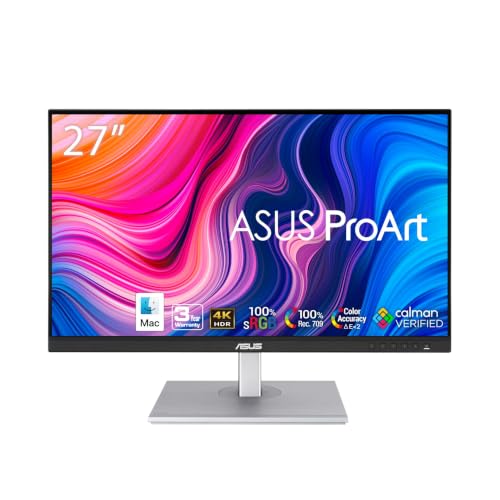


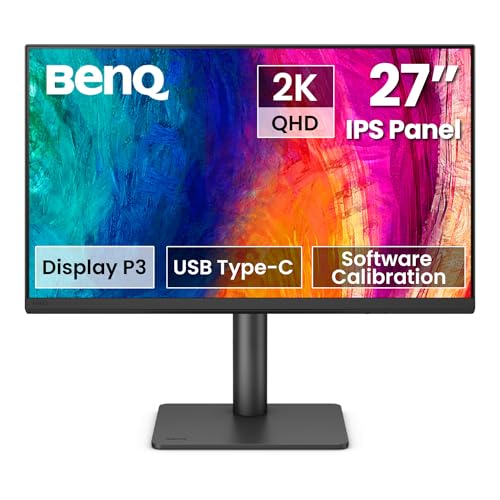
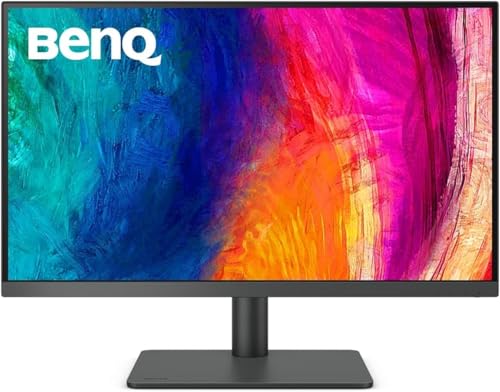

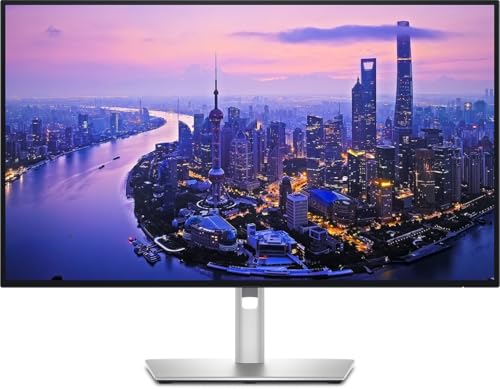
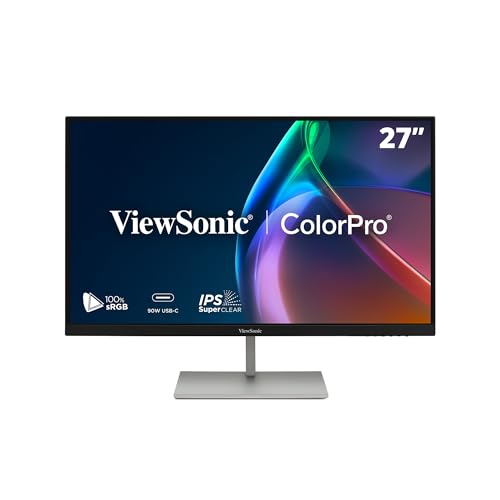
Color Gamut: sRGB, Adobe RGB and DCI-P3
A gamut is the range of colors a screen can show. sRGB is the standard for the web and most screens, and a photo editor should have close to full coverage of it. Adobe RGB is wider, particularly in greens and cyans, and matters if you print your work. DCI-P3 is the wide standard used in video and in many phones, and it is useful if your photos are viewed on modern devices.
Choose by output. If you publish online, sRGB coverage of 99 percent or more is enough. If you print, look for high Adobe RGB coverage. Many monitors list wide gamut coverage, but check that the screen has a mode that clamps to sRGB when you need it, since wide gamut colors look oversaturated in programs that do not manage color.
Accuracy and Delta E
Delta E measures how far a displayed color is from the intended one. A value under two means most people cannot see the difference. Professional monitors often ship with a factory calibration report showing the result, which is a good sign. Cheaper screens may not list accuracy at all, so expect to calibrate them yourself.
Uniformity and Panel Type
Uniformity means that white looks white across the whole screen, not warm at the edges and cool in the center. Good photo monitors compensate for uneven backlighting in the factory. IPS panels are the standard choice because they hold color well from side angles and do not shift as you move your head.
Matte coatings reduce reflections and are preferred for color work. Glossy panels look vivid but reflect lamps and windows, which interferes with judging shadows.
Resolution and Size
At 27 inches, 1440p is a good balance for photo editing, and 4K gives more room to view a high resolution image at larger scale with sharp detail. A larger resolution lets you see more of the picture at 100 percent without scrolling. If your computer can handle it, 4K is the better option for detailed retouching.
Calibration and Workflow
Even the best monitor drifts over time, so a hardware calibration tool is a wise purchase. A small device sits on the screen and measures the colors, then creates a profile that corrects them. Some professional screens support hardware calibration, which stores corrections in the monitor, giving more consistent results.
Calibrate monthly and at the same brightness. For print work, a brightness around 100 to 120 candelas per square meter matches common paper viewing conditions, much lower than the factory setting. Our guide to PC monitors for photo editing and the page on 24 inch screens add more options.
Room Setup
Your room affects what you see. Use neutral walls, avoid colored light spilling onto the screen and keep the lamp color consistent. A monitor hood blocks side light, and a dim, steady room helps you judge shadows. Do not work next to a bright window that changes through the day.
Mistakes to Avoid
- Buying a gaming monitor with vivid colors and assuming it is accurate.
- Using a wide gamut mode with software that does not manage color.
- Leaving the brightness at factory levels and printing images that look too dark.
- Skipping calibration and trusting the screen forever.
- Working under mixed lighting that changes the way colors look.
Software, Soft Proofing and Print Matching
Hardware is only half the job. Editing programs can show how an image will look on paper through soft proofing, which uses your printer's profile to preview the result. It works properly only if the monitor has been calibrated, so combine the two steps. Set your editor's color management to use the monitor profile, and export web images in sRGB so that other viewers see what you saw.
If you share work with clients, ask what screens they use. A wide gamut monitor shows richer color than most office displays, so check your images in an sRGB mode before sending them. That keeps your work looking consistent on ordinary screens.
Where a Gaming Monitor Falls Short
Gaming monitors offer fast refresh rates and punchy color, but their factory settings usually oversaturate. Colors look pretty and wrong, and gamut coverage on some models is uneven. If you edit casually, a good IPS gaming monitor in an sRGB mode can do the job. For client work or print, a dedicated color accurate screen is the safer path.
Frequently Asked Questions
Do I need Adobe RGB?
Only if you print. For online use, sRGB coverage is enough.
Is 4K necessary?
Not required, but helpful for sharp detail. 1440p is a good balance for most editors.
Can I calibrate any monitor?
Yes, with a colorimeter and software. The result depends on the panel's quality and uniformity.
What brightness should I use?
For print work, about 100 to 120 candelas per square meter. Raise it for bright rooms and web work.
Does screen size matter for photo editing?
Larger screens show more of the image at once, and 27 inches is a comfortable size for most editors. Accuracy and uniformity matter more than extra inches.
Is a matte or glossy finish better?
Matte is generally better for judging color and shadows because it avoids reflections.
Final Thoughts
The best 27 inch monitors for photo editing show color accurately and evenly. Choose IPS, look for strong gamut coverage matched to your output, and plan to calibrate. Then set up a calm room and keep your screen settings consistent. See also monitors for photo editing for other sizes and budgets.
Prices and availability can change, so check the product page before ordering.


