
Best 144Hz Monitors for PS5 in 2026: Buying Guide
Disclosure: We may earn a commission when you buy through links on this page, at no extra cost to you. As an Amazon Associate I earn from qualifying purchases. Learn more

What to check before choosing the best 144hz monitors for ps5: HDMI behavior, resolution and settings for a PS5 setup.
A PS5 does not use refresh rates beyond 120Hz, so a 144Hz monitor gives it plenty of headroom and also serves a PC or laptop on the same desk. The best 144hz monitors for PS5 accept the console's signal reliably, keep input delay low and offer a picture that suits the games you play.
The details that matter on a console differ a little from those on a PC, so this guide focuses on HDMI behavior, resolution and the extras worth having. Read it alongside the product table above.





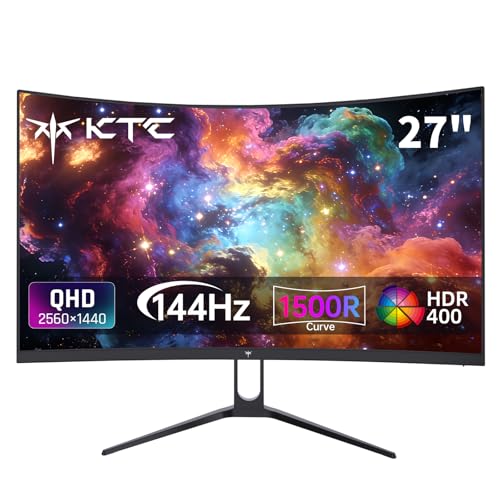
Why a 144Hz Monitor Suits the PS5
Many PS5 games run in a performance mode aimed at 60 frames per second, and some offer higher rates. A 144Hz monitor handles all of them and gives the console a responsive display with low delay. The extra rate beyond 120Hz is unused by the console, but it benefits any PC connected to the same screen.
If the monitor is mainly for the console, you can choose a model at the lower end of 144Hz pricing. If it also serves a gaming PC, the higher refresh rate has genuine use.
HDMI Is the Port That Counts
The PS5 connects through HDMI, so check how the monitor's HDMI inputs behave. Some monitors limit refresh rate or resolution on HDMI compared with DisplayPort, and older HDMI versions may not carry the highest rates at higher resolutions.
Read the listing for the HDMI version and buyer comments about console use. Plug the console into the port the maker recommends for the best results.
Resolution Choices: 1080p, 1440p and 4K
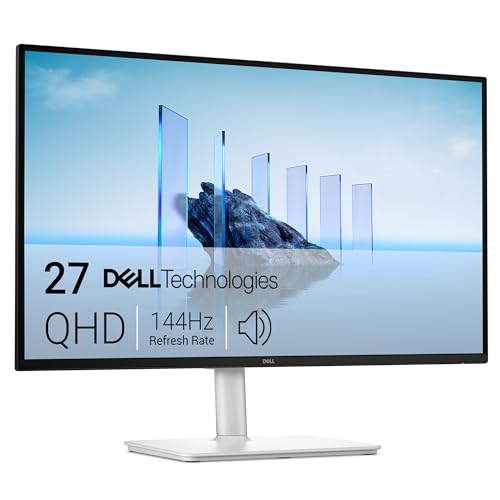
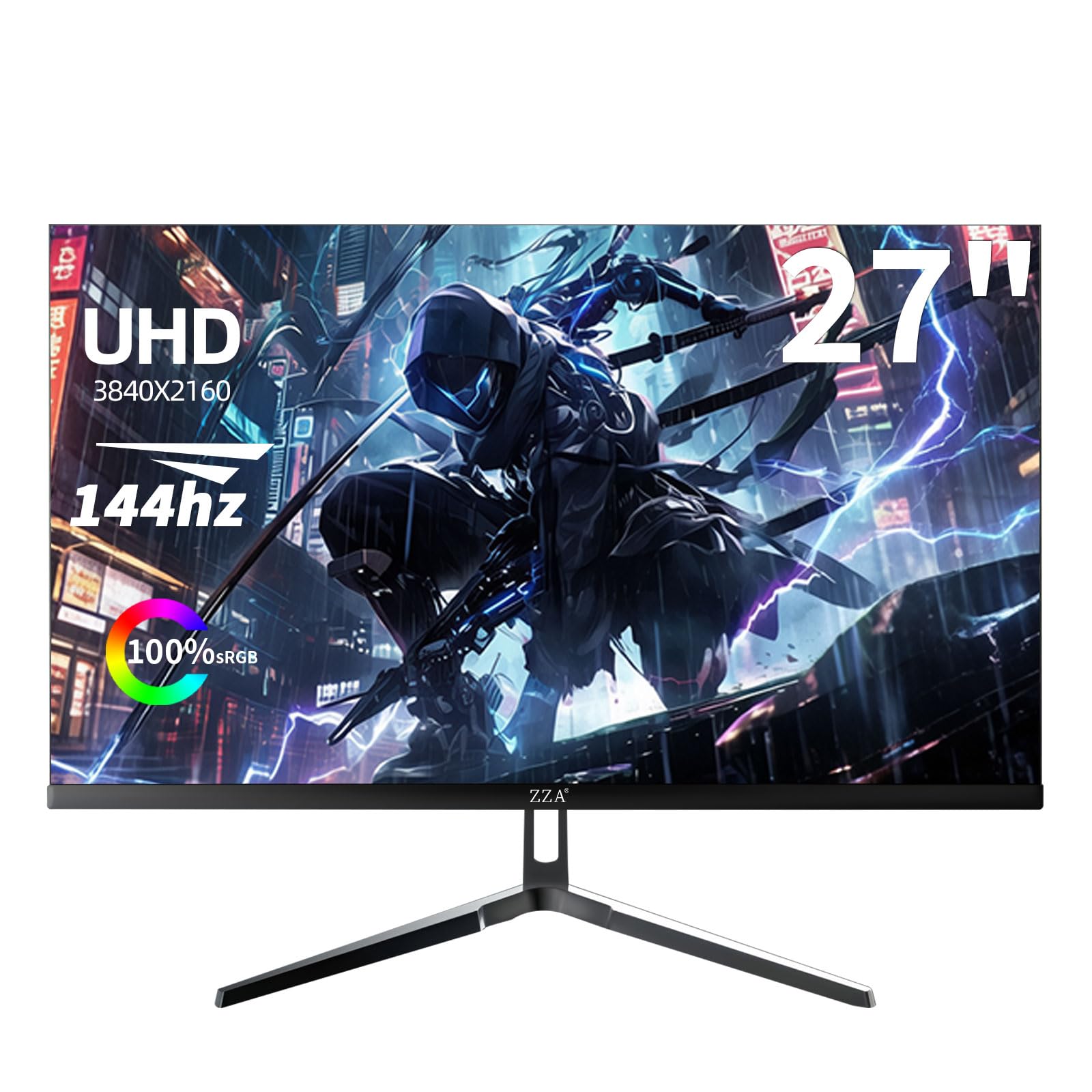
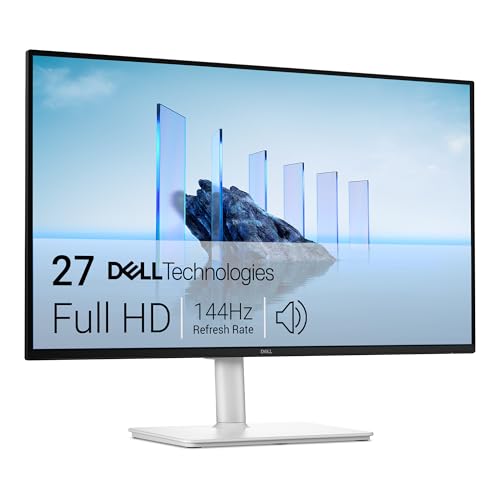
A Full HD monitor is the easiest match for a console and keeps frame rates high. QHD looks sharper and works well with the PS5's upscaling for many games. A 4K monitor suits those who want maximum detail, though 4K at high refresh rates is more expensive.
Consider how far you sit. A 27 inch QHD screen is a good choice for most desks, while a Full HD screen is fine at 24 inches.
Variable Refresh Rate and Game Mode
The PS5 supports variable refresh rate on compatible displays, which smooths out changes in frame rate. Look for the feature in the listing, and enable it in both the monitor and the console settings. A game mode that cuts image processing also reduces input delay.
Switch off sharpening and motion smoothing options on the monitor, because they can add blur or lag in fast games.
Panel Type and Picture Quality
A fast IPS panel gives good colors and wide viewing angles, which suits games and shared screens. VA panels add contrast for dark scenes. OLED monitors provide the strongest picture and quickest response but cost more.
If you play in a dim room and love cinematic games, VA or OLED will look more dramatic. For a bright room, IPS is easier to see.
Audio and Headset Support
Built-in monitor speakers are usually weak. A headphone jack on the monitor lets you connect a wired headset or speakers without extra hardware, which is handy because the console's controller offers a jack but not always a convenient one.
If you use a wireless headset, this matters less, but a monitor with an audio output remains useful for a second system.
Sharing the Monitor With a PC
Many people use one monitor for a console and a PC. Look for at least two inputs, an easy source switch and a stand that adjusts for height. A USB hub on the monitor helps if you want to share a keyboard and mouse.
Check that each input supports the refresh rate you want. The PC may use DisplayPort for 144Hz, while the console uses HDMI for 120Hz.
Setting the PS5 Up With the Monitor
Connect the console with the cable supplied, then open the console's screen and video settings and let it detect the display. If the 120Hz and variable refresh rate options do not appear, open the monitor's menu and switch the HDMI mode to the newest setting, since some screens ship with a compatibility mode.
Enable game mode on the monitor and turn off extra processing. Adjust brightness for your room instead of keeping the factory preset, which is often too bright for comfortable evening play.
Mistakes to Avoid When Buying for a Console
A common mistake is buying a monitor whose top refresh rate works only over DisplayPort. A console cannot use that port, so it never sees the advertised rate. Another is paying extra for 240Hz or more, which the console cannot use.
People also forget about audio. If the monitor lacks an audio output and you do not use a wireless headset, you may need an extra adapter. Read the ports list in full before you order.
Is a TV the Better Choice?
A modern TV offers a larger picture and HDMI 2.1 on many models, which suits a couch setup. A monitor wins for desk use, small rooms and anyone who also wants a PC display, because it sits close and keeps input delay low.
If your console lives in a living room, consider a TV. If it lives on a desk, a 144Hz monitor is the more practical and often cheaper choice.
You may also find our guides to best 144hz monitors, best monitors for ps5 and best curved monitors for ps5 useful.
Frequently Asked Questions
Is 144Hz overkill for a PS5?
The console tops out at 120Hz, but a 144Hz monitor handles it easily and also suits a PC.
Do I need HDMI 2.1?
It helps for high rates at higher resolutions. For Full HD or many QHD uses, older HDMI versions can work.
Will the monitor support variable refresh rate?
Many do. Check the listing and buyer notes, and turn the feature on in both settings menus.
Is QHD better than Full HD for a console?
QHD is sharper, but many games upscale, so the gain depends on the title.
Final Thoughts on the Best 144hz Monitors for PS5
The best 144hz monitors for PS5 offer solid HDMI behavior, low delay and a panel suited to your room and games. Pick the resolution that fits your desk, confirm the console details and use the table above to compare current prices. Prices and availability can change, so check the product page before ordering.


