
Best 27 Inch Monitors under 300: Where the Extra Money Starts to Show in 2026
Disclosure: We may earn a commission when you buy through links on this page, at no extra cost to you. As an Amazon Associate I earn from qualifying purchases. Learn more

Above the budget tier, the best 27 inch monitors under 300 offer fast 1440p, entry level 4K or USB-C docking, so decide which upgrade matters before you shop.
Up to about 300 dollars, a 27 inch monitor stops being a compromise and becomes a proper tool. The panels are better, the stands adjust, and the ports include features that save time every day. The best 27 inch monitors under 300 let you pick one meaningful upgrade over a budget screen, and the right one depends on what you do at your desk.
This guide lays out the main upgrades available at this price: fast 1440p for gaming, entry 4K for sharp text, USB-C docking for laptop users and mini LED or advanced IPS panels for richer pictures. It helps you choose one and ignore the rest.
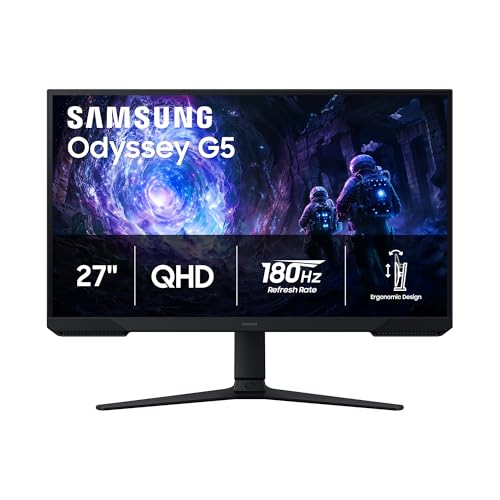
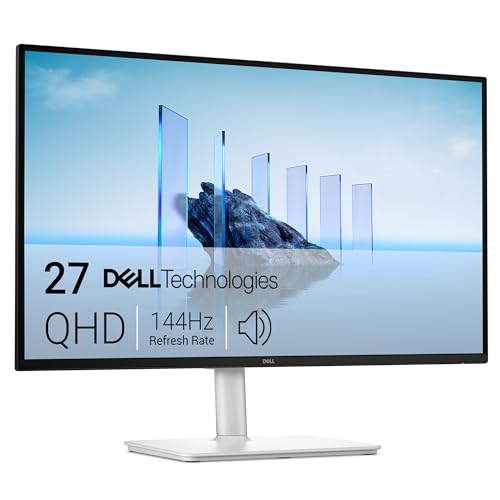
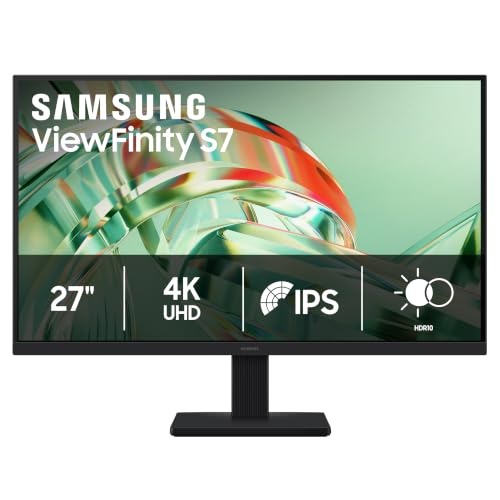


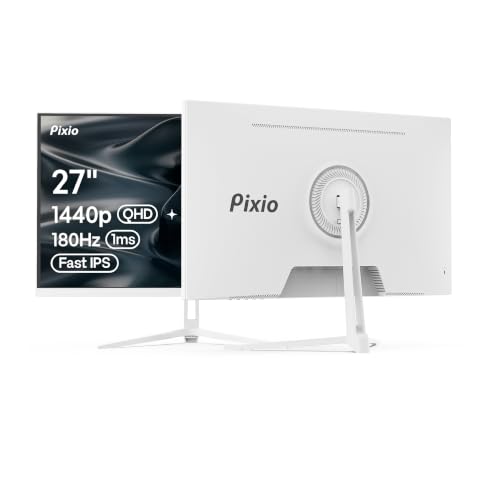


Upgrade One: Fast 1440p for Gaming
At this price you can buy a 27 inch 1440p panel running at 165 to 240 hertz with a quick IPS or fast VA panel. That suits gamers with a mid to upper graphics card who want smooth motion and sharp pictures. Many of these screens support variable refresh rate and adjustable overdrive, and a few offer mini LED backlights for improved contrast.
Check the video inputs. For high refresh rates, DisplayPort is the safe connection. Match the refresh rate to your card, so you do not pay for 240 hertz when your system delivers 120 frames. Our guide to the 27 inch gaming monitors covers more options.
Upgrade Two: Entry Level 4K
You can also find 27 inch 4K panels in this range, usually at 60 hertz or a little more. They give sharp text and detailed pictures, and they suit people who read, write or work with images. The trade-offs are modest brightness, basic HDR support and plain stands, but the sharpness is a clear step up from 1440p.
If you game, a 4K panel makes your graphics card work much harder, so most players pick 1440p with a higher refresh rate. If you work with documents, spreadsheets or photos, 4K is more satisfying. For deeper reading, see the 27 inch 4K monitors guide.
Upgrade Three: USB-C Docking and Better Stands
Laptop users should look at models that charge and connect over a single USB-C cable. A built in hub with extra USB ports adds convenience. At this price you can also find stands with height adjustment, swivel and pivot, which matter for long hours at a desk.
Check the power delivery wattage so that the monitor can keep your laptop charged. If you plan to use two screens, a stand with a smaller footprint or a monitor arm helps manage desk space.
Panel Quality and Color
IPS panels at this price tend to have good sRGB coverage, strong viewing angles and even backlights. Some models include factory calibration or wide gamut coverage that suit casual photo editing. For serious color work, see our guide to monitors under 300 and the page for 27 inch monitors in general.
VA panels offer deeper contrast, a good choice for movies, though some show dark smearing in fast games. Mini LED screens add local dimming for better HDR, though they can show blooming around bright objects.
What to Skip
Skip HDR labels unless the screen has local dimming, since basic HDR often looks washed out. Skip very high refresh rates above what your graphics card delivers. Skip built in speakers as a deciding factor, because they are weak. Skip curved panels if you work with straight lines.
Spend instead on a stable stand, a warranty with a clear dead pixel policy and the right ports for your computer. If you are not sure that the extra money is justified, the 27 inch monitors under 200 guide shows what a lower budget buys.
Setting It Up
Run the screen at native resolution and its top refresh rate. Calibrate the brightness for your room, and switch on the standard color mode. For USB-C, use the cable supplied, since cheaper cables may limit power or video.
Mistakes to Avoid
- Buying 4K for gaming with a graphics card that cannot drive it.
- Paying for a 240 hertz panel when the computer delivers half the frames.
- Assuming any USB-C port will charge a laptop.
- Ignoring the stand and living with a screen that sits too low.
- Trusting HDR labels without dimming zones.
Reading a Listing at This Price
Listings in this range mix real features with marketing. Look for the refresh rate and resolution in the specification table, not just the title. Check the panel type, the response time conditions and the stated sRGB coverage. Note whether the HDR claim comes with a brightness figure or local dimming, and whether the stand adjusts for height.
Read customer questions for notes on backlight bleed, firmware issues and wake from sleep problems. A pattern of the same complaint is a useful signal, while a single bad review is not. Prefer sellers who state the return window clearly, since this price range is where panel lottery matters most.
A Simple Decision Path
Ask three questions. Do you game on a graphics card that can hold more than 120 frames per second at 1440p? Then choose fast 1440p. Do you read or edit for hours and use a laptop?
Then choose a 4K or USB-C model. Do you split your day between both? Then look for a 1440p screen with USB-C and a good stand, and accept a medium refresh rate.
If none of the answers fits, a well made 1440p IPS panel at 144 hertz is the safest all round choice and rarely disappoints.
Frequently Asked Questions
Should I choose 1440p or 4K at this price?
Choose 1440p with a high refresh rate if you game, and 4K if you work with text or images.
Do these monitors have USB-C?
Some do, with power delivery. Check the wattage in the listing against your laptop.
Is mini LED worth it?
For HDR and contrast it helps, though blooming can occur. For office work a standard IPS is enough.
Can I use one for console gaming?
Yes, over HDMI. Check whether the HDMI port supports the refresh rate your console outputs.
Final Thoughts
The best 27 inch monitors under 300 let you choose one upgrade: speed, sharpness or docking. Pick the upgrade that matches your daily use, keep to a sturdy stand and decent ports, and skip the rest of the marketing.
Prices and availability can change, so check the product page before ordering.


