
Best 27 Inch 1440p Gaming Monitor for 2026: Matching Refresh Rate to Your GPU
Disclosure: We may earn a commission when you buy through links on this page, at no extra cost to you. As an Amazon Associate I earn from qualifying purchases. Learn more

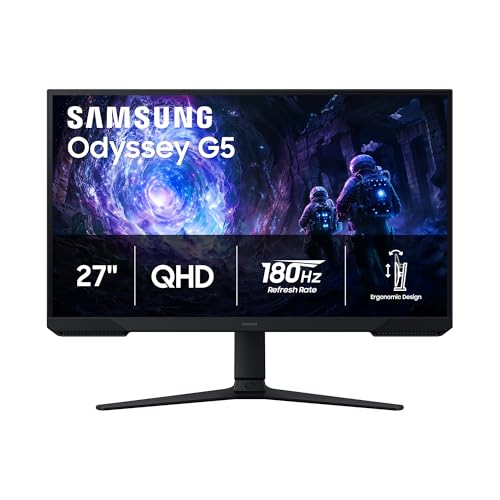
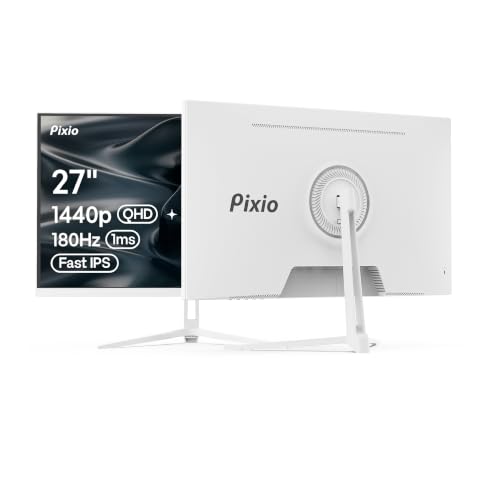
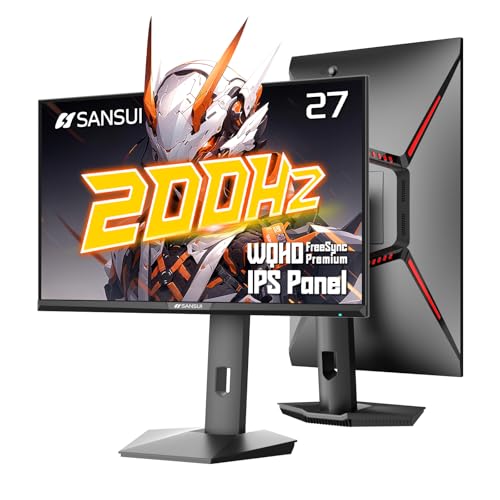
The best 27 inch 1440p gaming monitor sits at the sweet spot between 1080p speed and 4K detail, provided your graphics card can keep the frame rate high.
For a long time gamers had to pick a side: 1080p for speed or 4K for beauty. A 27 inch screen at 2560 by 1440 resolves that choice. It shows noticeably more detail than 1080p, it is far easier on a graphics card than 4K, and the pixel density of about 109 pixels per inch is sharp enough that you stop seeing individual pixels at a normal desk distance. The best 27 inch 1440p gaming monitor adds a fast panel and a refresh rate your graphics card can actually use.
This guide explains how to match refresh rate to your hardware, how the main panel types behave in games, what HDR claims really mean at this price, and which connections and settings you need to get the speed you paid for.




Why 27 Inches at 1440p Works So Well
On a 24 inch screen, 1440p is very sharp but small, and on a 32 inch screen the pixels start to show. At 27 inches the picture fills a good share of your view without forcing you to move your head. Games also look better because 1440p textures and distant details are cleaner, and edges need less anti-aliasing to look smooth.
The graphics load is about 78 percent more than 1080p, but less than half of 4K. A mid-range card from the last few generations can hold high frame rates in most competitive titles at this resolution, which is why the size has become the default for serious PC gaming.
Pick the Refresh Rate Your Card Can Reach
A fast screen only helps if your frame rate keeps up. Check the frame counter in the games you play. If you average around 100 to 140 frames per second, a 144 or 165 hertz panel is the right target.
If you reach 200 or more in competitive titles, 240 hertz or higher begins to show a visible gain. Paying for a 300 hertz panel when your card delivers 90 frames per second is money wasted.
Variable refresh rate smooths out the dips. Turn on FreeSync or G-SYNC Compatible in both the monitor menu and the graphics driver, and cap your frame rate a few frames below the maximum so the screen stays inside its sync range.
Panel Types Compared
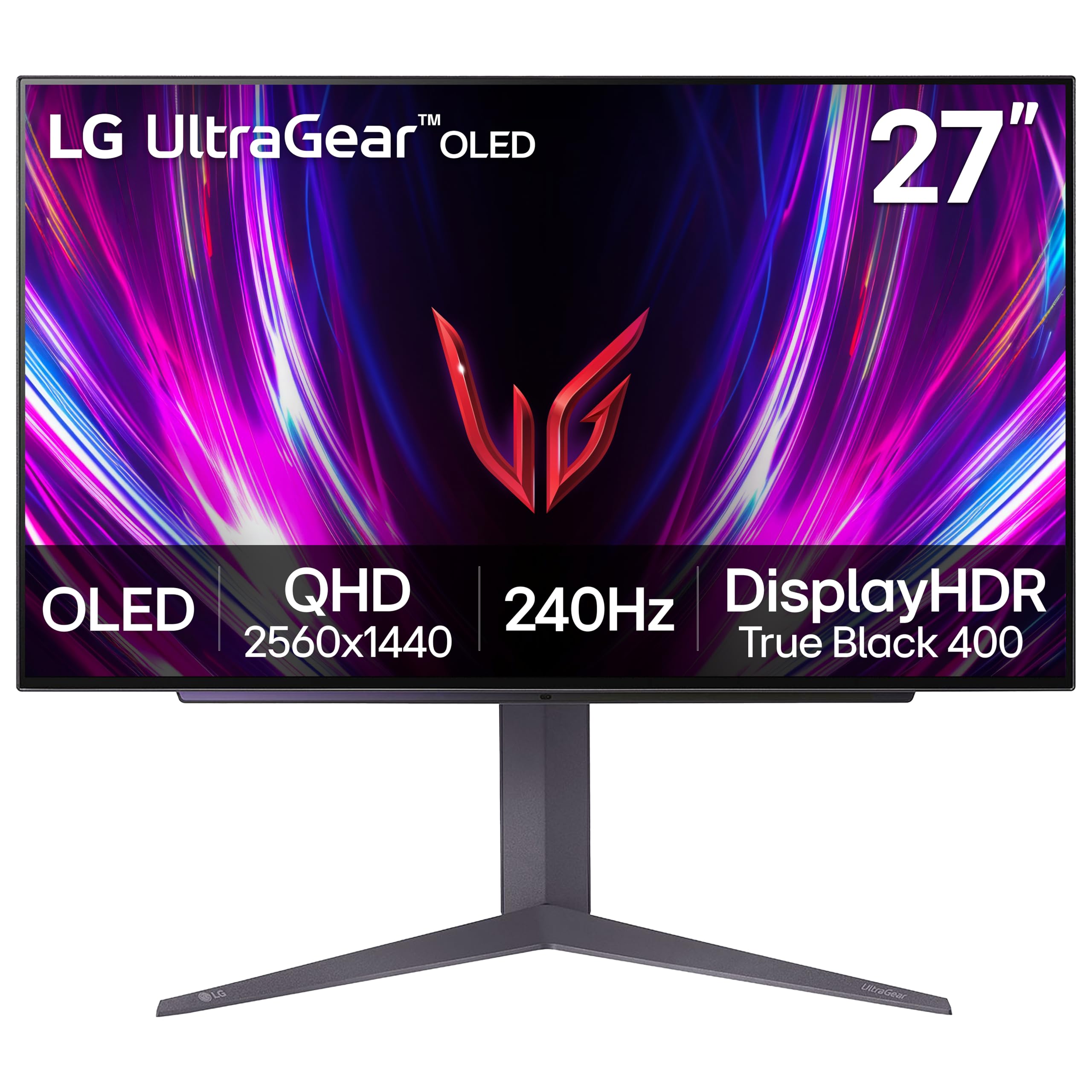
Fast IPS is the common choice: wide viewing angles, strong color and quick pixel changes. VA panels bring deeper blacks and are good in dark rooms, but some show dark smearing in fast scenes. OLED panels have near instant pixel response and perfect blacks, which gives the cleanest motion and striking contrast, at a higher price and with a small risk of image retention if you leave static elements on screen for hours.
Mini LED screens use hundreds of small backlight zones to push brightness and contrast beyond a normal LCD. They shine in HDR games but can show a faint halo around bright objects on dark backgrounds, so read how the dimming zones behave before you buy.
HDR, Brightness and Color Claims
Many monitors carry an HDR badge, but the quality ranges from decorative to impressive. A true HDR experience needs high peak brightness and local dimming, which only some mini LED and OLED models deliver. A basic HDR label on an edge-lit IPS screen often just makes the picture look washed out. If HDR matters to you, choose a model with dimming zones or an OLED panel, and treat the rest as an SDR screen with a marketing sticker.
For color, look for strong sRGB coverage and a mode that does not oversaturate. Wide gamut screens look vivid in games but make everyday desktop colors look cartoonish unless you switch to an sRGB mode.
Connections and Settings
Use DisplayPort for the best refresh rate. HDMI on many 1440p screens is capped at a lower rate or needs a modern cable, so read the port table in the listing. After connecting, open your operating system's display settings and choose the top refresh rate, because many screens default to 60 hertz.
Turn on overdrive at the middle setting, then adjust if you see trails or bright halos. Keep motion blur reduction modes for competitive shooters who run at constant frame rates, since they often cannot be used together with variable refresh rate.
Related reading: the best 27 inch 1440p monitors for mixed work and play, and the best 27 inch curved gaming monitor if immersion is your goal. For the full range of sizes, see the best gaming monitors 27 inch page and the broader PC monitors for gaming guide.
Mistakes to Avoid
- Buying a 360 hertz panel for a graphics card that delivers 100 frames per second.
- Running the screen at 60 hertz because the refresh rate was never changed in the display settings.
- Trusting an HDR badge on a screen with no local dimming and expecting a cinema look.
- Leaving a static game interface or desktop taskbar on an OLED screen all day.
- Ignoring the stand: low or fixed stands push you to hunch toward the screen.
A good first week routine is simple: set the full refresh rate, switch on variable refresh rate, pick an sRGB or standard color mode, then adjust overdrive and brightness to taste in a normal room, not a dark one.
Frequently Asked Questions
Is 1440p better than 1080p for gaming?
It is sharper, and at 27 inches the difference is easy to see. It needs more graphics power, so confirm that your card can hold a high frame rate at that resolution.
Do I need a 240 hertz screen?
Only if your card can reach roughly that frame rate in the games you play. For most players a 144 or 165 hertz screen is the better value.
Is OLED worth the extra cost?
It gives the best motion clarity and contrast, so competitive and cinematic players enjoy it. If you use the screen for static work for many hours, an IPS panel is safer against image retention.
Which cable should I use?
DisplayPort if available. It supports the highest refresh rate on most 1440p screens.
Does 1440p look worse than 4K on a 27 inch screen?
Slightly less sharp, but most players do not notice the difference in motion, and the higher frame rate usually matters more in games.
Can a console use a 1440p monitor?
Some consoles do not output 1440p natively and will scale from 1080p or 4K, so check how your console handles it before buying.
Final Thoughts
The best 27 inch 1440p gaming monitor gives you sharp detail and a refresh rate that matches your hardware. Choose IPS for all round use, OLED for the best motion and contrast, and mini LED if HDR is a priority. Then use DisplayPort and set the full refresh rate in your display settings.
Prices and availability can change, so check the product page before ordering.


