
Best 240 Hz Monitors in 2026: What Actually Matters Before You Buy
Disclosure: We may earn a commission when you buy through links on this page, at no extra cost to you. As an Amazon Associate I earn from qualifying purchases. Learn more

Best 240 Hz monitors are fast, but the gain depends on your PC, cable and panel. See what really matters before choosing one.
Manufacturers love to advertise refresh rates, and 240 Hz sounds like a big upgrade over 60 or 144. In reality, the benefit depends on a chain of things: the frames your PC produces, the cable you use, the panel's speed and your own eyes. The best 240 Hz monitors are the ones where every link in that chain works, so this guide walks through each.
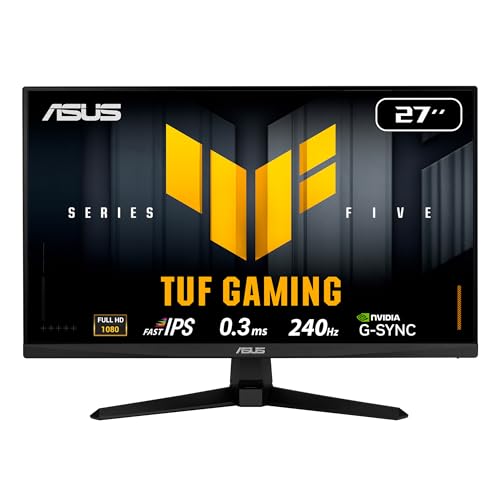
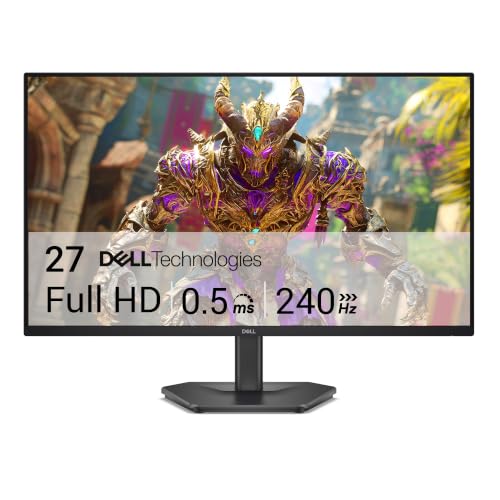
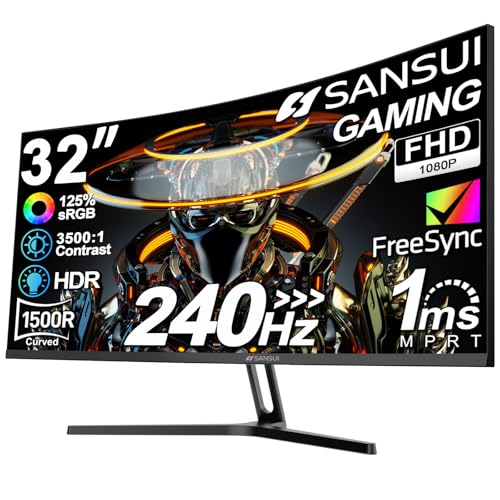
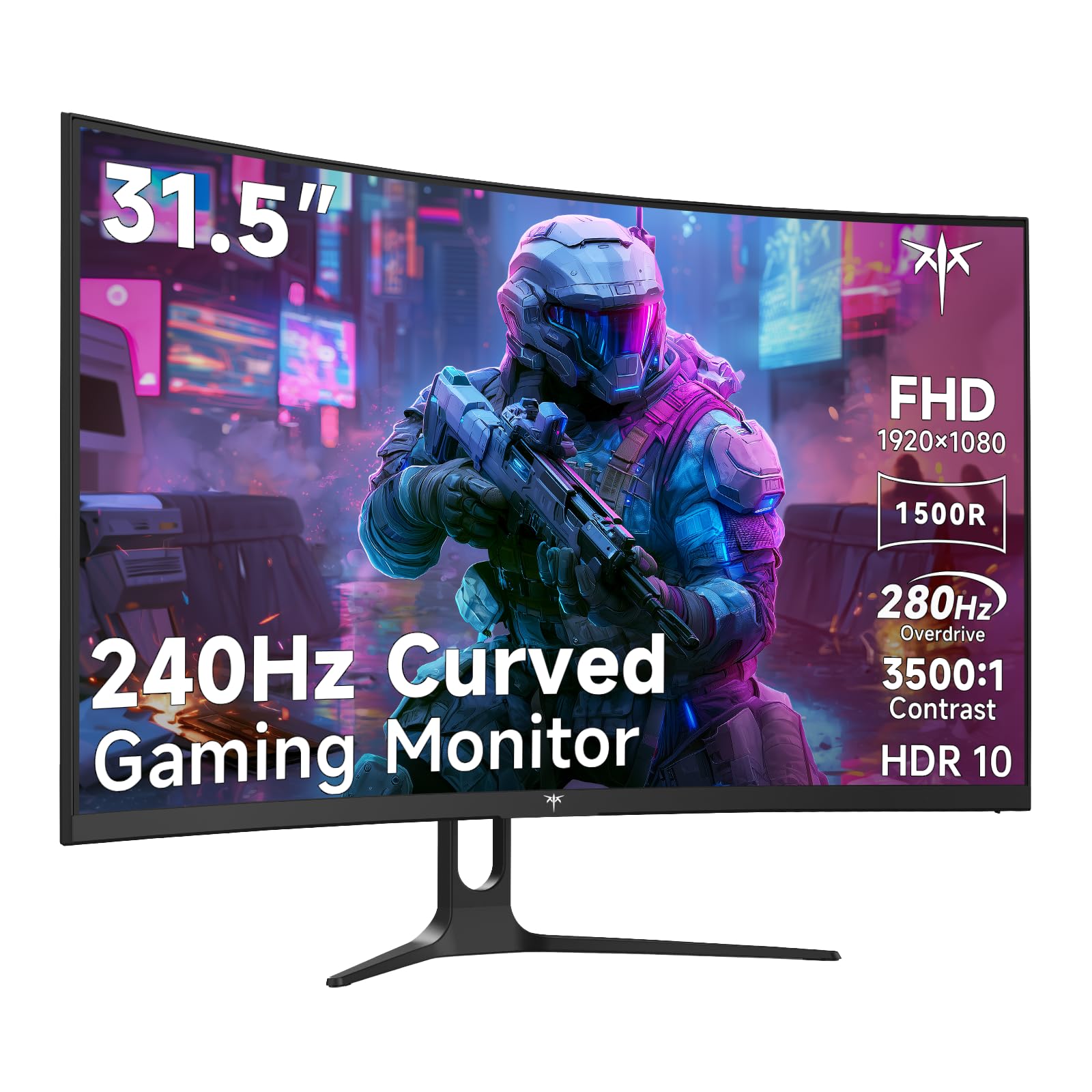
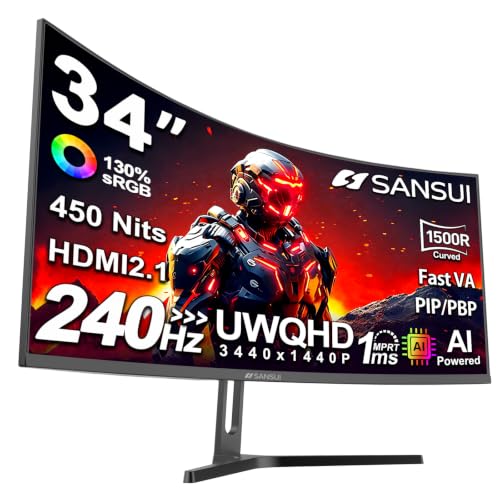
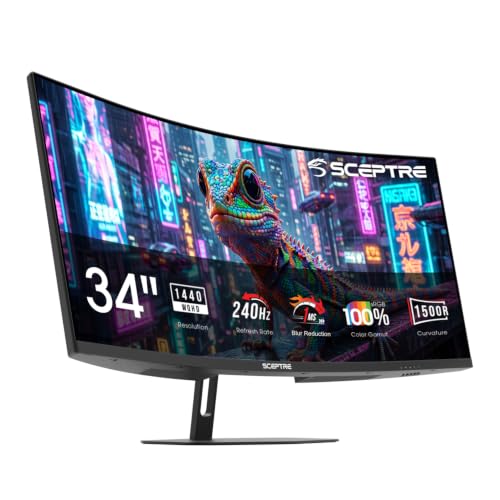
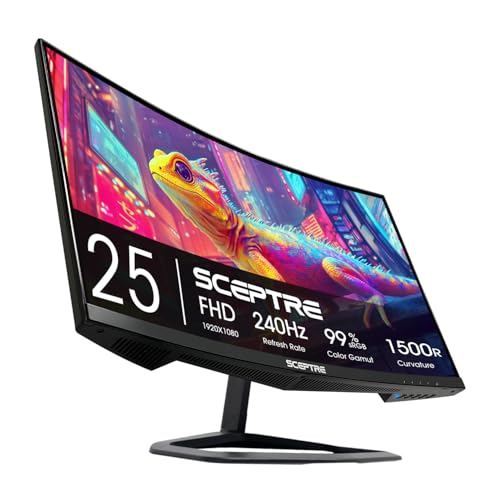
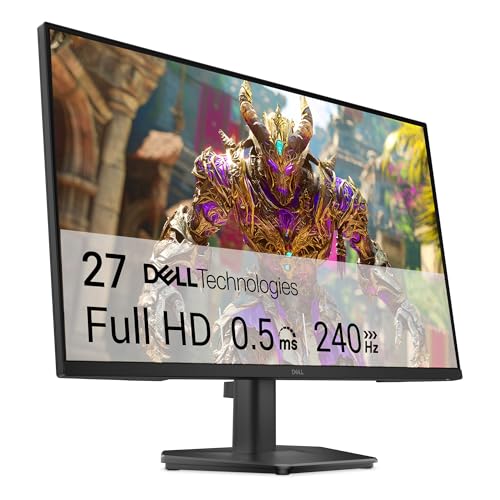
The product table lists current 240 Hz monitors in sizes from 24 to 34 inches, flat and curved, mostly IPS and VA. Use it after you read what to check.


Diminishing Returns
The jump from 60 to 144 Hz is large and obvious. From 144 to 240 Hz, the improvement is smaller, though still visible in fast motion. Each frame shows for about four milliseconds at 240 Hz and about seven at 144 Hz, so the gain is real but modest.
People who play competitive shooters notice it more than people who play slower games or watch video. If you mainly work and browse, 240 Hz gives a smoother cursor but little else. Choose it for gaming, not office tasks.
Frames Come First
A 240 Hz screen needs a PC that runs the game at high frame rates. A mid-range graphics card reaches 240 frames a second in lighter esports games but not in demanding ones. Check what your card achieves before buying. If you cannot reach 144, a higher-refresh monitor will not show you much, and a 144 Hz model saves money.
Bandwidth and Cables
Higher resolution and refresh rate need more bandwidth. A 1080p monitor at 240 Hz fits comfortably on DisplayPort. A 1440p or ultrawide at 240 Hz needs a good DisplayPort cable and a graphics card that supports it. HDMI connections vary by version, so check the listing before assuming. A cable that is too old limits the rate to a lower number, which is the most common reason a new 240 Hz monitor seems stuck.
Panel Type and Motion Clarity
Fast IPS panels respond quickly and keep colors steady. VA panels offer deeper contrast but can smear in dark scenes at speed. Response time claims are measured in specific modes, so treat them as a rough guide. Motion clarity depends on overdrive tuning, which is an adjustable setting in the menu. Too high a setting adds halos, and too low leaves blur.
Size and Resolution
The 24 to 25-inch 1080p models keep frame rates high and suit esports. The 27-inch 1080p models stretch the pixels a little, but still look good at a distance. The 1440p and ultrawide models look sharper and need more graphics power. Choose the combination that matches your card and your desk.
Adaptive Sync and Input Lag
Adaptive sync removes tearing, and nearly every 240 Hz monitor includes it. Look for G-Sync Compatible or FreeSync Premium on the listing. Input lag is low on most gaming monitors in standard mode, and extra processing modes add delay, so avoid them for competitive play. See the best 240 Hz gaming monitors page for a more competitive focus.
Comparing With Slower Options
If you are unsure, compare with the best 165 Hz monitors and the best 75 Hz monitors. A 165 Hz monitor costs less and delivers most of the smoothness. A 75 Hz monitor is fine for office work. A 240 Hz monitor is the top end, and it only pays off for the right player.
Setup Checklist
Use DisplayPort, update your graphics driver, set the refresh rate to 240 Hz in the operating system and turn on adaptive sync. Check the overdrive setting while you move a window across the screen. Cap your frame rate slightly below the refresh rate if you notice tearing. These steps matter more than any spec on the box.
Who Should Buy One
A 240 Hz monitor suits competitive players of shooters and fast arena games who have a graphics card that reaches high frame rates. It suits people who want the smoothest possible desktop and are willing to pay for it. It does not suit players who mostly use consoles, people who play slower story games or office users, who will be just as happy with a 144 Hz model at half the price.
If you fit the first group, the best 240 Hz monitors repay the cost in smoother tracking and a faster feel. If you do not, save the money for a better graphics card or a larger screen, which improve more games more noticeably.
Common Problems and Fixes
If Windows shows only 60 Hz, open the advanced display settings and choose the higher rate. If the option is missing, change the cable or the port, and update your graphics driver. If the picture flickers with adaptive sync, check the cable and try capping the frame rate. If you see trails behind moving objects, lower the overdrive setting. If a game feels no smoother, check that it is actually running at a high frame rate with an on-screen counter.
Longevity and Warranty
Fast monitors are complex machines. Look for a warranty of at least three years, and check how the maker handles dead pixels. Keep the box for the first weeks, in case of a return. A reliable fast panel is worth more than a slightly faster one that fails after a year.
Finally, remember that monitors depreciate slowly but prices change often. A model that is expensive today may drop during a sale, and a newer model may arrive with a better panel. If you are not in a hurry, set a price alert and watch for a drop, and keep your old monitor until you are happy with the new one.
FAQs
Is 240 Hz noticeable?
Yes in fast games, less so elsewhere.
Do I need a powerful PC?
For high frame rates in demanding games, yes.
Which port should I use?
DisplayPort is the safest.
Is 240 Hz good for office work?
It makes scrolling smoother, but you do not need it.
Final Thoughts
The best 240 Hz monitors are only as good as the PC and cable behind them. Check your frame rates, pick a panel type that suits your games and set it up properly. Then compare the models in the product table.
Prices and availability can change, so check the product page before ordering.


