
Best Affordable Computer Monitors: Everything to Know Before Your First Purchase
Disclosure: We may earn a commission when you buy through links on this page, at no extra cost to you. As an Amazon Associate I earn from qualifying purchases. Learn more

A plain English guide to budget monitors for first time buyers: what each spec means, what to expect under $300 and how to set up.
Buying your first computer monitor can feel confusing. Listings are packed with terms like IPS, 1440p, 144Hz and FreeSync, and prices range from under $80 to over $1,000. The good news is that you do not need to spend much for a sharp, comfortable screen. This guide to the best affordable computer monitors starts with the basics, explains each spec in plain English and shows how to set up your new display, so you can buy with confidence.
The short answer: for most first time buyers, a 24 inch 1080p IPS monitor with a 100Hz or 120Hz refresh rate around $80 to $110, or a 27 inch 1440p monitor around $200 to $260, offers the best value; choose USB C with power delivery if you use a laptop, and a higher refresh rate of 144Hz or more if you play games.

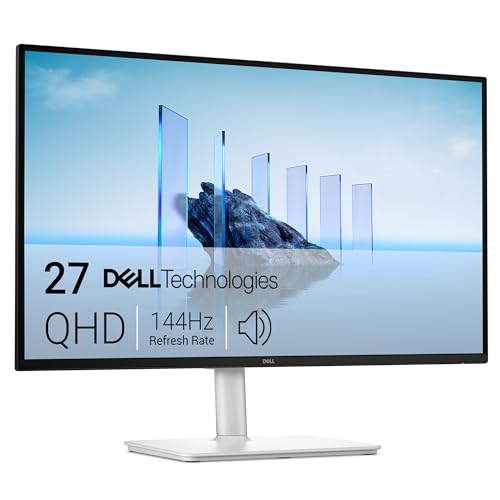

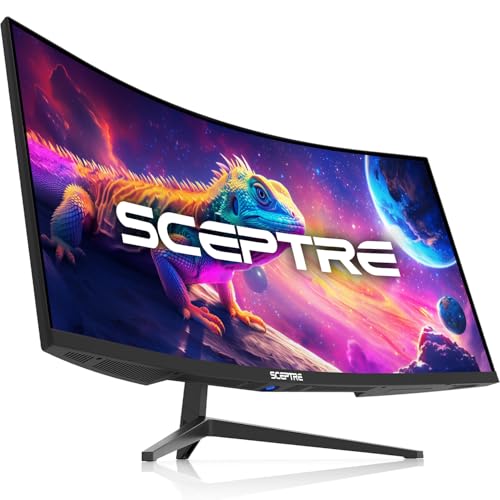


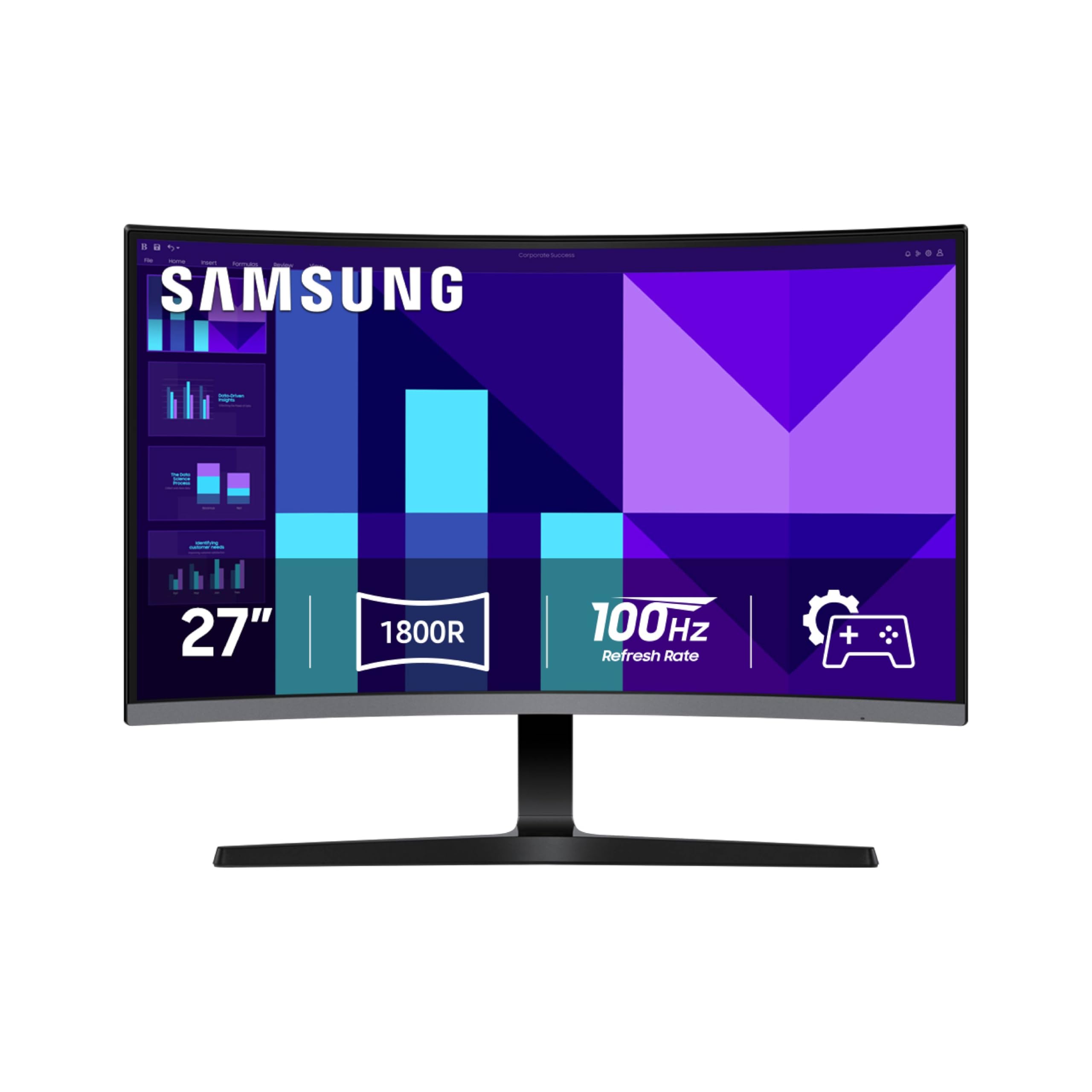
Top 3 Picks at a Glance
These three monitors from the product table above cover basic budgets, home office setups and budget gaming.


Computer Monitors 101: The Basics
A computer monitor is a display that connects to a desktop, laptop or game console through a cable such as HDMI, DisplayPort or USB C. Unlike TVs, monitors are designed for close viewing at a desk, with sharper text, faster response and adjustable stands.
Three numbers define most monitors. Screen size is measured diagonally in inches, usually 22 to 32 inches for desk use. Resolution is the number of pixels: 1080p or Full HD is 1920 by 1080, 1440p or QHD is 2560 by 1440 and 4K is 3840 by 2160. Refresh rate, measured in hertz, is how many times per second the screen updates; 60Hz is basic, while 100Hz to 144Hz feels noticeably smoother.
Panel type describes the technology behind the image. IPS panels offer accurate colors and wide viewing angles, VA panels offer deeper contrast and TN panels are fast but have weaker colors. Most affordable monitors today use IPS or VA panels.
Key Specs Explained in Plain English
Here is what each major spec means and what to look for on a budget.
What You Can Realistically Get on a Budget
Around $75 to $110 buys a 22 to 24 inch 1080p monitor with an IPS or VA panel, 100Hz or 120Hz refresh and HDMI input. Around $120 to $180 gets you 27 inch 1080p or curved models, sometimes with built in speakers. Around $200 to $300 delivers 27 inch 1440p panels with 144Hz or faster refresh, height adjustable stands, USB C or even 4K resolution.
Budget monitors usually cut adjustable stands, USB hubs, high brightness and true HDR. Do not compromise on resolution for your screen size: 1080p looks great at 24 inches but soft at 27 inches, where 1440p is worth the extra money.
Panel Technology (IPS, VA, OLED, Mini LED)
IPS panels are the best all round choice for office work, photo editing and casual gaming, with consistent colors from any angle. VA panels offer higher contrast, making them good for movies and dark game scenes, but colors can shift slightly from the side. OLED monitors deliver perfect blacks and very fast response but cost far more and can risk burn in with static content.
Mini LED monitors use many small LEDs with local dimming for better contrast and HDR, and a few budget friendly models now reach under $300. For most first time buyers, IPS is the safest choice.
HDR and Brightness
Brightness is measured in nits. Around 250 to 300 nits is fine for most indoor rooms, while 350 nits or more helps in bright offices. HDR, or high dynamic range, expands contrast and color, but many budget monitors labeled HDR10 lack the brightness to show real HDR benefits.
True HDR typically requires 600 nits or more and local dimming, found on Mini LED and OLED monitors. If HDR matters to you, look for DisplayHDR 600 or higher certifications rather than just an HDR10 label.
Connectivity and Ports
HDMI is the most common input and works with laptops, desktops and consoles. DisplayPort is preferred for PCs, especially for high refresh gaming. USB C with DisplayPort Alt Mode lets laptops send video, data and sometimes power over one cable, ideal for home offices; look for 65 watts or more of power delivery to charge a laptop.
Some older budget monitors still include VGA, which is useful for old computers but lower quality. A headphone jack and USB hub add convenience.
Speakers, Stand, and Extras
Built in speakers on monitors are usually small, around 2 to 3 watts, fine for calls and videos but not music. Stands vary widely: basic stands only tilt, while better ones add height, swivel and pivot adjustment for better ergonomics. VESA mounting holes let you use a monitor arm to free desk space.
Eye care features like flicker free backlights and low blue light modes reduce strain during long work sessions, and they are common even on affordable monitors.
Refresh Rate and Response Time
Refresh rate affects how smooth motion looks. Sixty hertz is standard for office work, but 100Hz to 120Hz makes scrolling and mouse movement feel smoother, and budget models now include it. Gamers benefit from 144Hz to 240Hz. Adaptive sync technologies like FreeSync and G Sync compatibility prevent screen tearing in games.
Response time measures how quickly pixels change color; 1 to 5 milliseconds is fine for most users, while competitive gamers prefer 1 millisecond gray to gray.
Rookie Mistakes to Avoid
- Choosing 1080p at 27 inches or larger. Text and images look soft at this size; 1440p is a better match.
- Ignoring ports. Make sure the monitor has the inputs your computer supports, especially USB C for modern laptops.
- Trusting HDR labels. Budget HDR10 monitors rarely deliver real HDR improvements.
- Skipping ergonomics. A stand that only tilts can cause neck strain; consider a monitor arm or height adjustable model.
- Forgetting the cable. Some monitors include only HDMI cables; DisplayPort or USB C cables may need to be purchased separately.
Getting Started: Setup and First Use
After unboxing, attach the stand or monitor arm and connect the monitor to your computer with the best available cable, usually DisplayPort or USB C for PCs and laptops, or HDMI for consoles. In your computer's display settings, set the resolution to the monitor's native resolution and select the highest refresh rate, since many systems default to 60Hz.
Calibrate picture settings by turning off vivid or dynamic modes and choosing a standard or sRGB mode for accurate colors. Adjust brightness to match your room, and enable FreeSync or G Sync in your graphics settings for gaming. Position the top of the screen at or slightly below eye level about an arm's length away. OLED monitor owners should allow pixel refresh cycles to run when prompted.
Choosing the Right Size for Your Desk
Monitor size depends on desk depth and how you use your computer. A 24 inch monitor suits small desks and viewing distances of about 20 to 28 inches, and 1080p looks sharp at this size. Twenty seven inch monitors are the most popular upgrade, giving more space for side by side windows; pair them with 1440p resolution and a desk at least 24 inches deep.
Thirty two inch monitors and ultrawides offer even more workspace but need deeper desks and higher resolutions, usually 4K or 3440 by 1440. For most first time buyers, 24 or 27 inches is the sweet spot between comfort, desk space and price. Dual 24 inch monitors are also an affordable way to expand your workspace.
How Much to Spend on Affordable Computer Monitors
Setting a budget is easier when you know what each price level delivers. Under about $100, the best affordable computer monitors are 22 to 24 inch 1080p IPS or VA panels with 100Hz or 120Hz refresh, thin bezels and basic tilt stands. They are perfect for students, home offices and second screens.
Between about $100 and $200, you can choose 27 inch 1080p monitors, curved screens, models with speakers and basic USB C. Gamers will also find 1080p monitors at 165Hz to 180Hz here. Between about $200 and $300, 27 inch 1440p monitors with 144Hz to 200Hz refresh, height adjustable stands, USB C power delivery and even budget Mini LED or 4K options become available.
Spending more than about $300 brings OLED panels, higher brightness for real HDR, 4K at high refresh rates and premium build quality. Those features are great, but they are not necessary for a first monitor. Most people will be happiest spending between $100 and $260.
Best Monitors for Laptop Users
Laptop owners benefit greatly from an external monitor, which gives a bigger screen at eye level and reduces neck strain. The most convenient option is a monitor with USB C input and power delivery of 65 watts or more, which sends video, data and charging over a single cable. Plug in once and your laptop charges while extending its display.
If your laptop lacks USB C video output, HDMI works fine. Pair the monitor with a laptop stand and an external keyboard and mouse for a comfortable desk setup. Check your laptop's maximum supported resolution and refresh rate over its ports before buying a high refresh 1440p or 4K monitor.
FAQs
Does refresh rate matter for non gamers?
Yes, a higher refresh rate makes everyday use feel smoother, even for non gamers. Scrolling web pages, moving windows and using the mouse feel more fluid at 100Hz or 120Hz than at 60Hz. Many of the best most affordable computer monitors now offer 100Hz or 120Hz for little or no extra cost, making them a smart choice for office work too.
How long do computer monitors last?
Most computer monitors last around five to ten years with normal use. LED backlights gradually dim over many thousands of hours, but quality monitors stay usable much longer than computers. Turning off the monitor when not in use and avoiding maximum brightness help extend lifespan.
What size should I get for my desk?
Choose 24 inches for small desks and 27 inches for most home offices. A 24 inch 1080p monitor works well at about 2 feet away, while a 27 inch 1440p monitor suits standard desks with a little more depth. Larger 32 inch and ultrawide monitors need deeper desks and higher resolutions.
IPS vs OLED: which is better?
IPS is better for affordability and office work, while OLED is better for contrast and gaming. IPS monitors offer accurate colors, wide viewing angles and no burn in risk at low prices. OLED monitors deliver perfect blacks, vivid HDR and lightning fast response but cost far more and may develop burn in with static content.
Is 4K worth it on a budget monitor?
4K is worth it on 27 inch or larger monitors for sharp text and detailed photo work. Affordable 4K monitors now start around $250 to $350. However, 4K requires a capable computer, especially for gaming, and 1440p offers a better balance of sharpness and performance for most budget buyers.
Is a curved monitor worth it on a budget?
A curved monitor is worth it mainly at 27 inches and larger, or on ultrawide screens. The curve keeps the edges at a similar distance from your eyes, which feels more immersive for games and movies. For office work on a 24 inch screen, a flat monitor is usually the better and cheaper choice.
Do I need a DisplayPort cable?
You need DisplayPort only if your computer uses it for higher refresh rates. Many PC graphics cards reach their highest refresh rates through DisplayPort, while HDMI works well for office use and consoles. Check which cables are included in the box before setting up.
Our Verdict
A great monitor does not have to be expensive. Match resolution to screen size, choose an IPS panel for accurate colors and look for at least 100Hz refresh for smoother everyday use. Budget buyers can get an excellent 24 inch 1080p monitor around $80, home office users should consider a 27 inch 1440p USB C monitor and gamers can find high refresh 1440p panels for under $300.
Compare the best affordable computer monitors in the product table above to find the right size, resolution and features for your desk.


