
Best Drawing Tablets for Blender for 2026: Which One Fits the Way You Use It?
Disclosure: We may earn a commission when you buy through links on this page, at no extra cost to you. As an Amazon Associate I earn from qualifying purchases. Learn more

Sculptors, texture painters and hard surface modelers can match pen displays or screenless tablets to their Blender workflow with these buying tips.
Using only a mouse in Blender works for box modeling and keyframes, but sculpting, texture painting, Grease Pencil animation and retopology all reward a pressure sensitive pen. A stylus turns hand movement into brush size changes, stroke strength and fine creasing. Choosing the best drawing tablets for blender starts with matching the hardware to how you actually sculpt, paint and navigate 3D space.
Many new digital artists struggle to choose between affordable screenless pen tablets and laminated pen displays. Others get frustrated by styluses without side buttons, which are needed to emulate the middle mouse button for orbiting. Below, tablet types are matched to real 3D workflows, with notes on pressure levels, tilt response and button mapping. The picks in the table fit these use cases.







Who Should Buy Which Drawing Tablets?
The right tablet depends on your desk space and your creative role. Sculptors usually want a large pen display, while generalists often do better with a compact screenless tablet.
For 3D Sculptors and Digital Character Artists
Sculptors who work on high polygon creatures, faces, wrinkles and clothing folds with Multires or Dyntopo need screen space and no visible offset between pen and cursor. A sixteen to twenty four inch laminated pen display with 2.5K or 4K resolution is the usual choice.
Drawing directly on the glass feels close to working with clay: you carve cheekbones, pull strips and smooth surfaces exactly where the pen touches. Etched anti glare glass adds a little drag, which helps control during long sessions and can reduce eye strain compared with glossy glass.
Sculpting also strains a computer. A fast display will not help if your machine struggles with millions of polygons, so check your graphics card and memory alongside the tablet, and budget for both.
For Texture Painters, Concept Artists, and Grease Pencil Animators
Painters of PBR texture maps and Grease Pencil animators need smooth strokes and reliable color. Prioritize a color calibrated pen display with a stated sRGB coverage near 100 percent, and check the maker's published figures.
Look for a pen that supports tilt sensitivity. Tilt lets you shade broad areas with airbrush and rake brushes just by angling your hand, similar to the side of a charcoal stick.
Grease Pencil animators also benefit from a pen with an eraser end, since flipping the pen to rub out a line is faster than switching tools. Frame by frame drawing means thousands of small strokes, so a comfortable pen grip matters as much as specs.
For 3D Generalists, Hard Surface Modelers, and Students
If your day mixes hard surface modeling, UV unwrapping, lighting, rigging and compositing, you jump between keyboard shortcuts and cursor work. An eight to eleven inch screenless graphics tablet often suits this better than a bulky display.
Screenless tablets sit between keyboard and monitor, so you look at your main screen with your head up. They are light, sturdy and usually powered over a single USB cable, which suits students moving between home and campus.
A medium active area of roughly six by nine inches is a common sweet spot. It is large enough for sweeping sculpt strokes yet small enough that your wrist does not travel far, and it leaves room for a keyboard and mouse. Students on a budget can often find entry level screenless models for around $50 to $80.
Key Features to Compare
Five specifications decide how a graphics tablet feels in Blender. Check each one before buying.
Pen Display (Screen) vs Screenless Pen Tablet
The core difference is whether you draw on the image itself or on a separate pad.
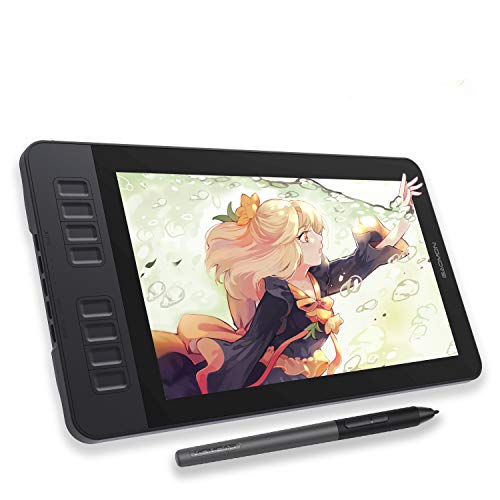
- Pen Displays (Drawing Monitors): These have built in screens that act as a second monitor. You draw on the glass, which gives excellent control, but they take up desk space and need video and power cabling.
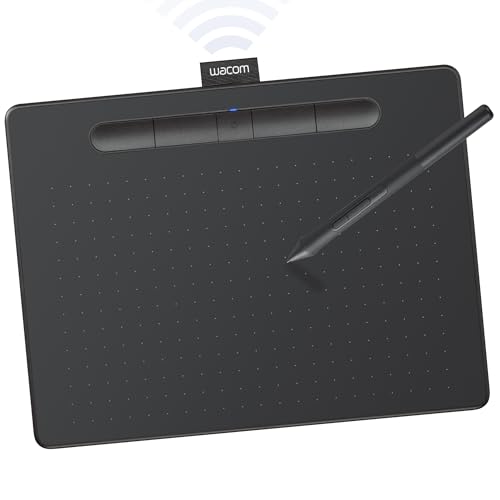
- Screenless Pen Tablets (Graphics Tablets): These are flat sensor boards. You watch your monitor while drawing on the pad, which takes a few days to learn. They cost less, travel easily and encourage upright posture.
Stylus Pressure Sensitivity and Tilt Detection
Pressure sensitivity controls brush size, stroke depth and mask strength in Blender. Many current tablets list 8,192 levels of pressure sensitivity using electromagnetic resonance (EMR) pens.
EMR pens need no battery or charging. Look for a low initial activation force so light touches register without pressing hard, and confirm tilt support if you paint or shade a lot. Higher level counts matter less than a smooth, predictable curve, so read buyer feedback about how light strokes behave.
Stylus Buttons and Middle Mouse Button Emulation
Blender uses the middle mouse button to orbit, pan and zoom, so a pen needs two or three programmable side buttons. Map one to Middle Click and one to Right Click to orbit and open menus without touching a mouse.
A pen with three buttons or an eraser tip gives extra room for shortcuts such as undo or switching brushes. Note that panning and zooming may still need a keyboard modifier with the pen, so it is worth learning Blender's navigation shortcuts.
Laminated Glass and Anti Glare Surface
Laminated glass prevents parallax on pen displays. On cheaper screens an air gap sits between the glass and panel, so the cursor appears slightly away from the pen tip, whereas full optical lamination bonds the layers together and closes that gap.
An etched matte surface gives a paper like feel that stops the pen from skating, which helps when you carve skin pores or fabric weave.
Express Keys, Touch Strips, and Dials
Physical express keys, touch strips or dials let you change brush radius and strength with your free hand while the pen stays on the mesh. In sculpting, where you resize brushes constantly, this saves a lot of keyboard trips.
Express keys can be set to Blender shortcuts such as F for brush size, Shift for smooth, Ctrl for invert and Ctrl+Z for undo. Four to eight keys are plenty for most people.
Common Mistakes to Avoid When Buying Drawing Tablets
Four missteps come up again and again when people build a 3D drawing setup.
- Assuming an iPad or Android tablet runs desktop Blender: Apps such as Nomad Sculpt work on iPads, but full Blender needs Windows, macOS or Linux. Mobile tablets can only be used with Blender through streaming or as a tethered display.
- Choosing a huge display for a small desk: A twenty four inch display can leave no room for a keyboard. Measure first or use a monitor arm.
- Ignoring resolution on large screens: A twenty two inch display at 1080p can show jagged lines and blocky icons. Look for 2.5K or 4K on screens sixteen inches or larger.
- Skipping the pressure curve: Blender lets you adjust the pen pressure curve in Preferences. Tuning it to your hand weight reduces wrist strain over long sessions.
Setup and Care Tips
A few habits keep a tablet accurate and comfortable for years.
- Map buttons for navigation: In the driver software, assign the front pen button to Middle Click and the rear one to Right Click for one handed orbiting.
- Replace worn nibs promptly: Plastic nibs wear at an angle against etched glass, and sharp edges can scratch the surface.
- Wear a drawing glove: A two finger glove cuts friction and keeps hand oils off the glass.
- Use an adjustable stand: Tilting a pen display to roughly twenty to forty five degrees eases neck strain, like a drafting table.
- Keep drivers current: Uninstall old tablet drivers before installing a new brand, since conflicts can break pressure in Blender.
- Match the active area to your monitor: In the driver, keep the same aspect ratio as your screen so circles stay round, and consider mapping to a single monitor if you use several.
- Take breaks: Rest your wrist every thirty to forty five minutes, since long sculpting sessions build up strain quickly.
Frequently Asked Questions
What features matter most in drawing tablets for blender?
A battery free pen with at least two programmable side buttons, 8,192 pressure levels and, on displays, full lamination matter most. The buttons handle orbiting, pressure drives brush control, and lamination keeps the cursor under the pen tip. Tilt support is a useful extra for painting.
Is a pen display better than a screenless tablet for Blender?
A pen display is better for organic sculpting and texture painting, because you work directly on the mesh. A screenless tablet suits hard surface modeling, shortcut heavy work and tight budgets. Many artists start screenless and upgrade later.
Can you sculpt high polygon meshes in Blender with a graphics tablet?
Yes, a graphics tablet is the common way to sculpt in Blender. Pressure sensitive strokes control brush size and strength much like clay. Mesh density is limited by your computer, not by the tablet.
Do drawing tablets work with both Windows and Mac versions of Blender?
Yes, major tablet brands offer drivers for Windows and macOS, and many also support Linux. Check the maker's compatibility list for your operating system before buying. Blender reads pen pressure through the system driver.
Final Thoughts
Moving from a mouse to a graphics tablet changes how Blender feels. Choose a laminated pen display for creature sculpting and painting, or a screenless tablet for hard surface work and tight desks. Either way, the best drawing tablets for blender give you steady pressure control and programmable buttons. Compare the picks in the table against your desk space and budget.


