
The Best Mid Range PC Speakers for 2026: High Fidelity Desktop Guide
Disclosure: We may earn a commission when you buy through links on this page, at no extra cost to you. As an Amazon Associate I earn from qualifying purchases. Learn more

Upgrade weak monitor audio with the best mid range PC speakers: compare USB DAC input, 2.0 versus 2.1 layouts, Bluetooth, drivers and desk placement.
If your desk doubles as an office, gaming station and music corner, built-in monitor audio and cheap plastic speakers will leave vocals hollow and bass thin. The best mid range pc speakers fix that with powered amplification, proper drivers in wooden cabinets and cleaner connections, usually for around $100 to $300.
At this level, makers borrow ideas from studio monitors: separate amplifiers for woofer and tweeter, silk dome tweeters, composite woofers and built-in USB DACs. Below you will find how 2.0 and 2.1 setups differ, which inputs matter, and how to place speakers on a desk. The picks in the table show current models to compare.




How to Choose the Best Mid Range PC Speakers
Focus on amplification, drivers, inputs and size, in that order. These points separate a good desktop pair from a disappointing one, and they matter more than headline wattage.
Why Does a Built-In USB DAC Matter?
A built-in USB DAC lets the speaker do the digital-to-analog conversion itself, away from the noisy insides of your computer. Motherboard audio chips sit near fans, graphics cards and power circuits, which is why you often hear hiss or buzz through a headphone-port connection.
With a USB connection, the computer sends digital data and the speaker converts it. The result is usually a quieter background and clearer voices, with no separate sound card needed. It also keeps the signal path short, which is handy on a laptop that you dock and undock every day.
What Is Active Bi-Amplification?
Bi-amplification means each speaker has one amplifier for the woofer and another for the tweeter. Many desktop pairs in this class are rated roughly 40 to 100 watts RMS combined, though the way the power is split matters more than the number.
Because the amplifiers are separate, heavy bass does not strain the circuit that feeds the treble, so voices stay clean during loud game scenes. Be wary of peak power figures on the box, since continuous RMS ratings say far more about real output. If you also want a portable option for other rooms, see our best Bluetooth speakers, but for desk use stick with powered nearfield models.
Which Driver Materials Are Worth Paying For?
Silk dome tweeters and stiff composite woofers are the materials to look for. Each solves a specific problem in small cabinets.
- Silk dome tweeters: They tend to sound smooth and less harsh than cheap metal domes, which helps during long workdays.
- Composite or paper woofers (aramid fiber, woven Kevlar, damped paper): They are light and rigid, giving tighter mid bass and clearer vocals with less cabinet muddiness.
If you spend hours on calls or listening to podcasts, smooth treble is worth more than extra bass. Harsh highs cause fatigue long before weak bass does.
What Size Should Desktop Speakers Be?
Most good desktop speakers use woofers of about 3.5 to 5 inches in MDF cabinets. Smaller than that and bass thins out; larger and they crowd the desk or sit too high for your ears.
Measure your desk depth and the gap beside your monitor before buying. At a typical distance of two to three feet, nearfield tuning gives you a focused stereo image where instruments and footsteps are easy to place. Also check the height, because a tall cabinet can put the tweeter above ear level unless you tilt it.
Which Inputs Do You Actually Need?
Choose inputs based on what you plug in today and what you might add. A flexible pair covers digital, analog and wireless sources.
- USB and optical (TOSLINK): Clean digital links from PCs, laptops and consoles.
- RCA and 3.5 mm aux: For turntables with a preamp, synthesizers or a second audio player.
- Bluetooth (ideally with aptX or AAC): Handy for streaming podcasts and playlists from a phone without touching the computer.
Count your sources first. A desktop, a console and a phone already need three inputs, and a selector switch or remote makes changing between them far less annoying.
Do You Need a Subwoofer Output?
A subwoofer output is worth having even if you do not buy a sub today. Compact monitors reach down to about 50 or 60 Hz, which is satisfying for music but light for action movies.
A sub out port lets you add a powered under-desk subwoofer later and turn a 2.0 pair into a 2.1 system without replacing anything. Without it, you are stuck with whatever bass the small cabinets can deliver.
How Should You Set the Subwoofer Crossover?
Set the subwoofer low-pass filter near 80 Hz as a starting point. This sends the deepest notes to the sub and lets the small desktop woofers focus on voices and snare hits.
Adjust a little either way by ear. If bass sounds boomy or disconnected from the speakers, move the crossover slightly and check the sub volume before changing anything else. Keep the sub level modest at first, since most desk listening needs far less low end than people expect.
How Do Walls Affect Desktop Bass?
Placing speakers close to a wall or corner boosts bass, sometimes to the point of boominess. Many active speakers include a rear switch for this, often a bass roll-off or boundary compensation setting.
If your desk is pushed against a wall, try the low-shelf setting (commonly around -2 dB) and compare. Pulling speakers a few inches forward also helps.
Popular PC Speaker Formats Compared
Three layouts cover most desks: a 2.0 pair, a 2.1 system with a subwoofer, and a soundbar. Pick the one that fits your space and listening habits.
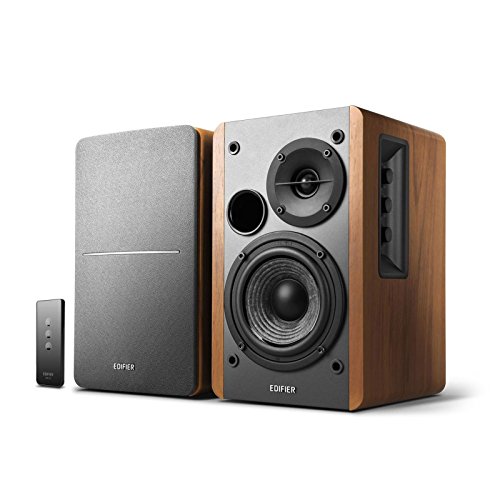
Compact Powered 2.0 Stereo Monitors
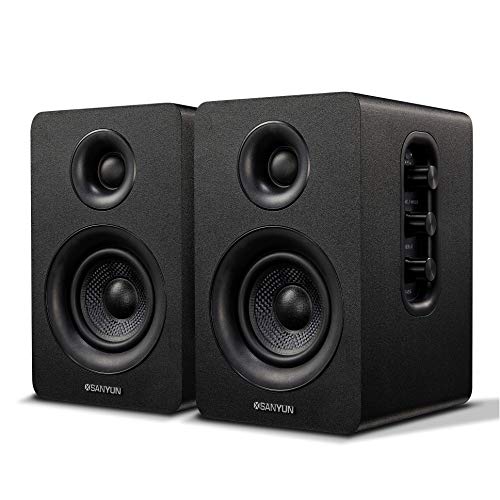
These are two self-powered wooden speakers with no separate sub. They suit music, podcasts and home office desks where tonal balance and a tidy layout matter most.
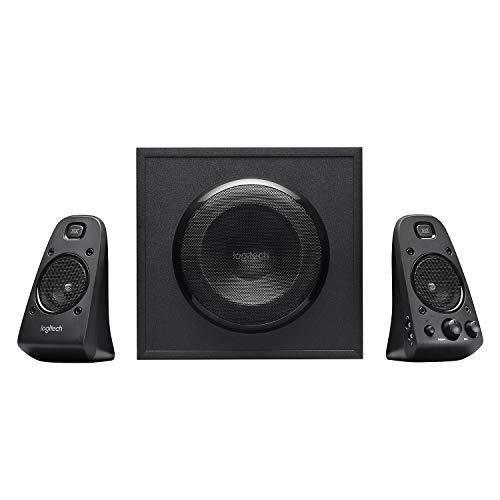
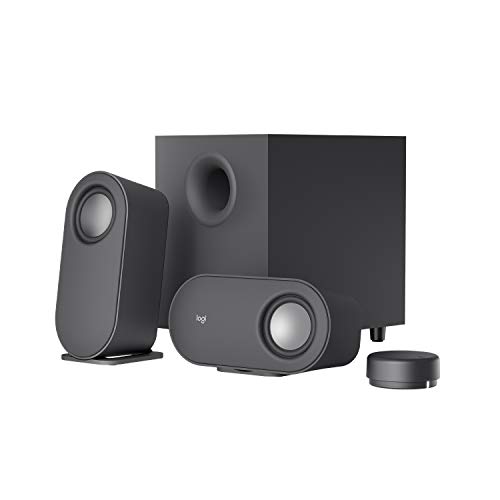
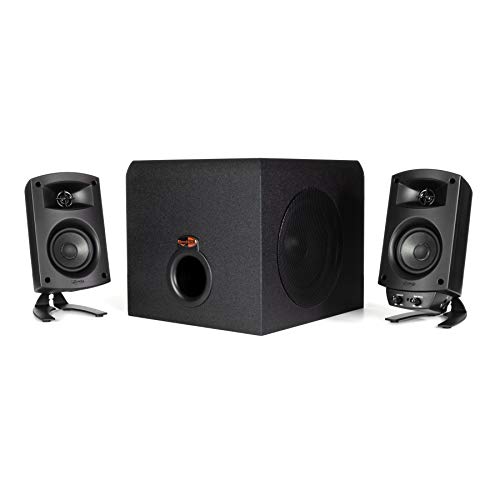
2.1 Systems with a Dedicated Subwoofer
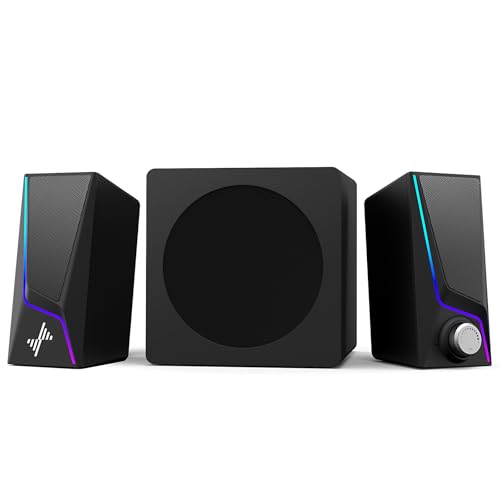
A 2.1 system adds an under-desk subwoofer to two satellites. It suits gamers and movie fans who want low-end impact, as long as you have floor space and tolerant neighbors. Remember the sub needs its own power outlet and a cable run to the satellites.
All-in-One Desktop Soundbars
A soundbar is a single long speaker that rests under your monitor. It works best on small desks or multi-monitor setups where two speakers would block the screens, though stereo separation is narrower.
Setup Habits for Better Desktop Audio
Placement changes the sound as much as price does. These four habits cost almost nothing.
- Isolate the speakers: Foam pads or angled stands stop bass from vibrating the desk and aim tweeters at ear level.
- Form an equilateral triangle: Keep the distance between the speakers about equal to the distance from each to your head for a stable center image.
- Leave room behind ported speakers: Allow two to four inches from the wall to avoid boomy bass.
- Power down when idle: Switch speakers off at night, or use a model with auto standby, to save energy.
Removable cloth grilles are also useful, since they protect the cones from accidental pokes when the desk is busy. Keep cables tidy and separate power cords from signal cables, which reduces the chance of hum.
Common Mistakes When Buying PC Speakers
Most disappointments come from a handful of avoidable errors. Check these before you order.
- Buying on wattage alone: A well-built 40 watt RMS pair often sounds better than a poorly built set with a bigger number.
- Ignoring desk depth: Speakers that sit too close to your face or too near the wall sound muddy no matter how good they are.
- Skipping the input check: Confirm the ports match your computer, console and phone before you commit.
- Forgetting volume control access: A knob on the front or a remote is much easier than reaching behind the speaker.
Frequently Asked Questions
Why are MDF cabinets better than plastic cabinets?
MDF is dense and resists vibration, so it colors the sound less than thin plastic. It absorbs internal reflections, which gives a more natural tone, particularly in the mid bass.
Can I connect PC speakers to a gaming console?
Yes, as long as the speakers have an input the console can use. Optical, 3.5 mm aux and sometimes USB all work, and the same applies to many televisions.
Do I need a sound card if my speakers have a USB DAC?
No, a USB DAC in the speakers replaces the need for a separate sound card for playback. The speaker handles the conversion, which usually reduces hiss and interference.
Is a front headphone jack useful on PC speakers?
Yes, it lets you plug in a headset without reaching behind the computer. On many models it also mutes the speakers automatically for private listening.
Is 2.0 or 2.1 better for a small desk?
A 2.0 pair is usually better for small desks and mostly music or work. Choose 2.1 only if you have room for a subwoofer and want stronger bass for games and films.
Final Thoughts
The best mid range pc speakers combine active bi-amplification, a USB DAC, solid MDF cabinets and flexible inputs, and they reward careful placement. Decide between 2.0, 2.1 and a soundbar based on your desk, then compare the picks in the table above.


