
Best Tablets for Blender in 2026: 3D Sculpting, Pen Displays, and Buyer Guide
Disclosure: We may earn a commission when you buy through links on this page, at no extra cost to you. As an Amazon Associate I earn from qualifying purchases. Learn more

Sculptors, texture painters and Grease Pencil animators can pick the best tablets for Blender by pen type, active area, lamination and price tier.
If you sculpt characters, paint textures or draw in Grease Pencil with a mouse, you know the problem. A mouse sends flat X/Y movement and a simple click, so you keep stopping to change brush strength and radius, and hours of gripping it strains the wrist. The best tablets for blender work give you thousands of levels of pen pressure, brush tilt on supported models, and viewport navigation mapped to two buttons on the pen barrel. This guide explains which tablet format suits which kind of Blender work, which specs matter, and how to set the pen up.
Note that "tablets for Blender" here mostly means USB or wireless graphics tablets and pen displays connected to a PC or Mac, because full desktop Blender runs on Windows, macOS and Linux rather than on iPadOS or Android. Standalone tablets can still work as wireless pen displays.






Who Should Buy Which Type of Tablet for Blender?
Your main Blender task decides the format. Sculptors and modelers usually do well with a screenless tablet, while texture painters and 2D animators tend to prefer a pen display. Mobile artists have a third route in a convertible or standalone tablet.
Which tablet suits 3D sculptors and beginners on a budget?
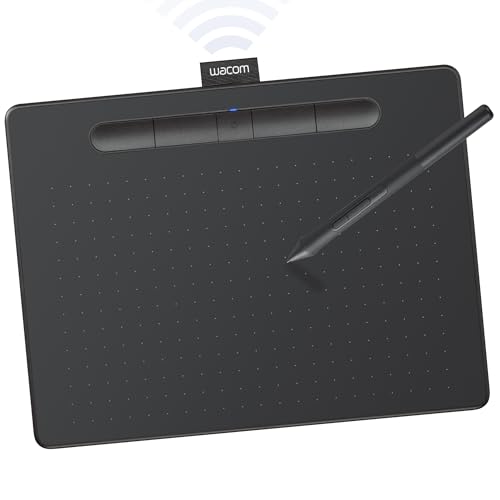
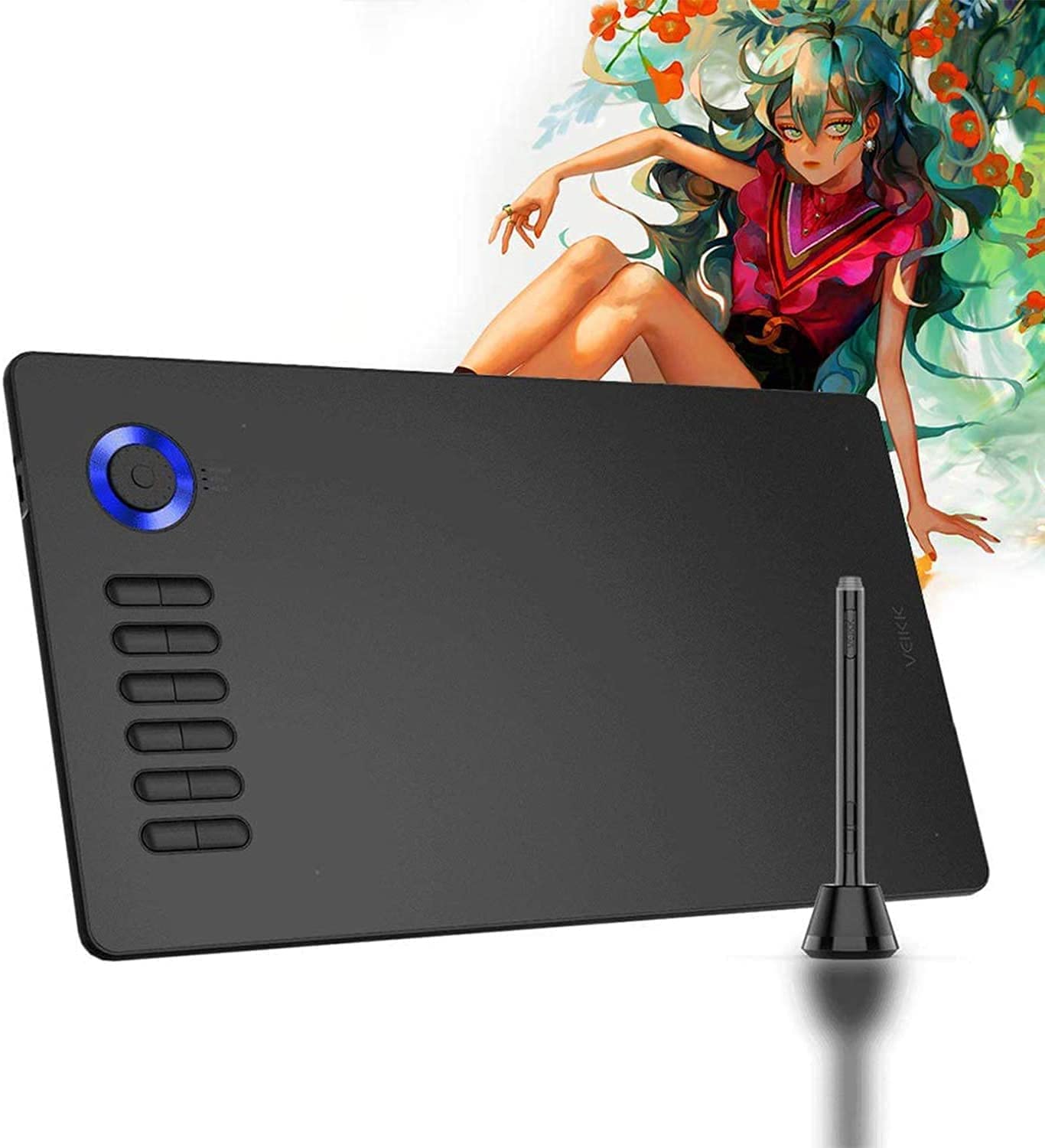
A medium screenless pen tablet (active area around 8 by 5 inches or 10 by 6 inches) suits sculptors and beginners best. Many ZBrush and Blender character artists prefer it over an expensive screen tablet. With the tablet flat on the desk you look straight ahead at a 27 or 32 inch monitor with your neck upright, and your hand never covers the mesh you are shaping.
It is also the cheapest way in. You get a proper pressure-sensitive pen for far less than a display model, and you can upgrade later without losing much.
Which tablet suits texture painters and Grease Pencil animators?
A 13, 16 or 22 inch laminated pen display suits texture painters and Grease Pencil animators. When you paint directly on a model, draw UV seams, retopologize or animate 2D lines, seeing the nib touch the exact spot under it removes the hand-eye learning curve of a screenless pad.
The trade-off is posture and price. You will want an angled stand or monitor arm, and a good display costs several times more than a screenless pad of the same pen quality.
Which option works for mobile 3D artists?
Mobile artists have two routes: a Windows 2 in 1 that runs desktop Blender on its own screen, or an iPad or Android tablet used as a second display. The Windows convertible needs a dedicated GPU or a fast integrated graphics chip to handle sculpting with a decent polygon count.
The iPad or Android route relies on mirroring apps such as Astropad Studio, SuperDisplay or EasyCanvas, which turn the tablet into a wireless pen display for your computer. Some artists also block out base meshes in a mobile sculpting app such as Nomad Sculpt, then export the file to Blender.
Key Technical Specs That Matter Specifically in Blender
Only a few specs change how a tablet feels in Blender: pen activation force, barrel buttons, active area, screen surface and shortcut controls. The headline pressure number matters least.
What is initial activation force, and why does it matter more than pressure levels?
Initial activation force (IAF) is the minimum weight the pen needs before it registers a stroke, and it matters more than the advertised pressure levels. Nearly every current tablet lists 8,192 or 16,384 levels, so that number tells you very little.
What shapes how a Clay Strips, Crease or Draw Sharp brush feels is how lightly the first mark registers and how smoothly the pressure curve rises toward full force. Battery-free EMR (electromagnetic resonance) pens with felt or POM nibs generally have a low activation force, often a few grams or less according to maker specifications. That lets you lay in subtle skin pores or soft surface detail without sudden pressure jumps.
Why do you need two barrel buttons for viewport navigation?
You need two programmable barrel buttons because Blender navigation depends on the middle mouse button, and a pen has none. You orbit, pan and zoom hundreds of times in a session using Middle Mouse, Shift plus Middle Mouse and Ctrl plus Middle Mouse. A pen with two thumb buttons covers it:
- Lower barrel button: map to Middle Click, so holding it while hovering and dragging orbits the viewport (add Shift to pan, Ctrl to zoom).
- Upper barrel button: map to Right Click, for context menus or brush radius and strength adjustments.
Check that your driver lets the middle click fire while the pen hovers, so you do not have to touch the nib down on the mesh first. If it does not, Blender's Emulate 3 Button Mouse setting is a workable fallback.
What active drawing area is best: small, medium or large?
A medium active area, roughly 8.5 by 5.5 inches up to 10 by 6.25 inches, is the most comfortable for most Blender users. Beginners often buy a tiny 6 by 4 inch gaming tablet or an oversized pad without thinking about arm travel.
On a small pad mapped to a 27 inch 4K monitor, a small wrist twitch sends the cursor a long way, which makes fine vertex selection jittery. A very large pad forces you to swing the whole shoulder just to reach the Outliner. For pen displays, 15.6 to 16 inches is a comfortable size for 3D work on a desk.
Why does full lamination and etched glass matter on a pen display?
Full lamination and etched glass matter because they keep the cursor under the nib and give the surface a little grip. A display with an air gap between the outer glass and the LCD creates parallax, so the cursor appears slightly off from the pen tip when you look at an angle. The gap also lets dust in.
Look for a fully laminated IPS or OLED panel with matte etched glass, or a replaceable anti-glare film. The slight paper-like texture stops a plastic nib from skating across slick glass, which helps with controlled strokes.
Do shortcut keys and dials help with sculpting?
Yes, physical shortcut keys and a rotary dial save a lot of reaching. Sculpting means one hand on the pen while the other rests on Shift (Smooth), Ctrl (invert the brush), F (brush size), Shift plus F (strength) and Ctrl plus Z (undo).
A tablet with 6 to 8 ExpressKeys and a dial on the bezel, or a separate wireless shortcut remote, lets you change brush size smoothly without leaving the pen. If you already work comfortably on a keyboard, fewer keys is fine, but a dial is still handy for radius.
Comparing Tablet Types for Blender 3D Workflows
The right format depends on your desk posture and your main Blender workspace. This summary shows how the four common types compare.
| Tablet Format | Neck & Back Posture | Best Blender Mode | Cables Needed | Typical Price Tier |
|---|---|---|---|---|
| Medium Screenless Pen Tablet | Best (look straight at monitor) | 3D Sculpting, Modeling, Nodes | 1 USB C or Bluetooth wireless | About $55 to $250 |
| 13" to 16" Laminated Pen Display | Moderate (use angled stand) | Grease Pencil, Texture Paint, Sculpt | 1 Full Featured USB C or 3 in 1 HDMI | About $220 to $650 |
| 19" to 24" Studio Pen Display | High (on VESA ergonomic arm) | Full production studio 3D & 2D | USB C / DisplayPort + AC power | About $550 to $1,400+ |
| Windows 2 in 1 / Standalone | Portable couch & travel use | Mobile modeling & light sculpting | Zero (battery powered) | About $700 to $1,600+ |
Price Tiers: What Your Budget Gets You
Budget mostly decides whether you get a screenless pad or a display, and then how refined the pen and screen are. The picks in the table cover each tier below.
What do you get for under $85?
Under about $85 you can buy a full size 10 by 6 inch screenless tablet with a battery-free EMR pen, 8,192 or more pressure levels, tilt recognition on many models and around 8 programmable keys. For sculpting and viewport modeling on a monitor you already own, this is often all you need to start.
You give up premium build, wireless connection and the smoothest pressure response, but you keep the main benefit: pressure control and a relaxed posture. It is also a low-risk way to find out whether you like pen input in Blender at all.
What do you get for about $150 to $420?
Around $150 to $420 you can step up in one of two directions. One is a Bluetooth screenless pro tablet with a very low activation force pen and dual dials. The other is a 13.3 or 15.6 to 16 inch fully laminated pen display at 1080p or 1440p, often claiming about 99 percent sRGB, with a metal desk stand.
Choose the pad if sculpting is your priority and the display if you paint textures or animate in Grease Pencil. Check the connection type before buying, since some displays need a full-featured USB C port.
What do you get for about $450 to $950 and up?
From roughly $450 to $950 and beyond you reach 16 to 22 inch pen displays in 2.5K or 4K, where the pixel grid disappears at normal viewing distance. These models usually add etched anti-sparkle glass and a wireless shortcut remote, and they mount on standard 75 by 75 mm or 100 by 100 mm VESA arms.
They make sense for daily professional use, not for trying Blender out. If you are unsure, start lower and sell or keep the cheaper tablet as a backup.
Setting Up and Caring for a Blender Tablet
A tablet works best when the driver is installed cleanly and the surface and nibs are looked after. A few habits prevent most problems.
How should you install the driver and choose a pen API?
Uninstall any old tablet driver first, restart, then install the current driver from the maker's site before plugging the new tablet in. Two drivers installed side by side are a common cause of pressure not registering. After that, open Blender's tablet preference and make sure the API matches your driver mode.
How do you keep nibs and surfaces in good shape?
Replace a nib when it becomes short, flat or scratchy, and wipe the surface with a soft dry or slightly damp microfiber cloth. Hard plastic nibs wear faster on textured film, so keep a few spares, and consider a felt nib if you want more friction on glass. A screen protector or replaceable film is cheaper to change than the glass beneath it.
Common Mistakes to Avoid When Using a Tablet in Blender
- Leaving Windows Ink misconfigured so strokes lag or draw odd circles: In Blender's Preferences under Input, then Tablet, set the Tablet API to match the mode chosen in your tablet driver, and turn off the Windows "press and hold for right click" ring in the pen settings.
- Buying a 16 inch pen display without checking your PC's ports: A single cable USB C connection needs a video-capable USB C port (USB4, Thunderbolt or DisplayPort Alt Mode). If your desktop only has HDMI and USB A, make sure the display includes the 3 in 1 HDMI, USB and power cable.
- Mapping a tablet across two monitors: If you use a screenless tablet with two screens, map it to your main Blender monitor only and keep "Force Proportions" on. Spreading it across both squashes circles into ovals.
- Pressing too hard on soft nibs: Heavy pressure scratches screen protectors and tires the hand. Soften the pressure curve in the driver, or fit a higher-friction felt nib, so full brush strength needs only a relaxed grip.
- Laying a pen display flat on the desk: Looking down at a steep angle for hours causes neck pain. Prop the display at roughly 20 to 40 degrees on an adjustable stand or VESA arm.
- Skipping the basics of Blender itself: A tablet will not fix a slow viewport. Lower the subdivision level or use Dyntopo and Multires sensibly so strokes follow the pen without delay.
Step by Step: How to Configure Your Tablet for Blender in 2 Minutes
Three settings give you smooth navigation and pressure control once the driver is installed. Work through them in this order:
- Assign your two pen barrel buttons: In the tablet driver, set the lower pen button to Middle Click and the upper to Right Click. Enable the hover option so Middle Click works while the pen is a few millimeters above the surface.
- Alternative, Emulate 3 Button Mouse: If you prefer to tap the nib to orbit, open Preferences, then Input, and tick Emulate 3 Button Mouse. Alt plus a pen stroke orbits, Alt plus Shift pans, and Alt plus Ctrl zooms.
- Set the Tablet API and pressure: In Preferences under Input and Tablet, leave the API on Automatic or match Windows Ink to your driver. Then try the Draw and Clay Strips brushes in Sculpt Mode with both pressure icons enabled in the header.
If strokes feel too heavy or too light, adjust the pressure curve in the driver before changing any Blender setting. It is the quickest fix and affects every brush at once.
Frequently Asked Questions
Can you run Blender directly on an iPad or Android tablet?
No, full desktop Blender has no native standalone app for iPadOS or Android. You can connect an iPad or Samsung Galaxy Tab S series tablet to your PC or Mac with apps such as SuperDisplay, EasyCanvas or Astropad Studio and use it as a wireless pen display. You can also sculpt base meshes in Nomad Sculpt and export an .obj or .gltf file to Blender.
Is a screenless tablet or a pen display better for Blender?
A screenless tablet is usually better for sculpting, modeling and geometry nodes, while a pen display is better for Grease Pencil and texture painting. A medium screenless model keeps your head upright and never hides the mesh under your hand, and many are available for roughly $60 to $200. A 13 to 16 inch laminated display feels more natural for drawing exact lines.
What size drawing tablet is best for a 27 inch monitor in Blender?
A medium tablet with an active area around 10 by 6 inches, or 8.5 by 5.5 inches, suits a 24, 27 or 32 inch 16:9 monitor best. Small 6 by 4 inch tablets feel twitchy on a large screen. Very large tablets of 14 inches or more demand too much arm movement for long sessions.
Do I need a glove when using a drawing tablet for Blender?
No, but a lightweight two-finger artist glove helps. Many mid-range tablets include one in the box. It covers the pinky and ring finger so the side of your hand glides over the surface instead of sticking from sweat during long sessions.
Why does my stylus lag at the start of a brush stroke in Blender?
The most common cause on Windows is the Windows Ink "press and hold for right click" gesture, which waits a fraction of a second to see if you are holding the pen still. Open your tablet driver, disable Windows Ink and switch Blender's Tablet API to Wintab, or turn off "press and hold" in the Windows Pen and Touch settings. Strokes should then start instantly.
Final Thoughts
Choosing among the best tablets for blender use comes down to upright comfort on a screenless pad versus the direct precision of a laminated display. For character sculpting, environment modeling and value, start with a medium (10 by 6 inch) screenless EMR tablet with a low activation force pen and a rotary dial. If you live in Grease Pencil and hand-painted textures, step up to a 15.6 or 16 inch fully laminated pen display on an angled stand. Compare the picks in the table above against your budget, your ports and your main Blender workspace before you buy.


