
Best 1 TB Hard Drives for 2026: Every Type Explained
Disclosure: We may earn a commission when you buy through links on this page, at no extra cost to you. As an Amazon Associate I earn from qualifying purchases. Learn more

Best 1 tb hard drives explained side by side: internal HDD, portable drive, internal SSD, and external SSD, with prices to compare.
The phrase "1 TB hard drive" covers several different products, from internal desktop drives to portable backup drives and fast solid state drives. The best 1 tb hard drives depend on whether you are upgrading a PC, backing up a laptop, or adding game storage.
This guide explains each type side by side and shows which one fits which job. The product table near the top lists current options across the types so you can compare prices.


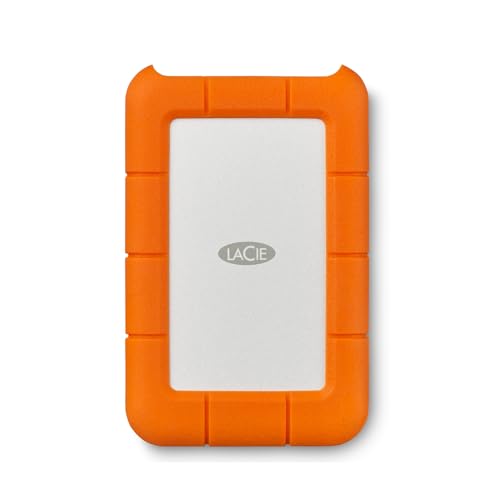


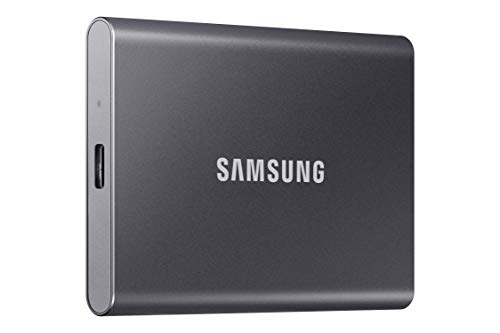
The Main Types of 1 TB Storage
An internal hard disk drive installs inside a desktop and offers cheap storage. A portable external drive plugs in by USB and works as a backup or an extra library. An internal solid state drive installs in a PC or a laptop and delivers far faster loading and startup, and an external SSD gives that speed in a portable case.
Knowing which type you need prevents the most common mistake: buying a portable drive when you wanted to upgrade your PC, or the reverse.
Best 1 TB Hard Drives: Internal Hard Disks
Internal hard disks use a SATA connection and spin at around 7200 revolutions per minute for desktop models. They are ideal for bulk storage, backups, and secondary drives in a desktop, and they cost very little per terabyte.
They are slower than SSDs and add noise and heat. Do not use one as your main system drive if speed matters, and check that your PC has an open bay and a free SATA port.
Portable External Drives
Portable hard drives plug in by USB and need no power adapter. They suit backups, moving files between computers, and extra photo storage. Many include backup software and a short warranty.
Look for a drive with a good brand name and a USB-C or USB 3.0 connection. A rugged model is smart for travel.
Solid State Drives
SSDs use flash memory and offer much quicker startup, loading, and copying than hard disks. An NVMe SSD installs directly on the motherboard of a modern PC, while an external SSD connects by USB for portable use.
Check compatibility. An NVMe drive needs an M.2 slot, and a PCIe 4.0 drive reaches top speeds only with a PCIe 4.0 slot. If you are unsure, a SATA or external SSD is a safer choice.
Speed, Noise, and Durability
SSDs are silent, fast, and resistant to bumps. Hard disks are cheaper but slower and sensitive to shocks while running. For a laptop that moves often, an SSD is the better choice.
If you only need cold storage for files you rarely open, a hard disk is a perfectly good and economical choice.
Backup and Safety
No drive lasts forever. Keep important files in more than one place, such as an internal drive, an external drive, and a cloud service. Open your backups now and then to make sure they open.
Use the manufacturer's tools to check drive health, and replace a drive that shows warnings.
Price and Value
Hard disks have the lowest price per terabyte, while SSDs cost more for the same capacity but save time. At 1 TB the price gap is small enough that many buyers choose an SSD for a main drive and a hard disk for backups.
Compare the warranty, the endurance rating for SSDs, and the seller before ordering.
Who Should Choose Which
- PC upgraders: an internal SSD for the system and a hard disk for bulk storage.
- Laptop users: an external SSD or a portable hard drive for backups.
- Gamers: an SSD for faster loading.
- Archivists: a hard disk for cheap long term storage.
More options are in the best TB hard drives, best hard drives, best 2 TB hard drives, and best hard drives for RAID 1 guides.
Installing an Internal Drive
For a desktop, mount the drive in a free bay, connect a SATA data cable to the motherboard, and a power cable from the supply. In Windows, open Disk Management to initialize and format the new drive. For an M.2 NVMe SSD, remove the heatsink cover, press the drive into the slot, secure it with the small screw, and replace the cover.
Back up your data before changing drives, and keep the old drive until you are sure the new setup is stable. If you are cloning a system drive, use the maker's cloning tool.
Laptops and Compatibility Checks
Check whether your laptop uses a 2.5 inch SATA drive or an M.2 slot, and which M.2 size and interface it supports. Some thin laptops have no free slot at all, and an external drive is the only option. Look up the model number in the maker's manual before you buy anything.
If you have a console, check the supported drive types. Some require a particular speed or format, and some limit the size.
Health Monitoring and Replacement
Drives report health through a feature called SMART, and free tools can read it. Replace a drive that shows reallocated sectors, slow reads, or strange noises. Hard disks often last several years, and SSDs wear by total data written, which is rarely a problem for normal use.
Plan to replace drives before they fail, not after. A scheduled replacement every few years is cheap insurance.
Mistakes to Avoid
Do not buy an NVMe drive for a system that only has SATA, and do not assume every external drive works with every console. Do not rely on one drive for irreplaceable files, and do not forget the cable. A small amount of checking before ordering saves a return.
Questions to Ask Before You Order
Is the drive for a desktop, a laptop, or a console? Do you need speed, or just room for files? Do you already own a backup? Answering these three questions removes most of the table in seconds and leaves a simple choice between a few drives.
FAQs
Is 1 TB enough?
For many people, yes, but large games and 4K video fill it quickly.
Should I buy an HDD or an SSD?
An SSD for speed and your main drive, an HDD for cheap bulk storage.
Can I use an internal drive externally?
Yes, with a USB enclosure or adapter.
How do I move my files?
Use cloning software or copy files by hand, then check that everything opens.
The right choice among the best 1 tb hard drives depends on type, so match the drive to the job and compare the options in the table above. Prices and availability can change, so check the product page before ordering.


