
Best 1440p Monitors Under 300 in 2026: What to Check Before You Buy
Disclosure: We may earn a commission when you buy through links on this page, at no extra cost to you. As an Amazon Associate I earn from qualifying purchases. Learn more

What to check before choosing the best 1440p monitors under 300: gaming speed, color and build quality at a mid-range price.
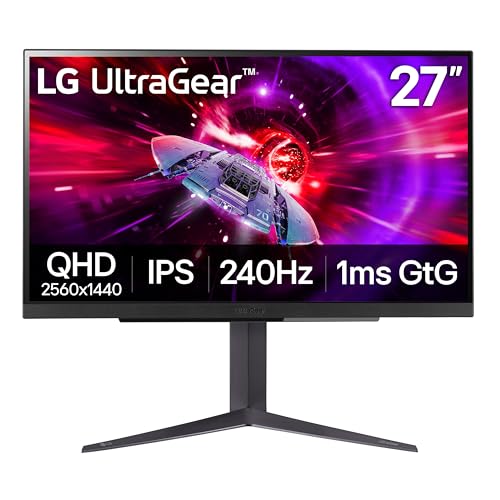
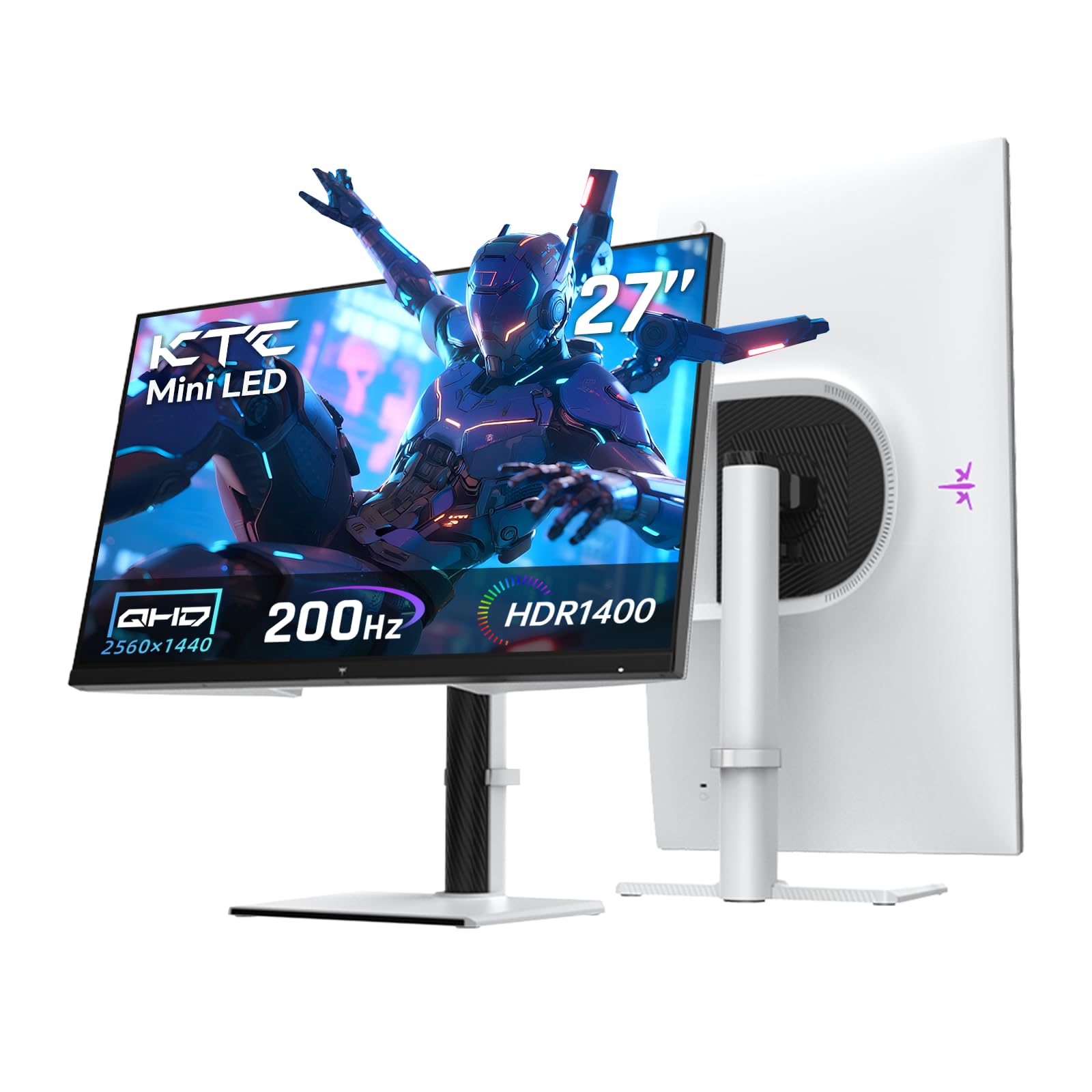
Spending up to $300 on a QHD display moves you out of the budget compromises and into a range where panel quality, build and features start to show. Among the best 1440p monitors under 300 dollars you will find fast IPS panels at 165Hz and above, solid stands, and even a few models with Mini LED backlights or professional color coverage.
That variety makes the choice harder, because models at this price aim at quite different buyers: competitive gamers, creators and general users. This guide explains what the extra money buys, so the product table above is easier to read.





What the Extra Money Buys Over a Budget Screen
Compared with the cheapest QHD monitors, this tier tends to bring better quality control, brighter and more even panels, stands that adjust in height, and in some cases USB-C connectivity. Response time and overshoot behavior are usually better tuned, which reduces visual artifacts in fast games.
You also start to see specialist features such as wider color coverage for editing, local dimming for HDR, and very high refresh rates. Pick the feature that matches your use rather than paying for all of them.
Gaming Focus: Refresh Rate and Response
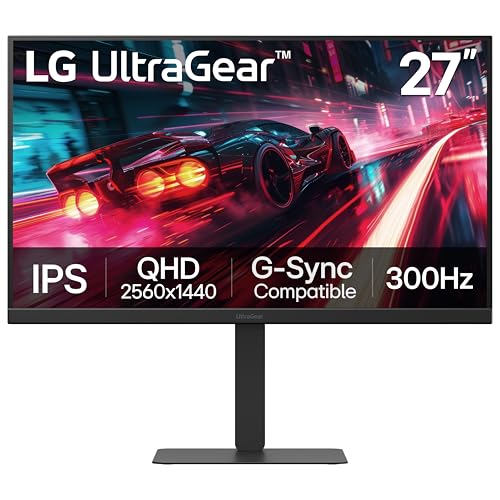
For competitive games, a screen with a high refresh rate and a quick, well-tuned panel gives the best feel. Look at models in the 165Hz to 300Hz range, then check that your graphics card can supply frames close to that rate. A 300Hz screen paired with a card that manages 100 frames per second is effectively a 100Hz screen.
Adaptive sync is standard here, and a few models support both FreeSync and G-Sync compatibility. Read the details about variable refresh range to confirm smooth behavior at lower frame rates.
Creator Focus: Color and Calibration
If you edit photos or video, look for a panel with wide color coverage and factory calibration. Professional-oriented monitors in this range often include sRGB or DCI-P3 claims, a flat finish and hardware that holds its color across the screen.
A color-focused monitor may run at a lower refresh rate than a gaming model. That is a fair trade for editing, but check that it still feels fluid for everyday use, because a few models sit at 60Hz or 75Hz.
Mini LED, HDR and Contrast
Some models at this price use Mini LED backlights with local dimming to improve contrast and HDR. These screens can look striking in dark scenes, though they may show blooming around bright objects on dark backgrounds. If you game in a dim room and watch movies, local dimming is worth considering.
For office use and bright rooms, standard IPS panels remain easier to live with and usually cost less.
Size, Curve and Stand
A 27 inch flat panel is the dependable choice. Curved 32 inch models suit immersive gaming and shared viewing, though the extra size reduces sharpness slightly. Check that the stand adjusts for height and tilt, or confirm VESA mounting if you plan to use an arm.
A well-built stand makes a larger difference to daily comfort than most feature upgrades, so do not treat it as an afterthought.
Ports and Connectivity
- DisplayPort for PC use at high refresh rates.
- HDMI that supports your console's resolution and frame rate.
- USB-C with power delivery if you want a one-cable laptop setup.
- A USB hub or KVM when one keyboard should control two machines.
Pick ports according to your setup. A feature you never use adds cost without benefit.
How to Compare Two Close Options
When two monitors look equal, compare the warranty, the return window and how buyers describe the weakest points. Pay attention to comments about backlight bleed, coil whine, stand wobble and firmware issues. These small matters shape daily life with a screen more than a faster response figure.
If one model has a higher refresh rate and the other has a better stand and warranty, ask which matters in your routine. For most people the sturdier stand and clearer support are worth a slightly lower refresh rate.
Choosing Between Gaming Speed and Everyday Comfort
The best 1440p monitors under 300 dollars often lean one of two ways. Gaming-first models chase refresh rate and response speed, while all-round screens favor brightness, color and connectivity. If you play fast shooters daily, lean toward the first group. If your screen spends most of the day on documents, video calls and streaming, the second group serves you better.
Neither choice is wrong. The key is to avoid paying for features you will never use, such as a very high refresh rate on a machine that cannot reach it, or professional color coverage when you only browse the web.
Checks After Unboxing
Set the refresh rate manually in your operating system and enable adaptive sync in the graphics driver. Display solid white, black and gray images to look for backlight bleed, banding and stuck pixels. Move a window across the screen to check for uneven color and scan the corners for light leaks.
Keep the packaging for the full return period. Most issues appear within the first few days of regular use, and returning a faulty screen is far easier than negotiating a repair after the window closes.
Related reading: best monitors under 300, best pc monitors under 300 and best 4k monitors under 300.
Frequently Asked Questions
Is 1440p still a good choice at 300 dollars?
Yes. At this price you can pick a 1440p screen with strong refresh rates and good build, and you avoid the heavier hardware demands of 4K.
Should I get a gaming or a color-focused monitor?
Choose based on use. Competitive play favors speed, while photo and video work favors color accuracy. A good fast IPS panel covers a bit of both.
Is Mini LED worth the extra cost?
If you game in dim rooms and want stronger HDR, it can be. For bright rooms and desktop work, a regular IPS panel is simpler and cheaper.
How long should a monitor in this range last?
A well-built monitor commonly serves for many years. Keep the packaging for the return window and register the warranty if the maker offers one.
Final Thoughts on the Best 1440p Monitors under 300
The best 1440p monitors under 300 dollars give you stronger build quality, better panels and a few specialist features compared with budget screens. Decide whether speed, color or contrast matters most, and use the table above to compare current prices. Prices and availability can change, so check the product page before ordering.


