
Best 24 Inch 4K Monitors in 2026: Sharp Small Screens for Creators and Mac Users
Disclosure: We may earn a commission when you buy through links on this page, at no extra cost to you. As an Amazon Associate I earn from qualifying purchases. Learn more

Best 24 inch 4K monitors offer very sharp text on a compact screen. Compare USB-C charging, scaling, color and value before you buy.
Four thousand pixels across a 24-inch screen is a very dense picture. Text looks printed, photos show fine detail and a Mac-style scaled interface looks smooth. The best 24 inch 4K monitors are a small group, as most 4K screens start at 27 inches, and that scarcity means each option in the table has a clear purpose.
This guide explains who a 24-inch 4K monitor suits, what to compare, and the compromises to expect, including scaling, refresh rate and price.
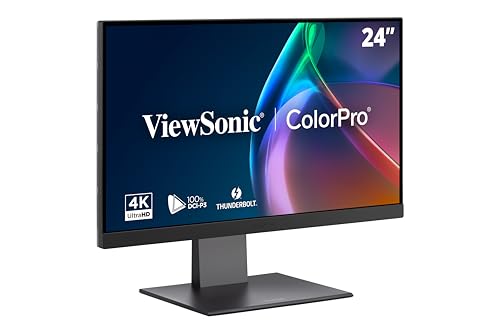
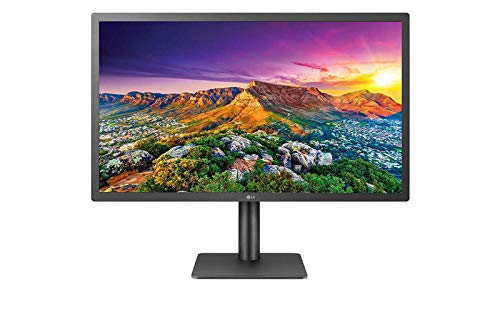
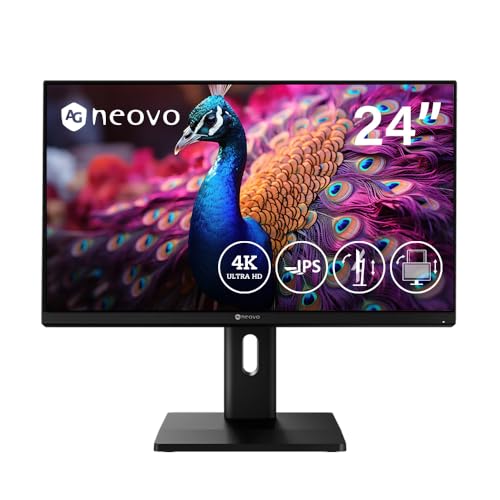
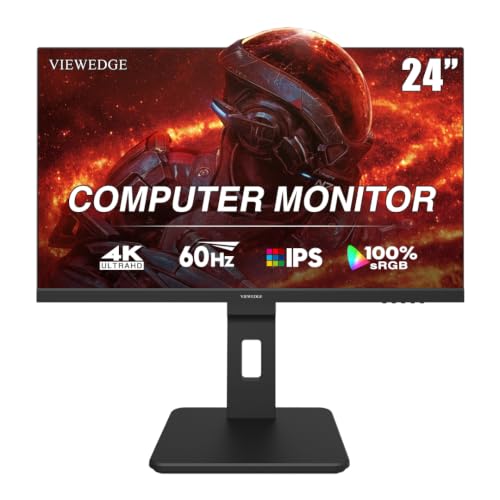
Who Needs a 24-Inch 4K Screen
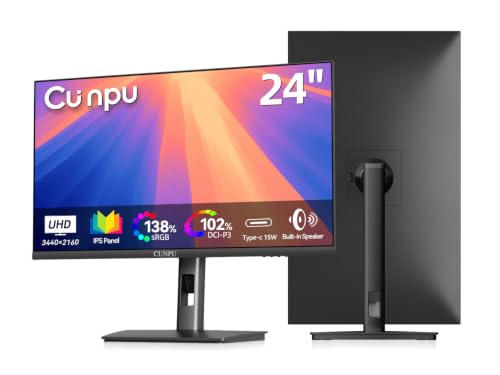
People who read and write a lot, designers who care about type and Mac owners who like a crisp Retina-style look are the typical buyers. At about 185 pixels per inch, as one listing states, text edges look smooth and fine lines are clear. Photographers can check detail at a high zoom level without the whole picture shrinking.
If you mostly play fast games, a high refresh rate 1080p or 1440p monitor is a better match. Our guide to the best 24 inch 144Hz monitors covers that route. A 4K 24-inch panel is for sharpness, not speed.
Scaling: The Hidden Setting
At this density, running at 100 percent makes everything tiny. Operating systems apply scaling, often 150 or 200 percent, to bring the interface to a comfortable size. macOS handles this smoothly, and Windows has improved, though some older apps still look blurry at fractional scales.
Before buying, think about your software. If you use many older programs, check how they behave on high-density displays. A screen that looks sharp but forces you to fix scaling in each app is a frustration.
USB-C, Power and Connectivity
A USB-C input that carries video and power is a major convenience. One cable to a laptop gives a picture and charges it. The listings show different power levels: some supply enough to charge a thin laptop, and others a small amount suited to a phone. Match the power delivery to your laptop's needs.
Look at HDMI and DisplayPort as well. Check that the monitor supports 4K at 60Hz over each, and use the cable supplied, because an old cable may only run lower rates. Thunderbolt support, as on one model in the table, allows daisy chaining and docks.
Color Accuracy and Panel Quality
Most 4K 24-inch screens use IPS panels with wide viewing angles and good color. Look for sRGB coverage if you edit photos, and for factory calibration if the listing mentions it. A professional model will include a calibration report, though it costs more.
Brightness and uniformity matter too. A screen with uneven backlighting spoils photo work. Check the return policy, and look at a gray image on arrival to see whether it is even.
Stand and Ergonomics
Business and creator models usually include height, tilt and swivel adjustment, and some pivot to portrait. This is valuable for long sessions. A VESA mount lets you add an arm if the stand falls short. Check the weight and the pattern before you buy a bracket.
Price and Alternatives
These monitors cost more than a regular 24-inch screen, and some cost as much as a 32-inch model. If budget is tight, a 27-inch 4K monitor has a slightly lower pixel density and often costs less; see the best 27 inch 4K monitors. For everyday work, the best 24 inch PC monitors are cheaper and fine.
If you want speakers, see our guide to 24 inch monitors with speakers, since few 4K models have them.
Setting Up a 4K 24-Inch Monitor
Connect with a cable that supports the full 4K 60Hz mode, confirm the resolution and refresh rate in display settings, and then adjust scaling. Start at 150 percent and move up or down until text is comfortable without wasting the extra detail. In macOS, choose the scaled option that looks like the resolution you prefer.
Check each app that matters to you. Photo editors and design tools generally handle scaling well, while a few older utilities may need compatibility settings. Update your graphics drivers before you start, since older drivers can cause flicker or limit the refresh rate on high-density screens.
Is It Worth Paying for Thunderbolt or Calibration?
Thunderbolt and factory calibration add cost. A Thunderbolt hub is worth it if you plug a laptop into a desk setup with an external drive, a network cable and other devices through one connection. Factory calibration is worth it for color-critical work, but casual users can calibrate by eye or with a low-cost tool. Choose the best 24 inch 4K monitors for the features you will use daily, not those that look impressive in a table.
Caring for a High-Density Display
Dust and fingerprints show more on a sharp screen, so clean it with a dry microfiber cloth and a very light touch. Avoid sprays that can leak behind the bezel. Keep the brightness at a comfortable level, since a very bright screen in a dim room causes eye strain regardless of sharpness.
Give your eyes a break every so often. A sharp, small screen invites close work, and long sessions without pauses tire the eyes more than the panel type does. Follow the simple habit of looking at a distant object every twenty minutes or so.
FAQs
Is 4K worth it on a 24-inch screen?
For text clarity and detail work, yes. For gaming and general use, a lower resolution may be more practical.
Does it work with a Mac?
Yes. Macs handle high-density displays well, and a USB-C model keeps cabling simple.
What scaling should I use?
Usually 150 to 200 percent, depending on your eyesight and workspace.
Can my laptop drive it?
Most recent laptops can output 4K at 60Hz over USB-C, HDMI or DisplayPort. Check your laptop's port specifications.
Final Thoughts
The best 24 inch 4K monitors are for people who value sharp text and detail, and they work best when matched to the right laptop and software. Check USB-C power, scaling and color needs, then compare the five models in the product table.
Prices and availability can change, so check the product page before ordering.


