
Best 24 Inch PC Monitors in 2026: Matching a Screen to Your Graphics Card
Disclosure: We may earn a commission when you buy through links on this page, at no extra cost to you. As an Amazon Associate I earn from qualifying purchases. Learn more

Best 24 inch PC monitors should suit your graphics card and ports. Compare refresh rates, sync, VA and IPS panels and stands for a desktop PC.
A desktop PC gives you options a laptop does not: a graphics card with several outputs, support for high refresh rates and plenty of room for adaptive sync. The best 24 inch PC monitors take advantage of these, and the right choice depends as much on your computer as on your tastes.
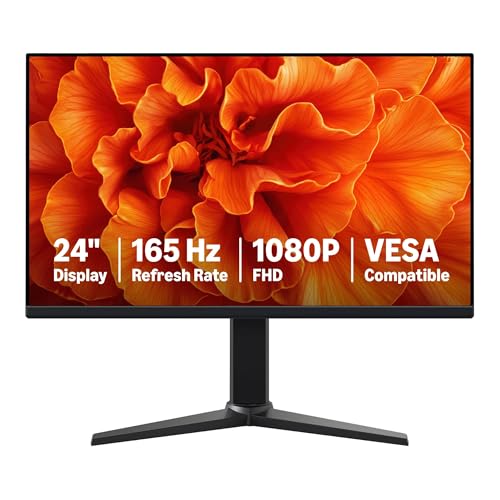
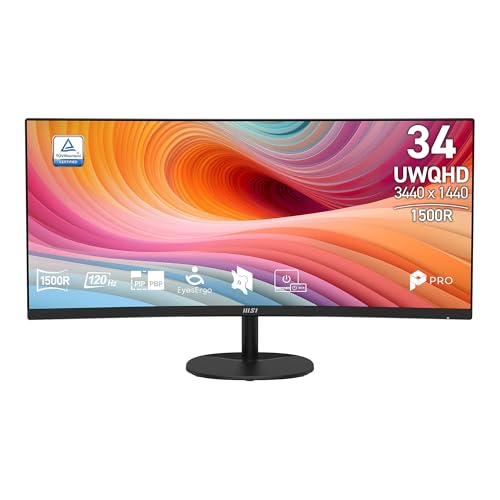
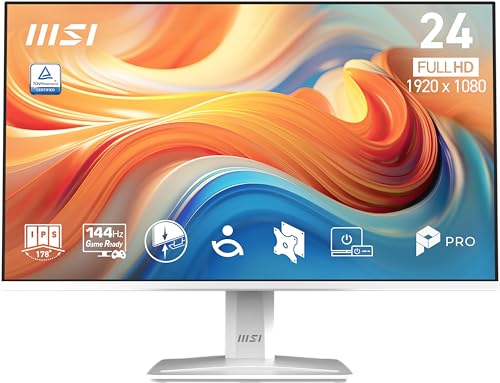
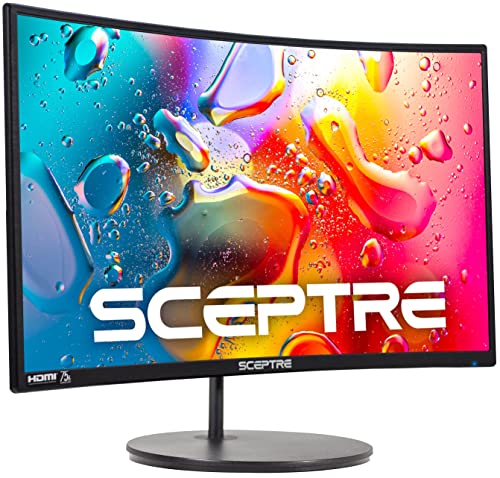
The product table lists current 24-inch models for desktop use, from 75Hz and 100Hz everyday screens to 144Hz and 165Hz panels, flat and curved, IPS and VA. The sections below explain how to match them to your hardware.



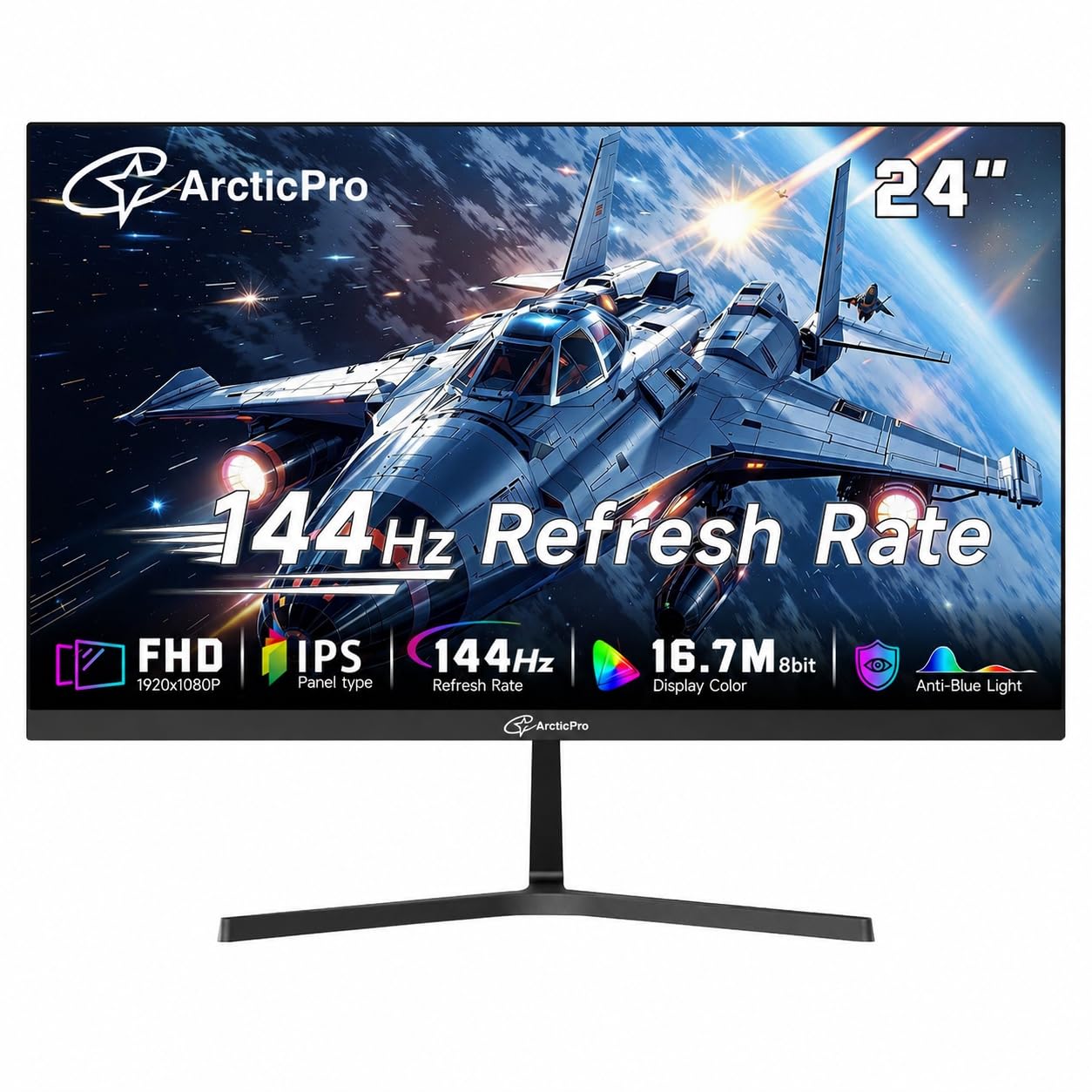


Start With Your Graphics Outputs
Look at the back of your PC. A graphics card usually has DisplayPort and HDMI outputs, and sometimes a USB-C port. DisplayPort is the best choice for high refresh rates, and HDMI works for most uses and consoles. If your PC has only older outputs, such as VGA or DVI, check that the monitor supports them or buy an adapter.
If you plan a dual setup, count the outputs. Most cards drive several monitors, but they need separate ports. Our guide to the best 27 inch PC monitors shows what a step up in size looks like.
Refresh Rate and Your Graphics Card
A faster monitor needs a card that can deliver the frames. If your PC reaches 100 frames a second in your games, a 144Hz monitor shows the gain. If it reaches only 60, a faster monitor will not help in games, though it still makes the desktop smoother. Choose the rate that matches your card now, with a little room to grow.
After connecting, open the display settings and select the maximum refresh rate. Many systems default to 60Hz, which wastes the monitor's ability.
Adaptive Sync
Technologies like FreeSync and G-Sync Compatible remove tearing and stutter by matching the monitor to the frame rate. Almost every recent graphics card supports at least one. Look for it on the listing, and enable it in your graphics driver and the monitor menu.
If you see flicker with adaptive sync in some games, try capping the frame rate or turning it off for that title. Few budget monitors have perfect behavior at very low frame rates, but they are fine for most play.
VA, IPS and Curved
VA panels, common in the budget curved monitors in the table, offer high contrast and often high refresh rates at low prices. IPS panels have better viewing angles and color. For a desk PC where you sit directly in front, VA is a good value. For shared use or color work, IPS is better.
A curved 24-inch screen has a gentle bend. Some people like it, and some find it distracting for work. Choose flat if you plan to use two screens.
Speakers, Stand and Mounting
Several models in the table include built-in speakers, which are convenient for a spare room. Most stands tilt only. If you want height adjustment, use a VESA arm. A desktop PC lets you place the monitor freely, so an arm is a good investment. For more on size comparisons, see the best 24 inch monitor with speakers and the best 24 inch 4K monitors.
Console and PC Sharing
Many people connect a console to the same monitor. HDMI inputs handle that, and a monitor with two HDMI ports and a DisplayPort input lets you switch easily. Check the refresh rate supported over HDMI, because some budget monitors limit it. Use the monitor's input selector, and name the inputs if the menu allows.
Budget and Warranty
The table covers budget screens at modest prices. Spend more for IPS, a better stand and a longer warranty if you use the monitor for work. For gaming, a good panel and adaptive sync are worth more than extras. Check the return policy and the warranty period, especially on lesser-known brands.
Cables and Setup on a Desktop
Use the cable that came with the monitor or a good-quality DisplayPort cable for high refresh rates. Plug the monitor into the graphics card, not the motherboard, or the picture will come from the weaker integrated graphics, and the refresh rate options will be limited. This is the most common reason a new monitor looks wrong on a desktop PC.
Update your graphics driver after connecting, and check the display settings for resolution, refresh rate and scaling. Keep the sharpness setting low on the monitor, and use a neutral picture mode as a starting point. The best 24 inch PC monitors look good with a few minutes of care.
Eye Comfort for Long Sessions
A PC monitor sits at close range for hours. Use a low blue light mode in the evening, set the brightness to match the room and take short breaks. A flicker-free backlight is standard on good models. If you play for long sessions, a bias light behind the monitor reduces the contrast between the screen and the wall, and eases the strain.
If you move house or rearrange the room often, choose a model with a sturdy stand and a VESA mount, since both make adjustments easy. Keep the original box for the first few weeks, so you can return the monitor if you find a dead pixel or a backlight problem. These small precautions save money and frustration.
One more point on placement: a desktop monitor often sits farther from the keyboard than a laptop screen, so check your text size in the operating system and raise it a notch if you lean forward to read. A small scaling change is easier on your neck than moving the monitor closer, and it keeps the picture sharp at the distance you actually sit.
FAQs
Which port is best for a PC monitor?
DisplayPort for high refresh rates. HDMI works for most uses.
Do I need adaptive sync?
It helps in games. Most budget monitors include it.
Is VA good for a PC?
Yes, for contrast and value. IPS is better for color and angles.
Can I use it with a console?
Yes, with HDMI. Check the refresh rate support.
Final Thoughts
The best 24 inch PC monitors match your graphics card, your ports and your use. Choose a refresh rate you can drive, enable adaptive sync and pick a panel that suits your desk. Then compare the models in the product table.
Prices and availability can change, so check the product page before ordering.


