
Best 15 Inch Chromebook in 2026: A Practical Buyer's Guide
Disclosure: We may earn a commission when you buy through links on this page, at no extra cost to you. As an Amazon Associate I earn from qualifying purchases. Learn more

What to check before choosing the best 15 inch chromebook: ChromeOS strengths, memory, screen and battery for a large display.
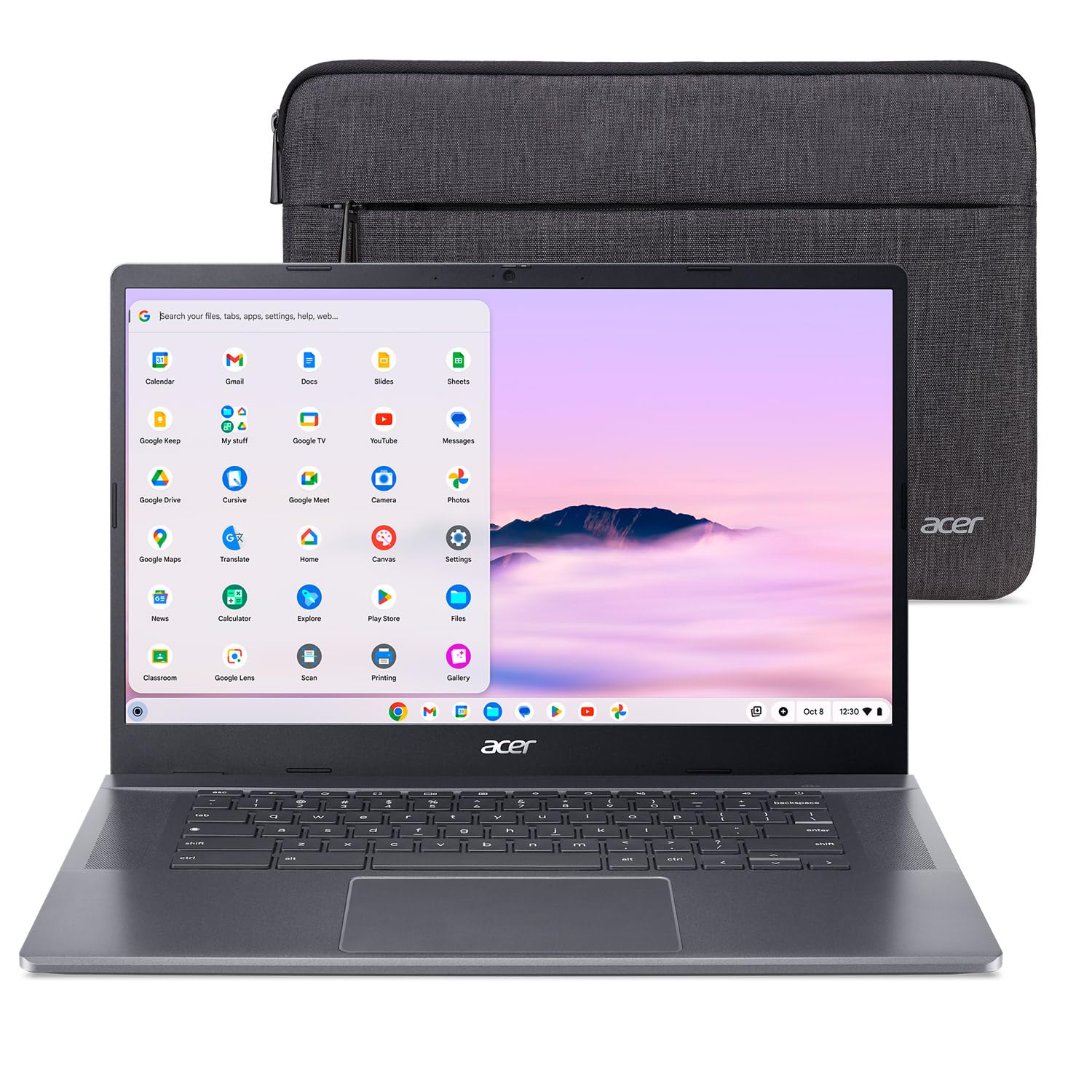
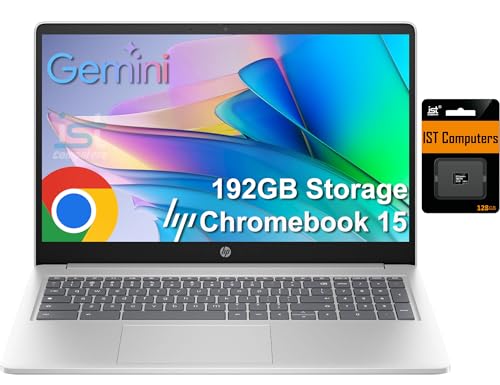
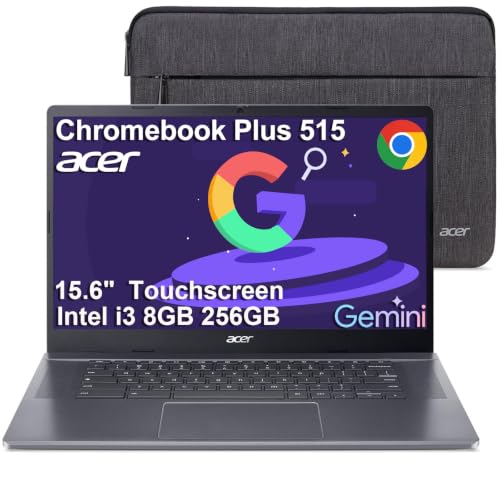
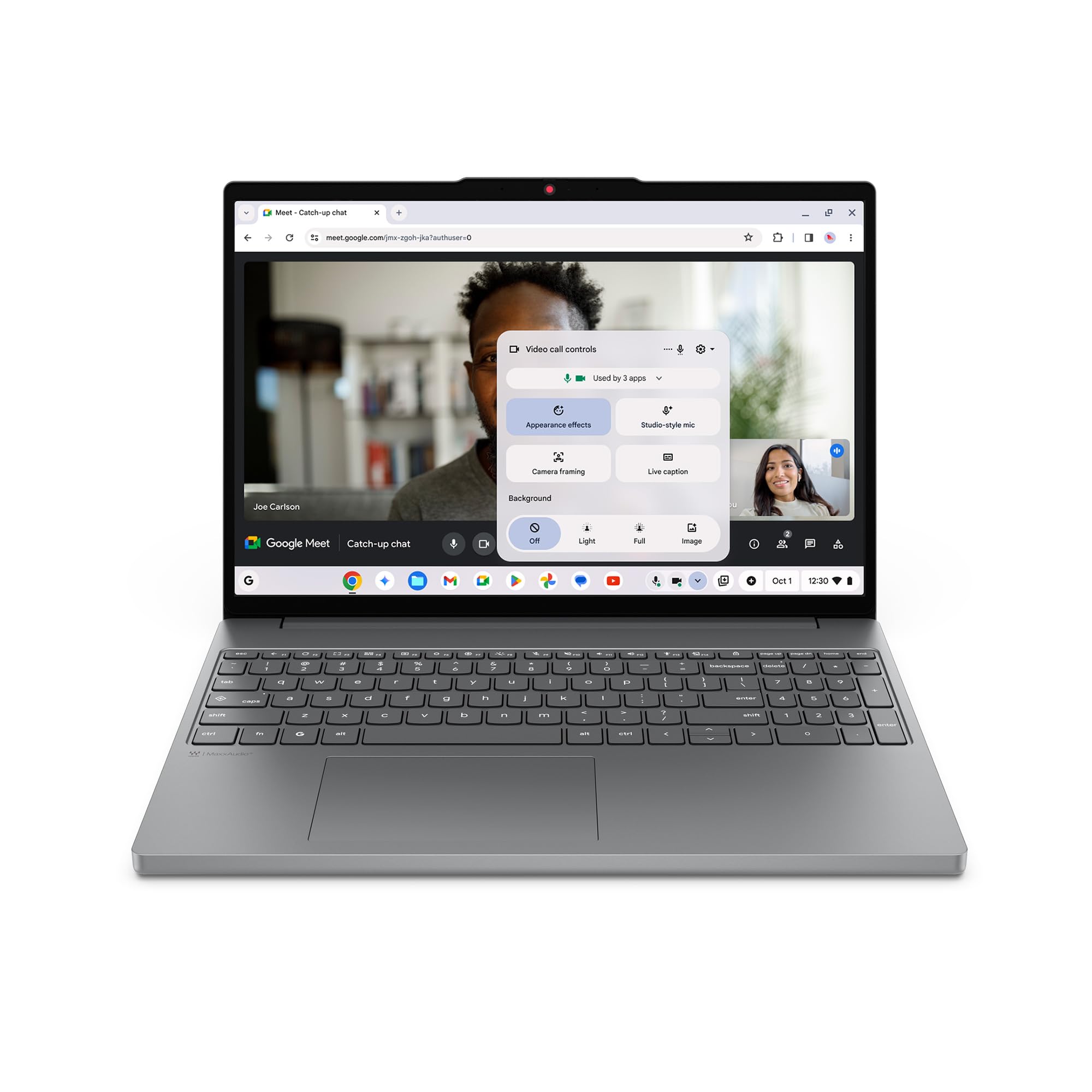
A 15 inch Chromebook offers a bigger screen than the typical small education model, with a full-size keyboard, and often at a price well below a Windows laptop of the same size. The best 15 inch chromebook is quick enough for tabs and documents, has a comfortable keyboard and a screen that is pleasant for hours.
Chromebooks run ChromeOS, which is simple and secure, and they suit browser-based work, streaming and school. This guide covers what to look for in the 15 inch size so the product table above makes sense.



Who a 15 Inch Chromebook Suits
Students, home users and remote workers who live in a browser will appreciate the large screen and easy upkeep. The bigger display makes spreadsheets, video calls and document editing more comfortable than on an 11 or 13 inch model.
If your work needs Windows-only software or heavy creative applications, a Chromebook may not fit. Check your essential apps before you buy.
What ChromeOS Does Well
ChromeOS starts quickly, updates automatically and keeps security tight with little effort. It runs web apps, Android apps on most models and Linux apps on many. Cloud storage integrates easily, and files sync across devices.
It lacks some desktop software and has limits for offline use, though many apps now work offline. For many people, those limits rarely matter in daily life.
Processor and Memory
Entry-level Chromebooks use basic processors that handle tabs and documents. Mid-range models with newer Intel or AMD chips feel faster and manage more tabs and video calls. Memory matters: 4GB is a minimum, while 8GB gives more comfortable multitasking.
Check how many tabs and apps you typically use. If you keep dozens of tabs open, 8GB and a stronger processor are worth it.
Screen Quality and Touch
Many 15 inch Chromebooks have Full HD screens, which look much sharper than basic HD panels. IPS panels give better viewing angles and colors. Touch screens are common and useful with Android apps, though they can reduce battery life slightly.
If you work near windows, look for a brighter, matte panel. Buyer comments reveal how readable the screen is in daily use.
Storage and Cloud Use
Storage on Chromebooks is usually small, since files live in the cloud. A 64GB or 128GB drive is enough for most people, though more is useful for offline files and Android apps. Check whether the model has a card slot for expansion.
If your internet connection is unreliable, store key files offline and sync them when you can.
Battery Life and Build
Chromebooks are known for good battery life, often a full day of light use. A larger screen uses more power, so check buyer comments. Build quality varies, with budget models using plastic and premium ones adding metal and better hinges.
A solid hinge and a firm keyboard give a better long-term experience than a thin, flexy body.
Ports and Connectivity
- USB-C for charging and external displays.
- USB-A for older accessories and flash drives.
- Wi-Fi 6 or newer for faster and more stable connections.
- A headphone jack and a card reader if you use them.
Chromebook or Windows Laptop at the Same Price?
For the same money, a Chromebook often gives a better screen, faster startup and longer battery life than a budget Windows laptop. A Windows laptop gives more software freedom and handles specialized programs. If most of your work happens in a browser, the Chromebook is usually the smoother and simpler choice.
If you need Microsoft Office desktop applications, remember that web versions exist and work well for most tasks. Check whether your workflow can live in a browser before you decide.
Setting Up and Keeping It Fast
Sign in with your Google account to sync bookmarks, apps and settings. Remove extensions you do not use, close tabs you are done with and restart the device occasionally. These small habits keep a Chromebook feeling quick for years.
Keep the device updated, and note the automatic update expiry date listed for your model. That date tells you how long you will receive security updates.
Accessories Worth Considering
A padded sleeve protects the screen in a bag. A USB-C hub adds ports if you use many accessories. A wireless mouse is more comfortable than a trackpad for long sessions, and a small stand lifts the screen to eye level for better posture.
If you plan to use the Chromebook with an external monitor, check that a USB-C or HDMI port supports video output.
Mistakes to Avoid When Buying a Chromebook
The most common mistake is choosing the cheapest model with a low-resolution screen and a very small drive, then finding it frustrating after a few months. A sharper display and a bit more memory change daily comfort more than almost any other feature. Another mistake is ignoring the automatic update date, since a model that stops receiving updates soon is a poor long-term buy.
Buyers also assume every Android app works well on a large laptop screen. Many do, but some are designed for phones and look stretched. Try the apps you rely on, or check that web versions exist.
Who Should Skip a Chromebook
If your work depends on Windows-only software, heavy video editing, large local games or specialized engineering tools, a Chromebook will be a frustrating fit. The same applies if you often work without a reliable internet connection and cannot rely on offline modes.
For everyone else, a 15 inch Chromebook is an easy, affordable and low-maintenance companion for study, work and home use.
Related reading: best touchscreen chromebook, chromebook plus vs chromebook and how to upgrade a chromebook.
Frequently Asked Questions
Is a Chromebook enough for school or work?
For browser-based tasks, yes. Check that your essential software works on ChromeOS.
Can I use Windows software?
Not directly. Web alternatives or cloud apps often fill the gap.
How much memory do I need?
Eight gigabytes is comfortable for many tabs. Four works for light use.
Do Chromebooks get updates?
Yes, for a set number of years. Check the update date in the listing.
Final Thoughts on the Best 15 Inch Chromebook
The best 15 inch chromebook offers a large screen, a comfortable keyboard and enough speed for your tabs and documents. Check that your software works, confirm the memory and use the table above to compare current prices. Prices and availability can change, so check the product page before ordering.


