
Best 1920x1080 Monitors in 2026: Full HD Buying Guide
Disclosure: We may earn a commission when you buy through links on this page, at no extra cost to you. As an Amazon Associate I earn from qualifying purchases. Learn more

Is full HD right for you? How to choose the best 1920x1080 monitors by size, panel type, refresh rate, ports and stand design.
Full HD, 1920 by 1080 pixels, is still the most common monitor resolution. It is affordable, easy for any computer to drive and sharp enough on screens up to about 24 inches. It also stretches thin on larger panels, which is why size matters. This guide explains how to choose the best 1920x1080 monitors for work, study and play.
The product table lists models from compact office screens to fast gaming displays. Use the sections below to decide which kind suits your desk.




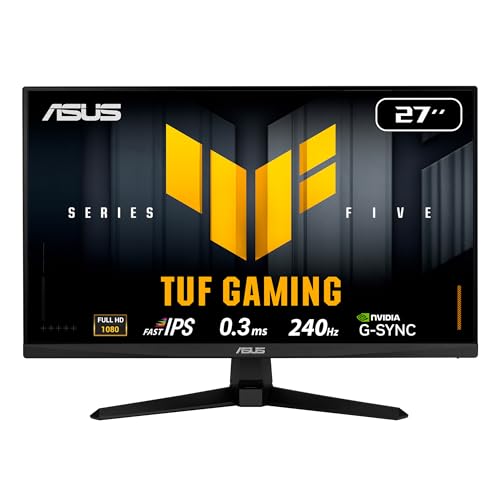
When Full HD Is the Right Choice
A 1920 by 1080 screen has about 2.1 million pixels. On a 24 inch monitor, that gives a sharp picture at normal viewing distance. At 27 inches the pixels are larger and text looks a little softer, and at 32 inches you will see the pixel grid more easily. Full HD is therefore ideal for 22 to 24 inch monitors, and acceptable at 27 inches if you sit a bit farther back.
It is also the best match for modest graphics cards. Games run faster at 1080p than at higher resolutions, so a full HD monitor lets an affordable graphics card reach high frame rates. If you do detailed photo editing or want maximum sharpness, consider the QHD or 4K models in our quality monitors guide.
Screen Size and Shape
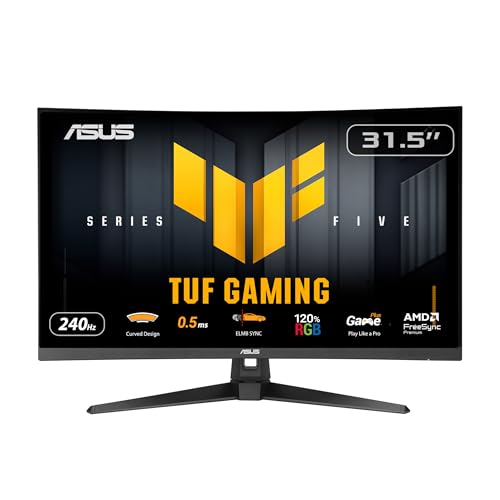
Choose a size that fits your desk and your eyes. A 22 or 24 inch monitor suits small desks and close viewing. A 27 inch display gives more room but is softer at this resolution. Curved options at 24 to 27 inches add immersion, and ultrawide full HD panels give a wide view but a lower pixel density.
Some monitors are built for dual setups, with thin bezels that reduce the gap between screens. Others suit single screens and come with stands that adjust easily. Think about whether you will place the monitor on a stand or mount it on an arm.
Panel Types Compared
IPS panels give wide viewing angles and good color, and they are the common choice for office work and creative tasks. VA panels give deeper blacks and higher contrast, which is nice for movies and dark games, though some respond more slowly. TN panels are fast and cheap but have narrower viewing angles and weaker color.
Check brightness as well. A rating around 250 nits is enough for most rooms, and higher is better for bright offices. A matte finish cuts reflections. Flicker free backlights and a low blue light mode help during long days at the computer.
Refresh Rate and Response Time
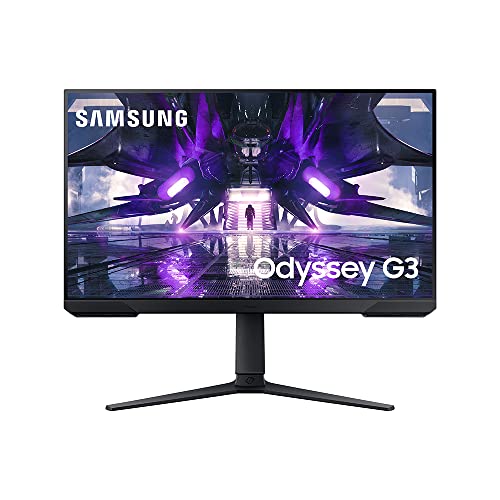
Standard monitors run at 60 or 75 Hz, which is fine for work. Gaming monitors offer 144, 165 or 240 Hz at full HD, which makes motion much smoother. Full HD is the easiest resolution to run at high frame rates, so it is popular for competitive shooters. If you game, look for adaptive sync and a quick response time. Our gaming monitors guide covers these in detail.
Ports and Features
Check that the monitor has the inputs you need. HDMI is standard, and DisplayPort allows higher refresh rates. Some models include USB C with power delivery, which lets a laptop connect with one cable and charge at the same time. A USB hub, speakers and a headphone jack are useful extras. Look for VESA mounting holes if you want to use an arm.
Ergonomics and Eye Comfort
A stand that adjusts for height, tilt and ideally swivel makes long sessions more comfortable. If the stand is basic, a monitor arm is a worthwhile upgrade. Place the top of the screen at or slightly below eye level and about an arm's length away. A low blue light mode and a flicker free backlight reduce strain in the evening.
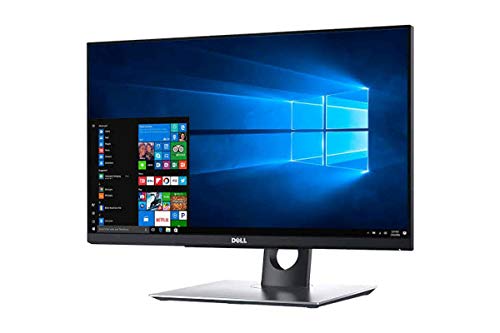
Touch models, such as monitors with touchscreens, are useful for kiosks and some workflows, but they are less common and often more expensive. Webcam monitors add a built in camera for video calls and save desk clutter.
Use Cases: Office, School and Home
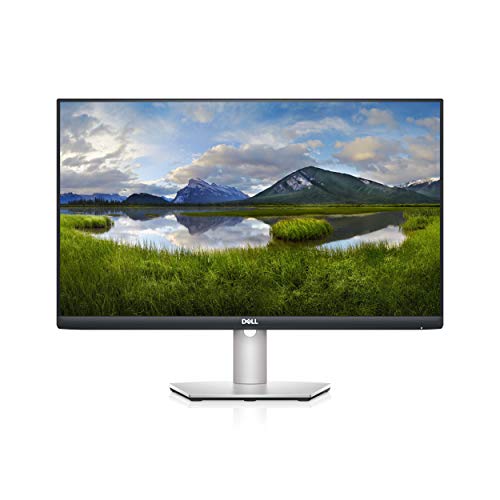
For office and school, a 22 to 24 inch full HD monitor with an IPS panel is an easy choice. It shows documents and spreadsheets clearly, takes little desk space and costs little. Add a second identical monitor for a dual screen setup that makes research and writing much easier. For a home desk shared by family members, pick a monitor with a flexible stand and a plain, comfortable picture mode so it works for everyone.
For gaming, choose a faster panel with adaptive sync, and keep the size around 24 to 27 inches. For media, a VA panel with good contrast looks great for movies, and a bigger screen enhances the experience. If you use a laptop, USB C with power delivery gives a tidy one cable setup.
Setting Up for a Sharp Picture
Connect the monitor with HDMI or DisplayPort, then set the resolution to 1920 by 1080 in your operating system, since the native setting looks sharpest. Choose the correct refresh rate in the advanced display settings, because some computers default to 60 Hz even on faster monitors. Turn off any sharpening or dynamic contrast settings in the monitor menu if the picture looks harsh, and set a brightness that matches your room. Keep the screen clean with a dry microfiber cloth.
Warranty and Pixel Policies
Monitors are long lived, so check the warranty. Many makers cover three years, and some offer a zero bright pixel policy or similar guarantee. Look at the return period and keep the box until you have checked the screen for dead pixels and uneven backlight. Displaying a solid white and black screen reveals most defects. If you find a problem, contact the seller promptly.
Cables, Adapters and Small Extras
Use the cable that comes with the monitor, or buy a certified HDMI or DisplayPort cable that supports your refresh rate. If your computer has only older ports, an adapter can bridge the gap, though it may limit resolution or refresh rate. A monitor arm, a desk mat and a cable clip keep the workspace tidy, and a bias light behind the screen can reduce eye strain in a dark room.
Frequently Asked Questions
Is 1920x1080 still good enough?
Yes, especially on screens up to 24 inches. It is affordable and easy for any computer to drive.
Is 27 inch full HD too soft?
Text is a bit less sharp than on a QHD monitor, but many people find it fine, especially for gaming and video.
Which panel type is best?
IPS for color and viewing angles, VA for contrast and TN for speed on a tight budget.
Do I need a high refresh rate?
Only if you game or like smooth motion. For office work, 60 or 75 Hz is fine.
Final Thoughts
The best 1920x1080 monitors match their size to the resolution, use a panel type that suits your work and offer the ports and stand you need. Decide whether you want an office screen or a gaming display, compare models in the product table and pay attention to ergonomics. Full HD gives excellent value if you pick the right size.


