Best 1TB SSDs for 2026: NVMe, SATA and Portable Drives Compared
Disclosure: We may earn a commission when you buy through links on this page, at no extra cost to you. As an Amazon Associate I earn from qualifying purchases. Learn more

Best 1tb ssds explained: form factor, NVMe generation, endurance and heat so you can match a drive to your PC, laptop or console.
A one terabyte solid state drive is the sweet spot for most computers: roomy enough for the system, a game library and work files, yet priced low enough that the upgrade is easy to justify. This guide to the best 1tb ssds covers the choices that matter, from interface and speed to heat, endurance and which form fits your device.
The product table lists drives available new, including internal NVMe sticks, 2.5 inch SATA drives and portable external models. The sections below explain how to choose between them.






Form Factor: M.2, 2.5 Inch or External
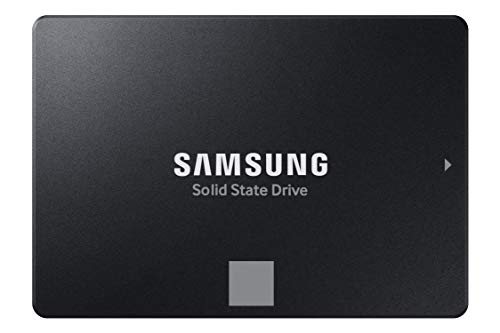
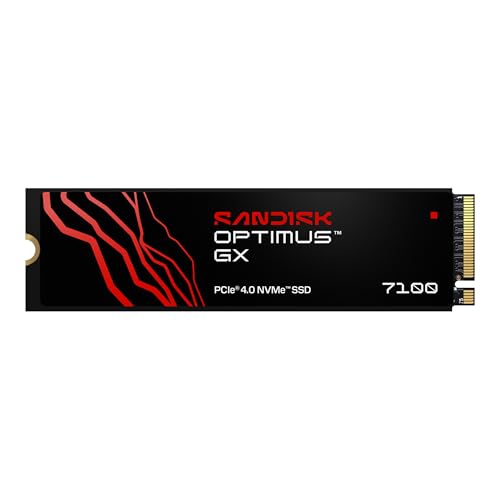
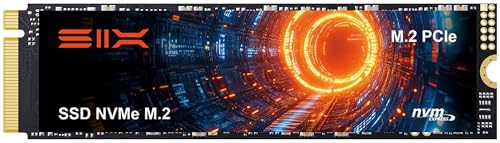
M.2 NVMe drives are small sticks that plug directly into the motherboard of a modern PC, laptop or console bay. 2.5 inch SATA drives look like small boxes and fit older laptops and desktops with SATA ports. External drives connect over USB and work with any computer.
Pick the form your machine supports first, since a mismatch is the most common cause of returns.
NVMe Generations: Gen 3, Gen 4, Gen 5
NVMe drives are labelled by the PCIe generation they use. Gen 3 drives are the oldest and cheapest, Gen 4 drives are fast and widely supported, and Gen 5 drives are the fastest and run hotter. Your motherboard decides the top speed: a Gen 5 drive in a Gen 3 slot runs at Gen 3 speed.
For games and everyday work, a good Gen 4 drive is usually all you need.
SATA Is Still Fine
A SATA SSD tops out at around 550 megabytes per second, far below NVMe, but it is still many times faster than a hard drive. For an older computer, a SATA SSD is the simplest upgrade and often the best value.
Real World Speed vs Box Numbers
Headline figures are sequential reads with an empty drive. In daily use, random reads and sustained writes matter more. A drive with a larger cache holds its speed for longer in big copies, while a cheaper drive may slow after the cache fills.
Endurance and Warranty
Look at the terabytes written rating and the warranty period. A higher rating suits heavy users who write a lot of data, such as video editors. For typical use, any mainstream rating lasts years. A five year warranty is a good sign of confidence.
DRAM Cache and Controller Quality
Some drives include a separate memory cache that helps consistent speed. Others use host memory, which saves cost with a small effect on speed. For a main drive in a workstation, a model with DRAM is a safe choice.
Heat and Heatsinks
Fast NVMe drives can throttle when they overheat. Many motherboards include a heatsink and some drives ship with one. In a laptop there is no space for a heatsink, so a cooler running drive is a better choice.
Console and Special Uses
Check that the drive meets the console maker requirements, including a heatsink if the guide asks for one. For video editing, choose a drive with strong sustained writes.
Capacity: Is One Terabyte Right for You
A terabyte fits the operating system, a decent collection of large games, a year of photos and plenty of documents. If you edit 4K video or keep an entire console library, step up in size, and if you use a computer for office tasks, a smaller drive saves money. The price gap between sizes narrows with each generation, so compare before you commit.
Matching the Drive to Your Use
For a gaming PC, a Gen 4 NVMe drive loads levels quickly and leaves room for a library. For a work laptop, a cooler running NVMe or a SATA drive keeps temperatures and battery draw low. For an old desktop that still boots from a hard drive, a SATA SSD is the biggest improvement per dollar you can make. For a creator who moves files between machines, a portable drive over a fast USB-C port gives flexibility, and an internal drive stays the better choice for the main system.
Whatever you choose, install the drive in the fastest slot your board offers and check in the BIOS that it appears at the expected speed.
Buying Tips
Avoid listings with unclear model names, since SSD makers sometimes switch the internal parts under the same product line. Prefer a seller with clear return terms, check the drive health after installing and run the maker tool to confirm the firmware is current. If a price looks far below the rest, read buyer comments carefully before you order.
Setup and Care Tips
- Copy your old system across with the maker tool or reinstall the operating system after fitting an internal drive.
- Update the drive firmware with the maker tool.
- Leave some free space so that the drive can manage wear and keep its speed.
- Do not defragment an SSD, since it does not help and adds wear.
- Keep a backup, because any drive can fail.
Frequently Asked Questions
Is a 1TB SSD enough for gaming?
For most players yes. A terabyte holds the system and a good number of large games, but very large libraries may need more.
NVMe or SATA?
NVMe is faster, but SATA is fine for older systems and everyday use.
Do I need a heatsink?
For Gen 4 and Gen 5 drives in a desktop, one helps. Many motherboards provide it.
Does a faster drive make games run better?
Games load faster, but frame rates depend on the graphics card and processor.
How long do SSDs last?
Typically for many years of ordinary use, and most drives come with a multi year warranty that covers early failure.
Can I move my old drive contents to the new one?
Yes. Most makers offer free migration software that copies the system and files, and you can also copy files by hand and reinstall the operating system for a clean start.
How do I choose the best 1tb ssds?
Check the slot or port your device offers, then choose the interface generation, endurance and warranty.
Final Verdict
The best 1tb ssds are the ones your device can use: the right form, an interface that matches your slot, good endurance and a sensible price. Compare the options in the product table and see our guides to the best ssd and ssd vs hdd for more background. Prices and availability change, so check the product page before ordering.