
Best 2 in 1 Laptop for Note-Taking for 2026: Light Convertibles With Pen Support
Disclosure: We may earn a commission when you buy through links on this page, at no extra cost to you. As an Amazon Associate I earn from qualifying purchases. Learn more

Best 2 in 1 laptop for note-taking explained: pen, palm rejection, screen shape and battery for lectures and meetings.
Handwritten notes stick in the memory better than typed ones for many people, and a 2-in-1 laptop lets you keep both: type a lecture when it is fast, write when diagrams matter, then search everything later. This guide to the best 2 in 1 laptop for note-taking explains the features that matter for notes: a pen that feels natural, a screen with a friendly shape, long battery life and good handwriting software.
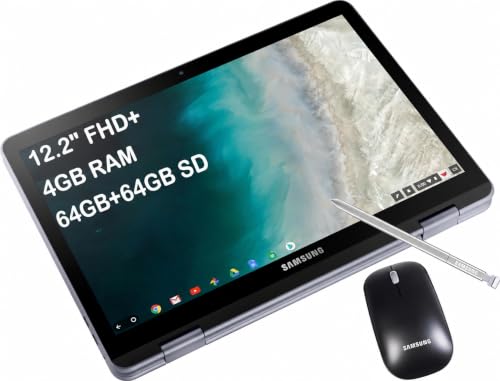
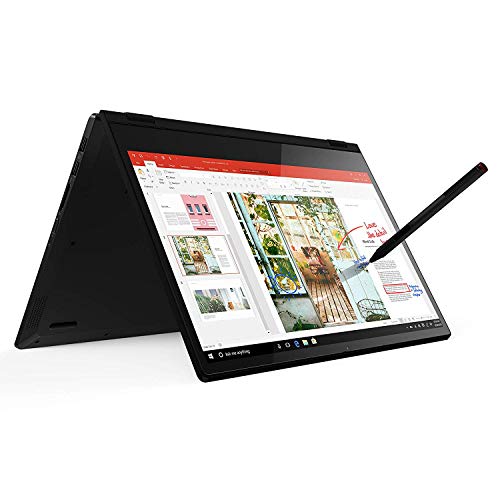
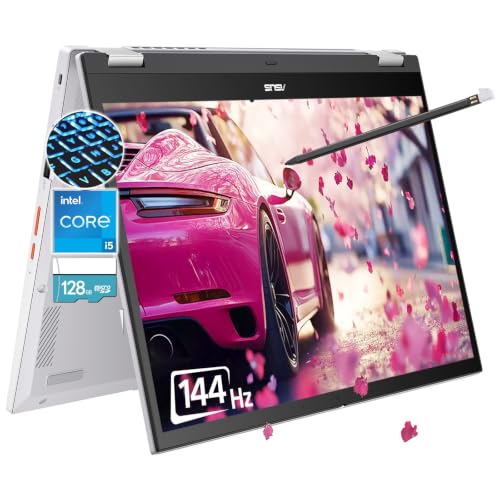
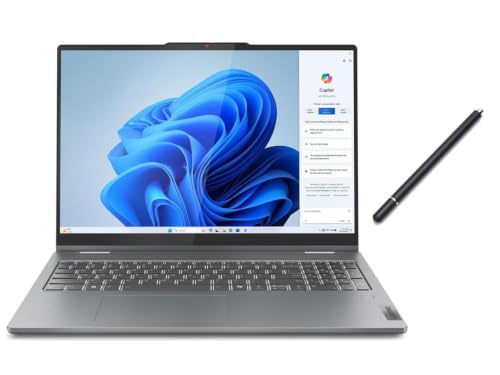
The product table lists convertibles available new that come with a stylus or support one, from small light Chromebook style models to larger Windows machines. The sections below show how to pick one for classes, meetings and research.




What Makes a Good Note-Taking Laptop
Notes are about speed and comfort. You want a screen that wakes instantly, a pen that responds without lag, a palm rejection that ignores your hand and a battery that lasts through a day of lectures. Raw processor power matters less than it does for gaming or video editing.
Screen Shape and Size
A taller screen with a 3:2 or 16:10 shape gives more page like space than a wide 16:9 screen. A 12 to 14 inch size is easy to carry and fits on small lecture desks. Larger screens give more room for split view notes and slides but weigh more.
Pen Type: Active or Capacitive
Many listings bundle a simple capacitive stylus, which works like a finger tip and is fine for basic notes and tapping. An active pen gives palm rejection, finer lines and pressure, which makes handwriting look more natural and accurate. If you write a lot, choose a model with active pen support.
Handwriting Software
Look for notebook apps that convert handwriting to text, search handwritten words and sync across devices. Windows has built in ink tools, and many note apps work on Windows and ChromeOS. Check that your preferred app runs on the device.
Palm Rejection and Latency
Palm rejection lets you rest your hand on the screen while writing, and good rejection removes accidental marks. Latency is the delay between pen and ink. Low latency feels like writing on paper, and high latency feels floaty. Buyer notes are the best guide here.
Portability and Battery
Notes happen in classrooms, libraries and trains, so weight and battery life matter. Lighter machines are easier to carry all day. Look for a battery that runs a full day of light use, and a charger that is small enough to carry.
Typing and Keyboard
A comfortable keyboard helps when you type notes quickly. Check key spacing and backlighting. A 2-in-1 with a good hinge lets you flip to tablet mode for handwriting and back for typing.
Storage and Sync
Notes are small, so even modest storage is enough. Cloud sync keeps your notes backed up across devices. Make sure you have a backup plan in case the laptop is lost.
Setup Tips
- Pair the pen and enable palm rejection before the first class.
- Set up your notebook app and a folder structure for each subject.
- Back up notes to the cloud daily.
- Carry a spare pen tip and keep the screen clean.
Typed Notes, Handwritten Notes or Both
Typing is faster for lectures that move quickly, and handwriting is better for diagrams, formulas and mind maps. A 2-in-1 lets you switch within the same page. Many students type the main text and add quick sketches with the pen, then search for typed words later. Handwriting search also works in some apps, but accuracy depends on your writing style, so keep a typed summary for important topics.
Reading and Marking Up Documents
Reading PDFs and slides is a big part of study. With the screen folded back, you can hold the laptop like a clipboard and highlight, underline and add comments with the pen. A taller screen shape shows more of a page at once, which reduces scrolling. Check that the PDF reader you prefer supports ink so that your marks stay editable.
Meetings and Research Work
Outside class, the same laptop works for meetings: keep the keyboard for minutes and the pen for quick sketches. Researchers can capture whiteboard ideas, annotate papers and keep everything in one notebook. Choose a machine with a quiet fan and a clear webcam if you also join calls, since a loud laptop is distracting in a library.
Common Problems and Fixes
If the pen skips, clean the screen and check the nib. If palm marks appear, turn on palm rejection in the settings and rest the side of your hand, not your wrist, on the glass. If the battery runs low, lower the brightness and close background apps. If the handwriting looks jittery, update the pen driver and the notebook app.
Checking Pen Comfort Before You Commit
Because handwriting is personal, check the return window and try a full day of notes in the first week. Pay attention to how the pen tip feels, whether your palm causes stray marks and whether the screen stays smooth. If you do not enjoy writing on the screen within a few days, return it and try a different pen or screen surface rather than living with a poor match.
Organising Notes So You Can Find Them
Create one notebook per course or project and one section per week or topic. Add the date at the top of each page, and use tags for key terms. A consistent system matters more than the app you choose, because it makes search and review fast when exams or deadlines arrive.
Frequently Asked Questions
Do I need an active pen for notes?
Not always, but it makes handwriting feel better.
Is a Chromebook good for note-taking?
Yes, for many people. Check that your note app is supported.
What screen size is best?
Twelve to fourteen inches is a good balance.
Will handwriting convert to text?
Yes in many note apps, with varying accuracy.
How long should the battery last?
Look for a full day of light use.
How do I choose the best 2 in 1 laptop for note-taking?
Look for low pen delay, good palm rejection, a comfortable screen shape and battery life that lasts a full day.
Final Verdict
The best 2 in 1 laptop for note-taking is light, quick to wake and comfortable to write on. Compare the options in the product table and read our guides on the best touchscreen 2-in-1 laptop and the best 2-in-1 laptop for students for more. Prices and availability change, so check the product page before ordering.


