
Best 20TB External Hard Drives in 2026: Bulk Storage Without the Guesswork
Disclosure: We may earn a commission when you buy through links on this page, at no extra cost to you. As an Amazon Associate I earn from qualifying purchases. Learn more

The best 20TB external hard drive depends on how you will back it up. Compare desktop and rugged drives, interfaces and what to protect first.
Twenty terabytes holds a very large photo archive, a video library or years of backups, which is why the best 20TB external hard drive is usually a desktop drive with its own power supply. That much capacity changes the rules: the drive is slower to fill, heavier to move and more painful to lose.
The product table lists the real 20TB drives currently available, from plain desktop units to a rugged model, an encrypted drive and a two-bay unit. Use the sections below to decide which kind suits the way you work and how you will protect the data on it.
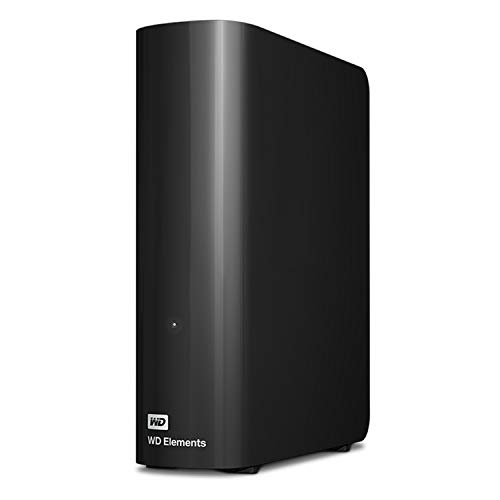
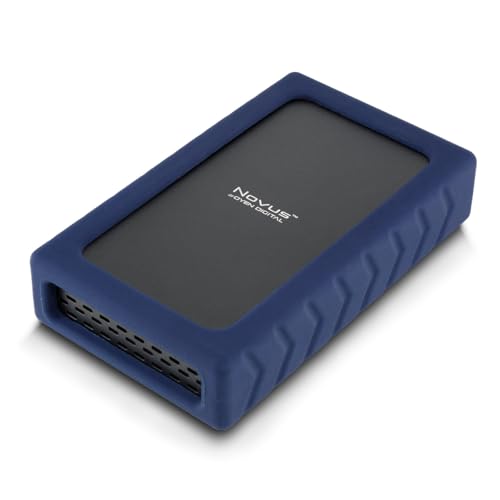
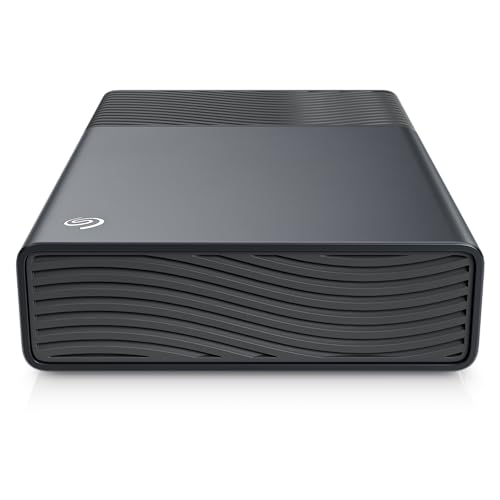
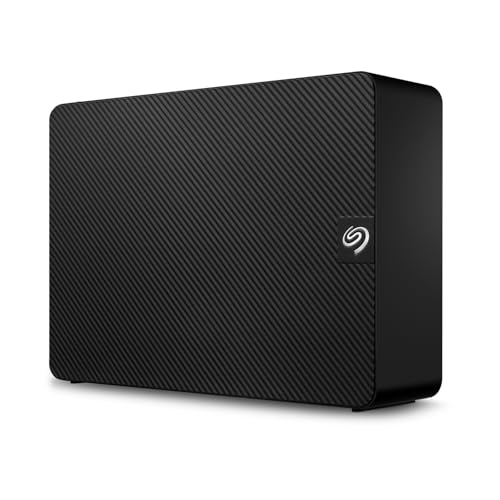

Desktop Drives vs Rugged and Encrypted Models
Most 20TB drives are desktop units that plug into a wall outlet and connect over USB. They are the cheapest per terabyte and the simplest to set up, and they suit a drive that lives on a desk or shelf. The trade-off is that they are not designed to be carried around, so treat them as a fixed archive rather than a travel drive.
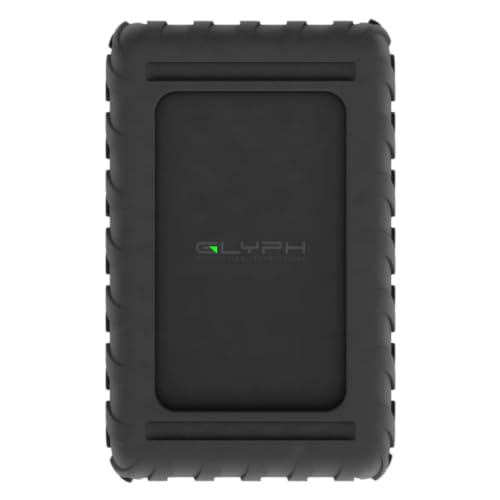
A rugged model adds a tougher enclosure and a USB-C connection, which suits a photographer or editor who moves a large project between locations. An encrypted drive adds a keypad or software lock that protects the contents if the drive is lost. Both cost more, so choose them only if the extra protection solves a real problem for you.
Single Drive or Two-Bay Unit
A two-bay unit puts two drives in one enclosure and can mirror them, so that one failed disk does not lose your files. That is attractive at this capacity, but a mirror protects against a drive failure only, not against deletion, theft, fire or a corrupted file. Read what the listing says about how the two drives are configured, because some are set up for speed rather than safety.
If you buy a single drive, plan to keep a second copy elsewhere. A second drive of the same size is the simple answer, and it is worth budgeting for before you move your only copy onto a new disk. Our guide to the Seagate vs WD brands may help if you are undecided between the two biggest names.
Interface, Speed and Ports
Check the connector on the drive and the port on your computer. A drive with USB-C is easiest on a modern laptop, while an older USB-A port works through a cable or adapter that is usually included. The product table shows both styles, and the listing names the interface so you can match it to your machine.
Speed at this size depends mostly on the mechanical drive inside, not the cable. A 7200 RPM unit moves large files faster than a slower spindle, and one rugged model in the table lists exactly that. Expect a long first copy either way, and leave the drive connected until the transfer finishes.
Compatibility with Mac, Windows and Consoles
Drives usually ship formatted for one system. A drive formatted for Windows needs reformatting to work as a full read and write disk on a Mac, and reformatting erases everything, so do it before you copy files. If you use both systems, choose a format that both can read and write, and check the maker's guidance in the listing.
If you are storing game libraries, remember that consoles have their own rules and size limits. Read the console's storage notes before buying, and see the best external hard drive for PS5 if that is your main use. Mac users can compare options in our guide for Mac.
Protecting 20TB of Data
The larger the drive, the more a single failure costs, so set up a backup routine on day one. Copy important folders to a second drive, keep one copy off site if the files are irreplaceable, and check from time to time that the files still open. A drive that sits unplugged in a drawer is not a backup, it is just a second thing that can fail.
Power matters too. A desktop drive needs a stable supply, and a sudden power cut during a write can corrupt the file system. A small surge protector or battery backup is cheap compared with the files on the drive.
Power, Heat and Placement
Desktop drives of this size generate real heat, and a hot drive wears faster. Give the enclosure a few inches of open space on every side, keep it off carpet and away from a sunny window, and do not stack it under a laptop. If the listing mentions a vented or aluminum case, that helps with heat, though airflow around it still matters.
When you shop for the best 20TB external hard drive, also check the power brick. A drive that needs a separate adapter is one more cable to manage, and a short cord can force an awkward placement. Measure the shelf where it will sit, and leave room for the cable to bend without strain.
FAQs
Is a 20TB external drive reliable enough for my only copy?
No drive is, whatever the size. Mechanical drives can fail without warning, so keep a second copy of anything you cannot replace.
Do I need to format a new drive before using it?
Many drives work immediately on Windows, but a Mac or a console may need a different format. Reformatting erases the disk, so do it before you copy any files. Our walkthrough on how to format an external hard drive covers the usual steps.
Can I use a bare drive in an enclosure instead?
You can, and an enclosure listed for large SATA drives is a flexible option. Check that the enclosure lists support for 20TB drives before you buy it.
How loud is a 20TB desktop drive?
You will hear a low hum and some clicking during large transfers. Placing the drive on a soft mat or a shelf away from your ears keeps it unobtrusive.
Final Thoughts
The best 20TB external hard drive is the one that matches how you will use it: a plain desktop unit for a fixed archive, a rugged or encrypted model for work on the move, or a two-bay unit if you want built-in redundancy. Whichever you pick, plan the backup before you copy the first file, and compare the drives in the product table.
Prices and availability can change, so check the product page before ordering.


