
Best 27 Inch Monitors for 2026: Size, Sharpness and the Right Balance for Your Desk
Disclosure: We may earn a commission when you buy through links on this page, at no extra cost to you. As an Amazon Associate I earn from qualifying purchases. Learn more

Roomy but still desk-friendly, the best 27 inch monitors suit work, media and games, so the real decision is resolution, refresh rate and the ports you need.
If a 24 inch screen feels cramped and a 32 inch one feels like a billboard, 27 inches is the comfortable middle. It fits on most desks, it shows two windows side by side, and the panel market is crowded with options at every price. The best 27 inch monitors differ less in size than in resolution, refresh rate, panel type and connections.
This guide helps you narrow the field. It covers what the size means in practice, how to choose a resolution, when a fast refresh rate is worth paying for, what to look for in ports and stands, and the traps that catch first-time buyers.
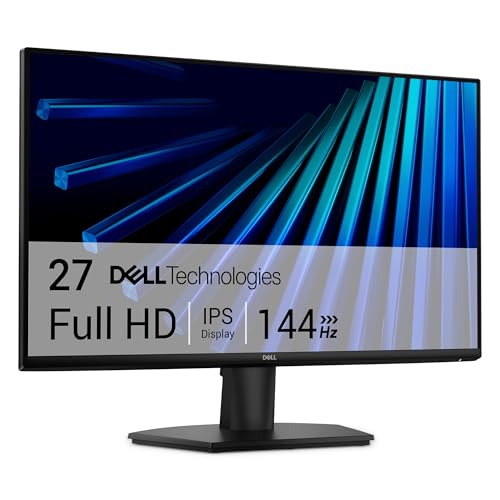


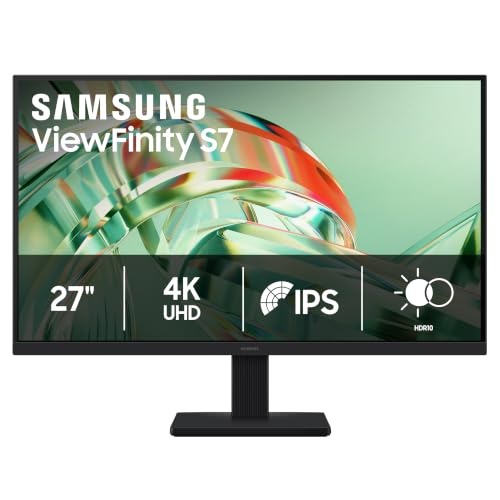

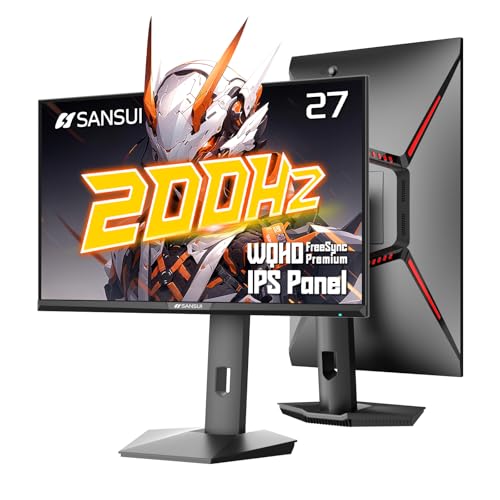
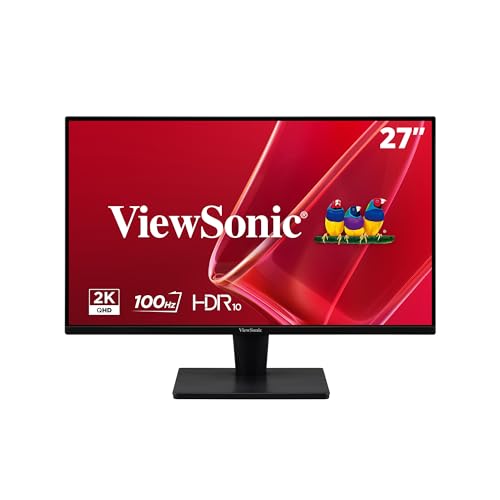
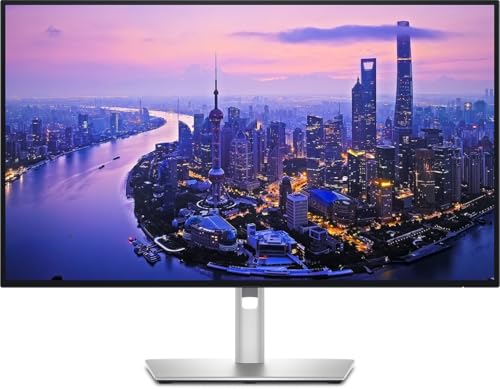
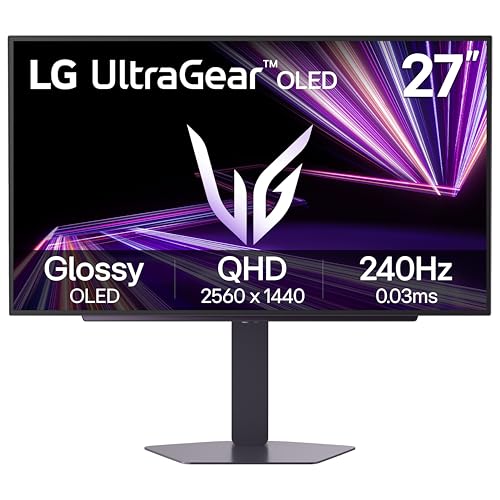
What a 27 Inch Screen Looks Like on Your Desk
Measured across the diagonal, a 27 inch widescreen panel is about 23.5 inches wide and 13 inches high. That is roughly the width of a standard keyboard plus a mouse mat. If your desk is at least two feet deep and you sit an arm's length away, the whole screen sits comfortably in view.
Smaller desks can still take the size if you use a monitor arm to push the stand's footprint off the desk. If the desk is very shallow, consider a 24 inch screen instead, or you will find yourself leaning back to see the corners.
Resolution: Pick the Sharpness You Need
A 1080p panel at 27 inches is the budget option and shows visible pixels up close. 1440p is the most popular choice, with clean text and a moderate graphics load. 4K gives the sharpest picture but needs scaling and a capable computer. Match the resolution to your tasks: reading and writing benefit from sharpness, and fast gaming benefits from refresh rate.
Related guides go deeper on the 4K models, the PC monitor range and the curved screens if you want to compare shapes.
Refresh Rate and Response
Office screens usually run at 60 to 100 hertz, which is fine for documents and video. If you game or like very smooth scrolling, 144 hertz is a noticeable improvement. Higher rates such as 240 hertz benefit competitive players who have the graphics card to match. Do not pay for speed you cannot use.
Response time is less important for office use. For gaming, look for fast panel types and adjustable overdrive, and treat headline response numbers with caution.
Panel Technology
IPS is the best all rounder with wide viewing angles and good color. VA panels offer deeper blacks and higher contrast for films, and OLED panels provide perfect blacks and excellent motion at a higher price. Each has a place. Choose by what you do most: spreadsheets and photos suit IPS, dark films suit VA or OLED, fast games suit fast IPS or OLED.
Ports and Connectivity
HDMI is universal and works for consoles and most laptops. DisplayPort suits PCs and supports high refresh rates. USB-C is the most useful extra for laptop users, since one cable can deliver the picture and charge the laptop. A USB hub built into the monitor reduces the number of cables on the desk.
Ergonomics
A good stand lets you adjust height and tilt. The top of the screen should be at or just below eye level. If the included stand is limited, a VESA mount lets you add an arm. Take a minute to position the screen well, since a poorly placed monitor causes neck strain over time.
Mistakes to Avoid
- Choosing a size without measuring the desk depth.
- Buying 4K and forgetting to set the scaling in the operating system.
- Paying for very high refresh rates for a work only machine.
- Ignoring the stand and living with a screen that is too low.
- Overlooking the warranty and dead pixel policy.
Comparing 24, 27 and 32 Inch Screens
A 24 inch screen is cheaper and fits tight desks, but two windows side by side feel cramped at 1080p. A 32 inch screen gives the most room and works well at 1440p or 4K, though it needs desk depth and a wider stand. At 27 inches you get the best compromise: enough space for two windows, a size that most desks and arms can hold, and a wide choice of models.
If you sit close, say under two feet from the glass, 24 inches may feel more comfortable. If you sit farther back or share the screen with others, 32 inches helps. The middle size rarely feels wrong, which is why it is such a common recommendation.
A Ten Minute Setup That Pays Off
Set the screen to its native resolution and the highest refresh rate in your display settings. Adjust the scaling so that text looks natural at your sitting distance. Lower the brightness until white pages look like paper in your room, and switch on a night mode if you work late.
Then adjust the stand so that your eyes are level with the top third of the screen. Spend a few minutes on cable routing so that nothing tugs on the connectors. A tidy desk and a well adjusted screen matter more than the last five percent of any spec sheet. For general help, our guide to 27 inch gaming monitors covers fast models.
Frequently Asked Questions
Is 27 inches too big for one desk?
Not if the desk is at least two feet deep. With a monitor arm even a shallow desk can handle it.
Which resolution should I buy?
1440p suits most people. Choose 4K for the sharpest text, or 1080p for a lower budget.
Do I need 144 hertz?
Only if you play games or like very smooth scrolling. For office work, 60 to 100 hertz is fine.
Can I connect a laptop with one cable?
Yes, if the monitor has USB-C with power delivery and your laptop supports video over USB-C.
Final Thoughts
The best 27 inch monitors are those that match your desk, your tasks and your computer. Choose a resolution you can drive, a refresh rate you will use, and a stand you can adjust. Then check the warranty and set the screen up properly, with the top edge at eye level.
Prices and availability can change, so check the product page before ordering.


