
Best 24 Inch Monitors in 2026: Reliable Screens for Work, Play and Study
Disclosure: We may earn a commission when you buy through links on this page, at no extra cost to you. As an Amazon Associate I earn from qualifying purchases. Learn more

Best 24 inch monitors cover work, study and gaming on one desk. Compare IPS and VA panels, refresh rates, stands and ports for your use.
It is hard to go wrong with a 24-inch monitor, and easy to overspend on one. The best 24 inch monitors are not the ones with the most features but the ones that match how you use the screen: calm and comfortable for work, fast and smooth for play, or a mix of both at a fair price.
The product table lists current models across the range, from basic 75Hz office screens to 144Hz and 200Hz gaming panels, flat and curved. This guide gives you a plain way to decide between them.
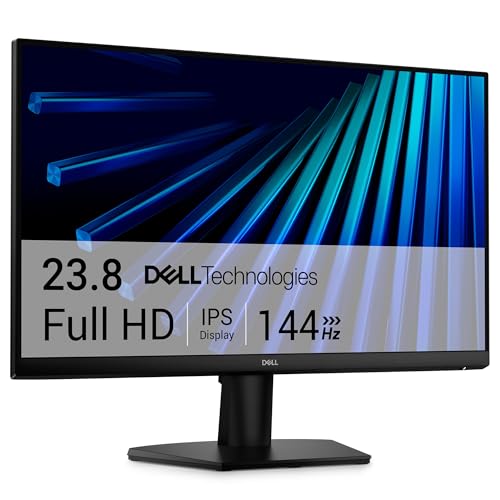
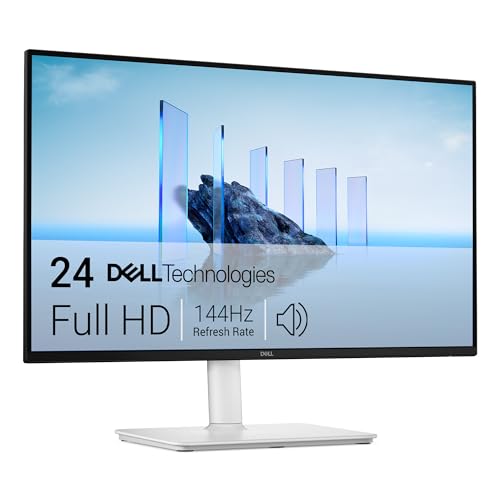

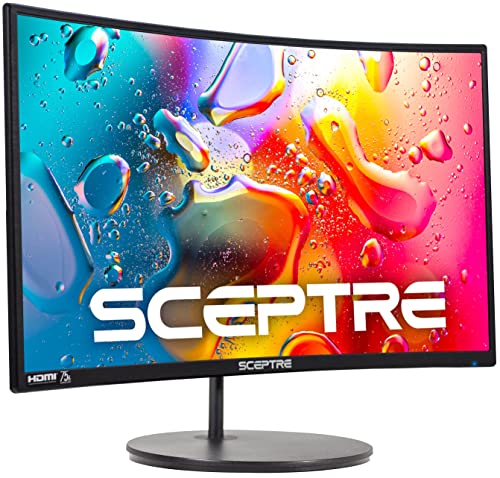

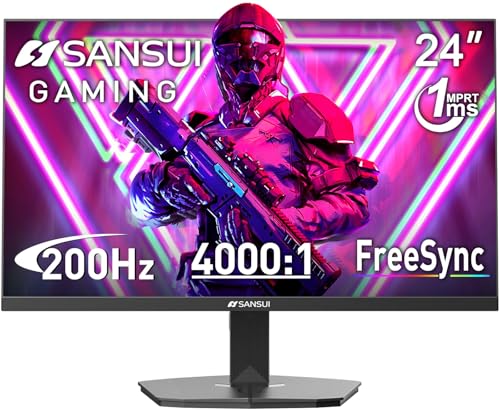

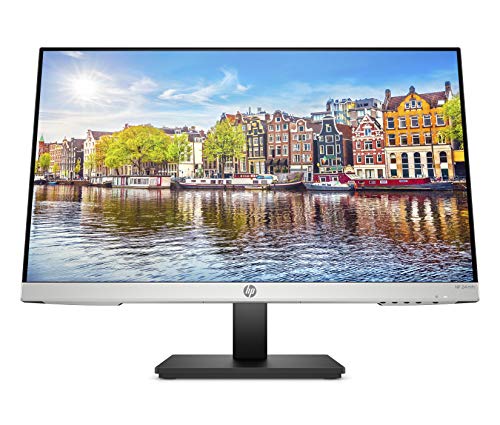
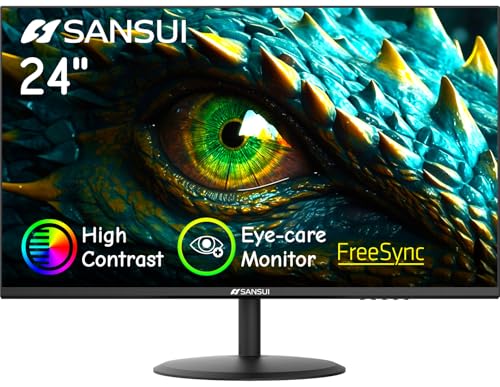
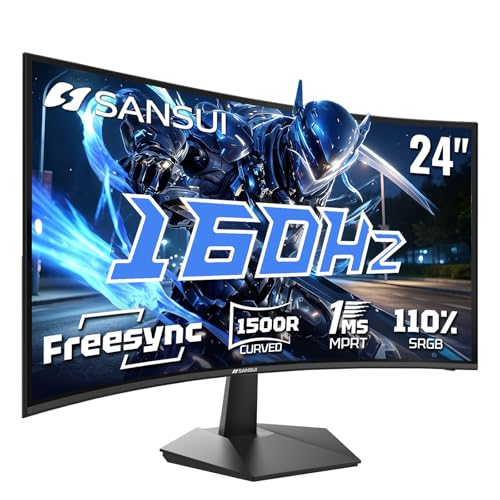
Decide Your Main Use First
If you spend most of your day in documents, email and browsers, choose comfort: an IPS panel, a flicker-free backlight, a decent stand. If you mostly play games, choose speed: 144Hz or more, adaptive sync and fast response. If you do both, a 100Hz to 144Hz IPS monitor covers the middle ground.
Write down the use, the budget and the ports your computer has. That short list narrows the table quickly, and prevents you from paying for features you will not use. For related options, see the best 24 inch 144Hz monitors, the best IPS 24 inch monitors and the best 24 inch PC monitors.
IPS, VA and Curved
IPS panels offer wide viewing angles and steady color, and VA panels offer deeper contrast. Curved monitors use VA and add a gentle bend that some people find immersive. For general use, IPS is the safest choice, and for movies in a dark room, VA can look richer. If you plan to put two monitors side by side, flat screens line up better.
Refresh Rate Options
You will find 75Hz, 100Hz, 120Hz, 144Hz, 160Hz and 200Hz in the table. For documents, 75Hz is fine. For smoother scrolling and casual games, 100Hz to 144Hz is a sweet spot. For fast shooters, 160Hz or more helps if your computer can keep up.
Make sure your computer and cable can handle the rate. Choose DisplayPort on a desktop for the highest rates and enable the setting in your operating system. Our page on 24 inch monitors with speakers covers a related decision.
Ports, Stand and Speakers
HDMI covers most uses, DisplayPort helps with high refresh rates and VGA serves older machines. The stand usually tilts, and sometimes adjusts height. An arm adds flexibility via the VESA pattern. Built-in speakers are common on budget models and acceptable for calls.
Budget and Value
The cheapest 24-inch monitors perform well for basic tasks. Spend more for IPS, higher refresh, a better stand and a longer warranty. The gap in daily comfort between a basic and a mid-range model is bigger than between mid-range and premium. Check the return policy and the warranty, since a monitor is easy to return when you act within the window.
Setup Tips
Set the monitor at arm's length, with the top edge at eye level. Choose a neutral picture mode and moderate brightness. Enable the highest refresh rate and adaptive sync if you game. Use a short, good-quality cable. Keep the screen clean with a dry microfiber cloth.
Mistakes to Avoid
Do not buy a high refresh rate you cannot use. Do not forget to enable it in settings. Do not ignore the stand. And do not choose purely by price. The best 24 inch monitors are comfortable first, and fast second if you play.
Comfort Settings That Matter
A new monitor often ships with the brightness near maximum. Turn it down until a white window looks like a sheet of paper in the room, not a lamp. Switch on the low blue light setting in the evening, and keep text sharp by leaving the sharpness control at its default. These quick changes make the best 24 inch monitors easier on the eyes without adding any cost.
Check the posture too. The top edge of the screen should sit at or just below eye level, about an arm's length away, with the screen tilted slightly back. If your neck tilts up or down, raise or lower the monitor with a riser or an arm.
Using Two 24-Inch Monitors
A pair is one of the cheapest ways to gain working space. Buy the same model for matching color, choose slim bezels and set them on a dual arm. Put the main screen directly in front of you and the second at a slight angle. Even a basic pair makes tasks like comparing documents or keeping a chat open far easier than one screen alone.
How Long Will a Monitor Last?
A well-made monitor lasts for many years, and the panel itself rarely fails. The usual weak points are the stand, the power supply and the backlight in very old screens. Keep the vents clear, avoid heat sources, and let the monitor sleep when idle. A longer warranty is a good sign of build quality, and it helps if something does go wrong.
Where to Spend and Where to Save
Spend on panel quality, a stand that adjusts and a warranty that lasts. Save on extras such as speakers, lighting effects and unusual styling. If a model has a feature you will never use, a plainer one at a lower price is a smarter buy. The cheapest models are fine for a spare room or a child's desk, and a mid-priced model is the best buy for a daily work screen.
FAQs
Is 24 inches the right size?
For most desks, yes. It is large enough for work and small enough for close viewing.
Should I buy IPS or VA?
IPS for color and viewing angles. VA for contrast and budget curved models.
How much refresh rate do I need?
75Hz for office, 144Hz for gaming.
Do I need a curve?
No. It is a style choice.
Final Thoughts
The best 24 inch monitors fit how you work and play. Choose panel and refresh rate by use, check ports and stand, and compare the models in the product table.
Prices and availability can change, so check the product page before ordering.


